

Reviewing Sources
Review sources on the global Sources page and individual Source details page.
You can review sources on the global Sources page or on an individual Source details page. For an overview of what sources are and how they work, see About Sources. For source management actions (start, stop, rerun, reset, and more), see Managing Sources. You can also discover and convert assets into sources from the Catalog.
Sources Page
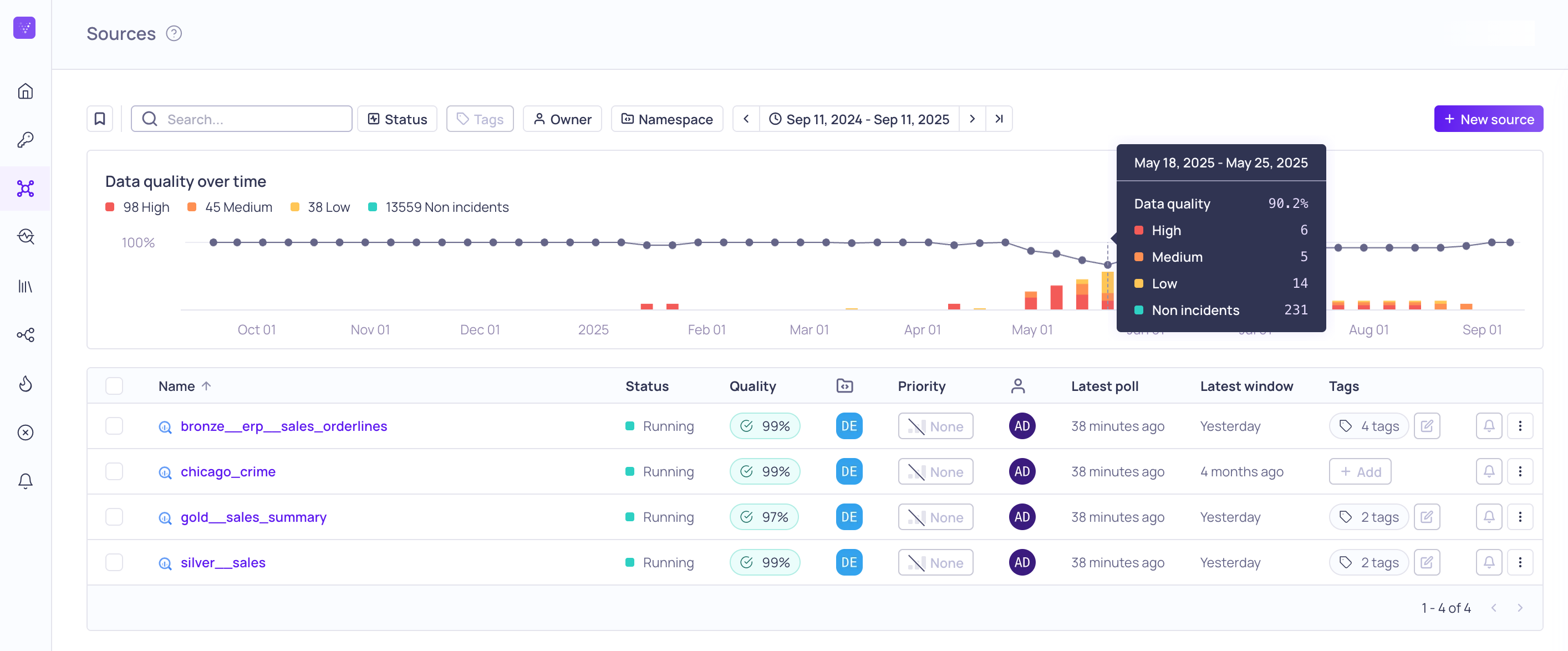
Global Sources page with data quality tooltip
The global Sources page lists all sources you have access to in Validio. The page includes a Data Quality graph with incidents histogram and a list of sources. You can filter and sort the list, add a new source, or click a source name to navigate to its Source Details Page.
Data Quality Graph
The Data quality over time graph displays the data quality score over the selected time range, a histogram of the severity of the detected incidents, and a count of the incidents for each severity. You can hover over the graph to see more information for each datapoint and bar.
List of Sources
In the source list you see the following information:
| Column Name | Description |
|---|---|
| Name | Source name. Click a Source name to navigate to its Source Details Page. |
| Status | The current status of the Source, such as Running or Polling. For the full list, see Status. |
| Lifecycle | Whether the source is Published or Not published. Shown for namespaces with approval workflows enabled. |
| Review state | Whether a proposed change on the source is Unsubmitted, In review, or has Changes requested. Shown for namespaces with approval workflows enabled. |
| Quality | The data quality score for the source over the selected time range, calculated from active incidents (excluding resolved and false-positive incidents). For more information, see Data Quality Score. |
| Priority | The importance (Critical, High, Medium, Low, None) of the source. Any incidents detected on this source will inherit this priority if the validator does not have a priority. |
| Namespace | The namespace assigned to the source. |
| Owner | The user responsible for the source. |
| Latest poll | How long ago data was last polled from the source. Displays an error if the last poll failed. |
| Latest window | How long ago data was last seen from the source. |
| Tags | Tags assigned to the source. Click the edit icon to add tags. |
Status
Possible statuses are:
| Status | Description |
|---|---|
| Initialized | The source is created but has never been started. |
| Starting | Start has been requested, and the source is starting to poll. |
| Running | The source is started and polls on its polling schedule. |
| Polling | The source reads data. This is only allowed from a running state. |
| Stopping | Stop has been requested, and the source is shutting down polling. |
| Idle | The source is stopped. Validio does not poll the source or run its validators. See Stopping a Source. |
| Pending backfill | User has requested to backfill one or more validators. |
| Backfilling | The source backfills historical records. This is only allowed from a running state. |
| Resetting | The source is resetting. See Resetting a Source for details. |
Filtering and Saving Views
You can search by Name, filter by Status, Priority, Namespace, Owner, and Tags, and change the Sort column. Once you have a useful combination of filters, you can save it as a View to revisit or share with your organization. For more information, see Searching, Filtering, and Saving Views.
Source Details Page
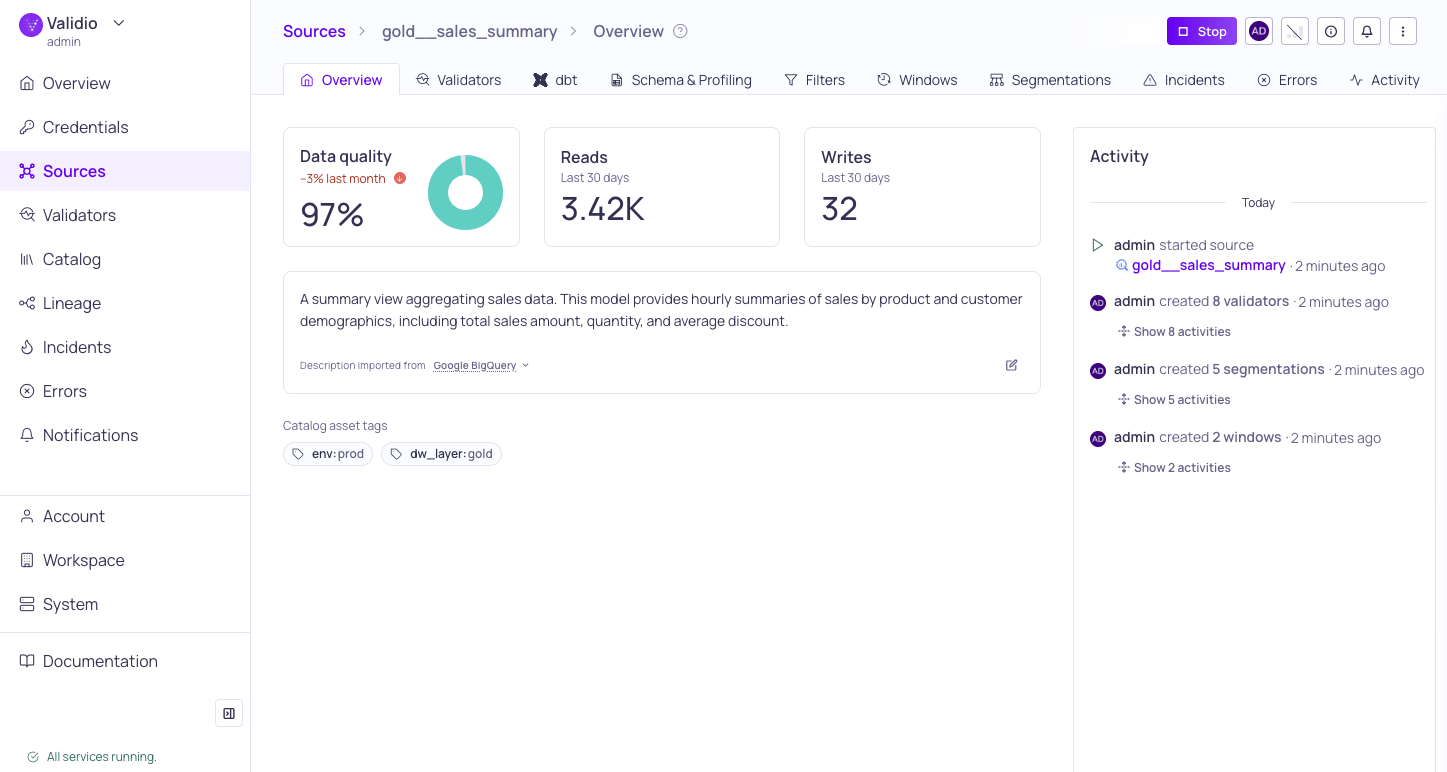
Source details Overview tab
To open a source's details page, click on a source name from the Sources Page. The source details are organized into tabs for reviewing validators, segmentations, incidents, and more.
Source Overview
The source overview contains the following information:
| Name | Description |
|---|---|
| Description | You can add a description to the source in Validio. Also automatically imports descriptions from external sources, such as Snowflake or dbt. |
| Data Quality | The data quality score for the source, calculated from active incidents (excluding resolved and false-positive incidents). For more information, see Data Quality Score. |
| Reads | The number of times the source is accessed in the last 30 days. |
| Writes | The number of times the source is modified in the last 30 days. |
| Activity Log | All recent operations on the source, including create, update, and delete of resources. Will also display information about when the source was started, stopped, backfilled, or when validators were rerun, with context about the user who did it or if the action was done through an API. Supports CSV export — see Activity Logs. |
Manage the Source
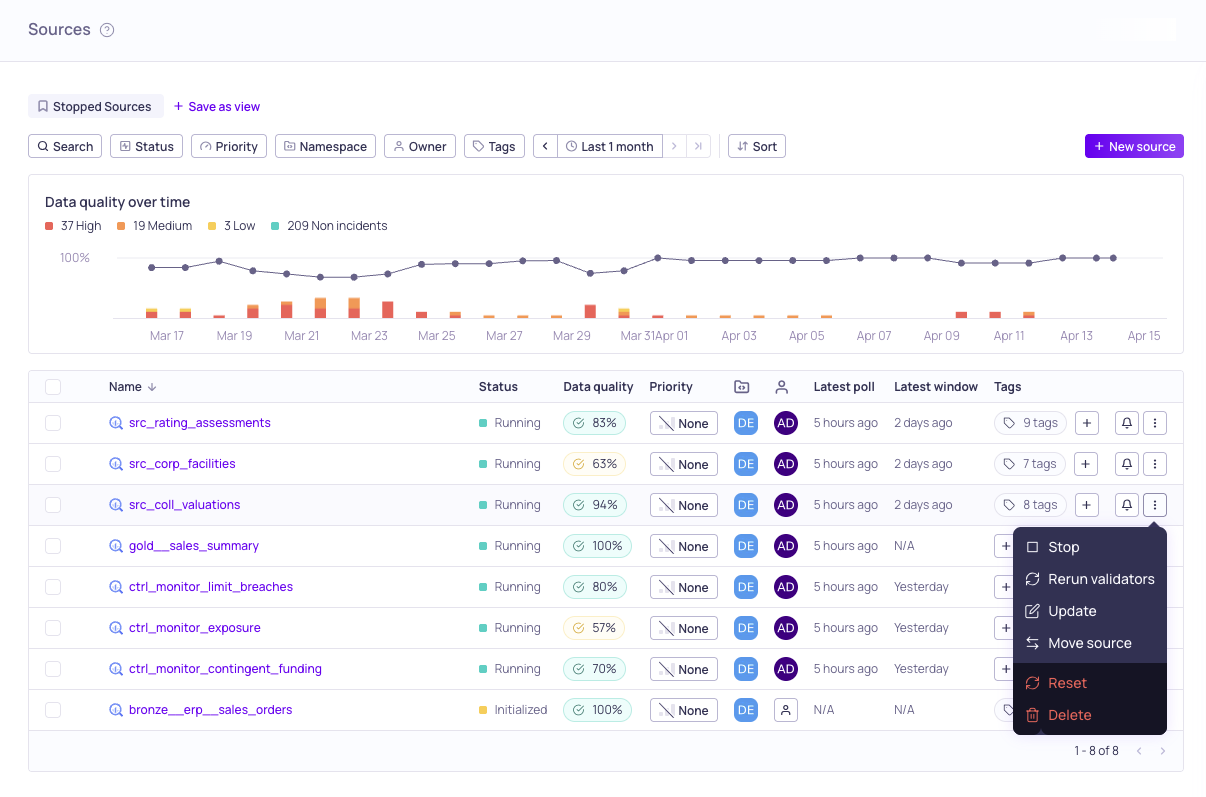
Global Sources inline actions menu
You can access management options for individual sources on the global Sources page or at the top of the source's details page. The options include start, stop, change ownership and priority, open information panel, mute source, rerun validators, and other actions. For the full list of management actions see Managing Sources.
Source Information Panel
The source information panel displays the source status and configuration. From this panel, you can view the source in Lineage, update the owner and priority, add or update tags, and update the description. There are two ways to open the panel:
- On the Sources page, click the row for an individual source.
- On the Source details page, click the i icon.
Source Configuration Tabs
All the resources configured on this source are separated into tabs:
| Tab Name | Description |
|---|---|
| Validators | Review and manage validators on this source, including their metric results, incidents, and configuration errors. |
| Schema & Profiling | Inspect the source schema, run data profiling, and preview sample rows. Schema change errors are surfaced here. |
| Filters | Create and manage filters that specify which records to include when configuring validators and segmentations. |
| Windows | Configure the batch size and aggregation period (global or tumbling) used for calculating and validating metrics. |
| Segmentations | Define segmentation fields to validate metrics per segment of your data, similar to a GROUP BY in SQL. |
| Incidents | Review incident groups on this source, assign ownership, and manage incident status. |
| Errors | View source errors such as polling failures, schema changes, missing fields, and segmentation limit violations. |
| Activity | View operational system events for the source, such as polling and source state changes. This tab is distinct from the source's Activity Logs, which appear on the Overview and can be exported to CSV. |
Updated 5 days ago