

Data Sampling
Preview a tabulated sample of rows from your source to inspect actual data values and verify data patterns.
Data sampling in Validio displays a tabulated preview of rows from your source or catalog asset, letting you inspect actual data values and verify data patterns. You can also use Data Profiling to generate statistical analysis of your fields.
Sampling returns real rows from your data rather than computed metrics, so the preview is transient: it is held in memory for display only — never written to Validio storage and discarded when you close or reload it. A sample returns at most 1,000 rows (the configurable Row limit cannot exceed this hard cap). For more on what Validio stores versus what stays in your warehouse — including the other features that display raw rows transiently — see Data Handling and Retention.
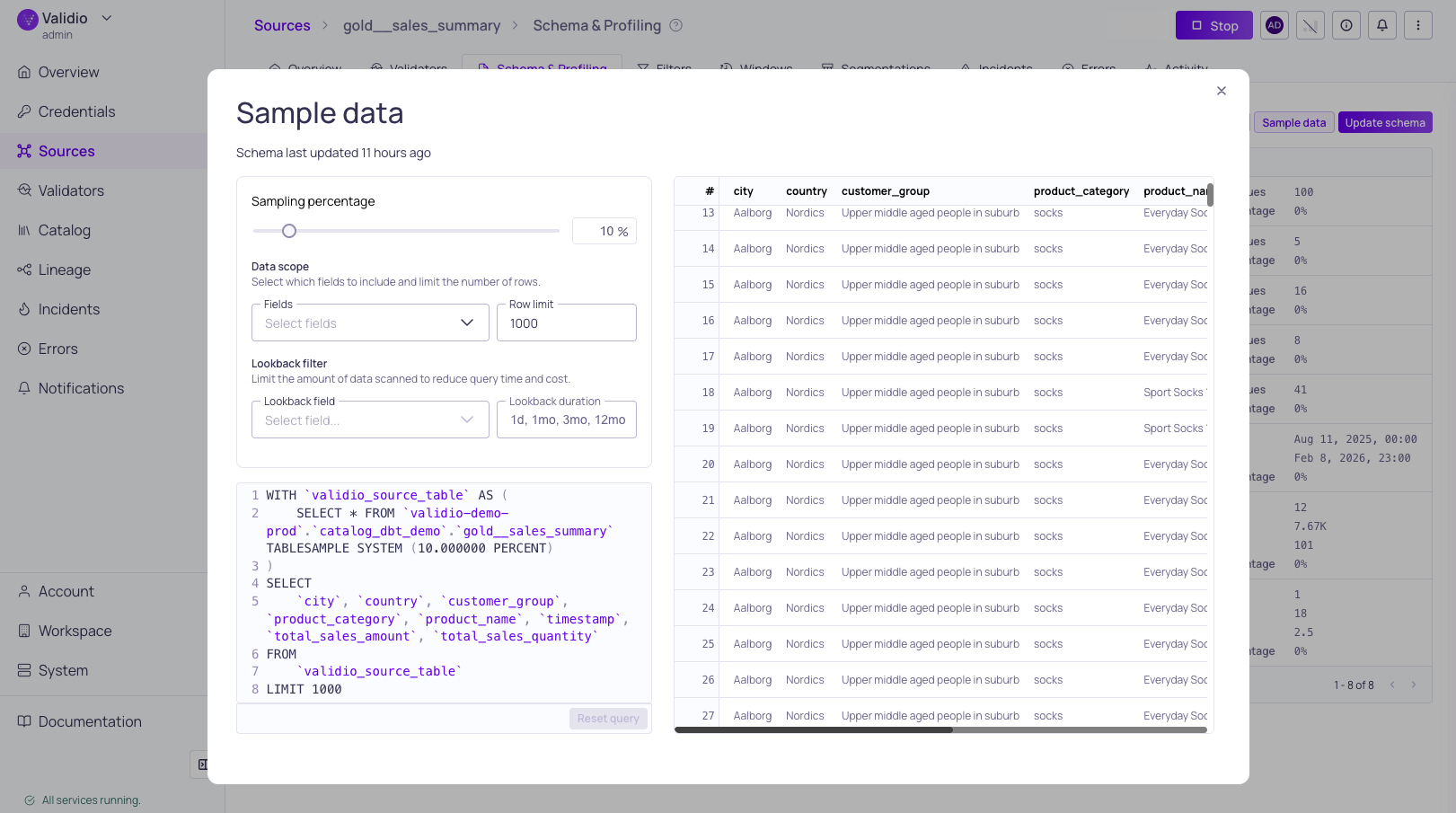
Data sampling configuration and preview
Running a Sample
To sample data from your source or catalog asset:
-
Navigate to the Schema & Profiling tab.
-
Click Sample data and configure the sample size and fields in the dialog:
-
Sampling Percentage: (Only available for tables and materialized views.) Use the slider or enter a number to adjust the percentage of data to include in the sample. Lower values speed up sampling on large tables. Defaults to 10%.
-
Data Scope: (Recommended) Cap the execution time on large datasets by limiting the fields and number of rows sampled:
Setting Description Fields Select specific fields to include in the sample. By default, all fields are included. Row limit Set the maximum number of rows to include in the sample. Defaults to 50 rows, up to a maximum of 1,000. -
Lookback Filter: (Recommended) Limit the data volume scanned by targeting only a specific window of recent data:
Setting Description Lookback field Select a timestamp or date field to define the sampling window. This limits the sample to recent data rather than scanning the full dataset. Lookback duration The specific amount of time to look back when filtering data. Use this with the Lookback field to sample only recent data. -
Credential (Only for catalog assets): Select a credential to use for displaying sample data.
-
The dialog includes a SQL query that is auto-generated from your settings. You can edit this query directly for more control, but note that manual edits are not synced back to the settings above. Click Reset query to discard any manual edits and regenerate the query from the current settings.
-
-
Click Load samples to display the results.
- To cancel a sampling run (for example, if sampling takes too long to complete), click Cancel and adjust the settings.
Use Cases
Data Sampling is useful for:
- Spot-checking that actual values match the detected schema and data types.
- Verifying data patterns before configuring validators.
- Investigating unexpected values or formats flagged during profiling or validation.
Updated 4 months ago