

Glossary Term Assignments
Assign glossary terms to catalog assets and schema fields to add business context to your data.
Glossary term assignments link business terms to your data, providing consistent definitions across your organization. You can assign terms to catalog assets (tables, views, streams, BI assets) and schema fields (individual columns within assets).
Glossary terms can be assigned to catalog assets and schema fields only. They are not assignable to sources or validators.
Assign Terms via Popover
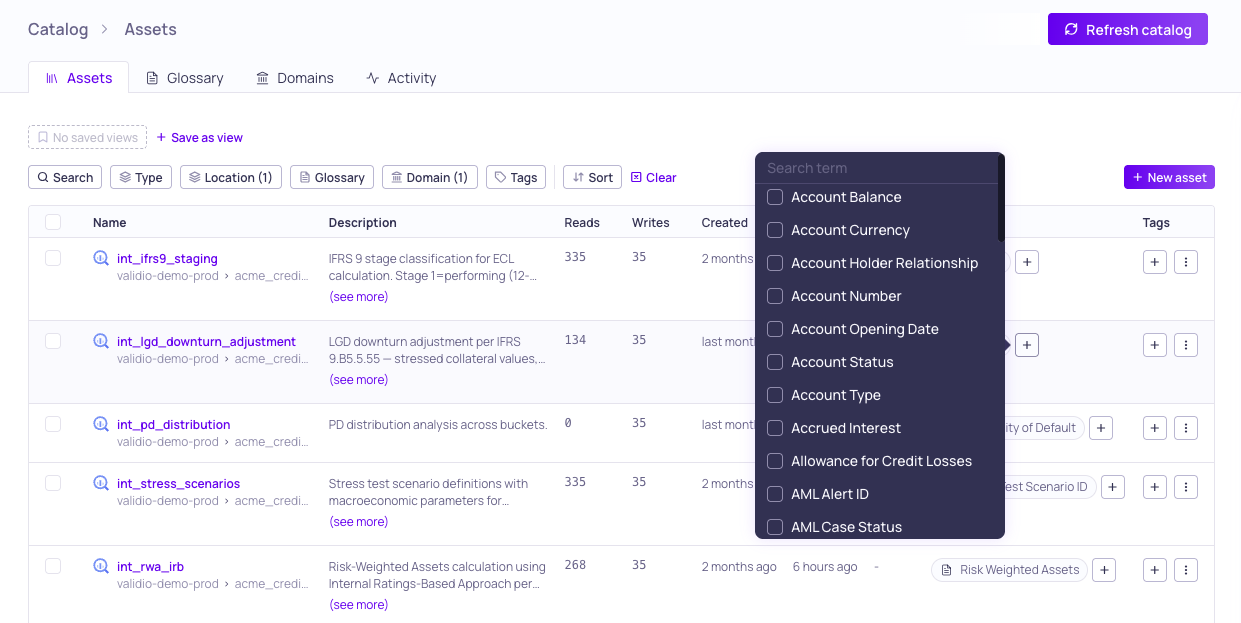
Assign terms via popover in the Glossary column
The term assignment popover is the primary interface for managing which terms are assigned to an asset or field. It appears in multiple locations across the platform:
- Catalog asset or schema field lists -- Use the glossary column in the table.
- Catalog asset sidebar -- Open the sidebar for any asset in the catalog list and use the glossary terms section.
- Schema field sidebar -- Navigate to an asset's Schema & Profiling tab, click a field, and use the glossary terms section in the sidebar.
- Lineage sidebar -- Select a node or field in the lineage graph and open the sidebar to manage term assignments.
To assign a term:
- Click Add term (or the + icon) in the glossary terms section.
- Search for a term by typing in the search field.
- Click a term to toggle its assignment on or off. Assigned terms show a checkmark.
Assign Terms in Bulk from the Catalog
You can assign terms to multiple catalog assets at once:
- Navigate to Catalog > Assets.
- Select multiple assets using the checkboxes.
- Click Update terms in the selection toolbar.
- Use the popover to add or remove terms for all selected assets.
Assign Terms from Lineage
You can assign terms while exploring the lineage graph:
- Select a node (asset) or field in the lineage graph.
- Click More info in the status bar to open the sidebar.
- Use the glossary terms section to add or remove assignments.
For more information, see Using Lineage.
Visual Indicators
Glossary term assignments are displayed throughout the platform using visual indicators:
- Term chips -- Shown inline in list columns, sidebars, and lineage nodes. In tables, term chips display a count when there are more than one assigned term, and you can hover over the chip to view the list of assigned terms in a tooltip.
- Propagated terms -- Terms that were propagated via lineage (rather than assigned directly) are shown with a distinct visual style and a tooltip indicating "Propagated". The tooltip also offers a Promote to direct action that converts the assignment into a direct one. For more information, see Glossary Term Propagation.
View Assignments on the Term Details Page
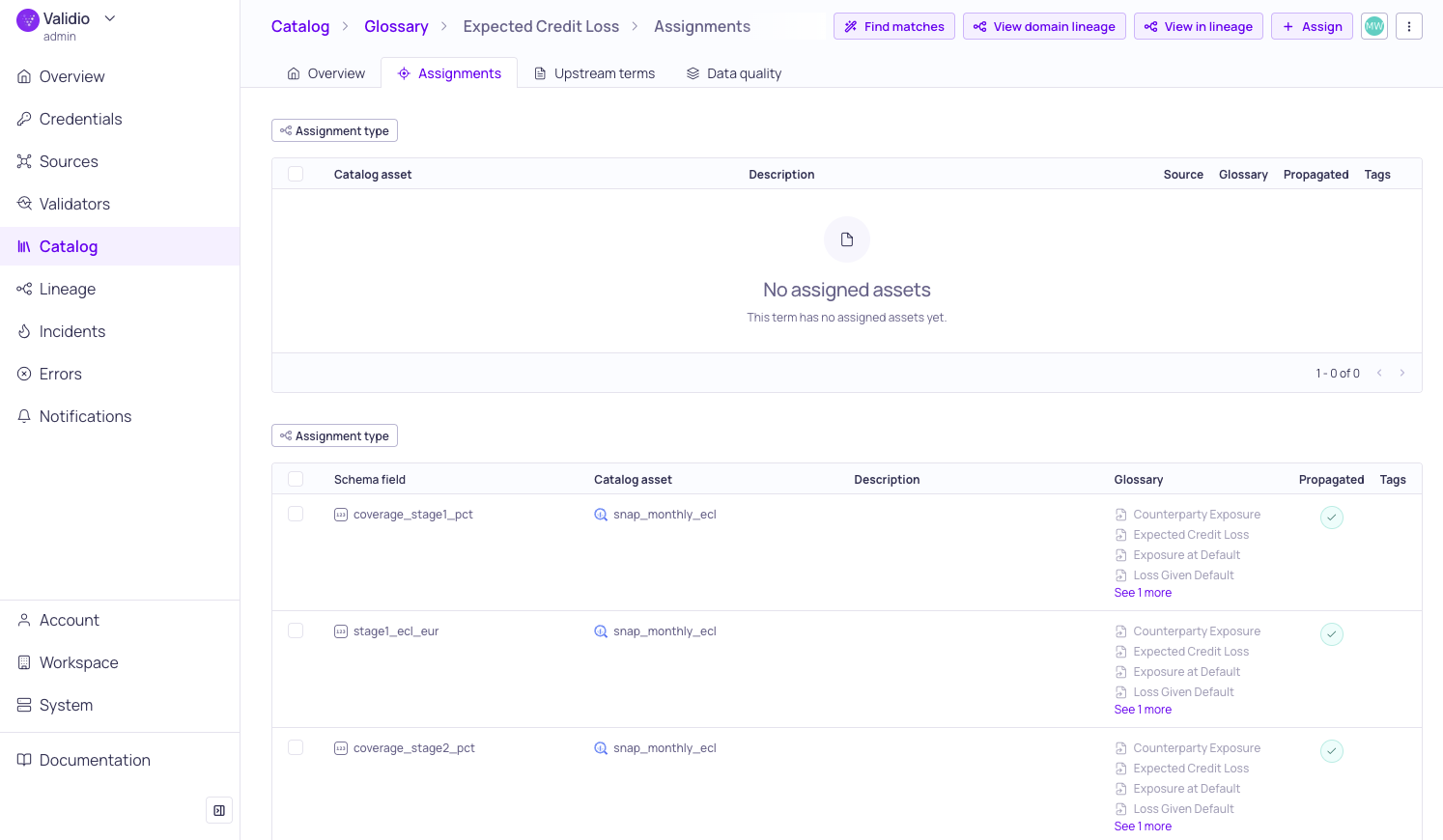
Assignment tab for "Expected Credit Loss"
Navigate to a term's details page to see all resources linked to that term:
- Catalog assets count -- Click to navigate to the catalog assets list filtered by this term.
- Schema fields count -- Shows the number of individual fields assigned to this term.
- Linked resources section -- Lists all assigned assets and fields. The assets and schema fields tables can be sorted by any column to help you find a specific assignment.
View the Term in Lineage
The term details page header (and the term sidebar) includes a View in lineage action that opens the lineage graph anchored on the term's assignments:
- Asset assignments anchor the whole catalog asset.
- Schema field assignments anchor the individual field.
- Mixed assignments combine both, so a term mapped to a KRI's fields and to related assets opens with all of them as anchors.
View in lineage is enabled whenever the term has at least one assignment — a field, an asset, or both. It is disabled only for terms with no assignments of either kind, in which case the tooltip reads "This term has no assignments to view in lineage."
To open lineage for a specific subset of a term's assignments instead of all of them, select the rows you want in the assignments table and use the Lineage action in the selection toolbar.
The same selection toolbar also offers Promote to direct, which converts propagated assignments into direct ones, and Unassign from term, which removes direct assignments. Use the Assignment type filter above each list to narrow the rows to Direct or Propagated before selecting. For more information, see Glossary Term Propagation.
Export Assignments to CSV
Term assignments can be exported as CSV over the REST API, one row per assignment, covering both catalog asset and schema field assignments and marking which ones were propagated. This is the file behind a critical data element register — every term alongside the tables and columns assigned to it.
Unlike glossary terms, assignments have no Export button in the UI; they are available from the API only. The endpoint is GET /api/export/v1/glossary-term-assignments, and it can be limited to selected terms. See CSV Export API for the column reference, authentication, and scheduling.
Related Resources
Updated 30 days ago