

Catalog Assets
Search, filter, and manage catalog assets in Validio, including converting assets to monitored sources.
Data Catalog automatically discovers assets (tables, streams, business intelligence tools, and dbt) based on the Credentials you have added to Validio and enabled for catalog.
Catalog Asset Discovery
It may take longer for the catalog assets to populate the first time that a catalog job runs for a new credential. For more information, see About Credentials.
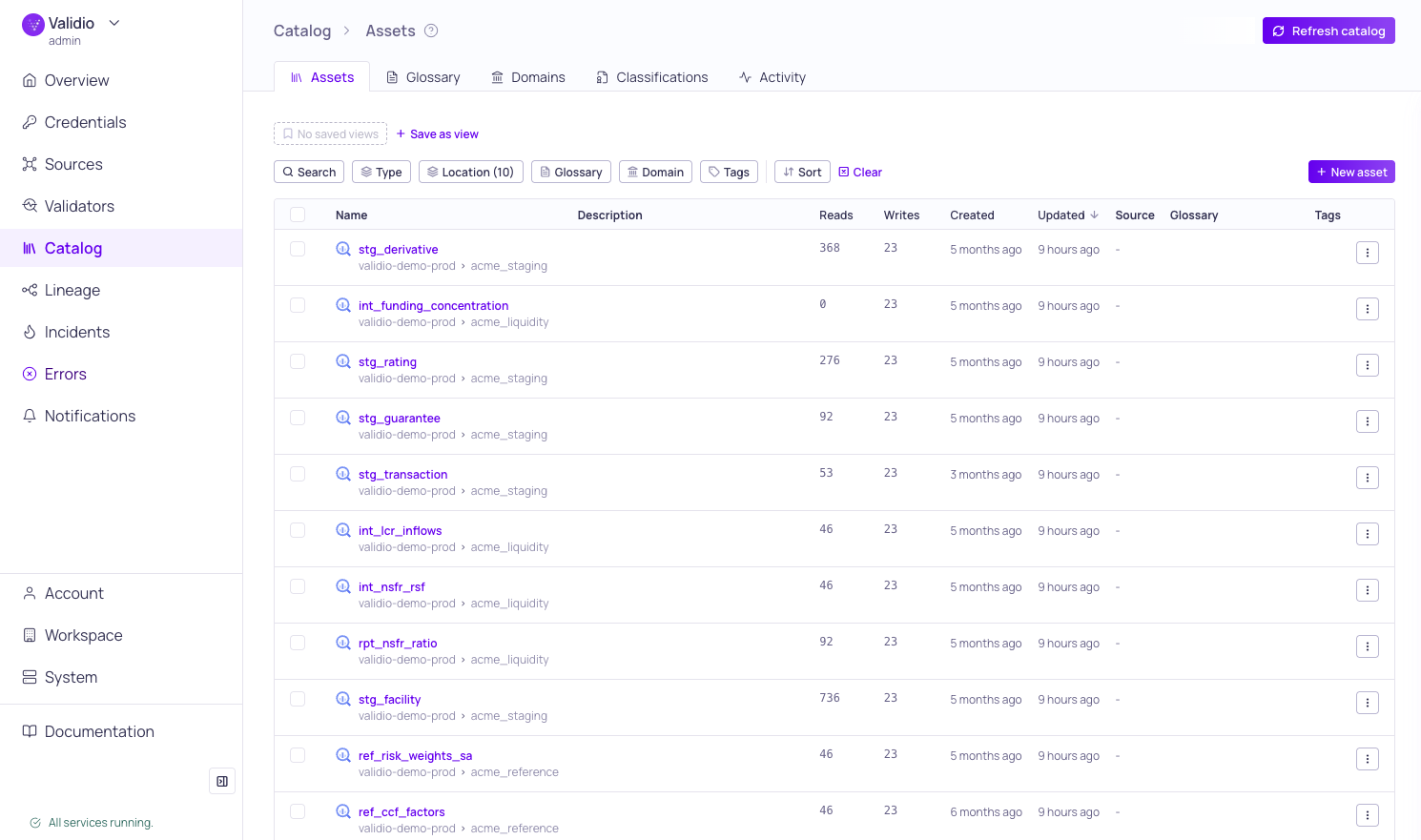
Catalog assets list view
From the Assets tab, you can do the following:
- Search and filter to quickly find relevant assets
- View and update information about an asset
- Assign glossary terms, tags, and descriptions to provide business context
- Convert assets to sources to track and validate data
- Refresh the catalog to discover new assets
Search and Filter Assets
You can search and filter to quickly find relevant assets in the list. For example, you can search for specific assets using keywords and then apply quick filters to narrow your results further by selected values.
- Search: Type keywords into the search bar to match against the asset name, the database (or catalog) and schema it belongs to, and the asset's descriptions. The asset list will update automatically to show matching results. When you type more than one keyword, the results include only assets that match all of the keywords. To match either of two keywords, type
ORbetween them. - Filter: Select one or more values of Type, Location, Glossary, Domain, or Tags to filter the list. Clicking on the filters shows a count of the assets that match each value. You can include or exclude selected values using Any of and None of operators; the Glossary and Tags filters also support All of. For more about filter operators, see Searching, Filtering, and Saving Views.
- Sort: Select a field to sort by and toggle between ascending and descending order. The results of searching and filtering will respect the sorting that has been applied to the table.
- Save as view: Save your search, filter, and sorting as a custom view that you can share and revisit again.
For more information about search, filtering, and saving views, see Customizing and Saving Views.
View Asset Details
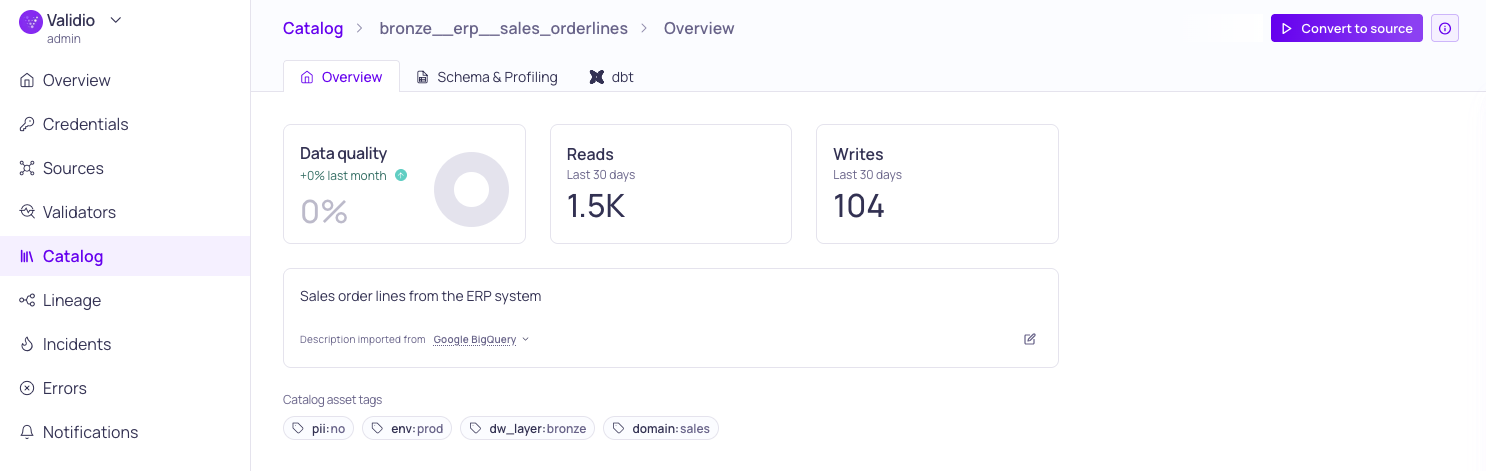
Details page for catalog asset
Click an asset row to open the information sidebar, or click the asset name to navigate to the asset details page. Asset details include:
- Header section: Asset name, type, location, and descriptions from external systems and Validio, with inline editing.
- Performance statistics: Key metrics about the asset.
- Configuration and ownership: Credential, schema, and ownership information.
- Tags and glossary terms: Assigned tags and glossary terms for business context. See Glossary Term Assignments.
- Linked resources: Links to convert the asset to a source or view the asset in lineage. See Convert Assets to Sources and About Lineage.
- Resource info: (Sidebar only) The asset ID and timestamps for creation and last update.
- Schema & Profiling: (Details page only) Schema details and data profiling results. See Reviewing Sources.
- dbt relations: (Details page only) Related dbt models and tests.
Enrich Asset Context
You can enrich your catalog assets with additional context by adding custom descriptions, tags, and glossary terms. This information is searchable and visible across the catalog to help your team understand and organize your data.
Add Custom Catalog Descriptions
Validio imports descriptions automatically from external systems such as BigQuery, dbt, and OpenLineage. You can also add your own descriptions to a catalog asset using the built-in markdown editor, which supports headings, bold, italic, lists, inline code, and code blocks.
When an asset has descriptions from multiple sources, the description area shows the origin label (e.g., Validio, dbt, OpenLineage, or Catalog Refresh) to indicate where each description comes from. External descriptions are read-only. To customize an external description, edit it and a Validio copy is created that takes priority.
To add or edit a catalog description:
- Click the asset Name in the table to open its asset details page, or click the asset row to open the sidebar.
- Click the edit icon in the description area.
- Type your description using the markdown editor. Use the formatting toolbar for common operations.
- Click Save to save your description, or Cancel to discard changes.
You can also use AI description generation to automatically draft a description based on the asset's schema, glossary terms, and tags. Click the AI generate button (sparkle icon) in the description area and select an LLM credential. For more information, see AI Description Generation.
When you return to the Catalog page, the custom description will display in the table with the Validio label next to it.
Add Asset Tags
Validio imports tags automatically from external systems such as BigQuery, dbt, and OpenLineage. You can also add your own tags to organize and prioritize your data assets with descriptive labels or other relevant information. Tags can be added directly in the asset table or in the asset sidebar.
Assign Glossary Terms
You can assign glossary terms to catalog assets to add business context. Glossary terms appear as chips in the Terms column of the assets table.
To assign terms to a single asset, click the asset row to open the asset sidebar, then use the glossary terms section to add or remove terms.
To assign terms in bulk, select multiple assets using the checkboxes and click Update terms in the selection toolbar. For more information, see Glossary Term Assignments.
Rename a Manually Created Asset
Assets that you add manually — for example, tables from systems without a native Validio integration — can be renamed after creation. This lets stewards correct a name or apply a new naming convention without deleting and recreating the asset (which would lose any manual lineage edges attached to it).
Only manually created assets can be renamed. Assets discovered from a credential mirror their name from the connected source and are not renameable here.
To rename a manually created asset:
- Open the Rename action from either:
- The actions menu on the asset's row in the assets list, or
- The options menu (⋮) in the header of the asset details page.
- Enter a new name.
- Click Save.
Renaming requires catalog write permission.
Convert Assets to Sources
Validio does not actively monitor or validate the data and schema of the catalog assets until you convert the asset to a source and create validators on that source. You can select different types of assets to convert to sources in one batch operation. For more information, see About Sources.
To convert a catalog asset to a source,
- Navigate to Catalog > Assets and check rows in the table for each asset you want to convert to a source. You can convert more than one asset at a time, and the assets do not need to be the same type.
- Click Convert to Source to open the configuration wizard.
- Under Catalog asset,
-
Select the credentials to associate with each catalog asset when converting to a source. The credential will authenticate your connection to the data source.
For each asset, the credential list is filtered for the type of asset.
-
Set how many days of historic data to use when you start the source.
-
Specify how frequently the validators on the source will check for changes.
-
Click Continue.
If one or more of the assets you are converting is a BigQuery or Snowflake table, the next step will be adding recommended validators on those sources. Otherwise, this is the last step of the configuration.
-
- (Optional) Under Validators, select the metadata validators to add to your BigQuery or Snowflake sources. These validators will not be added to other types of sources.
- Click Continue to convert the asset to a source.
Refresh Catalog Assets
You can manually refresh your catalog to discover new assets since the last refresh. When refreshing your catalog assets, you can select specific credentials or refresh all assets.
- You can only choose credentials that have been enabled for catalog.
- A full refresh of assets performs over the past 30 days.
Updated 8 days ago