

Gemini Enterprise
Configure a Gemini Enterprise credential in Validio to leverage Google Gemini models for generating SQL queries in custom validators and filters.
Gemini Enterprise Agent Platform (formerly Vertex AI) provides access to Google's Gemini family of language models through Google Cloud. By adding a Gemini Enterprise credential to Validio, you can leverage these capabilities to generate validator recommendations for monitoring and SQL queries for custom validation and filtering.
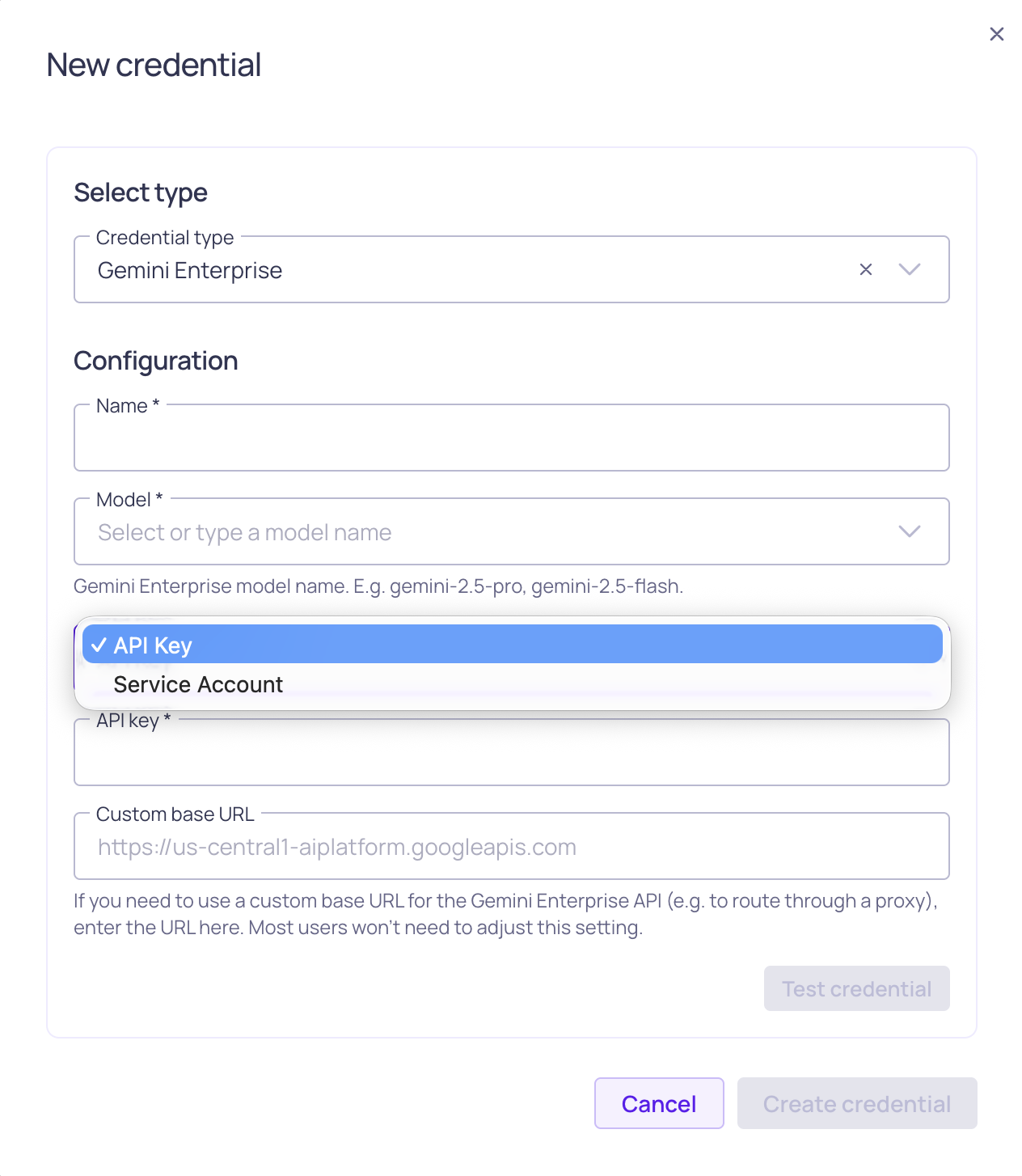
Gemini credential configuration with authentication options shown
Prerequisites
Before setting up your Gemini Enterprise credential, ensure you have:
- Enabled the Allow LLM credentials setting in your Validio Workspace. See Configuring Global Settings.
- Appropriate permissions to create credentials (requires
credentials:WRITEpermissions for the Namespace). See Managing Roles. - A Google Cloud project with the Vertex AI API enabled.
- One of the following authentication options:
- A Google Cloud API key for your Vertex AI–enabled project. Refer to Use API keys in Google Cloud documentation.
- A service account JSON key file for a service account with the Vertex AI User (
roles/aiplatform.user) role. Refer to Create and manage service account keys in Google Cloud documentation.
Add a Gemini Enterprise Credential
Because each Gemini Enterprise credential is tied to one language model, you should add a Gemini Enterprise credential for each model you want to use in Validio.
To add a Gemini Enterprise credential,
-
Navigate to Credentials and click + New credential.
-
Namespace: Select the namespace where the resources will be created.
-
Credential Type: Select Gemini Enterprise from the dropdown.
-
Configuration: Complete the required parameters.
Parameter Description Name A unique identifier for this credential. Model Select from available Gemini models (such as Gemini 2.5 Pro, Gemini 2.5 Flash, Gemini 2.5 Flash Lite) or, if the desired model is not in the list, enter the model ID. Refer to Gemini models in Google AI documentation. Authentication type Select API Key or Service Account. The fields shown below depend on the selected authentication type. API key (API Key authentication) Your Gemini Enterprise API key. Service account (Service Account authentication) JSON content of a Google Cloud service account key. Paste the JSON contents or upload the JSON file downloaded from the GCP Console. GCP project ID (Service Account authentication) The Google Cloud project hosting the Vertex AI API. For example, my-gcp-project.GCP region (Service Account authentication) The region for the Gemini Enterprise regional endpoint. For example, us-central1oreurope-west1.Custom base URL (Optional) Custom base URL for the Gemini Enterprise API. Only needed if using a proxy or custom endpoint. For example, https://us-central1-aiplatform.googleapis.com.
Choosing an authentication type
- API Key uses Google's global Gemini Enterprise endpoint and only requires an API key.
- Service Account uses a regional Vertex AI endpoint and requires a service account JSON key, the GCP project ID, and a GCP region. Use this option when you need request routing to stay within a specific region or when your organization restricts API key usage.
-
(Optional) Click Test credential to validate that Validio can successfully connect to Gemini Enterprise using your configuration. If the test fails, verify your authentication details, project ID, and region.
-
Click Create credential to save your configuration.
Next Steps
With your Gemini Enterprise credential configured, you can leverage Gemini models across various Validio features:
- Custom SQL validators: Generate complex validation queries or fix errors in your SQL queries.
- SQL filters: Create sophisticated filtering conditions and data selection criteria.
- Validator recommendations: Profile your data and generate recommendations to quickly set up monitoring.
Updated 3 months ago