

Approval Workflows
Approval workflows add a four-eyes review to a namespace, so changes to sources, validators, filters, windows, and segmentations must be approved by a second person before they take effect.
Approval workflows add a four-eyes review to a namespace. When approval workflows are enabled for a namespace, every change to a source, validator, filter, window, or segmentation in that namespace is staged as a draft, submitted for review, and approved by a second person before it takes effect. No change is applied on the word of one person alone.
Use approval workflows where changes to how data quality is defined must be controlled and auditable, for example in production namespaces that monitor regulated or business-critical data. Approval workflows build on namespaces and role-based access control, and every step is recorded in the activity log.
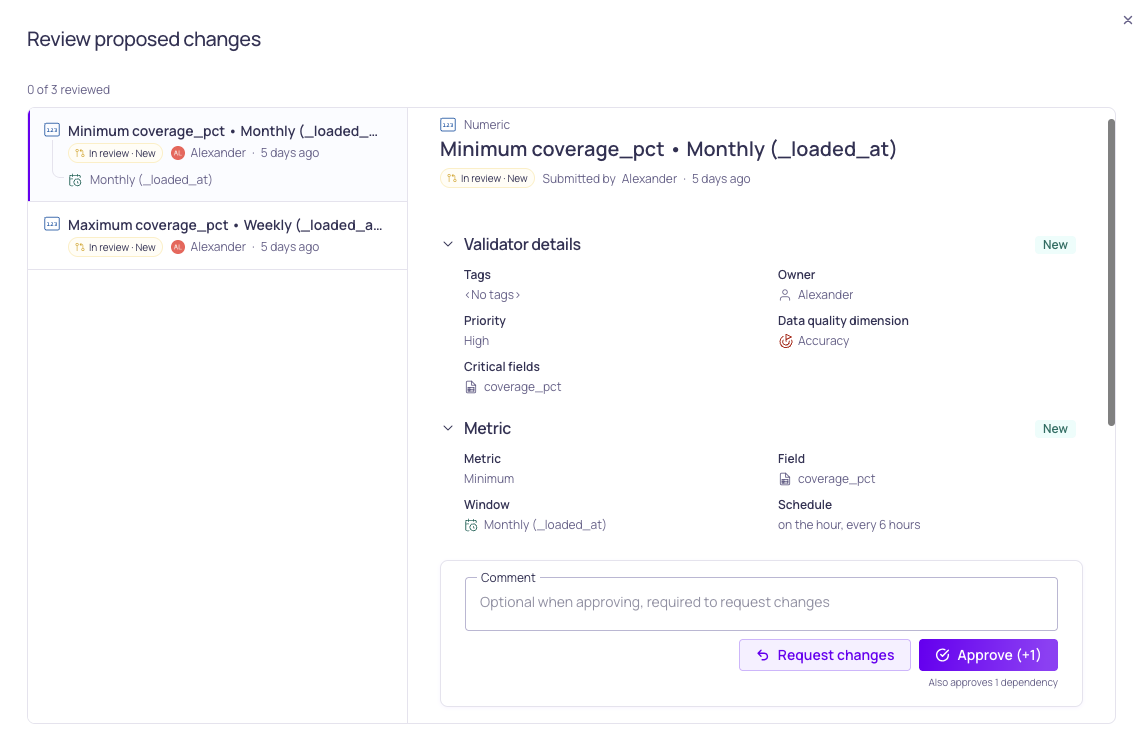
Review proposed validators
How Approval Workflows Work
Approval workflows are enabled per namespace. A namespace with approval workflows enabled is a protected namespace. A namespace without them behaves as before, and changes are applied immediately.
In a protected namespace:
- Five resource types are governed: sources, validators, filters, windows, and segmentations. Credentials, channels, notification rules, incidents, and catalog resources are not affected.
- Every change becomes a draft. Creating, updating, duplicating, archiving, resetting, or deleting a governed resource stages a draft instead of changing anything. A draft is the proposed change itself. The live resource keeps running unchanged until the draft is approved.
- A second person approves. A draft is submitted for review, then approved or sent back by a user who holds the Approve permission for that resource type and who neither created nor submitted the draft.
- There is no way around review. Direct changes are refused in a protected namespace, whether they come from the UI, the API, Validio Code, or an AI assistant.
Enabling approval workflows is prospective. Resources that are already published keep running exactly as before, and nothing needs to be re-approved. Only changes made after you enable the setting go through review.
Enabling Approval Workflows for a Namespace
You need WRITE permission on namespaces to change this setting. Before you enable it, make sure that at least two members of the namespace hold the Approve permission for each governed resource type. Otherwise the person who proposes a change would be the only one able to approve it, so submitting is refused, or for a create or update, only saving as a draft is offered. See When Nobody Else Can Approve.
To enable approval workflows on an existing namespace,
- Navigate to Workspace > Namespaces.
- Select the namespace.
- Under Approval workflow, turn on Require approval workflow for changes in this namespace.
- Click Update.
You can also turn on the same setting when you create a new namespace.
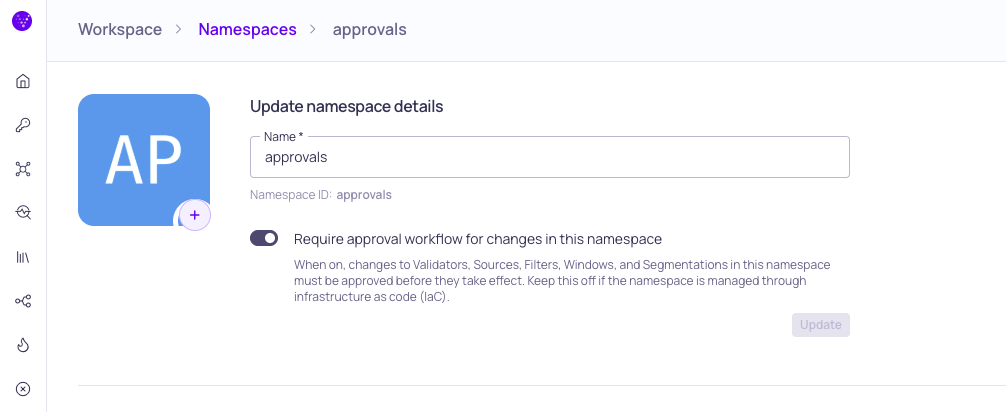
Approval workflow toggle on an existing namespace
To turn approval workflows off, turn the setting off and click Update. This is refused while any change in the namespace is unsubmitted or in review, because those drafts would otherwise become unreachable. Approve, withdraw, or discard them first, then disable the setting.
Keep approval workflows off for namespaces that you manage with Validio Code or another infrastructure-as-code tool. In a protected namespace, direct changes from the API are refused, so an IaC apply fails. Use separate namespaces for IaC-managed and UI-managed resources, and enable approval workflows only on the latter. See API, Infrastructure as Code, and MCP.
Permissions: Who Can Propose and Who Can Approve
Namespace roles grant one of three levels to each governed resource type. Each level includes the levels below it.
| Level | What it allows in a protected namespace |
|---|---|
| READ | View the resource and any draft on it, including the proposed change and the reviewer's comments. |
| WRITE | Create, update, submit, withdraw, and discard drafts. |
| APPROVE | Approve a draft or request changes on it, in addition to everything WRITE allows. |
The Approve level exists only for sources, validators, filters, windows, and segmentations. It is granted per resource type, so a role can, for example, approve validator changes without being able to approve source changes.
- The system Admin role holds Approve on all five resource types, for both global and namespace Admins.
- The system Editor role holds Write, so Editors can propose changes but not approve them.
- The system Viewer role can view drafts but not act on them.
- For finer control, create a custom namespace role and select Approve for the resource types the role should be able to review. A role with Approve on the governed resources and no other write access is a pure reviewer role.
Holding the Approve permission does not let you approve your own work. A user can propose some changes and approve others, but never both on the same change. See How Drafts Are Shared.
API keys are workspace credentials rather than people, so they can never act as the second pair of eyes. An API key cannot approve or request changes, and in a protected namespace it cannot create, update, or submit drafts either. See Managing API Keys.
When Nobody Else Can Approve
Because the creator and the submitter of a change can never approve it, every submission needs at least one other member who holds the Approve permission for that resource type. If you hold the only Approve permission for, say, validators in the namespace, submitting your own validator change would leave it with nobody able to approve it. Validio checks this before anything is submitted:
- For a new resource or an update, you are told at submit time that no one else can approve the change, and you can create or save it as a draft without submitting instead.
- For an archive, restore, delete, or reset, there is no draft to fall back on, so the action is refused.
In both cases the remedy is the same: ask an admin to grant another member the matching Approve permission, then submit.
Lifecycle and Review State
A governed resource carries two independent states. They appear as two columns on the resource lists and as chips on details pages, side panels, and the review dialog.
Lifecycle describes the resource itself.
| Lifecycle | Meaning |
|---|---|
| Published | The resource is live. If it has a draft, the live configuration keeps running until the draft is approved. |
| Not published | The resource has been proposed but never approved. It does not evaluate data yet. |
| Archived | The validator is paused and keeps its history. Validators only. See Archiving a Validator. |
Review state describes where the proposed change is. It is empty when nothing is in flight.
| Review state | Meaning |
|---|---|
| Unsubmitted | A draft exists but has not been submitted. Anyone with Write permission can still update it. |
| In review | The draft has been submitted and is waiting for a reviewer. |
| Changes requested | A reviewer sent the draft back with a comment. It is unsubmitted again and can be updated and resubmitted. |
The In review chip also names the kind of change: New, Update, Archive, Unarchive, Delete, or Reset. Hover a chip for the details: the operation and its state, such as "Update in review" or "Unsubmitted archival"; who created, last edited, and submitted the change; and the reviewer's comment when changes were requested. For an update, the tooltip also lists the fields the change touches, for example "3 changes: owner, priority and threshold", or says "Nothing staged yet" when a draft has been edited back to the live values.
The tooltip also offers the actions available for the change (Update draft, Submit for review, Withdraw from review, Discard draft, and Review or View change), the same set as the row menu and the side panel.
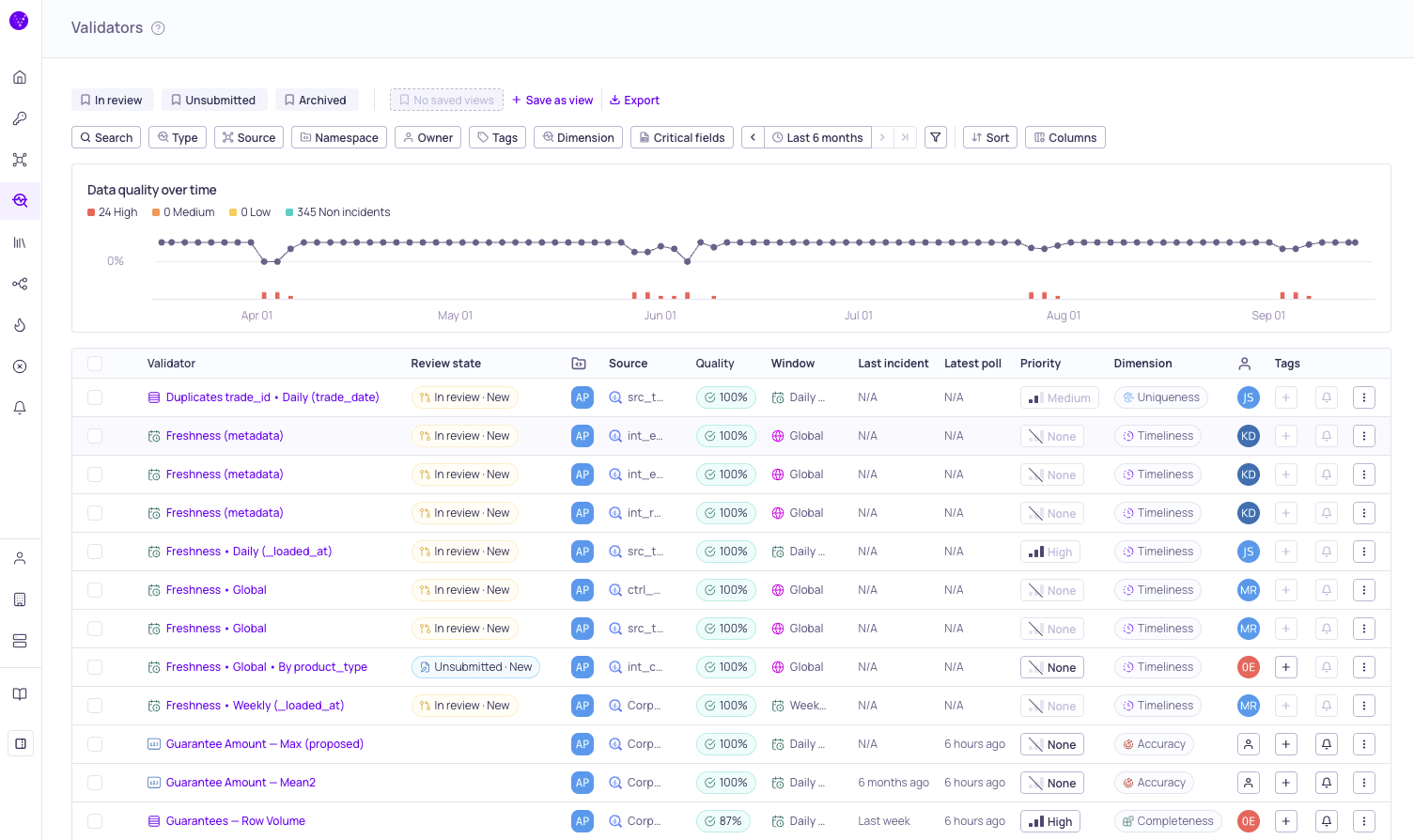
Validators list with Review state column and In review / Unsubmitted / Archived views
Proposing a Change
Any user with Write permission on the resource type can propose a change. In a protected namespace, a notice at the top of every create and update dialog reminds you that changes here need approval.
Creating a Resource
The create wizard for a source or validator, and the create dialogs for filters, windows, and segmentations, offer two ways to finish:
- Create as draft stages the new resource without submitting it. Its lifecycle is Not published and its review state is Unsubmitted. Submit it later from the row menu with Submit for review.
- Create and submit stages the resource and submits it for review in one step.
A validator created in the wizard together with new filters, windows, or segmentations stages each of them as its own draft. Submitting the validator submits those drafts with it; see Submitting Dependencies Together.
Converting several catalog assets to sources at once can span namespaces, because each asset carries its own credential. In that case the dialog offers a single Create and a notice that states how many of the resulting sources are created as drafts for you to submit for review and how many are created directly. The catalog assets themselves are not governed; only the sources created from them in a protected namespace become drafts.
Updating a Published Resource
Choose Update from the row menu or the details page as usual. The dialog offers Save as draft or Save and submit. The published resource keeps running on its current configuration until the draft is approved.
Once a resource has an unsubmitted draft, the row menu offers Update draft instead of Update, and the dialog offers Update draft or Update and submit.
A resource can have only one open draft at a time. If someone else already opened a draft, your update is added to that draft rather than creating a second one. Validio tells you whose draft you are joining and asks you to confirm.
Inline Edits
Changing the owner, tags, priority, data quality dimension, or critical fields from a list cell, a details page header, or a side panel also goes through review in a protected namespace. What happens depends on what the resource already has:
| What the resource already has | What happens |
|---|---|
| Nothing open | Your change is staged as a draft holding that one field. Submit it when you are ready. |
| An unsubmitted draft | Your change joins that draft, and everything else staged on it is kept. If someone else opened the draft, you are told who and asked to confirm once, as when updating a published resource. |
| A change in review | The control is unavailable and reads "A change is already in review". Withdraw the change to make the resource editable again. |
| A pending archive, delete, or reset | The control is unavailable and reads "A change is already pending". Resolve that change first. |
You can change these fields for several resources at once. Each row is handled on its own, as in the table above, and a single confirmation covers the whole selection. It says how many rows are saved as drafts and how many join a draft somebody else opened. If the selection also includes an unprotected namespace, it says how many rows are updated immediately.
Archiving, Deleting, and Resetting
Archiving or restoring a validator, resetting a source or validator, and deleting any governed resource are submitted for review in a single step. The confirmation dialog explains what happens on approval. For a shared window, segmentation, or filter, it also lists the validators that depend on it.
Nothing changes until a reviewer approves: a validator proposed for deletion keeps evaluating, and a source proposed for reset keeps its metrics. On approval the action is carried out immediately. See Managing Validators and Managing Sources for what each action does.
If a reviewer requests changes on one of these proposals, it waits with you as Unsubmitted like any other draft. You can resubmit it or discard it.
Submitting Dependencies Together
A reviewer cannot approve a validator while a filter, window, or segmentation it uses is still an unsubmitted draft. Submitting a validator or a segmentation therefore also submits the drafts it depends on. A confirmation names each one first, so the reviewer receives a set that can be approved together.
A change pulls in what it depends on, never what depends on it. Submitting a source sends the source alone. Its filters, windows, and segmentations wait until you submit them yourself, or until the first validator built on them is submitted. Archiving, restoring, deleting, and resetting pull in nothing.
A bulk submit sends the rows that can go and names the ones that stayed behind, with the reason, so one refused row does not hold up the others. A set of dependencies is different: it is submitted whole or not at all. For the review side of the same rule, see Order of Approval.
Withdrawing and Discarding
- Withdraw from review takes a submitted change back to Unsubmitted so that you can keep working on it. Anyone with Write permission in the namespace can withdraw a change, not only the person who submitted it.
- Discard draft removes an unsubmitted draft. For a resource that has never been published, discarding removes the resource. For a draft on a published resource, discarding leaves the published resource untouched. A change in review must be withdrawn before it can be discarded.
Both actions are available from the row menu and, for several resources at once, from the selection toolbar.
Reviewing a Change
Finding Changes to Review
Each of the Sources, Validators, Filters, Windows, and Segmentations pages has a built-in In review view above the list that shows the changes waiting for a decision. The Unsubmitted view shows drafts that have not been submitted yet, and the Validators page also has an Archived view. On the Sources and Validators pages, you can also filter by Lifecycle, Review state, Changes requested, Submitted by, and Created by. For example, a reviewer can set Submitted by to None of themselves to hide their own submissions, which they cannot approve. See Searching, Filtering, and Saving Views. Validio does not send notifications for approval events yet, so check the In review view regularly.
Making a Decision
Choose Review from the row menu, or select one or more rows and choose Review from the toolbar. The review dialog shows:
- For an update, a before-and-after comparison of the configuration, with the changed sections expanded.
- For a new resource, the full proposed configuration.
- For an archive, restore, delete, or reset, a plain statement of what approving does and which resource it applies to.
- Who created, last edited, and submitted the change, and when.
Then either Approve, optionally with a comment, or Request changes with a comment that explains what should change. Requesting changes returns the draft to its authors. Your comment is shown on the Changes requested chip and in the editor when they reopen the draft, and both decisions are recorded in the activity log.
The dialog, titled Review proposed changes, handles one change or many. A rail on the left lists everything you selected in dependency order, with a validator's filters, windows, and segmentations nested under it, and a progress line such as "4 of 11 reviewed" tracks your decisions. Selected rows that have nothing pending are reported as such rather than treated as failures.
If you created or submitted the change yourself, the row menu offers View change instead of Review, and the decision buttons are unavailable with an explanation. Someone else has to approve it.
Order of Approval
A filter, window, segmentation, or validator cannot be approved while the source it belongs to is still Not published. The review dialog names the source and explains what has to happen first: the source's own change must be approved, or its author must submit it. The source is always reviewed separately from the resources built on it.
The same rule applies within a set of changes. While a change depends on other drafts that are not yet approved, for example a validator on a new window, Approve is held back and Approve (+N) offers to approve the dependencies together with the change. The dependencies are approved first, one at a time, so if one fails the dialog names it. For how a set reaches review in the first place, see Submitting Dependencies Together.
What Happens on Approval
| Change | On approval |
|---|---|
| New | The resource is published and starts running. |
| Update | The new configuration replaces the current one. The resource keeps its history. |
| Archive | The validator stops evaluating and keeps its history. |
| Unarchive | The validator resumes evaluating with its previous configuration. |
| Reset | Metrics and incidents are cleared and the resource backfills again. |
| Delete | The resource is permanently deleted. Its activity log entries are kept. |
How Drafts Are Shared
A draft is a shared workspace rather than one person's private copy. This keeps work moving when a colleague is away, and it matches how every other resource in Validio is shared within a namespace.
| Question | Answer |
|---|---|
| Who can update an unsubmitted draft? | Anyone with Write permission in the namespace. |
| Who can submit it? | Anyone with Write permission. |
| Who can withdraw a submitted change? | Anyone with Write permission. |
| Who can resubmit after a withdrawal or requested changes? | Anyone with Write permission. Whoever resubmits becomes the submitter. |
| Who cannot approve? | The user who created the draft and the user who most recently submitted it. |
| Does updating a draft stop you from approving it? | No. Only creating and submitting do. |
| Does the resource owner have a special role? | No. Ownership is separate from approval and works as it does elsewhere in Validio. |
Because updating a draft does not disqualify you from approving it, a reviewer who requests changes, edits the draft, and then approves it after someone else resubmits has formally satisfied the four-eyes rule while having partly written the change. Validio accepts this deliberately so that a reviewer can help finish a change. If your governance policy requires a fully independent second review, ask a third person to approve any change you have edited. The review dialog shows who created, last edited, and submitted every change, so this is always visible.
Tracking and Auditing Changes
Every step of a review is recorded in the activity log and attributed to the person who took it: the draft was created, edited, submitted for review, withdrawn from review, sent back with requested changes, approved, or discarded, and archival or restoration was requested. Entries for a decision include the reviewer's comment. The submission and the decision are separate entries, so the record shows both people involved in every approved change.
The activity log appears on the Overview dashboard and on the source and validator details pages, and it can be exported to CSV for audits. Entries survive the deletion of the resource they describe, so the trail for an approved deletion is preserved.
API, Infrastructure as Code, and MCP
- Validio API. In a protected namespace, the direct create, update, and delete operations are refused, and changes have to be made through the draft operations. An API key can only withdraw or discard drafts. Top-level list queries return published resources only, so changes that are still in review are not visible to scripts. Each refusal carries a stable error code you can branch on; see Validio API errors.
- Validio Code and IaC. Validio Code applies changes directly, so it cannot be used in a protected namespace. Keep IaC-managed namespaces unprotected and let the review of your code changes happen in your version control system. Enable approval workflows on namespaces that are managed through the Validio UI. See Validio Code.
- Validio MCP Server. An AI assistant connected through the Validio MCP Server acts as the signed-in user. In a protected namespace it stages drafts and can submit, withdraw, or discard them, and it can list what is in review. It cannot approve or request changes, and it cannot turn approval workflows off. Approval always happens in the Validio UI.
When a Change Is Refused
Most refusals appear before you act, as an unavailable control that says why. These are the ones you can still run into.
| What happened | Why | What to do |
|---|---|---|
| A change is already in review | A resource has one open change at a time, and this one is with a reviewer. | Withdraw it, or wait for the review. |
| A change is already pending | The resource is staged for archiving, deletion, or reset, so there is no configuration for your edit to attach to. | Resolve that change first. |
| No one else can approve this | You hold the only Approve permission for this resource type in the namespace. See When Nobody Else Can Approve. | Ask an admin to grant another member the permission, or save the draft without submitting. |
| You cannot review a change you created or submitted | Four-eyes bars the creator and the submitter. See How Drafts Are Shared. | Read it with View change and ask a colleague with the Approve permission to decide. |
| Some of the selected resources need approval and some do not | Bulk Delete and Reset refuse a selection that spans a protected and an unprotected namespace, because one confirmation cannot describe two outcomes. Owner, tags, and priority split the selection by row instead. | Select resources from one namespace at a time. |
| Part of a bulk submit stayed behind | A bulk submit sends the rows that can go and names the rest. | The message names the rows and the reason. Fix those and submit them again. |
| Approval workflows cannot be turned off | The namespace still has unsubmitted or in-review changes, which would be stranded. See Enabling Approval Workflows. | Approve, withdraw, or discard them, then turn the setting off. |
| The source cannot be moved | The source, or a resource built on it, has an open change. | Approve, withdraw, or discard the change first. |
Over the API, each refusal carries a stable error code. See Validio API errors.
Updated 22 days ago