

ServiceNow
Sync incidents and status updates between Validio and ServiceNow.
The ServiceNow integration lets you sync incidents and status updates bidirectionally between Validio and ServiceNow for streamlined incident management.
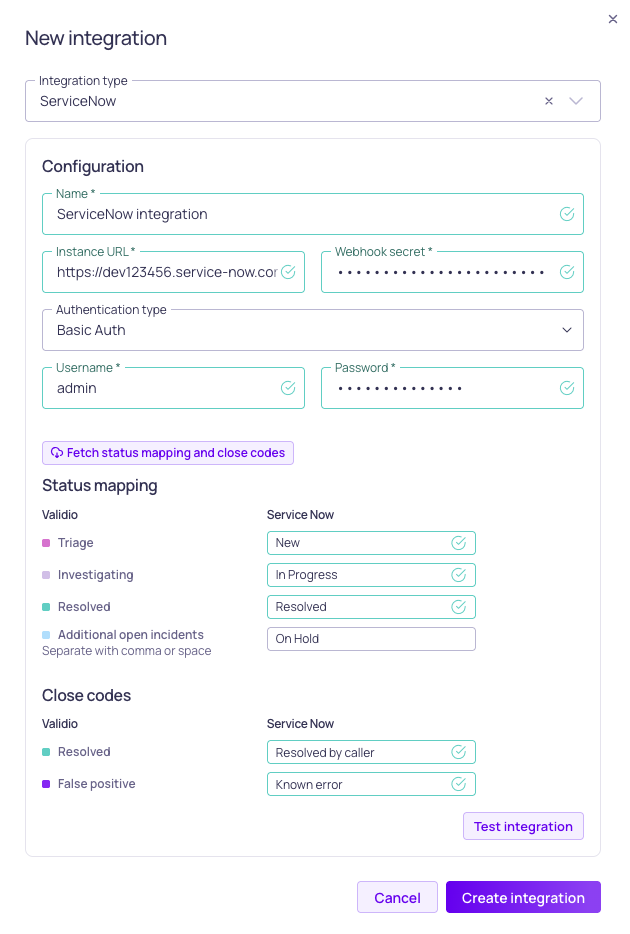
ServiceNow channel configuration, showing Webhook, Authentication, and fields mapping steps
Validio integrates with ServiceNow to streamline incident management:
- Automatic incident creation and updating: Incidents detected in Validio automatically create or update incidents in ServiceNow. Incident types include data quality issues, source errors (such as failed polls), schema changes, and segmentation limit exceeded errors. Validio updates existing incidents for each type, grouped by source, if their status is Open in ServiceNow.
- Customizable routing: Notification rules filter incidents to ensure that you track only what matters to you.
- Bidirectional syncing: Status updates, changes to owner assignments, and comments sync automatically between both systems, keeping context and progress intact.
In Validio, you configure ServiceNow in two steps: create a ServiceNow integration that holds the authentication details and status mappings, then create one or more channels that route alerts through that integration.
Prerequisites for Adding a ServiceNow Integration
This integration requires configuration in both ServiceNow and Validio.
- You need a ServiceNow account to configure the Validio connection and bidirectional syncing.
- You can authenticate from Validio to your ServiceNow account with Basic Auth (username and password) or OAuth (client ID and client secret). These ServiceNow credentials must have the following permissions:
incident(read, write, create)sys_choice(read)sys_choice.*(read)
Create a ServiceNow Integration
-
In Validio, navigate to Workspace > Integrations and click + New integration.
-
From the Integration type list, select ServiceNow.
-
Enter a Name for the integration, for example "Corporate ServiceNow".
-
Under Configuration, complete the following fields:
Field Description Instance URL URL of your ServiceNow account, for example https://your-account.service-now.com.Webhook secret Secret value used to authenticate requests from ServiceNow to Validio when syncing incident statuses. Authentication type Select OAuth or Basic Auth. Username (Basic Auth) The username used to log into ServiceNow. Password (Basic Auth) The password for the above user. Client ID (OAuth) The client ID for authorizing requests to ServiceNow. Client secret (OAuth) The client secret for authorizing requests to ServiceNow. -
Under Status mappings and Close codes, click Fetch status mappings and close codes to retrieve incident statuses from ServiceNow, then map each Validio status and close code to the corresponding value in ServiceNow. Bidirectional status syncing requires this mapping.
If you are unable to fetch the statuses, you can manually type the values. However, the value you type must exactly match an existing ServiceNow status.
-
(Optional) Click Test integration to verify the connection to ServiceNow. A test creates a new incident in ServiceNow.
-
Click Create integration.
Create a Validio Channel for ServiceNow
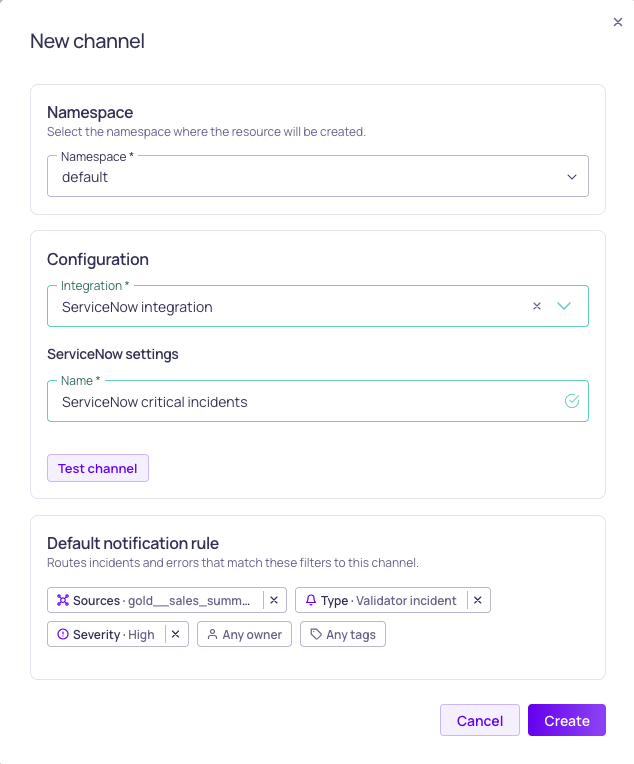
ServiceNow channel and default rule configuration
- In Validio, navigate to Notifications > Channels and click + New channel.
- Select the Namespace where the channel will be created.
- Under Integration, select the ServiceNow integration you created.
- Enter a Name for the channel.
- Configure a Default notification rule for the channel. You can add more rules and conditions later.
- Click Create.
Get the Channel ID
Once the channel is created, open the details panel for the new channel. Find and copy the Channel ID. You will use this ID to filter for this specific channel when you create the Business Rule (webhook) in ServiceNow.
Configure ServiceNow to Send Updates to Validio
After you create the Validio channel for ServiceNow, you need to create a Custom Field and Business Rule in ServiceNow. You will configure the business rule with a custom webhook that sends relevant incident status updates to Validio.
The following sections include breadcrumbs to help you search for the relevant pages in the ServiceNow UI. The page's URL slug is also included in parenthesis next to the breadcrumb. To search for a page, click All and type the page name into the navigation menu's filter.
Create a Custom Field
Complete the following steps to add a custom field (dictionary entry), which allows you to track which incidents were created by Validio and which channel (if you have multiple channels from Validio) created the incident.
- In the ServiceNow UI, navigate to All > System Definitions > Dictionary (the URL for the correct page will end with the slug
sys_dictionary_list). - Click New to configure a new dictionary entry (new record).
- Complete the following required information:
- Table: Select
Incident [incident]. - Type: Enter
String. - Column label: Enter a descriptive label, for example
Validio Channel ID. - Column name: The label will be automatically populated, for example
u_validio_channel_id. - Max length: Enter a number above 25.
- Check Read only.
- Table: Select
- Click Submit.
Secure your Webhook Secret
For security, we recommend adding a System Property for your webhook secret so that you can reference the property instead of writing out the secret in plain text.
To configure the system property,
- In the ServiceNow UI, navigate to All > System Property. (The URL for the correct page will end with the slug
sys_properties.list. If you can't find the page, type the slug into the navigation menu. Although searching for the slug does not appear to return results, you can hit enter to open the page.) - Click New.
- Complete the following information:
- Name: Enter a descriptive identifier, for example "u_validio.secret_name".
- Type: Select password2.
- Value: Paste in the Webhook secret you set for the ServiceNow channel in Validio.
- Click Submit.
Create a Business Rule
Complete the following steps to add a business rule with custom JavaScript that will send incident status updates to Validio. You will also add a filter to ensure the incident is related to a valid channel ID ("Validio Channel ID" is not empty). If you have multiple channels, you can add a filter for each channel in the same business rule configuration.
- In the ServiceNow UI, navigate to All > Business Rules (the URL for the correct page will end with the slug
sys_script_list). - Click New.
- Complete the following information:
- Name: Enter a descriptive identifier, for example "Validio Webhook for Channel".
- Table: Select
Incident [incident].
- Check Advanced to enable additional configuration options.
- In the When to run tab, configure a filter to ensure that the incident is related to a valid channel ID:
- When: Select
beforeand check Update. - Order: Enter a number, for example
100. - Filter Conditions: Choose the field, operator and value to set the filter condition to "Validio Channel ID is
<channel-id-from-validio>", where<channel-id-from-validio>is your ServiceNow channel ID in Validio. Refer to Get Channel ID.
- When: Select
- In the Advanced tab's Script field, replace the template code with the provided script below. Make sure the values for
VALIDIO_ENDPOINTandsecretare valid. If you don't want to paste the webhook secret in plaintext, refer to Secure your Webhook Secret.
(function executeRule(current, previous) {
  const VALIDIO_ENDPOINT = "<VALIDIO-APPLICATION-LINK-URL>/servicenow-webhook";
  const secret = gs.getProperty("u_validio.secret_name"); // Or paste plaintext
  const channelId = current.getValue("u_validio_channel_id");

  if (!channelId || !current.changes()) {
    return null;
  }

  function getEmailFromRef(ref) {
    return ref && !ref.nil() ? ref.email.toString() : null;
  }

  function getEmailByUsername(username) {
    if (!username) {
      return null;
    }

    var user = new GlideRecord("sys_user");
    user.addQuery("user_name", username);
    user.query();

    return user.next() ? user.getValue("email") : null;
  }

  var changes = {};
  if (current.incident_state.changes()) {
    changes.incident_state = current.getValue("incident_state");
  }
  if (current.assigned_to.changes()) {
    changes.assigned_to = getEmailFromRef(current.assigned_to);
  }
  if (current.comments.changes() && gs.getSession().isInteractive()) {
    changes.comments = current.comments.getJournalEntry(1);
  }

  if (Object.keys(changes).length === 0) {
    return null;
  }

  var payload = {
    sys_id: current.getValue("sys_id"),
    channel_id: channelId,
    operation: current.operation(),
    updated_at: current.getValue("sys_updated_on"),
    updated_by: getEmailByUsername(current.getValue("sys_updated_by")),
    changes: changes,
  };

  try {
    var rm = new sn_ws.RESTMessageV2();
    rm.setEndpoint(VALIDIO_ENDPOINT);
    rm.setHttpMethod("POST");
    rm.setRequestHeader("X-Validio-Secret", secret);
    rm.setRequestBody(JSON.stringify(payload));

    var response = rm.execute();
    var status = response.getStatusCode();

    gs.info(
      "Incident webhook sent for " + current.number + " with status " + status,
    );
  } catch (e) {
    gs.error("Error sending incident webhook: " + e.message);
  }
})(current, previous);- Click Submit.
Next Steps
After creating the ServiceNow integration, channel, and webhook in ServiceNow, add notification rules on the channel's details page to route specific incident notifications to ServiceNow.
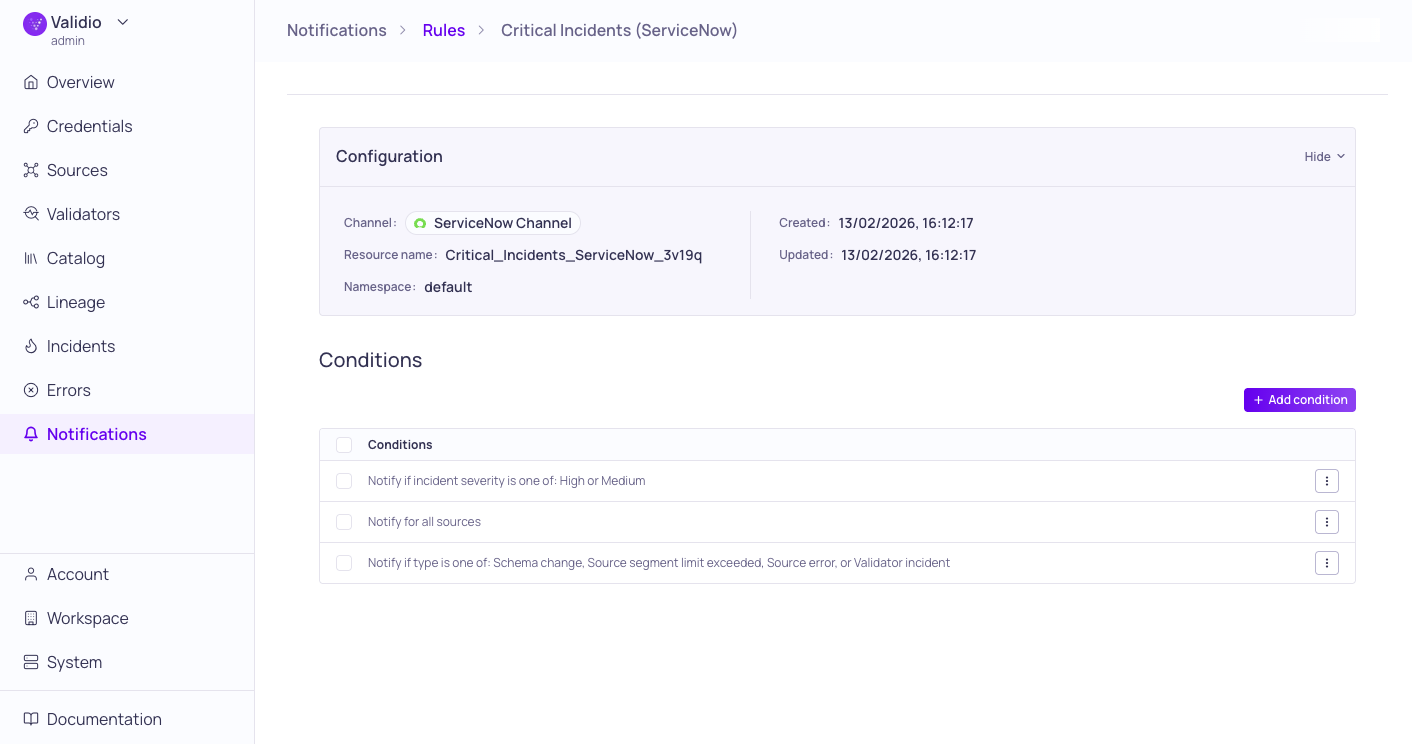
Rule in Validio to route notifications to ServiceNow
ServiceNow incidents created from Validio include the incident priority in the ticket description. The source owner populates the ticket's Assigned to field.
You can view incidents in ServiceNow on the Service Desk > Incidents page or in the Service Operations Workspace. Because Validio notification messages include HTML formatting, the Service Operations Workspace provides a better viewing experience as it renders HTML content.
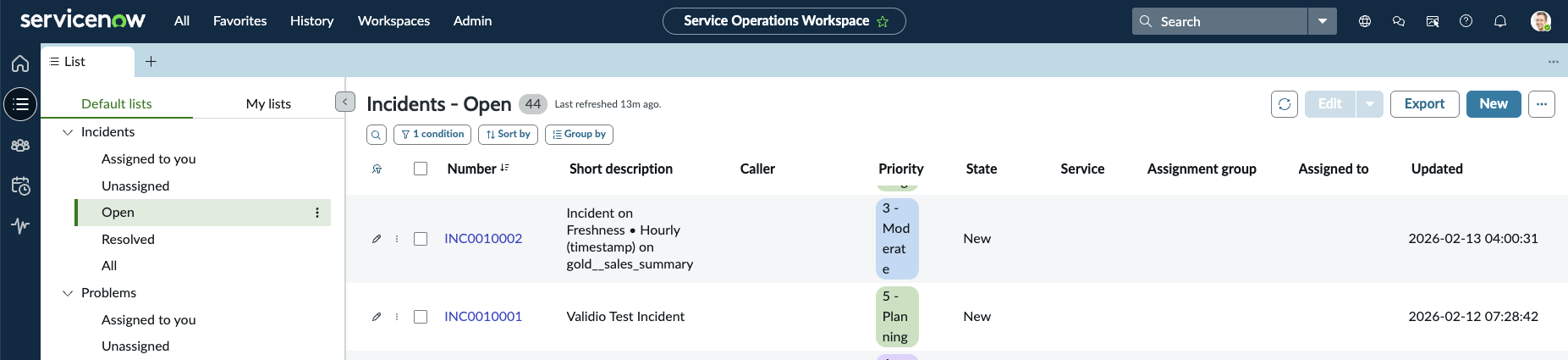
Service Operations Workspace showing open Validio incidents
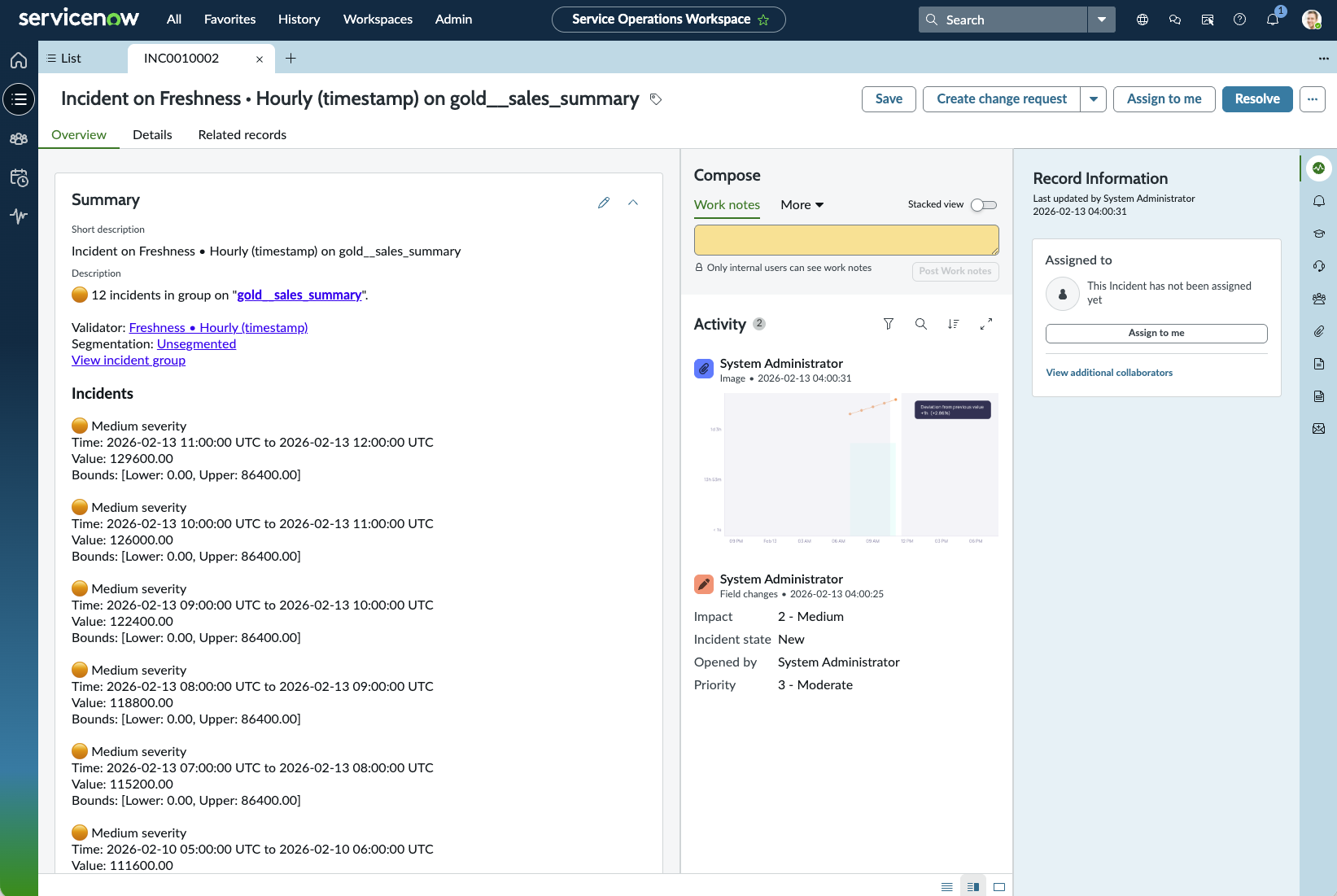
Viewing a Freshness Incident in the Service Operations Workspace
Updated 4 months ago