

Glossary Term Suggestions
Use AI to automatically discover catalog assets and schema fields that match a glossary term.
Validio can use AI to automatically discover catalog assets and schema fields that should be assigned to a glossary term. The suggestion workflow analyzes text patterns, lineage connections, and uses LLM refinement to find high-quality matches.
Prerequisites
Glossary term suggestions require glossary: WRITE permission and that AI features are enabled in your workspace. For more information, see Enabling AI Features.
Start a Suggestion Workflow
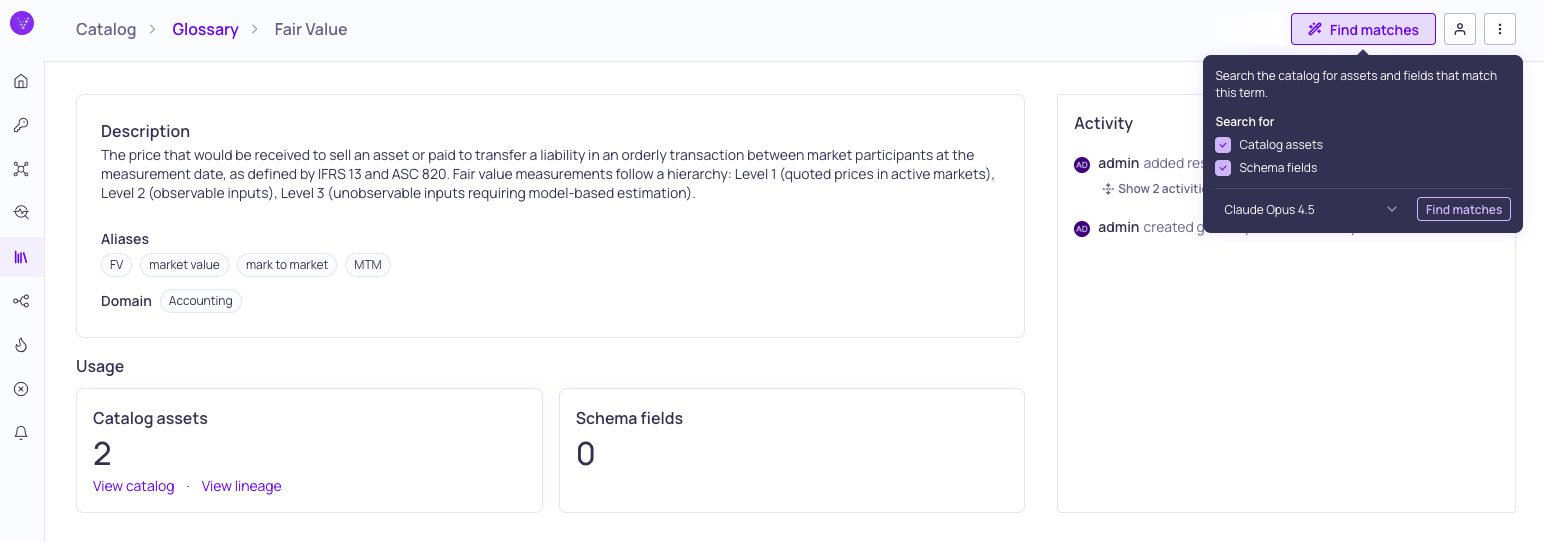
Open Find matches settings
- Navigate to the details page for a glossary term (Catalog > Glossary > (term name)).
- Click Find matches to start the suggestion workflow.
- Check boxes to include Catalog assets and/or Schema fields in the search.
- Select an LLM credential to use, and click Find matches.
The system runs through several stages to find matching assets and fields:
- Fetching term metadata
- Matching text patterns against asset and field names
- Analyzing lineage connections for related assets
- LLM refinement to improve match quality
- Preparing results
A progress indicator shows real-time status as the workflow runs.
Review Suggestions
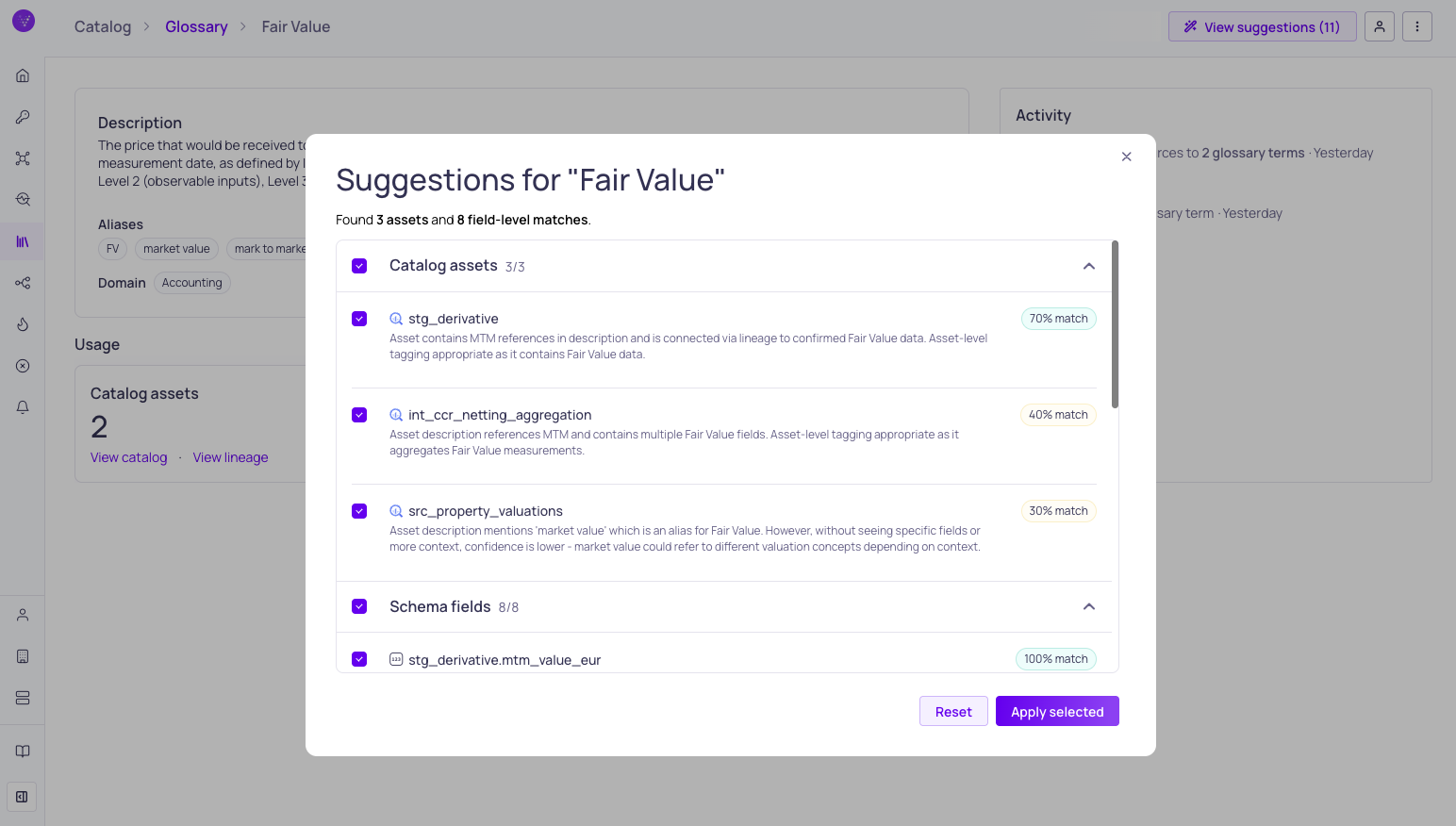
Review and select suggested glossary term assignments
When the workflow completes, a preview dialog displays the results in two groups:
- Catalog asset suggestions -- Assets whose names or metadata match the term.
- Schema field suggestions -- Individual fields within assets that match the term.
Each suggestion shows the asset or field name, its location, and a match explanation.
Apply Suggestions
- Review the suggestions in the preview dialog.
- Select the suggestions you want to apply using the checkboxes.
- Click Apply selected to create the term assignments.
You can dismiss individual suggestions or click Clear all to discard all results and start fresh.
Cancel a Workflow
If a suggestion workflow is still in progress, you can cancel it from the progress indicator. This stops the analysis without creating any assignments.
Related Resources
Updated 20 days ago