

Generating Validator Recommendations
Learn how to use Validio's LLM-powered recommendations to quickly set up monitoring on your sources with pre-configured validators.
Validio Recommendations use AI and ML to automatically analyze your data sources and suggest pre-configured validators, streamlining the setup of comprehensive data monitoring.
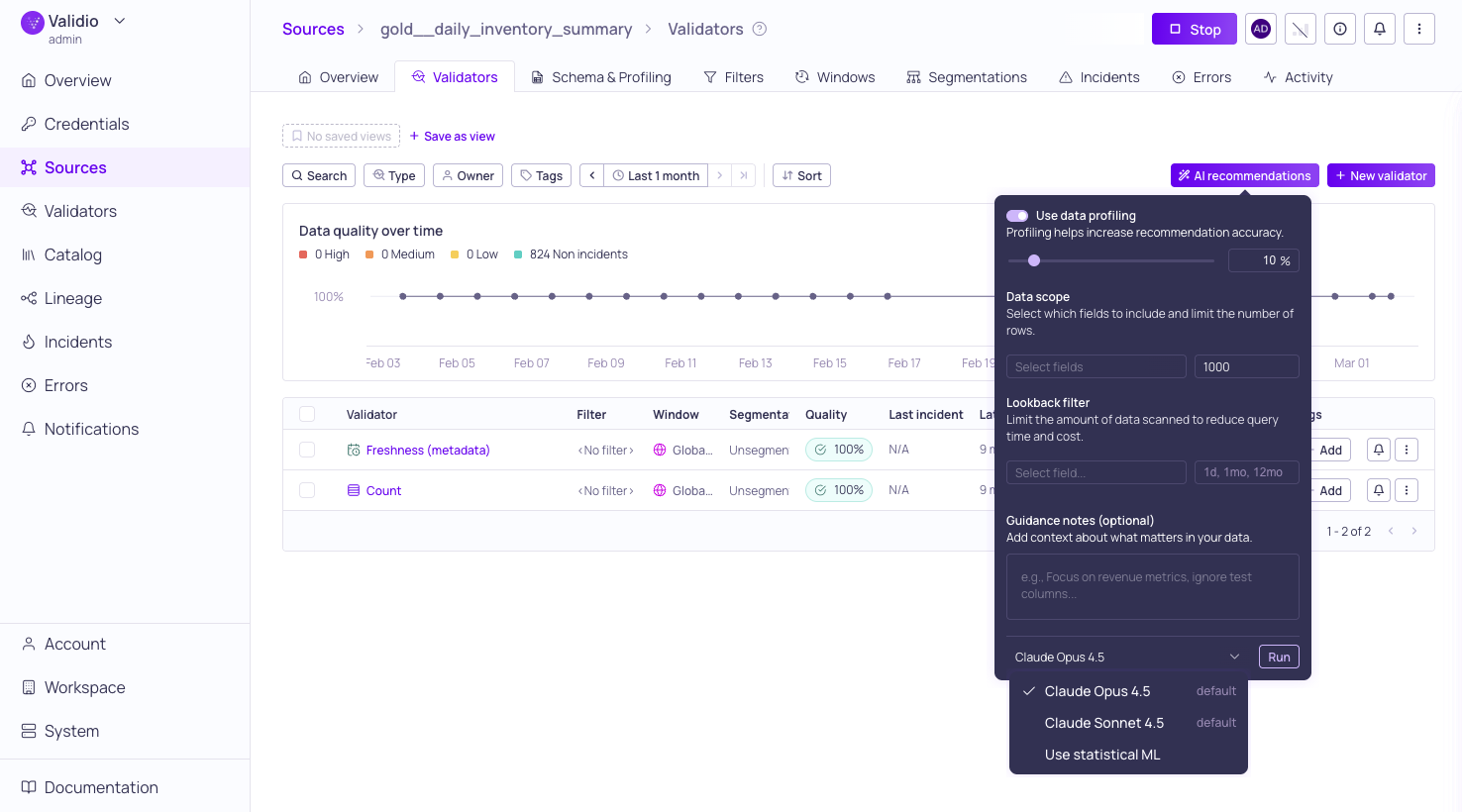
Configure Validators with AI recommendations
Setting up comprehensive data monitoring can be time-consuming when configuring validators individually. Recommendations streamline this process by automatically analyzing your data source and suggesting appropriate validators tailored to your schema and data patterns.
Validio offers two recommendation modes:
- AI recommendations: Uses LLM-powered analysis for context-aware suggestions (requires LLM credentials).
- ML recommendations: Uses statistical machine learning and heuristics
Both modes allow you to profile your data and review existing resources to suggest pre-configured windows, filters, and segmentations alongside validators. You can then select which recommendations to apply, creating multiple validators and resources at once.
Prerequisites for AI Recommendations
To generate recommendations using LLMs, ensure that you have the following:
- Enabled the Allow LLM credentials setting in your Validio Workspace. See Configuring Global Settings.
- Appropriate permissions to create credentials (
credentials:WRITEpermissions for the Namespace). See Managing Roles. - At least one LLM credential configured in your environment. See LLM Credentials.
Generating Recommendations
On the Validators tab for a configured Source,
-
Click AI recommendations (or New recommendations if you do not have an LLM credential).
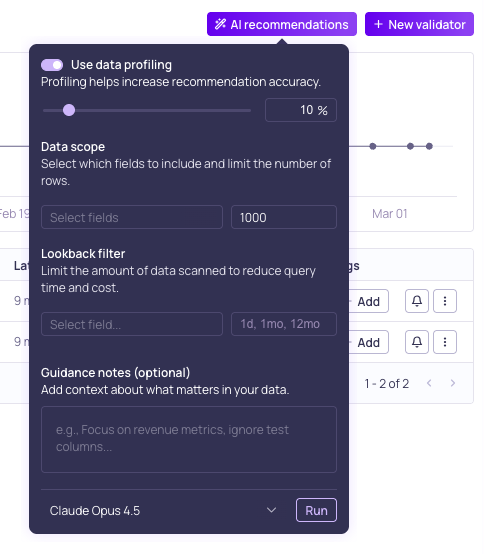
AI recommendation options
-
(Optional) In the dialog window, toggle Use data profiling. Profiling increases the accuracy of the recommendations.
-
Sampling Percentage: (Only available for tables and materialized views.) Use the slider or enter a number to adjust the percentage of data to include in profiling. A higher sampling percentage results in more accurate results, but reads more data and takes longer to complete.
-
Data Scope: (Recommended) Cap the execution time on large datasets by limiting the fields and number of rows used for profiling:
Setting Description Fields Select specific fields to analyze. By default, all fields are profiled. Row limit Set the maximum number of rows to include in the profiling run. -
Lookback Filter: (Recommended) Limit the data volume scanned by targeting only a specific window of recent data:
Setting Description Lookback field Select a timestamp or date field to define the profiling window. This limits the scan to recent data rather than scanning the full dataset. Lookback duration The specific amount of time to look back when filtering data. Use this with the Lookback field to target only recent records and optimize performance.
-
-
(Optional) Add Guidance notes to provide domain knowledge or business context, such as key metrics to monitor, data quality priorities, or specific fields to focus on. Guidance notes are used only for AI recommendations, when you select an LLM credential in the next step. Statistical ML ignores them.
-
Choose an LLM credential or Use statistical ML. When you have an LLM credential, it is selected by default, but you can still choose Use statistical ML, for example to get recommendations without sending source metadata to an LLM provider. If you do not have an LLM credential, Use statistical ML is the only option.
-
Click Run.
- Click Processing to view a progress checklist as the system and model gathers information and generates recommendations. The process runs in the background, so you can navigate away while it completes.
- To cancel a processing recommendation, click Cancel.
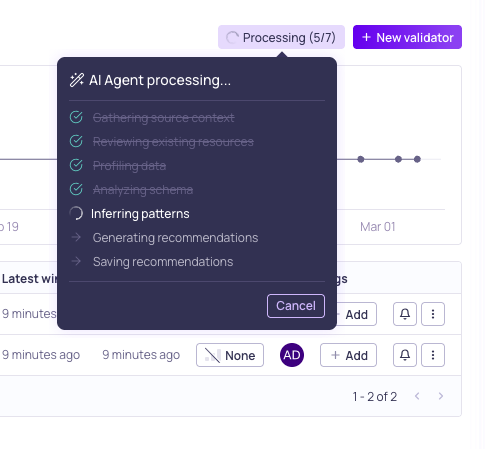
The recommendations agent runs in the background, but you can view its progress
-
Click View recommendations to see the list of pre-configured Validators as well as relevant Windows, Filters, and Segmentations. The Requires column indicates dependencies between the resources.
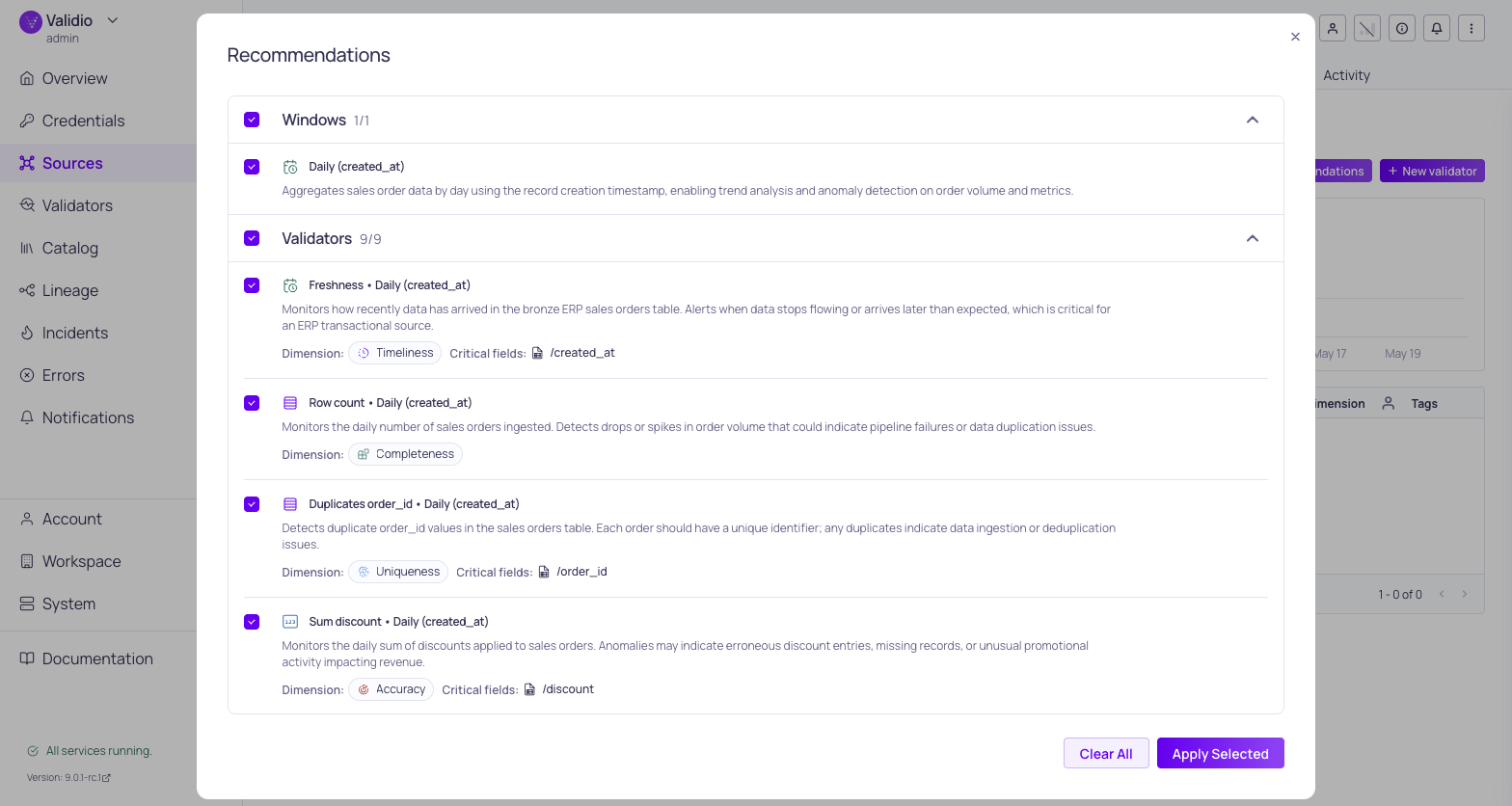
Generated recommendations list
-
Check each of the resources that you want to apply to your source. If you uncheck one resource (such as a segmentation), it will automatically uncheck all validators that require that resource.
-
Click Apply selected to create the recommended validators. If you are creating many validators at once, this may take a few minutes to process.
Once they are created, the validators will automatically backfill with historical data. It may take a few minutes for the data to populate while this initial sync completes.
Updated 20 days ago