

Activity Logs
The activity log records actions taken on Validio resources — who did what and when — with namespace-scoped access and CSV export.
The activity log is a chronological record of actions taken on resources in Validio. Each entry records who performed an action (a user, an API key, or the system), what the action was, which resource it affected, and when it happened. Use the activity log to answer questions like "who started this source?", "when was this validator's threshold changed?", or "who resolved this incident?".
What the Activity Log Records
The activity log captures lifecycle and management actions across Validio resources — sources, validators, credentials, segmentations, windows, filters, incidents, glossary terms, namespaces, users, teams, roles, API keys, notification channels, notification rules, and tags.
Beyond the standard create, update, and delete actions, the log records resource-specific actions, including:
- Sources — started, stopped, polled, backfilled, reset, muted, and owner changed.
- Validators — re-run, reset, muted, owner changed, and metric retrained.
- Incident groups — status updated, owner assigned, muted, and comment added.
- Credentials — catalog refreshed.
- Namespaces — roles granted and revoked.
- Glossary terms — resource added and removed.
- Approval workflows — draft created, edited, submitted for review, withdrawn from review, changes requested, approved, and discarded, and archival or restoration requested. The submission and the decision are separate entries, and decisions include the reviewer's comment. See Approval Workflows.
Each entry carries the actor, a timestamp, the affected resource and its namespace, and a human-readable description of the action.
Where the Activity Log Appears
The same activity log is presented in several places, each scoped to a different part of the product. A global view appears on the Overview dashboard, and scoped views appear on individual resource pages.
| Scope | Where it appears | CSV export |
|---|---|---|
| Global | Activity panel on the Overview dashboard | Yes |
| Source | Activity panel on the Source details Overview tab | Yes |
| Validator | Activity panel on the Validator details Overview tab | Yes |
| Incident group | Comments and Activity panel on the Incident group details Overview tab | No |
| Glossary term | Activity panel on the glossary term Overview tab | No |
Scoped views show only the activity for that resource. Wherever an entry references another resource, it appears as a resource link, so you can click through to the relevant page in the product.
Activity log vs. the Activity tab
The activity log described here is distinct from the Activity tab on a source or in the Catalog, which shows operational system events such as polling and catalog jobs. See The Activity Tab below.
The Activity Tab
The Activity tab is a separate view that shows operational system events — work Validio performed on its own schedule — rather than actions that people or API keys took. It is not part of the activity log: it cannot be exported to CSV and it has no namespace or time range filters.
Two Activity tabs exist:
- Source > Activity — operational events for a single source, such as polling and source state changes. See Source details.
- Catalog > Activity — the history of catalog discovery jobs across your workspace. See Catalog Activity.
Catalog Activity
The Catalog Activity tab lists every catalog discovery job, most recent first. Discovery runs for each credential that has Use for Catalog enabled, so the tab is the place to confirm that a catalog refresh ran, see what it found, and find out why it failed.
| Column | Description |
|---|---|
| Status | Started, Completed, or Failed. |
| Activity | A description of the job, including the credential it ran for. Completed jobs report how many catalog assets and lineage edges were found, and how many assets were skipped, with a sample of their names. Failed jobs include the error. |
| Date | When the event occurred. |
Skipped assets are usually assets that exceed the size limit for catalog discovery. For that limit and for the rest of the Catalog section, see About Data Catalog.
Access Control
The activity log respects role-based access control. You only see events for resources you have access to, and the same scoping applies to CSV exports. Activity for administrative resources — users, teams, roles, API keys, settings, and namespace role assignments — is visible only to users with the corresponding administrative permission.
Filtering and Loading
The global Activity panel can be filtered by Namespace and Time range. It does not filter by Tags or Owner. Entries are ordered with the most recent first.
The panel loads recent activity first and progressively expands the time window as you select Load more, so you can scroll back through history without setting an explicit range.
Export the Activity Log to CSV
CSV export is available for the global, source, and validator activity logs. Incident-group and glossary-term activity logs cannot be exported from the UI.
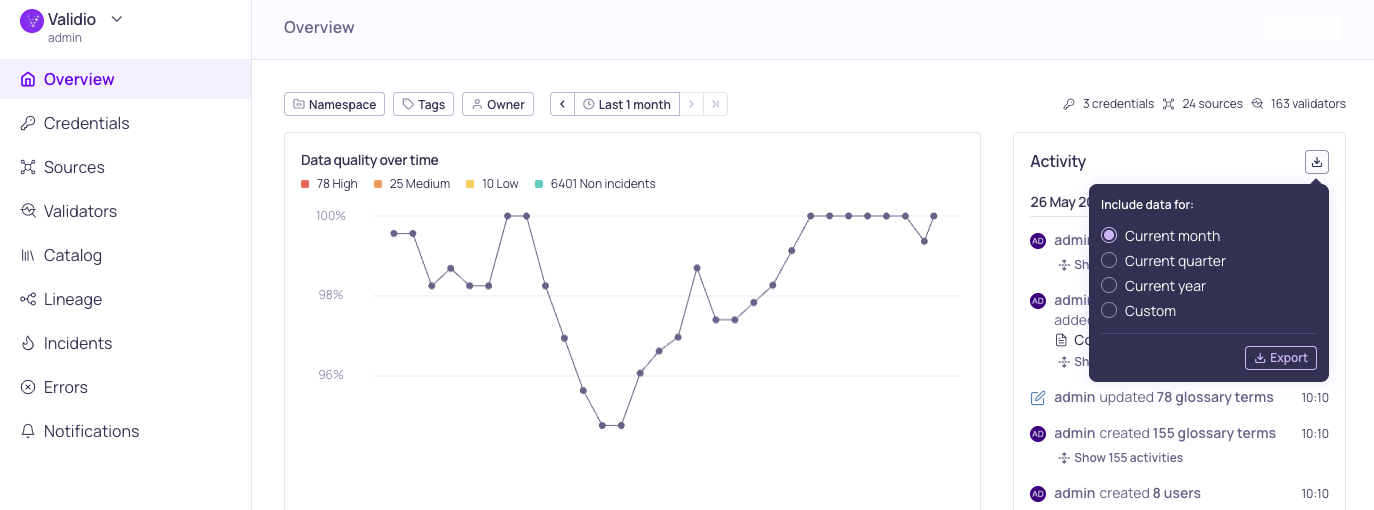
Export options for the Activity log
Click the menu in the activity panel header and pick Export to download a CSV. A small popover lets you pick the time range:
- Current month (default), Current quarter, Current year, or Custom… to enter a specific start and end date.
The exported file is named activities-{from}_{to}.csv when the range is bounded, or activities-{today}.csv for an unbounded range. On a Source or Validator details page, the export is automatically scoped to that resource.
The export reads from the database, not the on-screen view
The export time range is independent of what is currently loaded in the panel. You do not need to scroll to historical data before exporting — the export reads directly from the database for the range you choose.
The on-screen panel hides activity for resources that have since been deleted, but the CSV export preserves those entries with the resource's original name, so records such as "user X deleted source Y" remain visible after Y is removed.
CSV Columns
| Column | Description |
|---|---|
| Timestamp | When the action occurred (ISO 8601, UTC). |
| Action | Action type, such as CREATED, UPDATED, DELETED, or a resource-specific action like STARTED. |
| Activity type | Internal event type, for example SourceCreateActivity. |
| Entity name | Name of the affected resource at the time of the event. |
| Entity ID | Unique identifier of the affected resource. |
| Actor type | User, API key, or System. |
| Actor | Email (for users) or API-key name (for API keys); empty for System. |
| Namespace | The namespace the resource belonged to, when applicable. |
| Description | Human-readable summary of the event. |
For programmatic access to the same data via REST, see the CSV Export API.
Updated about 1 month ago