

SAP IQ
Connect Validio to SAP IQ to monitor and validate your operational data.
SAP IQ (formerly Sybase IQ) is a column-oriented relational database management system designed for high-performance analytics and data warehousing. Integrate Validio with your SAP IQ database to monitor, analyze, and validate your data assets.
In addition to monitoring and validation, Validio can build data Lineage for SAP IQ by reading its query logs, including the statements that run inside stored procedures. This requires making the query log files available in S3-compatible object storage. See Lineage requirements.
To integrate with SAP IQ,
- Create a user in SAP IQ with the appropriate permissions for Validio. See Prerequisites.
- Create a Validio credential to connect to the SAP IQ account. See Add a SAP IQ Credential.
- Create a Validio source to monitor the tables in the SAP IQ database. See Add a SAP IQ Source.
Prerequisites
Create a user in SAP IQ with read-only access so that Validio can read and validate your data. For more information about credentials in Validio, see Credentials.
Credential Permission Requirements
Validio Credentials require
VIEWERaccess rights when connecting to sources to read and access data. Admins must ensure that they do not provideEDITORaccess rights to their credentials.
The following SQL script provides steps for setting up a user with the necessary permissions for the source in Validio. Run it as a user with administrative privileges:
-- Create the Validio user.
CREATE USER Validio IDENTIFIED BY '<password>';

-- Allow Validio to list the databases on the server.
-- sa_db_list is a system procedure owned by dbo.
GRANT EXECUTE ON dbo.sa_db_list TO Validio;

-- Grant read access to the system catalog views that Validio uses to
-- discover tables, schemas, and views, to infer table schemas, and to
-- read the view and stored procedure definitions used for lineage.
GRANT SELECT ON SYS.SYSTAB TO Validio;        -- Tables
GRANT SELECT ON SYS.SYSUSER TO Validio;       -- Users (schemas)
GRANT SELECT ON SYS.SYSOBJECT TO Validio;     -- Views and tables
GRANT SELECT ON SYS.SYSREMARK TO Validio;     -- Notes/descriptions
GRANT SELECT ON SYS.SYSTABCOL TO Validio;     -- Table columns
GRANT SELECT ON SYS.SYSDOMAIN TO Validio;     -- Fallback column type
GRANT SELECT ON SYS.SYSVIEW TO Validio;       -- View definitions
GRANT SELECT ON SYS.SYSPROCEDURE TO Validio;  -- Stored procedure definitions

-- Grant read access to each table you want Validio to monitor.
GRANT SELECT ON <owner>.<table> TO Validio;Catalog grants and row filtering
The system catalog views (
SYS.*) are readable byPUBLICby default in SAP IQ, so the catalog grants above may already be in effect — they are included to make the requirement explicit. The grants that always matter areCREATE USERandEXECUTEondbo.sa_db_list.Catalog row filtering still applies: even with
SELECTon the catalog views, the user only sees catalog rows for objects it has a privilege on. GrantSELECTon each table you want Validio to monitor so it can infer and validate their schemas.
Lineage requirements
SAP IQ writes its query logs to local disk, not to object storage. To build lineage, Validio reads the query log files from an S3-compatible object store, so you need a process that copies the logs from the SAP IQ server to that store. Once the logs are there, enable Configure query log storage on the credential and fill in the Query Log Storage Parameters.
Query log storage is optional. Without it, Validio still infers schemas and validates your data, but it does not build lineage.
Lineage covers statements that run inside stored procedures as well as ordinary queries, so reads and writes inside a procedure appear as lineage edges. This needs no configuration beyond the SELECT grant on SYS.SYSPROCEDURE in the script above.
Add a SAP IQ Credential
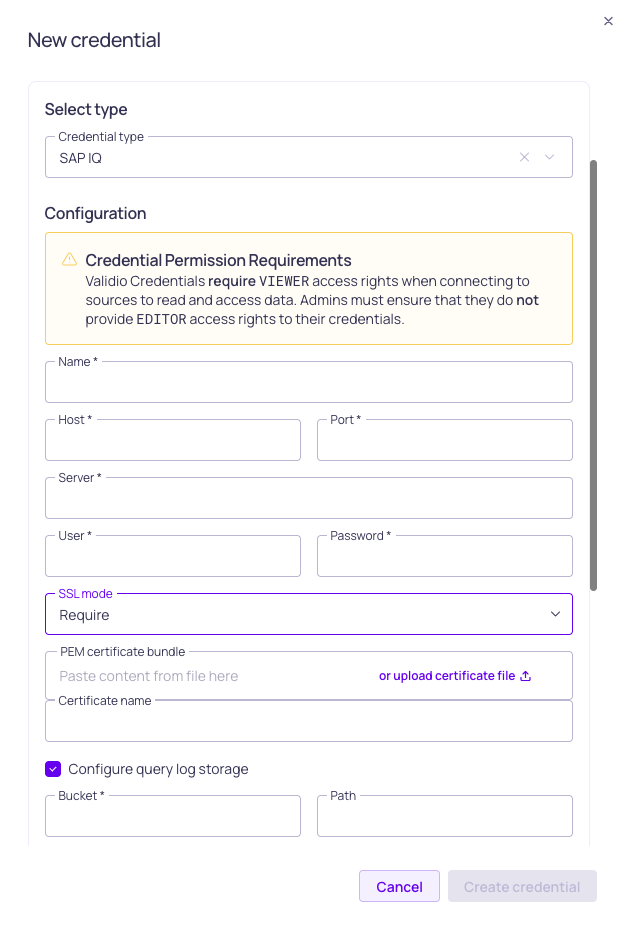
SAP IQ credential configuration
To add a credential for SAP IQ,
- Navigate to Credentials and click + New credential.
- Under Namespace, select a namespace where the resources will be created.
- For Credential Type, select SAP IQ.
- Fill in the credential parameter fields. Refer to the SAP IQ Credential Parameters table.
- (Optional) To enable lineage, toggle Configure query log storage and fill in the connection details for the object storage that holds your SAP IQ query log files. Refer to the Query Log Storage Parameters table.
- (Optional) Click Test credential to validate the connection to the SAP IQ account. If validation fails, check that you provided the correct parameter values and try again.
- (Optional) Check Use for catalog and schema checks to automatically discover assets and add them to the catalog page.
- Click Create.
Once the credential is created, you can add a source to start monitoring SAP IQ data. If you configured query log storage, Validio also begins building lineage and you can view SAP IQ assets and their relationships on the Catalog and Lineage pages.
SAP IQ Credential Parameters
| Parameter | Description |
|---|---|
| Name | Identifier for the credential, referenced when configuring a source. |
| Host | DNS hostname or IP address of the SAP IQ database server. |
| Port | Port number of the SAP IQ database server. |
| Server | SAP IQ server (engine) name to connect to. |
| User | Username of the SAP IQ account with read access to the desired tables. |
| Password | Password of the specified SAP IQ account. |
| SSL mode | Select Disable for an unencrypted connection, or Require to encrypt the connection between Validio and the SAP IQ server with TLS. |
| PEM certificate bundle | (Optional, SSL mode Require) Paste or upload the PEM certificate used to verify the server certificate. |
| Certificate name | (Optional, SSL mode Require) Expected Common Name or Subject Alternative Name on the server certificate. Set this when it does not match the host you connect to. |
Query Log Storage Parameters
| Parameter | Description |
|---|---|
| Bucket | Name of the S3-compatible bucket that contains the SAP IQ query log files. |
| Path | (Optional) Path or prefix within the bucket where the query log files are stored. Leave empty to read from the bucket root. |
| Access key | Access key with read access to the bucket. |
| Secret key | Secret key for the specified access key. |
| Region | Region of the object storage. Whether this is required depends on the storage implementation: AWS S3 requires it, while many on-premises and S3-compatible stores do not. |
| Endpoint URL | (Optional) Endpoint URL of the object storage. Set this for S3-compatible stores that are not AWS S3, such as Dell EMC ECS. |
| Use path-style addressing | (Optional) Enable path-style addressing (<endpoint>/<bucket>) instead of virtual-hosted-style addressing (<bucket>.<endpoint>). Required for many on-premises and S3-compatible stores where virtual-hosted-style URLs do not resolve. |
| PEM certificate bundle | (Optional) Paste or upload the certificate used to verify the object storage server certificate. Set this when the store uses a self-signed or private CA certificate. |
Add a SAP IQ Source
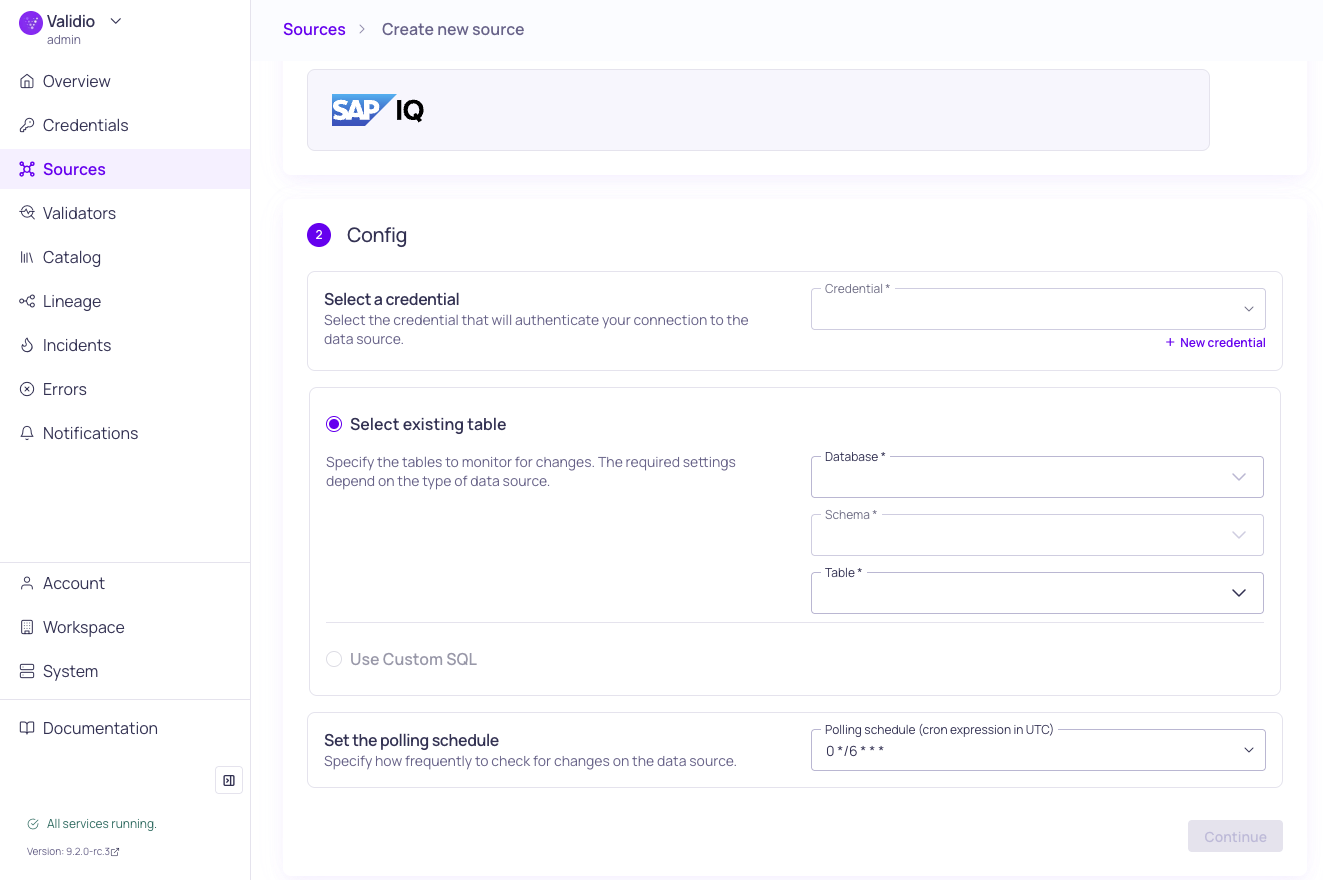
SAP IQ source configuration
To add a source for SAP IQ,
- Navigate to Sources and click + New source.
- Under Source type, select SAP IQ.
- Under Config,
- Select the valid Credential or create a new credential to authenticate your connection to the database.
- You have two options for specifying the dataset and tables to monitor:
- Select an existing table -- Enter the Database, Schema, and Table to specify where the data comes from. Selecting more than one table will create a new source for each table. Refer to the Source Configuration Parameters table.
- Use Custom SQL -- Write a valid SQL query to specify the data to monitor. See Custom SQL Sources.
- Set the Polling schedule, which is how frequently the validators on the source will check for changes.
- Under Schema, click Continue to automatically infer the schema fields from the tables you selected. If you select many tables, this operation can take a few minutes to complete.
- Under Source details,
- Add Tags to help group related sources or to use for routing notifications.
- Add an Owner who will be the contact for incident notifications.
- Assign a Priority, which indicates the importance of incidents detected on this source.
- Click Continue to create the source.
Source names are generated automatically and will be displayed when the source creation completes. If there are more than 5 sources, you will see the names for the first five and a count of the remaining sources.
SAP IQ Source Configuration Parameters
| Parameter | Description |
|---|---|
| Credential | SAP IQ credential. |
| Database | Name of the SAP IQ database. |
| Schema | Name of the schema that contains the table. |
| Table | Name of the table to read data from. |
Updated about 1 month ago