

Classifications
Tag glossary terms as Critical Data Elements, Regulatory Scope, or Data Sensitivity to drive governance, compliance, and data quality coverage.
Classifications are governance tags you attach to glossary terms. They let you mark which terms — and, by propagation, which schema fields assigned to those terms — are critical to the business, in scope for a regulation, or carry sensitive data, and they drive coverage and quality reporting on top of those marks.
The Classifications tab is located under Catalog > Classifications.
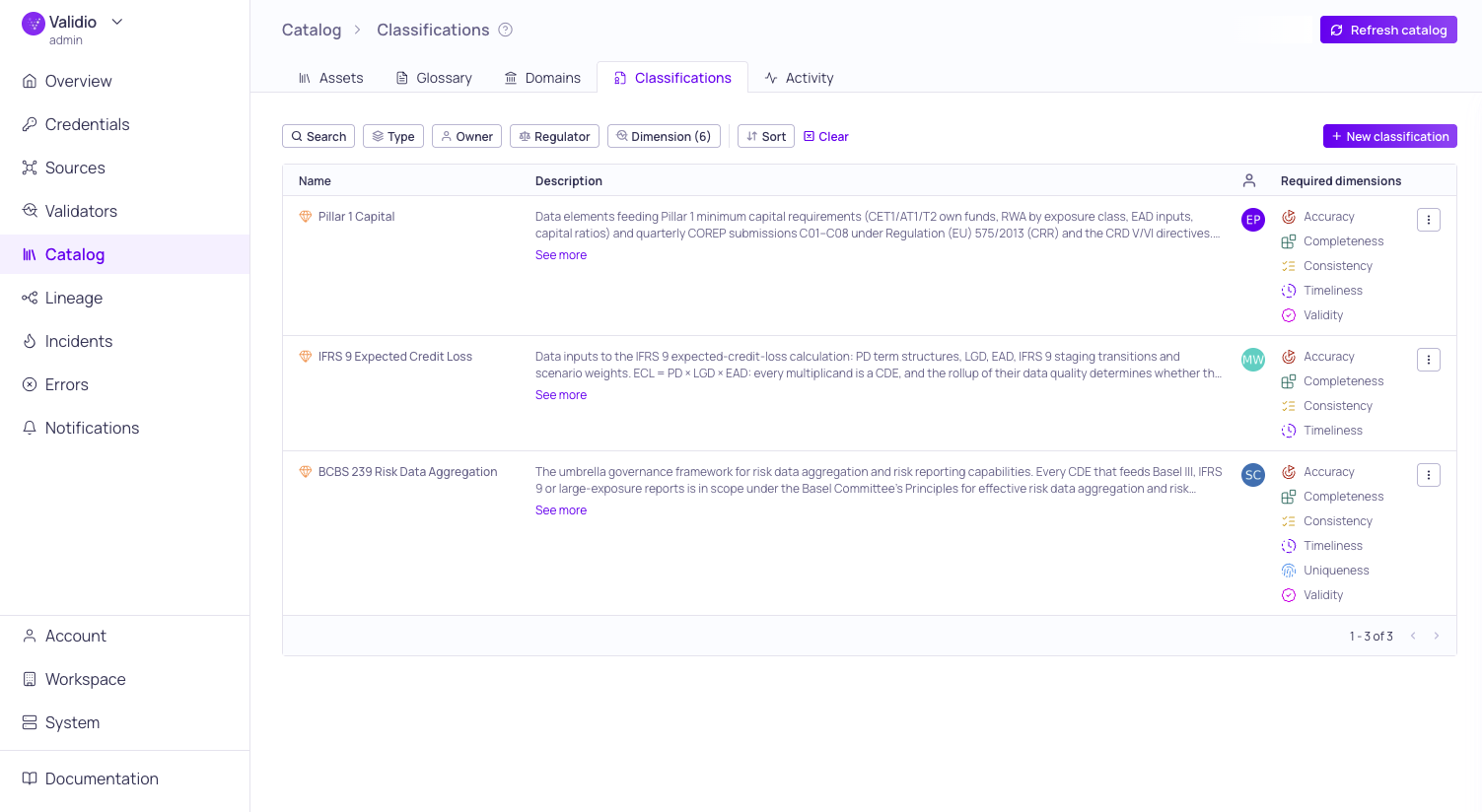
Classifications tab
Classifications attach to glossary terms, and they reach schema fields through the term's assignments. To classify a field, assign a glossary term that carries the classification to it. See Glossary Term Assignments.
Prerequisites
Viewing classifications requires classifications:READ permission (granted to the Viewer role by default). Creating, editing, and deleting classifications requires classifications:WRITE permission (granted to Editor and Admin roles by default). For more information, see About Validio RBAC.
Classification Types
Validio supports three classification types. Each type carries its own metadata and answers a different governance question.
| Type | Answers | Type-specific metadata |
|---|---|---|
| Critical Data Element | "Which fields are critical to a business or regulatory outcome?" | Regulator, required data quality dimensions |
| Regulatory Scope | "Which fields are in scope for a specific regulation?" | Regulator |
| Data Sensitivity | "How sensitive are these fields, and how should they be handled?" | Level (Public, Internal, Confidential, Restricted) |
All three types share the same core fields — a name, an optional description, and an owner — and each type can be attached to any number of glossary terms. They differ only in their type-specific metadata and how the classification is consumed downstream.
Critical Data Element
A Critical Data Element (CDE) marks a field as critical to a business outcome — typically a regulatory report, a key risk indicator, or a downstream KPI. Use CDEs to describe why a field matters and what good looks like in terms of data quality.
A CDE record carries:
| Field | Description |
|---|---|
| Name | (Required) A human-readable identifier (e.g., "Probability of Default", "Customer Tax ID"). |
| Description | A free-text rationale for criticality (e.g., the regulatory cell or business calculation it feeds). |
| Owner | (Required) The user accountable for the CDE. |
| Required dimensions | A subset of the six data quality dimensions that fields under this CDE (via their assigned glossary terms) must be covered for. Used to drive coverage rollups on the glossary term details data quality tab and elsewhere. |
Required dimensions define what data quality coverage a CDE expects. A required dimension counts as covered when a field under the CDE has a validator tagged with that dimension. Required dimensions without a matching validator show up as coverage gaps.
Regulatory Scope
A Regulatory Scope marks a field as in scope for a specific regulation, without making the stronger CDE statement that the field is operationally critical. Use Regulatory Scope to express coverage breadth — for example, all fields touched by GDPR, all fields in scope for SOX — independent of criticality tiering.
A Regulatory Scope record carries:
| Field | Description |
|---|---|
| Name | (Required) A human-readable identifier (e.g., "GDPR – Customer PII", "SOX – Revenue Recognition"). |
| Description | A free-text scope description. |
| Owner | (Required) The user accountable for the scope. |
| Regulator | (Required) The single regulation or framework. |
Data Sensitivity
A Data Sensitivity classification marks a field with a sensitivity level. Use Data Sensitivity to support handling, access, and exposure decisions independent of which regulation drives the requirement.
A Data Sensitivity record carries:
| Field | Description |
|---|---|
| Name | (Required) A human-readable identifier (e.g., "Customer Tax ID – Restricted"). |
| Description | A free-text description. |
| Owner | (Required) The user accountable for the classification. |
| Level | (Required) One of Public, Internal, Confidential, or Restricted. |
Supported Regulators
Critical Data Element and Regulatory Scope classifications use a shared list of regulators:
| Region / Framework | Values |
|---|---|
| Banking / risk | BCBS 239, Basel III, Basel IV, AnaCredit, FRTB, CCAR, DFAST, EBA Stress Test, CECL |
| Accounting / insurance | IFRS 9, IFRS 17, Solvency II |
| Privacy | GDPR, CCPA, LGPD, UK DPA |
| Anti–money laundering | AMLD6, BSA / AML |
| Operational / other | APRA CPS 230, DORA, PCI DSS, SOX |
Browse and Search Classifications
The Classifications page lists all classifications in a single table that mixes the three types. Use the toolbar to narrow the view:
- Search -- Type keywords into the search bar to filter by name and description.
- Filters -- Use the filter toolbar to narrow by Type (Critical Data Element, Regulatory Scope, Data Sensitivity), Regulator, Owner, and Dimension.
- Sort -- Use the sort menu to change the sort field and order.
Click a classification row to open the sidebar. The sidebar shows the classification's name, description, owner, regulator (for Critical Data Element and Regulatory Scope) or sensitivity level (for Data Sensitivity), and — for Critical Data Elements — the required data quality dimensions.
Manage Classifications
You can create and delete classifications from the Classifications tab. Classifications are immutable once created — to change any property, including the type, delete the classification and create a new one.
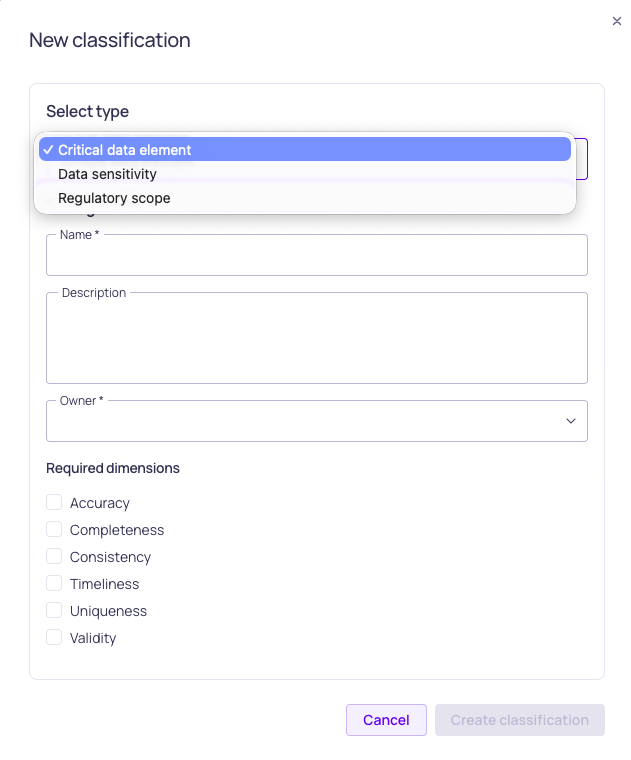
New classification dialog
Create a Classification
- Navigate to Catalog > Classifications.
- Click + New classification.
- Choose the Type (Critical Data Element, Regulatory Scope, or Data Sensitivity).
- Fill in the type-specific fields (see Classification Types above).
- Click Create to save the classification.
Creating the classification record does not attach it to any glossary terms. Attaching to terms is a separate step — see Attach Classifications to Glossary Terms below.
Delete a Classification
- Open the actions menu on a classification row.
- Select Delete.
- Confirm the deletion in the dialog.
Deleting a classification removes it from every glossary term it is attached to.
Attach Classifications to Glossary Terms
Classifications are attached to glossary terms, not directly to schema fields. Once a classification is attached to a term, it is shown on every schema field that has that term assigned.
- Navigate to Catalog > Glossary.
- Open a term's sidebar or details page.
- Use the Manage classifications action to attach or detach classifications for that term.
To classify a field, assign the relevant glossary term to it. The term's classifications then surface on the field as propagated classifications.
Filter Schema Fields by Classification
The Schema Fields list (on an asset's Schema & Profiling tab) supports filtering by Classification and by Data Quality Dimension, so you can find every field in a regulated scope or every field with a particular coverage gap.
How Classifications Show Up in Other Surfaces
- Schema field sidebar — When you open a field's sidebar (from the Schema & Profiling tab or from lineage), classifications attached via its assigned glossary terms appear in the Classifications section. The section is hidden when no classifications apply to the field.
- Glossary term details — On a term's data quality tab, classifications appear as "Required by" links beneath each data quality dimension card.
Related Resources
Updated about 2 months ago