

Managing Roles
Learn how to create and manage global and namespace roles in your Workspace.
Roles in Validio provide permission-based access control for both global and namespace-scoped resources, allowing you to manage what users can read and write across the platform.
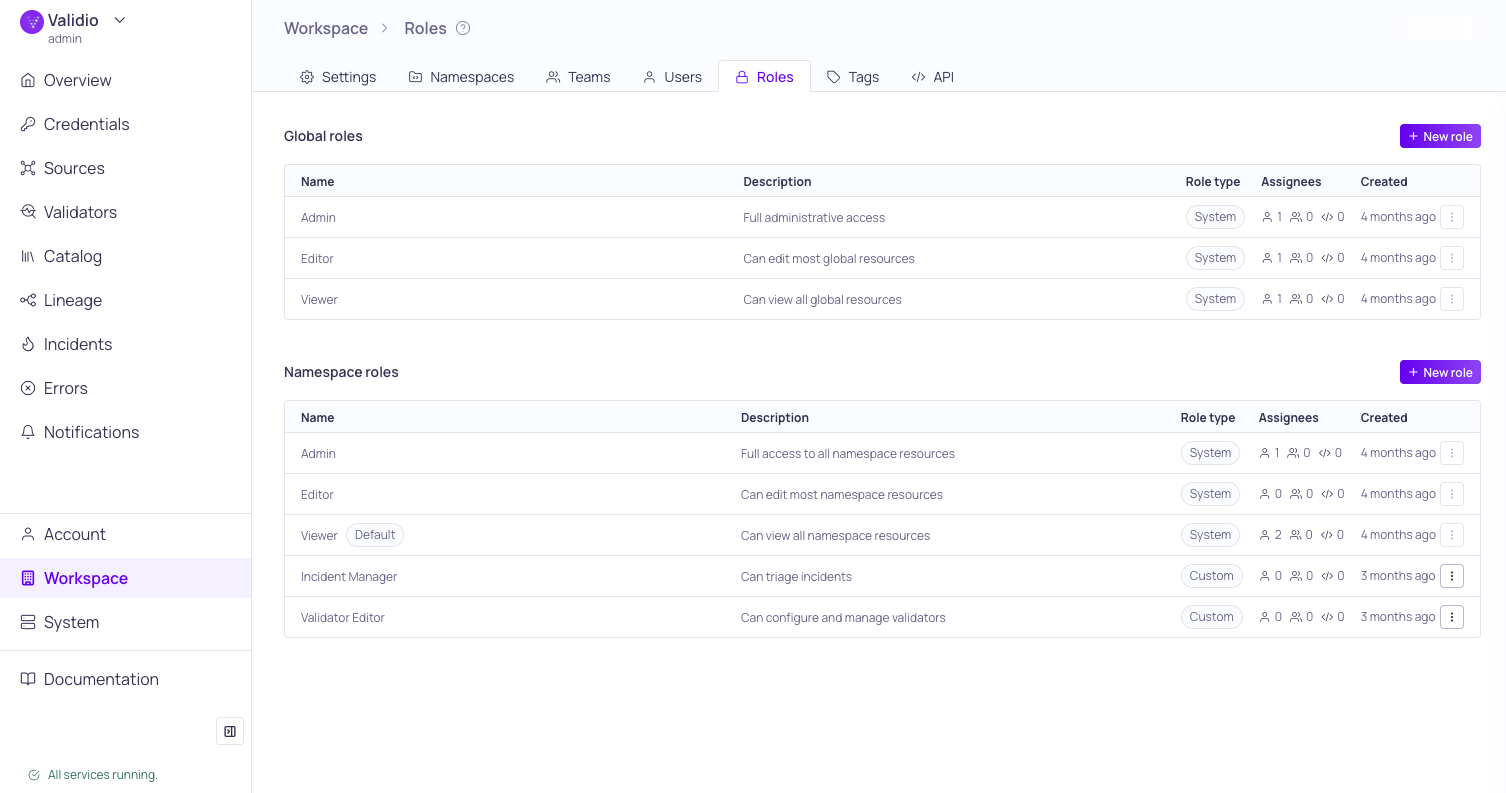
Global and Namespace Roles management page
Overview
Validio uses permission-based roles to provide granular control over user access to both global and namespaced resources. This guide discusses how to create and manage Roles in your Workspace. For more information about how role-based access controls work, see About Validio RBAC.
Permission Scopes
Permissions are categorized by their reach within the platform. Each role grants a specific combination of READ and WRITE permissions (and, for the resources covered by approval workflows, APPROVE) to resources at one of two levels:
- Global roles: Governs access to shared resources that exist workspace-wide, such as catalog assets and tags.
- Namespace roles: Governs access to resources within specific, isolated namespaces, such as channels and credentials. These permissions can be assigned to individual users or inherited through team membership.
Role Types
Validio offers two types of roles to balance simplicity with flexibility:
| Role Type | Description |
|---|---|
| System | The standard, predefined roles--Admin, Editor, and Viewer. They provide broad access levels, ranging from full administrative control to read-only access, and cannot be modified. |
| Custom | User-defined combinations of READ, WRITE, and (for namespace roles) APPROVE permissions for individual resources, to meet specific, granular security requirements. |
Custom roles enable you to follow the Principle of Least Privilege, ensuring users have only the minimum access required for their tasks. For example, while workspace settings typically require a Global Admin (with full write access across the platform), you can now create a "Settings Manager" custom role. This role can be configured with WRITE permissions for Settings while remaining READ-only for all other resources.
Adding a Custom Role
To add a custom Global or Namespace role,
- Navigate to Workspace > Roles
- For the relevant level (Global or Namespace), click + New role
- Name: Enter a unique and descriptive name.
- (Optional) Description: Describe the role's capabilities.
- Resources Grant READ or WRITE permissions to each resource. For namespace roles, Sources, Validators, Filters, Windows, and Segmentations also offer APPROVE, which lets the role approve or send back proposed changes in namespaces with approval workflows enabled.
- Click Create to save and create the new role.
Custom Role Examples
The following table includes examples of custom roles you can add:
| Custom Role | Scope | Permissions | Description |
|---|---|---|---|
| Settings Manager | Global | Settings (WRITE) | Ability to modify workspace configurations while viewing all other resources. |
| Incident Manager | Namespace | Incidents (WRITE) | Ability to triage incidents without modifying validators or configuration. |
| Validator Editor | Namespace | Filters, Segmentations, Validators, Windows (WRITE) | Ability to configure and manage validators independent from sources. |
| Reviewer | Namespace | Sources, Validators, Filters, Windows, Segmentations (APPROVE) | Ability to approve or send back proposed changes in a namespace with approval workflows enabled. |
Resolving Permission Conflicts
Users can have multiple roles: the global role that they are assigned when their account is created, the global role they have via team membership, and their role assignment within a namespace which can be direct or via team membership.
When there are conflicting permissions between the direct user assigned roles and the (global or namespace) team roles, the permissions for all resources are merged and the highest level for each resource applies to the resulting permission. For example:
- User direct global role: Editor (users:READ, teams:READ, namespaces:WRITE)
- Team A global role: Admin (users:WRITE, teams:WRITE, namespaces:WRITE)
- Team B global role: Viewer (users:READ, teams:READ, namespaces:READ)
Resulting permission: Merged (users:WRITE, teams:WRITE, namespaces:WRITE)
Updated 16 days ago