

Domains
Organize glossary terms and data assets by business area using domains.
Domains are organizational entities for categorizing glossary terms and data assets by business area. For example, you might create domains such as "Finance", "Marketing", or "Engineering" to group related terms and provide clear ownership boundaries.
Domains are also the primary nodes in the Domain Lineage graph, which visualizes how data flows between business areas.
Domains are located under the Catalog > Domains tab.
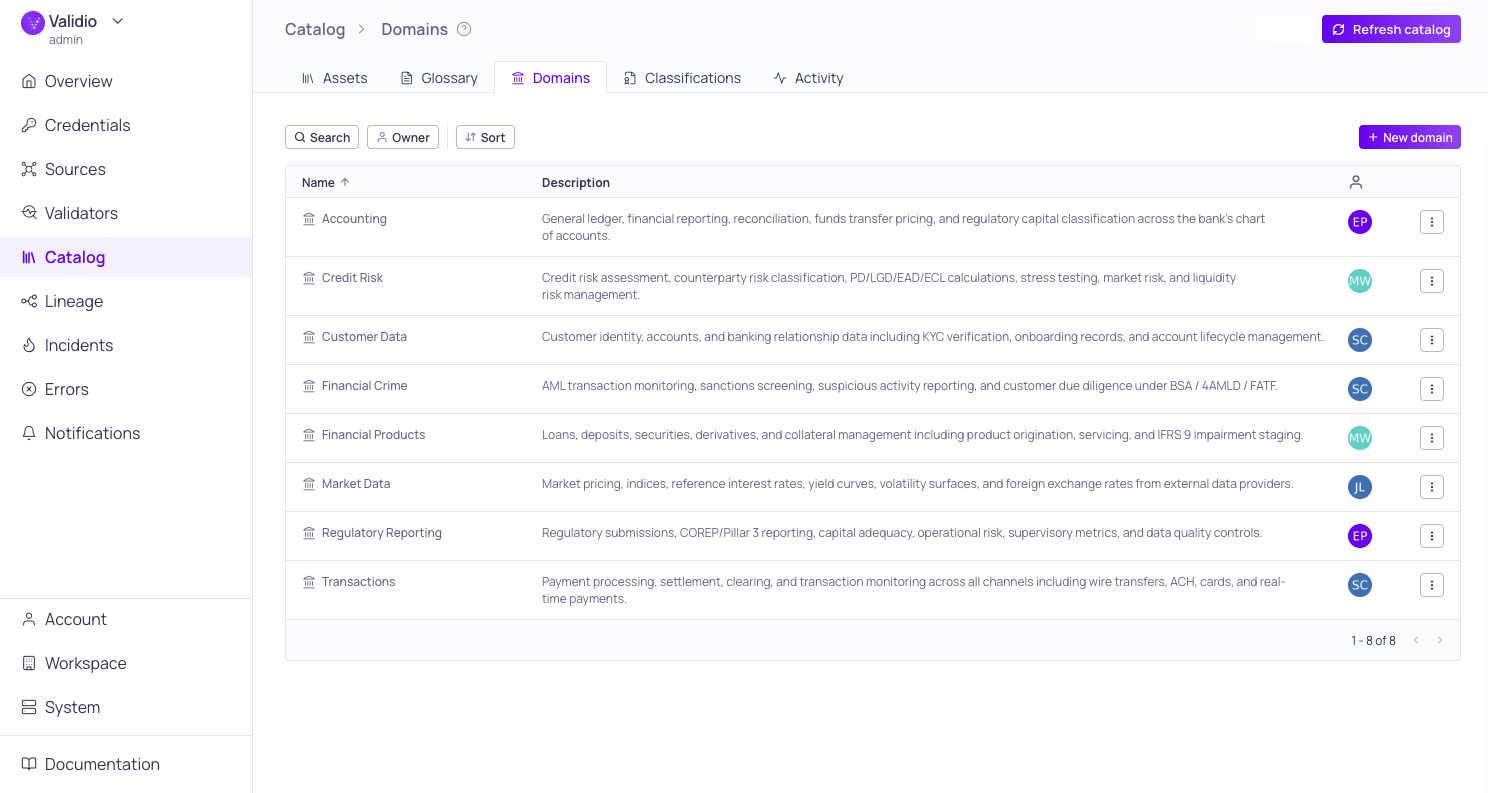
Domains page
Prerequisites
Viewing domains requires glossary:READ permission. Creating, editing, and deleting domains requires glossary: WRITE permission. For more information, see About Validio RBAC.
Domain Properties
The domains list page displays all domains in a table with the following columns:
| Property | Description |
|---|---|
| Name | A unique name for the domain. |
| Description | A free-text description of the domain. |
| Owner | A user assigned to the domain. |
Each domain row has an Actions menu, where you can manage (Update and Delete) individual domains. See Managing Domains.
Browse Domains
You can search and sort to find relevant domains:
- Search -- Type keywords into the search bar to filter by domain name and description.
- Sort -- Use the sort menu to change the sort field and the ordering of domains.
View Domain Sidebar
Click a domain row to open the sidebar, which shows:
- Header: Domain name and description, with inline editing. The description supports markdown formatting.
- Linked resources: Links to view catalog assets associated with this domain in the assets list or lineage.
- Resource info: The domain ID and timestamps for creation and last update.
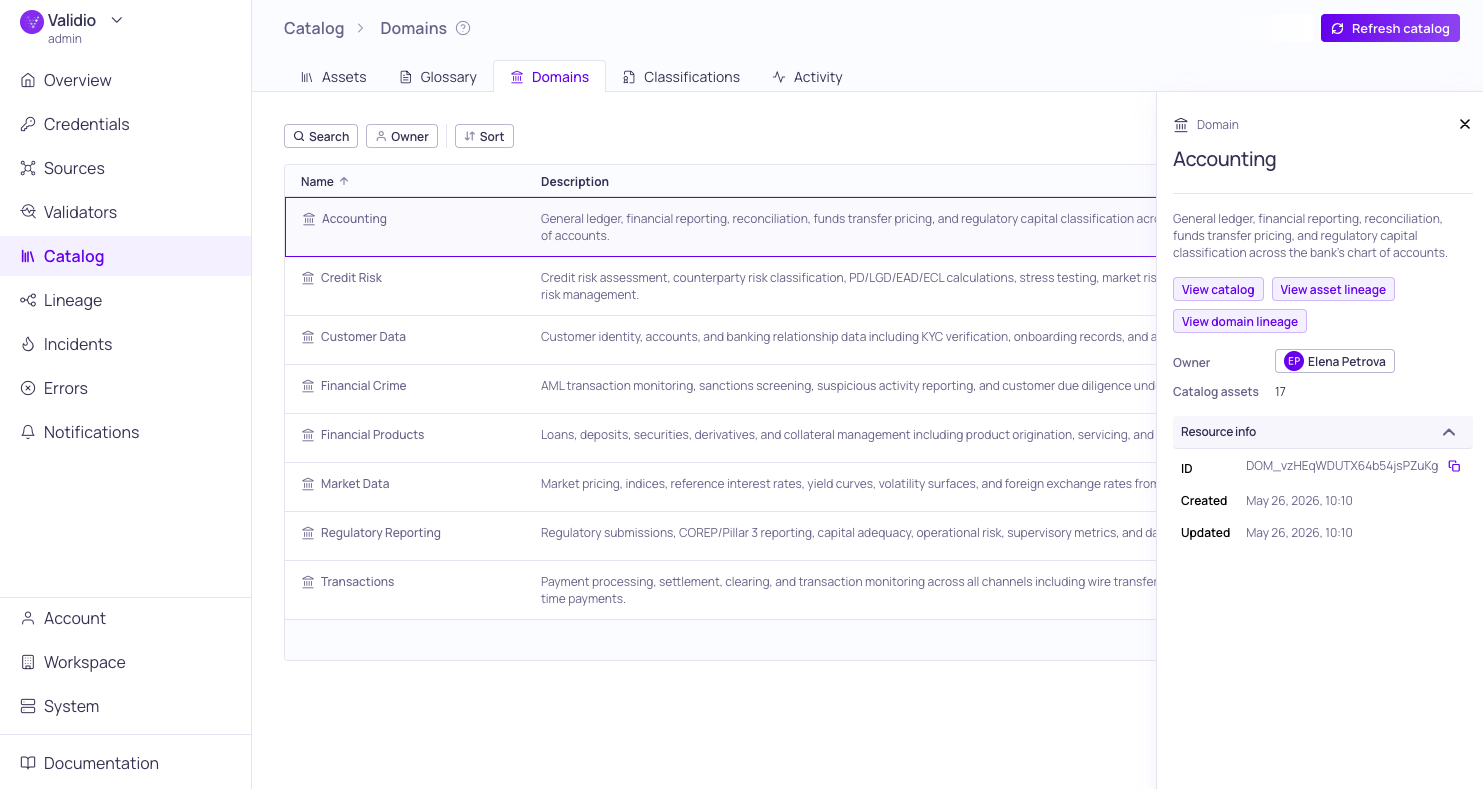
Sidebar for Accounting domain
Managing Domains
You can create, edit, and delete domains from the Domains tab. Editing and deleting can be done from the sidebar or the actions menu on each domain row.
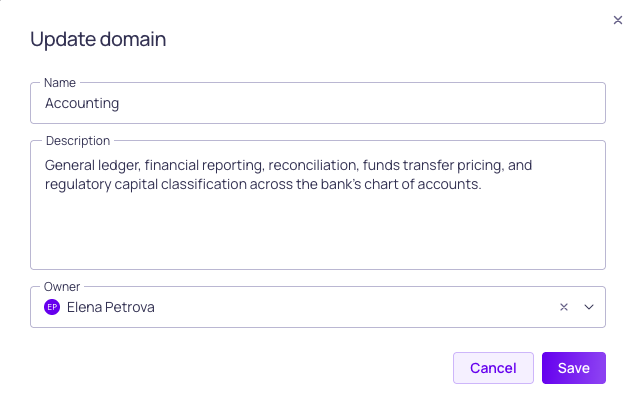
Update domain Name, Description, or Owner
Create a Domain
- Navigate to Catalog > Domains.
- Click New domain.
- Enter the domain Name (required).
- Optionally add a Description.
- Click Create to save the domain.
Edit a Domain
- Click a domain row to open the sidebar, or use the actions menu on the domain row.
- Click Update to open the update dialog.
- Modify the domain properties.
- Click Save.
Assign an Owner
- In the domain row, click the icon under the Owner column.
- Select a user from the list.
Delete a Domain
- Click the actions menu on a domain row, or use the actions in the sidebar.
- Select Delete.
- Confirm the deletion.
Deleting a domain removes it from any glossary terms that reference it, but does not delete the glossary terms themselves.
Related Resources
Updated 3 months ago