

Omni
Integrate Validio with Omni to fetch metadata for dashboards, workbooks, and queries in your catalog and lineage.
The Omni integration connects Validio to your Omni dashboards, workbooks, and queries for catalog and lineage tracking. The integration does not perform any updates or edits to Omni.
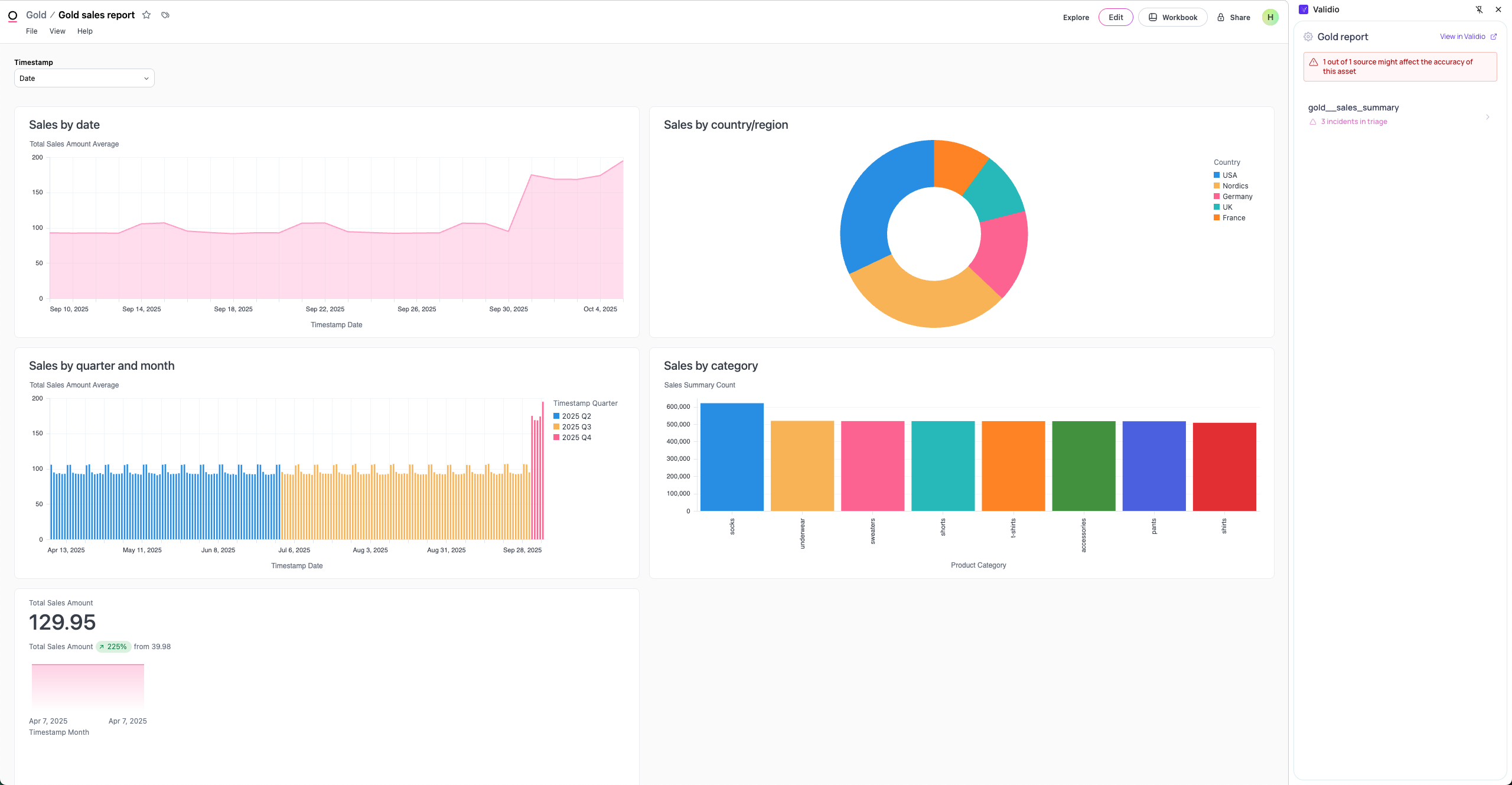
Omni Dashboard with Validio Browser Extension Panel
Prerequisites for Integrating with Omni
To connect Validio with your Omni instance, create an API key. You have two authorization options: Organization keys or Personal tokens.
Omni Organization Keys
Organization keys require Omni Admin permissions to create and access the API keys. The organization keys provide access to the full Omni catalog, including workbooks and dashboards. Refer to Omni documentation for creating organization keys.
You can scope down which resources are ingested into Validio by using the User field in the Validio credentials configuration. Set the field to the email of a user in Omni, and then only resources that the user has access to will be ingested.
Omni Personal Tokens
Personal tokens are API keys tied a single Omni user and only provides access to Omni resources that the specific user has access to.
When using personal tokens, the User field in the Validio credential configuration must be left empty.
Add an Omni Credential
To add a Omni credential in Validio,
- Navigate to Credentials, and click + New credential.
- Under Namespace, select a namespace to define where resources will be created and who can access it.
- Under Credential Type, select Omni.
- Fill in the Configuration parameters for the credential. For more information, see Omni Credential Parameters.
- (Optional) Click Test credential to validate that Validio can successfully access the Omni account. If validation fails, check that you provided the correct parameter values.
- Click Create credential.
Validio automatically starts fetching data. BI tool credentials are always enabled for catalog, so there is no catalog option to configure. You can view Omni assets and their relationships on the Catalog and Lineage pages.
Omni Credential Parameters
| Field | Description |
|---|---|
| Name | The display name of your credential. |
| Base URL | The base URL for the Omni API server, for example: https://company.omniapp.co |
| API key | The Organization Key or Personal Token connected to your Omni account. |
| User | (Optional) The email address of a user in your Omni account. Leave this field empty if your API key is a Personal Token. |
View Omni Assets in Catalog and Lineage
Validio adds the discovered Omni assets to Data Catalog and Data Lineage.
To find your Omni assets, navigate to Catalog > Assets and apply the Type filter for the Omni asset types:
- Omni Dashboard
- Omni Workbook
- Omni Query
Click an asset row to open the information sidebar, or click the asset name to open the asset details page. To open the lineage graph anchored on that asset, click View asset lineage in the sidebar.
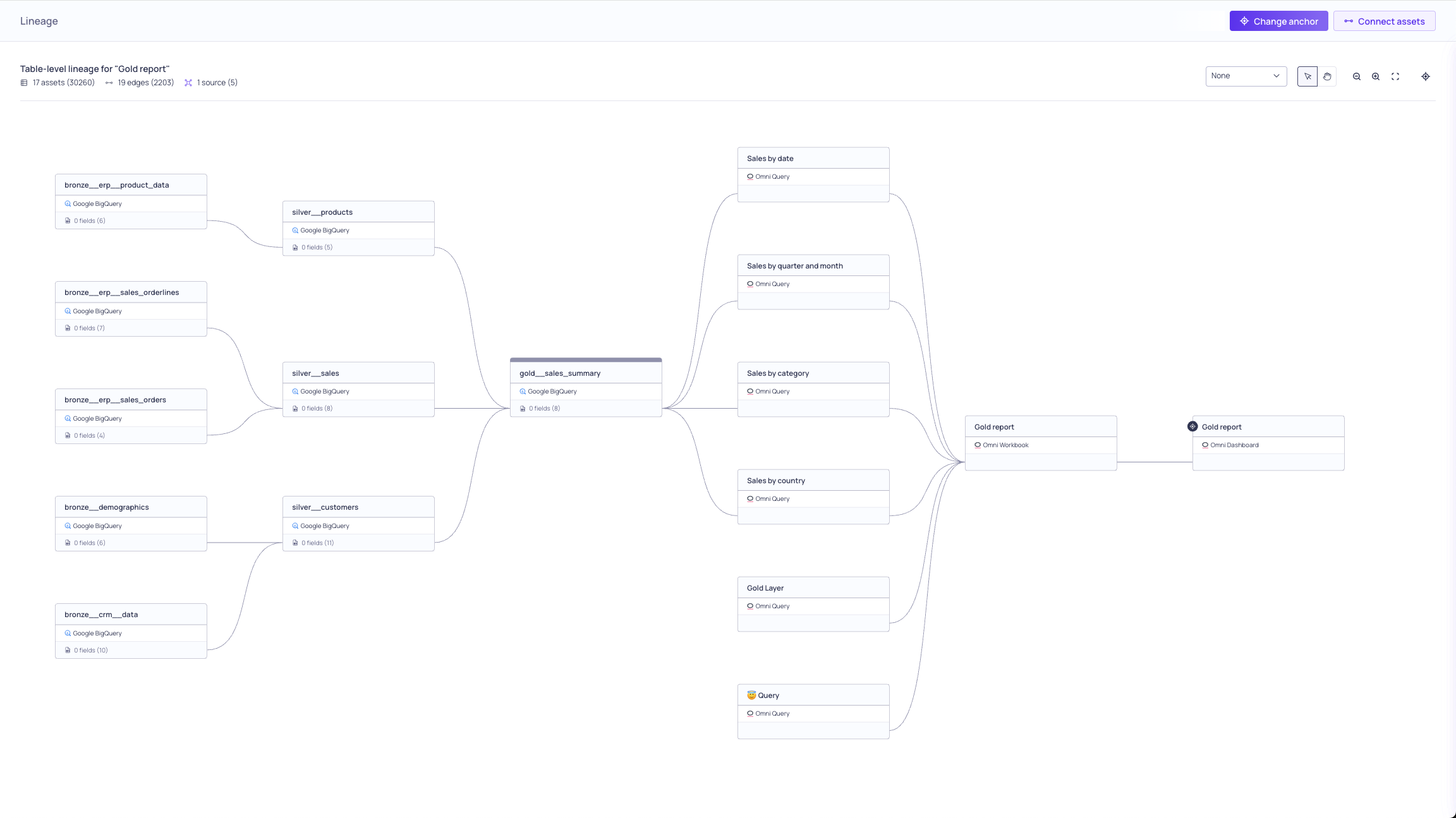
Omni Assets in Validio Lineage
BI Tool Assets and Sources
Validio BI tool integrations are only credentials, and you cannot use them to create sources or convert their assets to sources.
For more information, see Catalog Assets and Using Lineage.
Browser Extension Support
If you have the Validio Browser Extension installed, you can easily access data quality and lineage information directly from within your Omni workflow. The extension will automatically detect when you are in an Omni dashboard and provide a link to the corresponding entry in Validio's Data Catalog page.
Updated about 2 months ago