

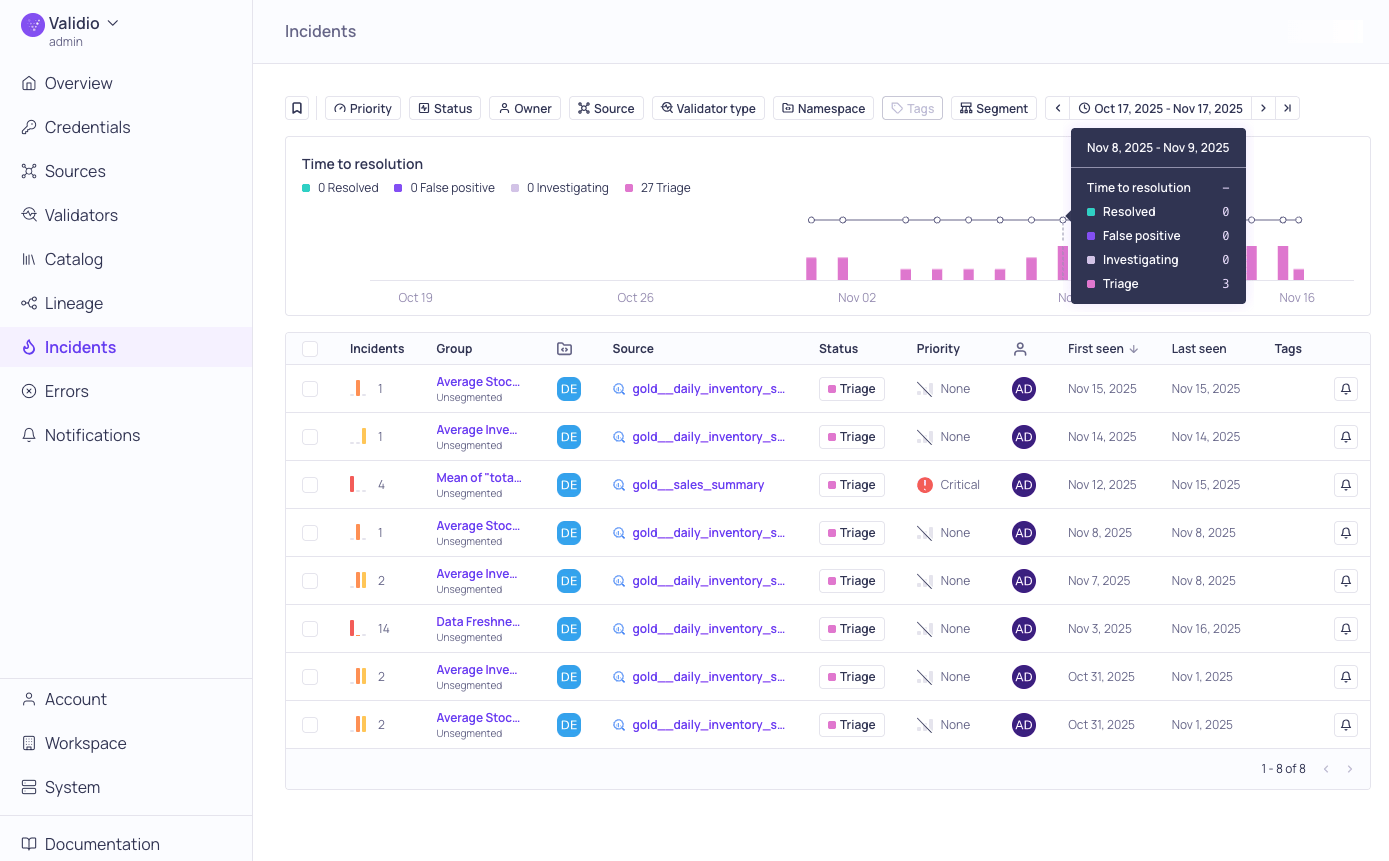
Global Incidents page with tooltip for a datapoint
Time to resolution
The Time to resolution graph displays a summary of the current statuses of incidents and the incident resolution over time. The Time to resolution metric is calculated when you change the status of at least one incident to False Positive or Resolved. You can hover on days in the graph to see the total number of incidents and the time to resolution for that day. The granularity of the graph depends on the time range settings of the view.Incidents table
The incidents table lists all of the incidents that occurred over the selected time range and includes information described in the following table:Filter the incidents list
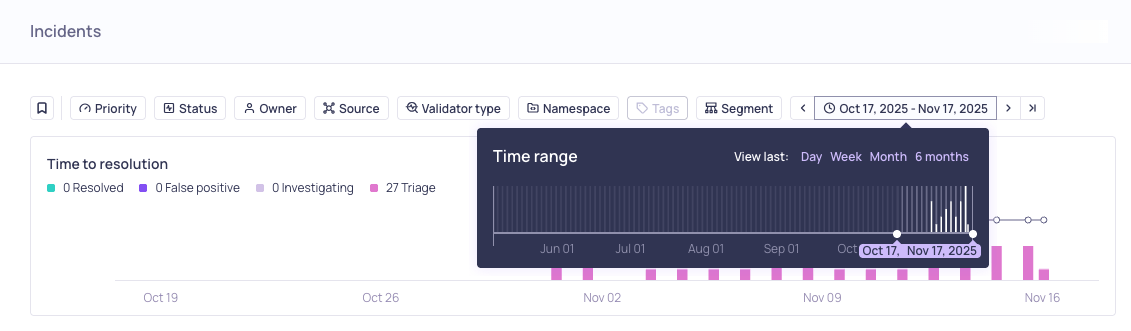
Filtering options for Incidents page
- Priority — Critical, High, Medium, Low, or None.
- Status — Triage, Investigating, Resolved, or False positive.
- Owner — the user assigned to the incident group.
- Source — limit to incidents from specific sources (for example,
gold__sales_summary). - Namespace — the namespace the incidents belong to.
- Validator type — the type of validator that detected the incidents.
- Tags — tags applied to the incidents.
- Segmentation — which segmentation the incidents belong to.
- Segment value — match incidents by the value of specific segment fields (see Filter by Segment Value).
- Time range — adjust to view recent incidents or a specific timeframe.
Filter by segment value
The Segment value filter narrows the list to incidents on specific segments of your data. Select a segment field and one or more of its values, and click + Add field to add more fields. Within a single field, an incident matches if it has any of the selected values (OR); across multiple fields, an incident must match all of them (AND).Actions and updates
You can update the muting duration, owner, and status of incidents in a bulk action or for individual incidents.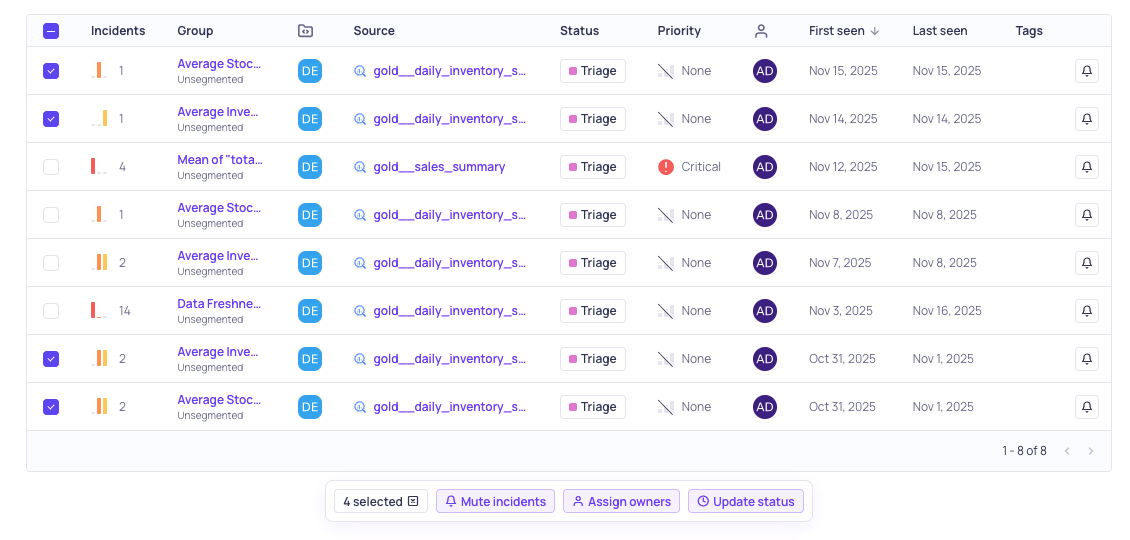
Bulk actions for Incident list
Update muting duration
Muting silences repeated notifications from any incidents created in the incident group for a period of time or until you unmute. For more information, see Muting Incident Notifications. To update the muting duration for one or more incidents:- Click the bell icon to open the Mute incident group menu.
- Select a preset time range or enter a custom time range.
Update the incident owner
To update or assign an owner to one more more incidents:- Check the box for each incident you want to update.
- Click Assign owner.
- Select the new owner to apply to all selected incidents.
Update the incident status
All new incidents are assigned the Triage status. To update the status of one or more incidents:- Check the box for each incident you want to update.
- Click Update status.
- Select the new status (Investigating, Resolved, or False Positive) to apply to all selected incidents.