

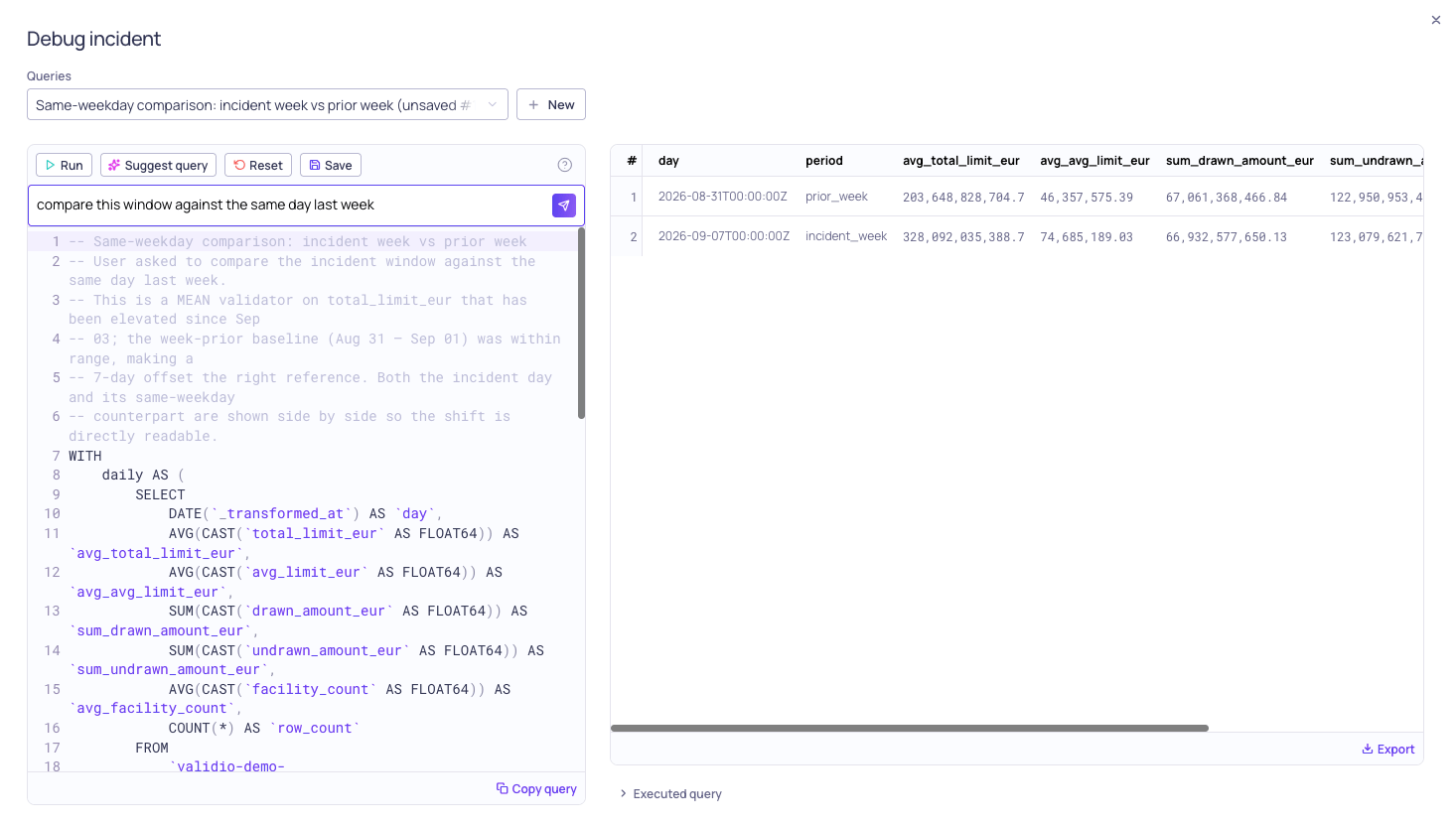
Generated debug query with comments and preview
sqlExecution:WRITE permission.
Prerequisites
To ask the agent for a query, ensure that you have the following:- A source where Debug is available — a data warehouse or query engine source that Validio validates through SQL pushdown. See Debugging an Incident.
- The Allow LLM credentials setting enabled in your Validio Workspace. See Managing Workspace Settings.
- At least one LLM credential configured in your environment. Validio runs no model of its own, so the Suggest query button stays disabled until you configure one. See LLM Credentials.
- Permissions in the namespace as follows. See Managing Roles.
Anyone who can already open Debug and run a query can ask the agent — it adds no permission of its own.
Ask for a suggestion
- Open Debug on an incident, from an incident group details page or anywhere individual incidents are listed.
- Select Suggest query in the toolbar above the editor. A prompt slides in beneath the toolbar.
-
Describe what you want the query to show — for example,
break the drop down by region and channelorcompare this window against the same day last week. - (Optional) Choose which LLM credential to ask with, from the menu on the send button. Validio uses the first configured credential by default.
-
Send the ask. Suggest query becomes a progress indicator while the agent works; hover or select it to see the per-step detail:
Read the suggestion
Each suggestion arrives as its own unsaved draft named<name> (unsaved #N), where <name> is the agent’s own name for the query. The draft opens in the editor, selected in the Queries picker, with the agent’s reasoning above the SQL as a -- comment block:
SQL
Remaining checks
Before showing you a suggestion, Validio checks it against the{{ validio_* }} placeholder grammar and gives the agent a chance to correct what it finds. Anything left over appears in the comment block as a -- Check: line, so you see it before you run the query:
SQL
Edit, run, save, or discard
A suggested draft behaves like any other unsaved query:- Run it to load sample records, as with the generated query.
- Edit the SQL freely. Reset returns the draft to the SQL the agent wrote.
- Save it to keep it against the validator for future incidents, under a name of your choosing. See Saving and reusing a debug query.
- Discard it if it is not useful. Nothing was stored, so there is no confirmation step.
Iterate on a query
Asking again refines the query in front of you rather than starting over. Each ask carries:- The SQL currently in the editor, including any edits you made.
- Whether that SQL is still the agent’s own last suggestion, unchanged.
- Your warehouse’s error message, if the last run of that query failed.
What the agent reads
So that the query it writes is specific to what actually went wrong, the agent reads context about the incident and its surroundings. That includes, among other things:- Incident details — the validator’s configuration, the window that fired, and how far the value deviated from its threshold.
- Catalog metadata — names, data types, and descriptions for the source’s columns. See Catalog Assets.
- Related incidents and lineage — what else is firing nearby, and whether the cause looks upstream. See Root Cause Analysis.
- Previously saved queries — the validator’s saved debug queries, as worked examples of how your team investigates this check.
- Your ask — what you typed, passed to the model verbatim.