

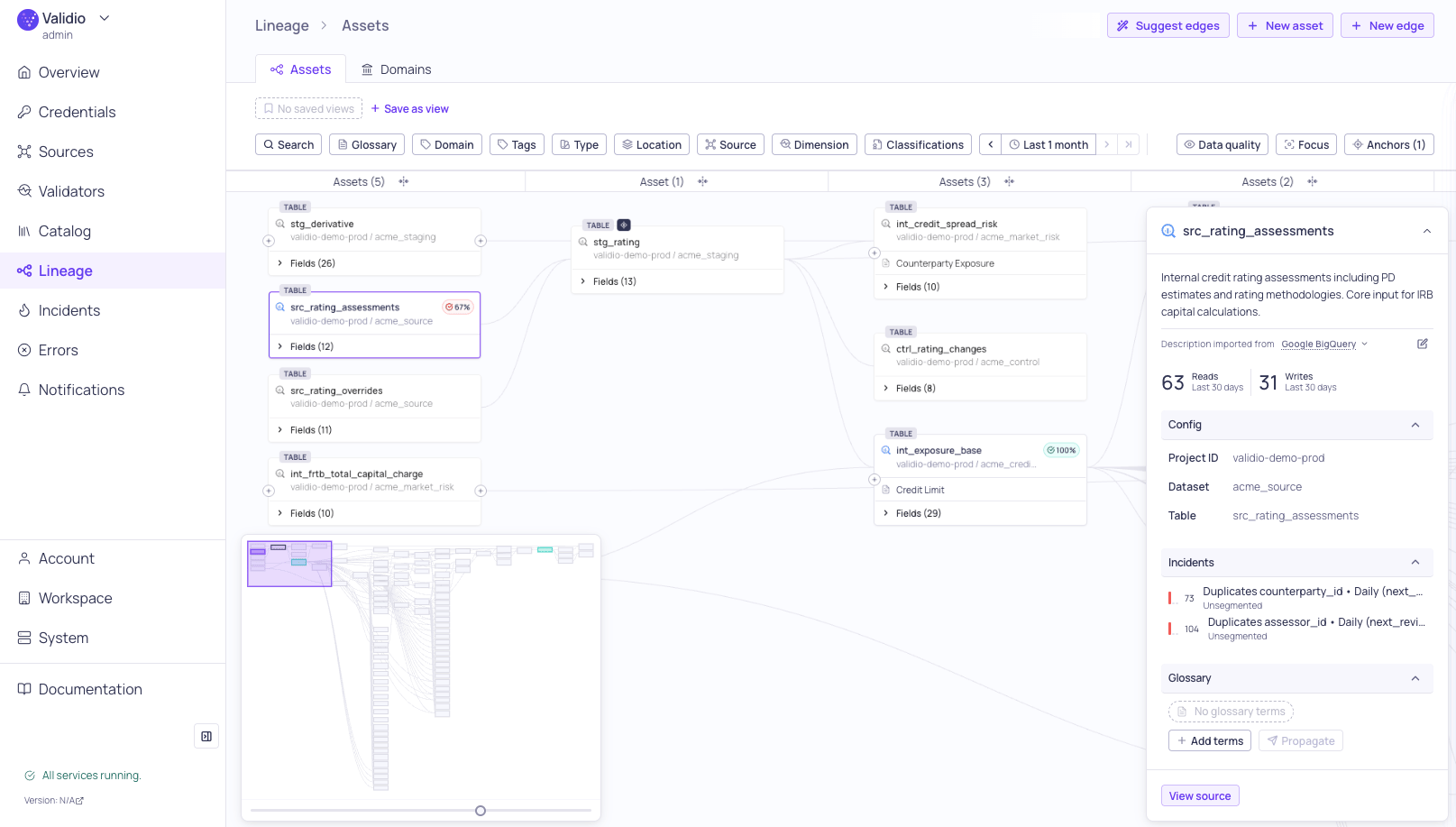
Lineage graph with sidebar
Set anchors
Anchors are the starting points for lineage exploration. They define which assets or fields to load into the graph. The Anchor Dialog opens automatically when you first visit the lineage page or when no anchors are set. You can also open it by clicking Anchors (N) in the page header. The anchor dialog has two tabs:- Assets — Search and select catalog assets as anchor points.
- Fields — Search and select individual fields as anchor points.
- Open the anchor dialog and click Edit.
- Search for assets or fields by name.
- Click the + icon next to each item to add or remove it as an anchor.
- Click Apply anchors to load the graph.
Navigate the graph
Select and inspect
Click on items in the graph to select and inspect them. When an item is selected, a sidebar opens with contextual details and actions. Selection state is persisted in the URL, so you can share links to specific lineage views.Sidebar details
- Nodes — Click an asset node to select it. The node sidebar displays asset details, schema, and a glossary terms section for managing assignments.
- Fields — Click a field row within an expanded node. The Schema field sidebar displays field details and glossary terms section.
- Edges — Click a connection line between nodes. The edge sidebar shows upstream and downstream connection details, and the edge’s origin.
Sidebar actions
For nodes and fields
For edges
Focus mode
Focus mode isolates lineage paths connected to a selected item, hiding unrelated nodes and edges to reduce visual clutter. It traces the full chain of transitive dependencies, which is useful for isolating a specific field’s lineage from parallel processing paths. To activate focus mode:- Select a node or field.
- Click Show connected only in the toolbar to activate focus mode.
- The graph re-layouts to show only connected paths.
- Click the button again or clear the selection to exit focus mode.
Filter the graph
Use the filter toolbar to highlight or narrow down the graph:
Matching nodes are shown in normal colors while non-matching nodes are dimmed. Click Clear to remove all filters.
Overlay data (data quality and incidents) reflects the time range selected in the page toolbar. Adjust the time range to narrow the overlay to a specific period.
Save custom views
Save your current anchor and filter combination as a named search to quickly return to specific lineage views.- Configure your anchors and filters.
- Click Save as view above the filter toolbar.
- Enter a name for the saved view.
Glossary terms in lineage
Glossary terms are visible directly on nodes and fields in the lineage graph:- Nodes show assigned terms as chips below the header.
- Fields show terms inline.
- Propagated terms are visually distinguished from directly assigned terms.
Assign terms from lineage
Select a node or field, open the sidebar, and use the glossary terms section. For more information, see Glossary Term Assignments.Propagate terms to connected items
Select a node or field with terms assigned and click Propagate in the status bar. For more information, see Glossary Term Propagation.Filter by glossary term
Use the Glossary term filter in the toolbar. This highlights nodes and fields with matching terms while dimming the rest.Add assets and connections manually
You can add assets that are not automatically discovered — for example, tables from databases without a native Validio integration — and create lineage relationships between any assets in the graph.Looking for AI-powered matching?If you need to connect fields between two assets from different systems and field names may differ, use Lineage Edge Suggestions to automatically discover matches using heuristic and LLM-based analysis.
- Click + New asset in the toolbar.
- Enter the asset Name and Description.
- The asset appears as a new node in the graph.
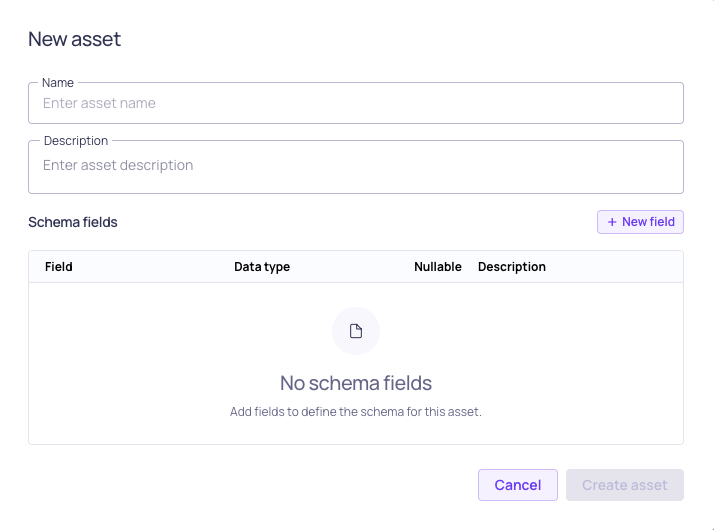
New asset configuration
- Click + New edge in the toolbar.
- Search for and select the upstream assets or fields.
- Search for and add one or more downstream targets.
- Click Connect to create the edges.
When catalog approval workflows are enabled, new assets and edges are saved as drafts and take effect only after a second person approves them. Draft edges are drawn on the graph with a small approval marker where they meet the downstream asset. Hover or click the marker to see the change and act on it, or find all drafts on the Edges tab.
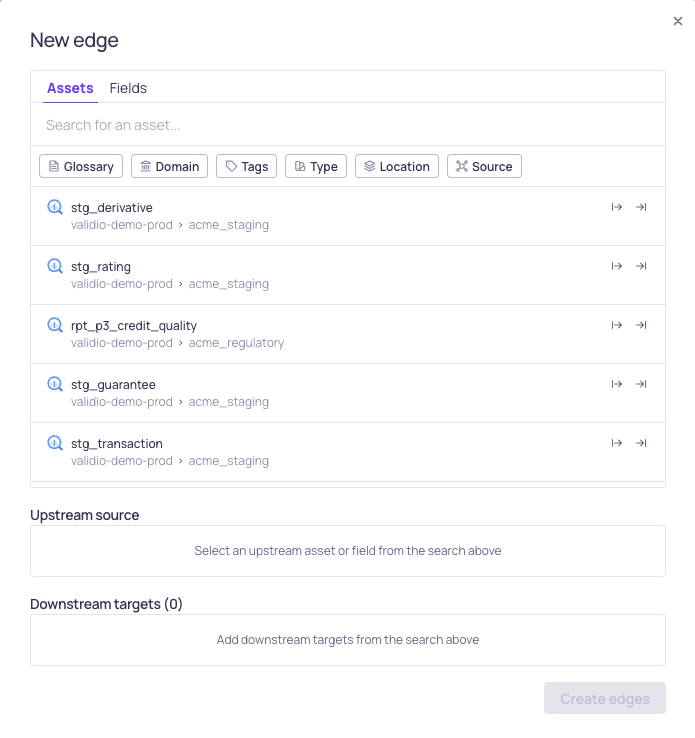
New edge (connections) configuration
Delete connections
To delete a manually created connection:- Click an edge in the graph to select it.
- Click Delete edge in the status bar.
- Confirm the deletion.
View lineage edges
The Edges tab lists every lineage edge in the workspace, whether it was read from query history, dbt, or OpenLineage, or created by hand. The list shows each edge’s upstream and downstream assets or fields, its Origin, its Tags, and when it was last updated. To delete a manually created edge, choose Delete from its row menu. Filter the list by asset, by Level (asset or field), or by Origin. For the origin values, see Edge origin. When catalog approval workflows are enabled, the list also shows the Lifecycle, Review state, Submitted, and Submitted by columns. The row menu also offers the draft actions, such as Submit, Review, Withdraw from review, and Discard. Use this tab to find every edge draft in one place. On the graph, draft edges and edges with a pending change carry an approval marker, which is hidden in focus mode. See Catalog Approval Workflows.Access lineage from other pages
You can navigate to the lineage page with a specific asset pre-set as anchor from:- The Catalog Assets list — Click View asset lineage in the asset sidebar.
- The Asset details page — Open the i (information) sidebar, and click View asset lineage.
- The Source details page — Open the i (information) sidebar, and click View asset lineage.
- A glossary term details page or sidebar — Click View in lineage to open the graph anchored on the term’s assignments (assets and schema fields). See Glossary Term Assignments.