

Incident group actions
At the top of the page, you have buttons for bulk actions on all incidents in the group:- Owner–Update or assign ownership to a user who will manage and resolve the incident group.
- Status–Update the incident group status to track its progress toward resolution.
- Mute–Silence repeated notifications from this incident group for a period of time or until you click Unmute. For more information, see Muting Incident Notifications.
Notification RulesIf you have notification rules to track when an incident occurs, the notification includes a link directly to the Incident details page where you can manage it.
Update the incident owner
The ownership of sources and validators default to the user who created the resource. Incident groups will automatically inherit the owner based on the validator that detected the incident, if that validator has an owner. You can then update and assign a new owner to the incident group during investigation and triage.Update the incident status
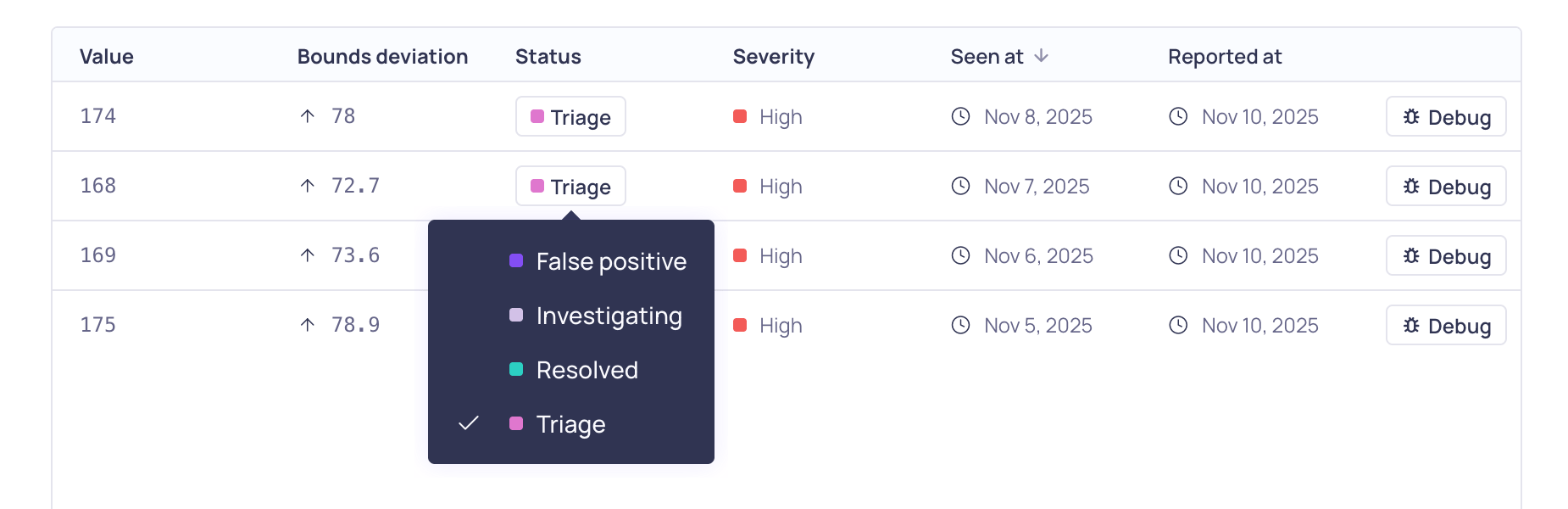
Incident Status options
Model RetrainingChanging the status of a detected incident to False Positive, provides feedback to retrain the anomaly detection algorithms so that it is less likely to wrongly detect similar data points as incidents when they occur in the future. You can undo this feedback by changing the incident status to any other status. For more information, see Model Feedback and Retraining and Reverting Feedback.
Group overview tab
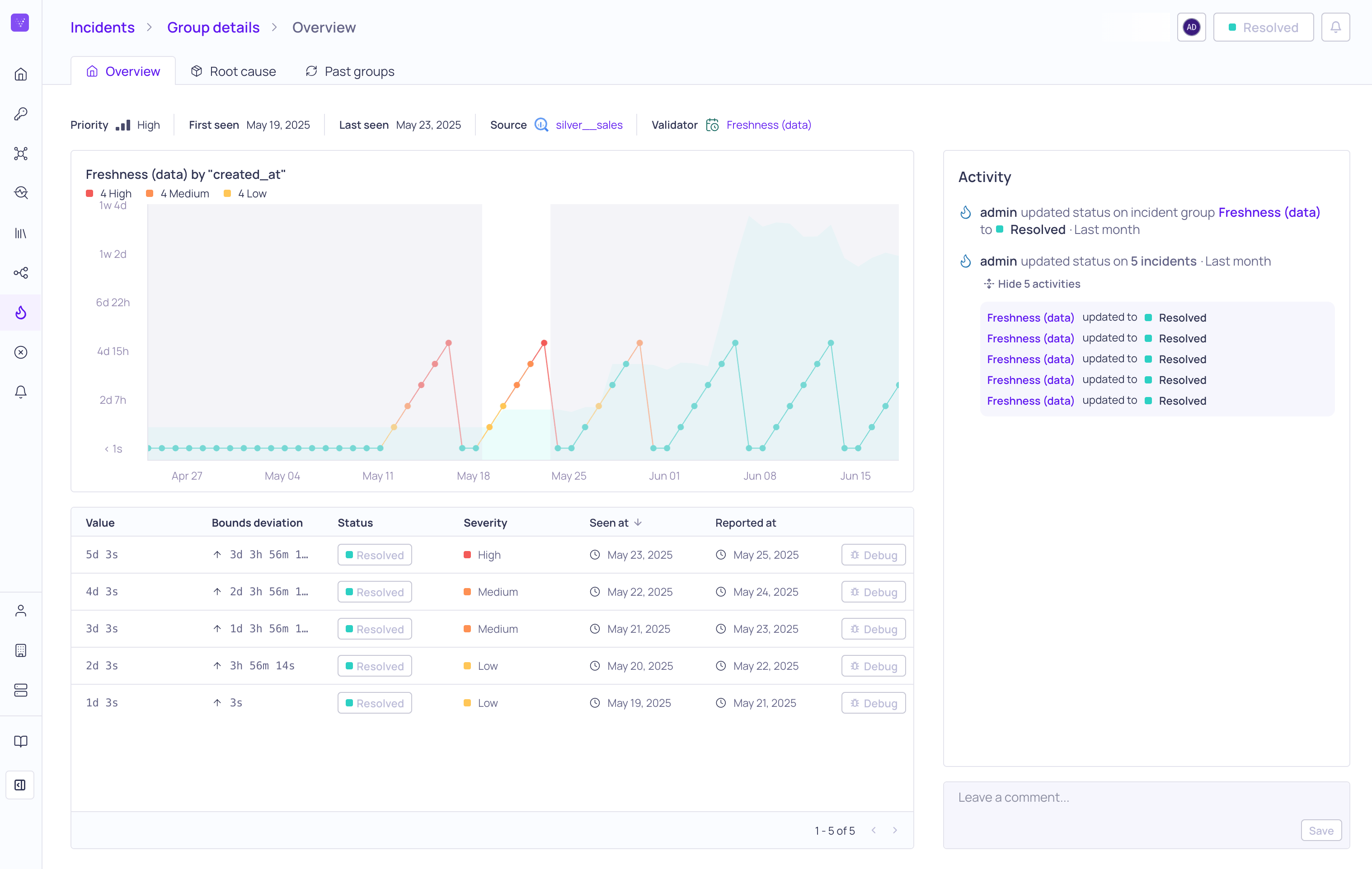
Incident Group Details Overview Tab
Metric graph
The metric graph displays a history of the field values tracked by the validator. You can see when the incident occurred and the values before and after the incident. The graph includes information about the severity of the incidents (High, Medium, Low) and a count of the occurrences of each severity. When you hover on a datapoint in the graph, a tooltip will display the time that the incident occurred, its Value, and its Upper and Lower boundaries. Click on a datapoint to pin the tooltip and view additional details including processing timestamps. If a datapoint has been rerun, the pinned tooltip shows a Previous runs section with each rerun’s metric value and timestamp. Rerun results also appear as secondary points on the graph. For validators using dynamic thresholds, a vertical dashed line marks where the Dynamic Threshold model changed; hover the datapoint to see why—see Model Change Indicators.Incident table
The incident table lists the individual incidents in the group and includes the following information:
You can use the Debug button to find information to help you troubleshoot the incident. The information that you see depends on the type of source. Debug is not available for all source types. For more information, see Debugging an Incident.
Comments and activity log
The Activity log records all actions and updates made to incidents in the group during your investigation. These actions include status updates, changes to owners, validator reruns, and comments. Adding comments to document your findings, actions taken, or resolution creates a clear record for anyone else who joins the investigation and for future occurrences of similar incidents. For more information, see Commenting on Incidents. For the activity log across all resources in Validio, see Activity Logs.Root cause tab
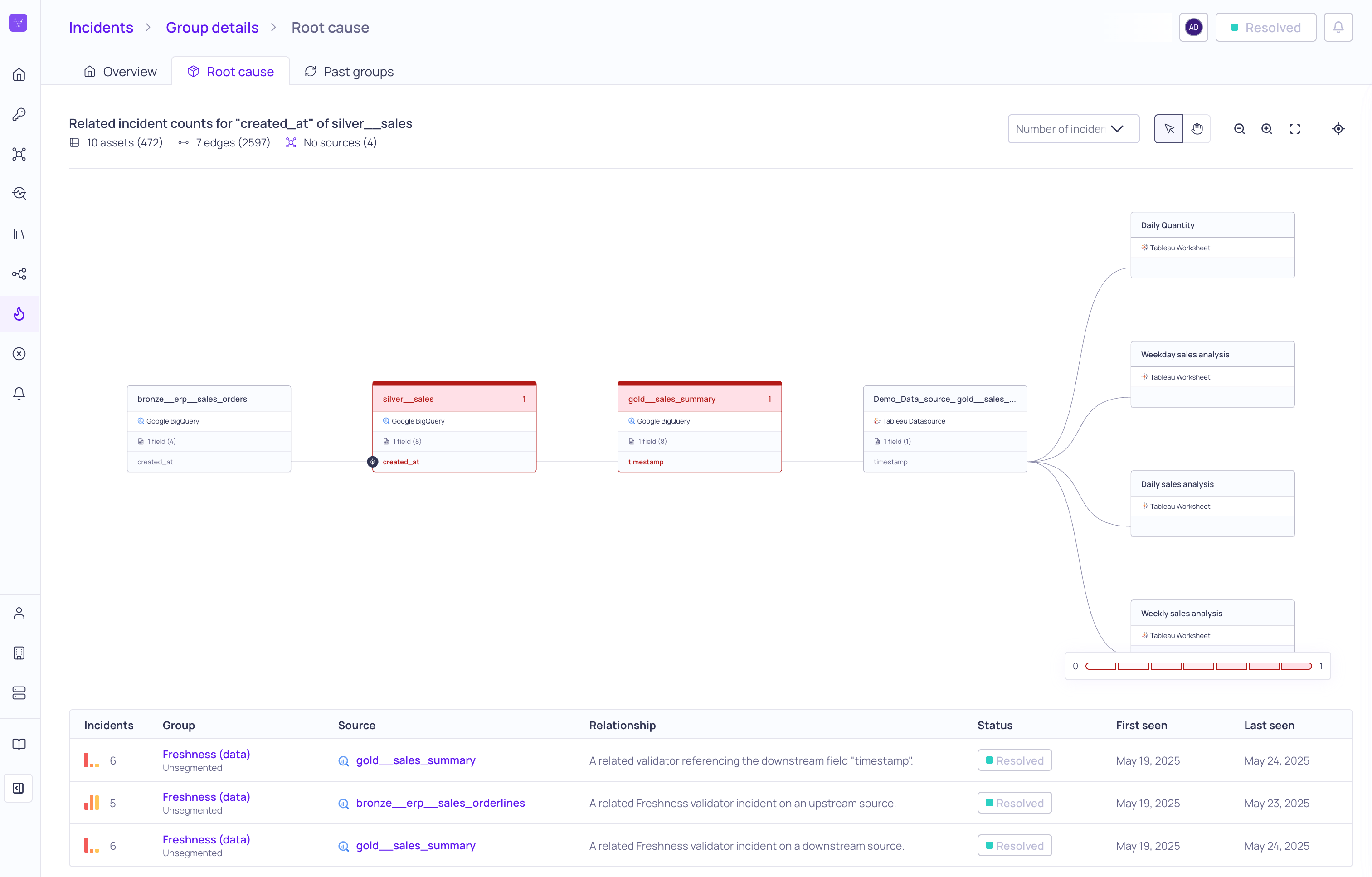
Incident Group Details Root Cause tab
Past groups tab
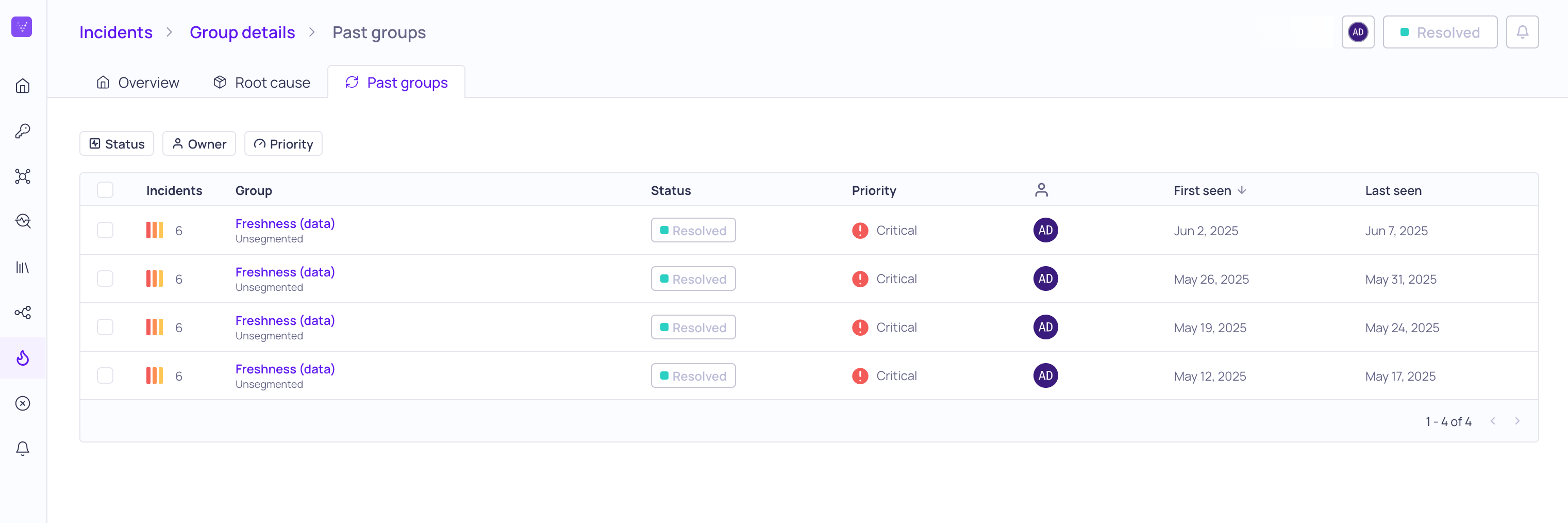
Incident Group Details Past Groups tab