

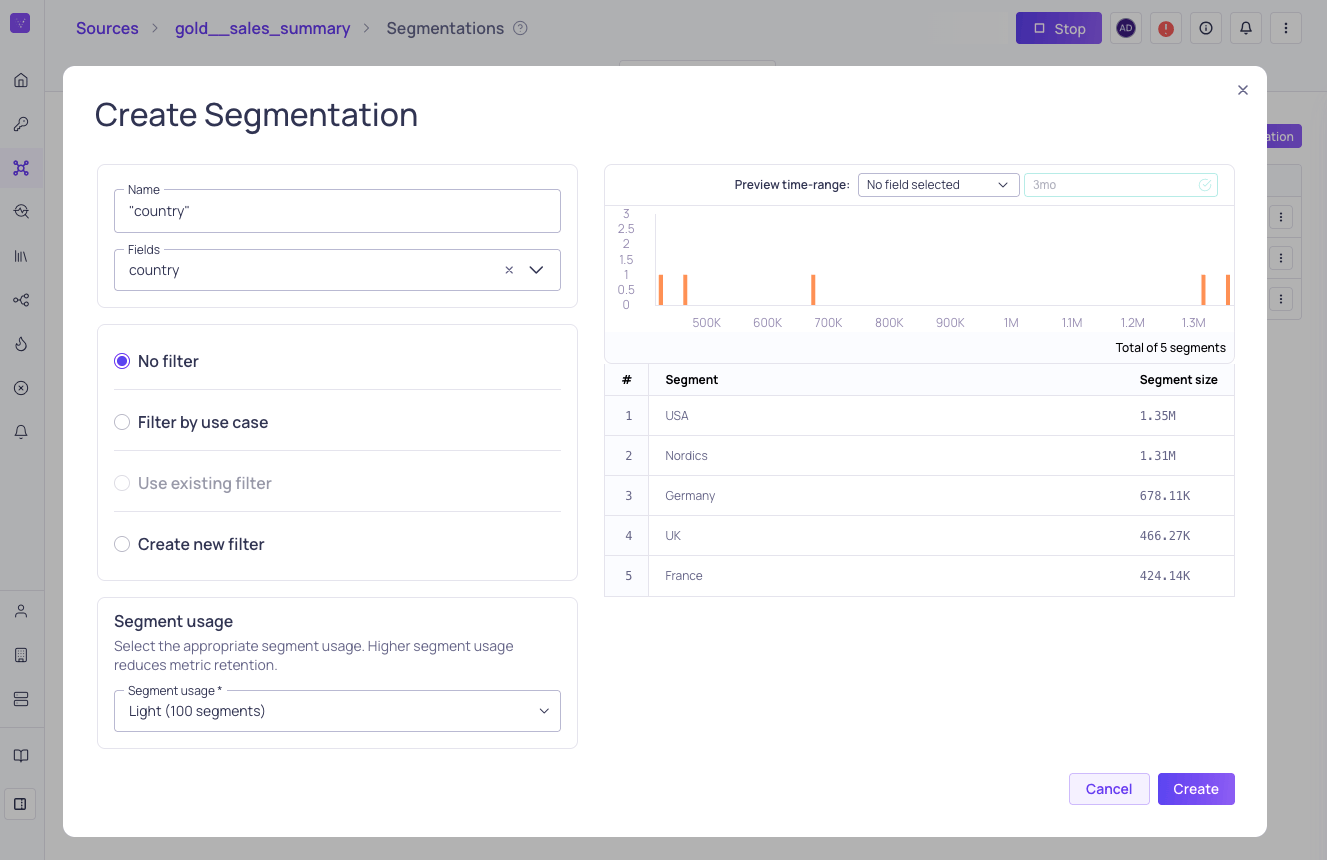
Creating a segmentation on the "country" field with preview
Segmentation with Non-Null valuesValidio displays only the Segmentations with non-Null values. Fields that include a Null value will not be shown.
- Navigate to the Segmentations tab on the source you want to configure a segmentation for.
- Click + New segmentation.
- (Optional) Enter a Name for your segmentation. If you don’t enter a name, one will be generated from the configured settings. If no fields are selected, the name defaults to “Unsegmented” and updates to include filters if any are added later.
- Select the Fields from the detected or inferred schema that you want to add to your segmentation.
- Select a Filter option to specify the fields you don’t want to include in your segmentation. For more information, see Segmentation filter options.
- Select a Segment usage to limit the number of allowed segments. Higher segment usage shortens how long metrics are kept. For more information, see Segment Usage and Metric Retention.
- (Optional) Preview your segmentation before you complete the configuration. The preview shows a table with the segment counts and a histogram with the frequency distribution of the segment.
- To complete the configuration, click Create.
Segmentation filter options
Configure filtering on your segmentation with one of the following options:Filter by use case
When filtering segments by use case, you have the following options and parameters. Minimum Segment Size Filters out segments that have a count less than the defined minimum size. This prevents small segments from being ingested.
Top Segments by Count
Keeps only the top segments ranked by record count, filtering out the rest.