

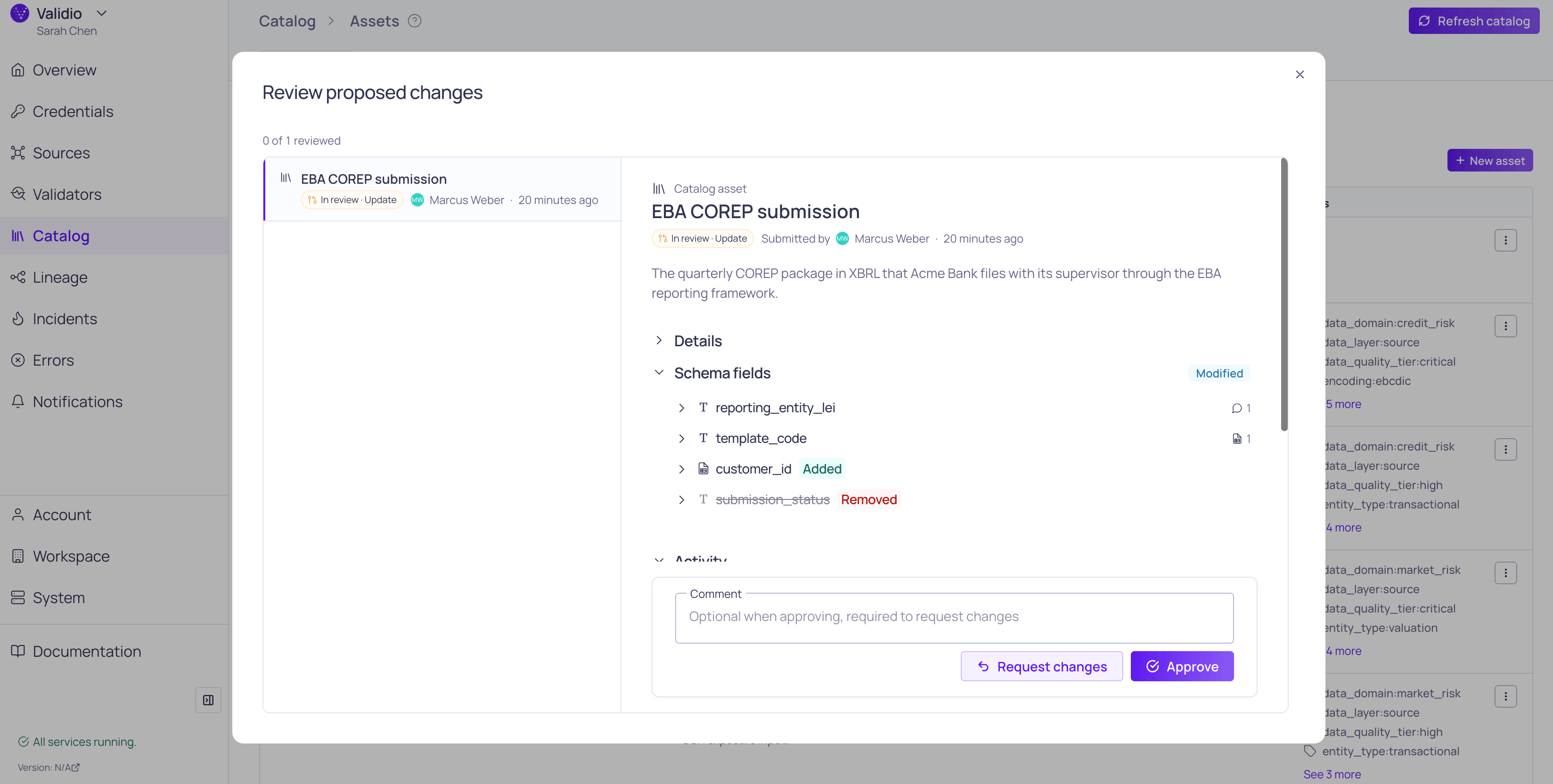
Review proposed changes to a catalog asset
How catalog approval workflows work
When the setting is on:- Every governed catalog change becomes a draft. The published catalog stays as it is until the draft is approved. A proposed new term, domain, or classification can already be picked in another draft, and it is published together with the change that uses it.
- A second person approves. A user who holds the Approve permission for that resource type, and who neither created nor submitted the draft, approves it or requests changes.
- There is no way around review. Direct changes to governed catalog resources are refused, whether they come from the UI, a CSV import, or an AI assistant.
Some catalog actions are not governed because they reflect what Validio discovers rather than a decision someone makes. Refreshing the catalog, discovering assets and lineage, and deleting a discovered lineage edge (which returns on the next discovery run) are applied directly. Starting AI glossary term suggestions is not governed either, but applying a suggestion stages a draft like any other change.
Catalog approval workflows and namespace approval workflows are independent. A validator on a classified field is governed by its namespace’s setting, and the classification by the catalog setting. Converting catalog assets to sources follows the setting of the namespace that each source is created in. See Approval Workflows.
Enabling catalog approval workflows is prospective. Published catalog resources stay as they are, and nothing needs to be re-approved. Only changes made after you enable the setting go through review.
Enabling catalog approval workflows
You need WRITE permission on Settings to change this setting. Before you enable it, make sure that at least two members hold the Approve permission for each catalog resource type your team edits. Otherwise the person who proposes a change would be the only one able to approve it, and submitting is refused. See Permissions. To enable catalog approval workflows,- Navigate to Workspace > Settings.
- Under Catalog approval workflow, select Require approval workflow for catalog changes.
- Save the settings.
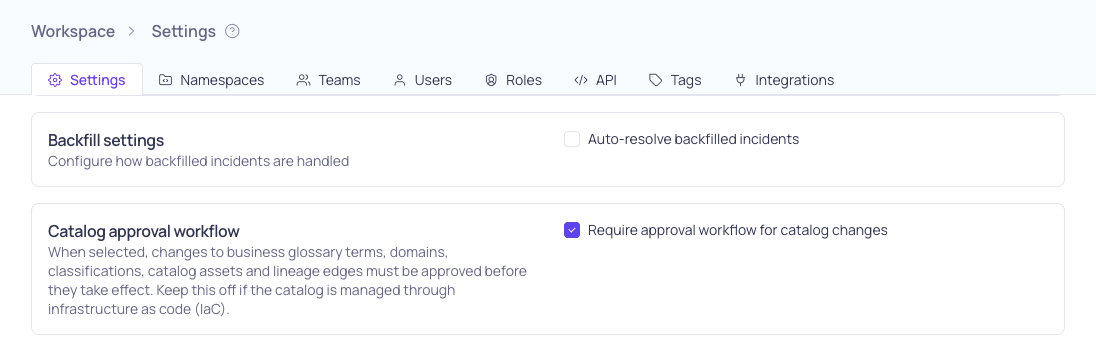
Catalog approval workflow setting
Keep catalog approval workflows off if you manage the catalog through infrastructure as code (IaC) or scripts that use an API key. API keys cannot stage or approve catalog drafts, so when the setting is on, catalog changes made with an API key are refused, including glossary CSV imports.
Permissions: Who can propose and who can approve
Catalog permissions are granted by global roles. Five global resources have an Approve level in addition to Read and Write:
Assigning a glossary term to an asset or field is a change to that asset, so proposing it requires Write on Catalog Assets and approving it requires Approve on Catalog Assets.
- The system Admin role holds Approve on all five catalog resources.
- The system Editor role holds Write, so Editors can propose catalog changes but not approve them.
- The system Viewer role can view drafts but not act on them.
- For finer control, create a custom global role and select Approve for the catalog resources the role should be able to review. See Managing Roles.
Proposing a catalog change
Any user with Write permission on the resource type can propose a change. While the setting is on, create and update dialogs, inline edits, and bulk actions on catalog resources stage drafts instead of applying the change. The draft actions work as they do for namespaced resources: dialogs offer Create as draft or Create and submit, and Save as draft or Save and submit, and the row menu offers Update draft, Submit, Withdraw from review, and Discard. See Proposing a change. A resource has one open draft at a time. If someone else has already opened a draft on it, your change joins that draft, and Validio tells you whose draft you are joining. Some catalog changes behave in specific ways:- Assigning glossary terms. Assigning or removing a term on an asset or field is saved on the asset’s draft. Assigning terms to several assets at once saves a draft on each asset, for example “Saved as drafts on 4 assets”. The term picker offers draft terms as well as published ones, and New term in the picker saves the new term as a draft and assigns it. Assets and fields that cannot take the assignment right now, for example because their own change is in review, are disabled in the assign dialog, and hovering one shows why. An archived term cannot be assigned.
- Propagating terms. Propagating a term along lineage saves the term on a draft for each downstream asset, with field-level terms on their asset’s draft. Each downstream asset is reviewed separately.
- Classifications on a term. Linking or removing a classification is saved on the term’s draft.
- Glossary CSV import. Importing terms from CSV stages every new and updated term as a draft, and the result reports how many drafts are new, updated, skipped, or failed. Submit them from the result with Submit draft for review or Submit N drafts for review, or later from the glossary list. Keep as drafts closes the result and leaves the drafts unsubmitted. A row is not imported if its term is archived or already has a change waiting for review. Domains and classifications that are not yet published are treated as unknown values.
- Lineage edges. A new edge created by hand is saved as a draft. Draft edges are drawn on the lineage graph, and any edge with a pending change carries a small approval marker where it meets the downstream asset. Hover or click the marker to see the change and act on it. To list every edge draft, use the Edges tab of the Lineage page.
Archiving, unarchiving, and deleting
Domains, glossary terms, classifications, and manually created catalog assets can be archived. An archived resource leaves its list and can no longer be used, but it is kept and can be unarchived later. To see archived resources, filter the list by Lifecycle and select Archived. The Catalog Assets list also has a built-in Archived view. Archiving and unarchiving are available whether or not catalog approval workflows are enabled. When the setting is off, they apply immediately. When it is on, archiving, unarchiving, and deleting are submitted for review in a single step, and nothing changes until a reviewer approves. Delete confirmations are titled Submit deletion for review.
Archiving is refused while something still depends on the resource, including an open draft that would start depending on it. The dialog names what has to change first:
- A domain that still holds glossary terms, or that a term’s open draft would move the term into. Move the terms to another domain, archive or delete them, or change their drafts first.
- A glossary term that is still assigned to assets or fields, or that an asset’s open draft would assign. Remove it from them or from their drafts first.
- A classification that is still linked to glossary terms, or that a term’s open draft would link. Remove it from those terms or their drafts, or archive the terms, first.
Reviewing a catalog change
Finding changes to review
While the setting is on, the Domains, Glossary, Classifications, and Catalog Assets lists show Lifecycle, Review state, Submitted, and Submitted by columns, and can be filtered by Lifecycle, Review state, Changes requested, Submitted by, and Draft created by. The Catalog Assets list also has built-in In review and Unsubmitted views. Lineage edges are listed on the Edges tab of the Lineage page. See Using Lineage. Drafts are marked with the same Lifecycle and Review state chips as namespaced resources (for example Not published, In review, or Changes requested) on lists, details pages, side panels, and links. Hover a chip to see who created and submitted the change.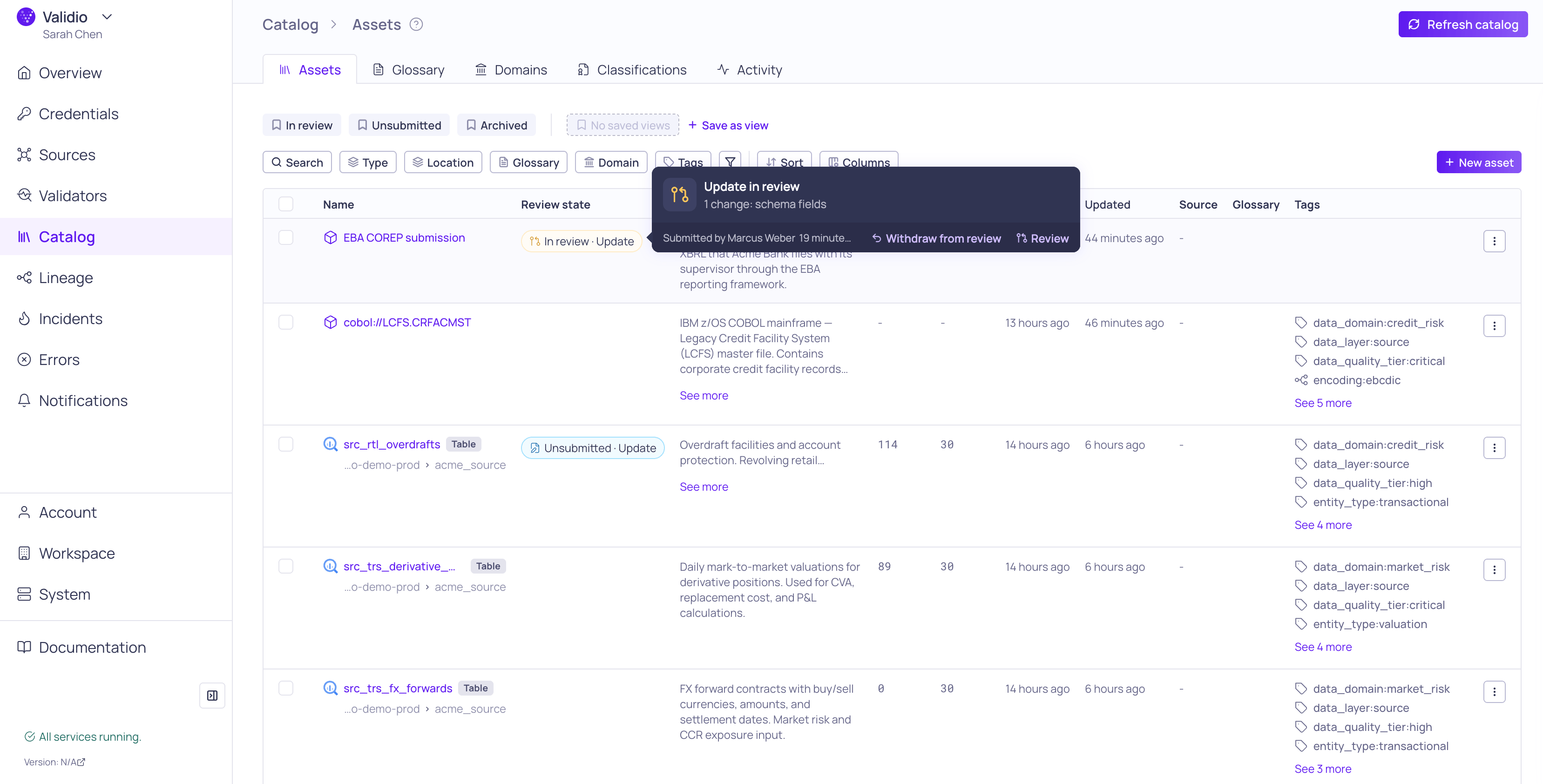
Hover a Review state chip to see the pending change
Making a decision
Choose Review from the row menu, or select several rows and choose Review from the toolbar. The review dialog works as it does for namespaced resources. See Reviewing a change. For catalog changes, it also shows:- A Details section with the proposed values, such as a term’s domain, aliases, and classifications, or an asset’s description, tags, glossary terms, and schema fields.
- Chips that show what changes in a list, such as Added, Removed, Now direct, and Now propagated for glossary terms on an asset or field.
- An Approving this also changes other resources box when approval has side effects, for example how many glossary terms lose a classification or a domain, or how many assets and fields lose a term, including where the term was propagated.
API, infrastructure as code, and MCP
- Validio API and IaC. The catalog draft operations are not part of the public Validio API, and API keys cannot stage, submit, or approve catalog drafts. Keep catalog approval workflows off if you manage the catalog through scripts or IaC.
- Validio MCP Server. An AI assistant connected through the Validio MCP Server acts as the signed-in user. When the setting is on, it stages catalog drafts and can submit, withdraw, or discard them. It cannot approve or request changes, and it cannot turn catalog approval workflows on or off. Approval always happens in the Validio UI.