

What renders as a resource link
Related resources across the platform appear as resource links, each with a distinct icon so you can recognize the resource type at a glance:- Data resources — sources, credentials, and catalog assets.
- Validation resources — validators, windows, filters, and segmentations.
- Cataloging and context — domains, glossary terms, classifications, and schema fields.
- Delivery and access — integrations, notification channels, users, and API keys.
Where resource links appear
The same link components are used consistently throughout the product, so a source always looks and behaves like a source wherever it appears:- List pages — resource columns (such as a validator’s source or an asset’s glossary terms) link directly to the referenced resource.
- Detail-page sidebars — the information panel on a source, validator, asset, or other resource has links to every related resource.
- The Lineage graph — nodes and connection details link to the underlying sources and catalog assets.
- The activity log — each entry links to the resource it describes and to the actor who performed the action.
Previewing a resource on hover
Most resource links also show a hover card: a compact summary of the resource that opens when you point at the link. A hover card tells you what the resource is and whether it needs attention, so you can check it without leaving the page you are on. Clicking the link still opens the full details page. A hover card can include:- A header with the resource’s name and a short summary line, such as its owner and priority, its type, or its location.
- Key details, such as the description, tags, related resources, and counts of dependent resources.
- Health signals, where they apply. These include the data quality score and its trend, the number of open incidents, problems that need attention (such as a failed poll or a missing field), and changes that are in review or not yet published.
- A footer with timing information, such as a source’s current state and last poll, when an incident group was first and last seen, or when a resource was last updated.
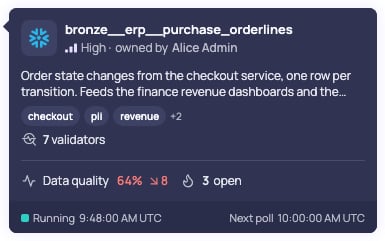
Hover card for a source, showing its owner, validators, data quality, open incidents, and poll status
Interacting with a hover card
- Hover over a link, or move keyboard focus to it, to open the card.
- Move the pointer onto the card to keep it open, for example to follow a link inside it. Links inside a hover card don’t open a card of their own.
- To pin the card, click inside it or press Alt+Down arrow. A pinned card shows a Close button. Press Escape to close the card.
- Click the link itself to open the resource’s details page.
Preview, then decideUse the hover preview to confirm you have the right resource before clicking through. This is especially useful in long lists and in the Lineage graph, where many similarly named resources can appear together.