

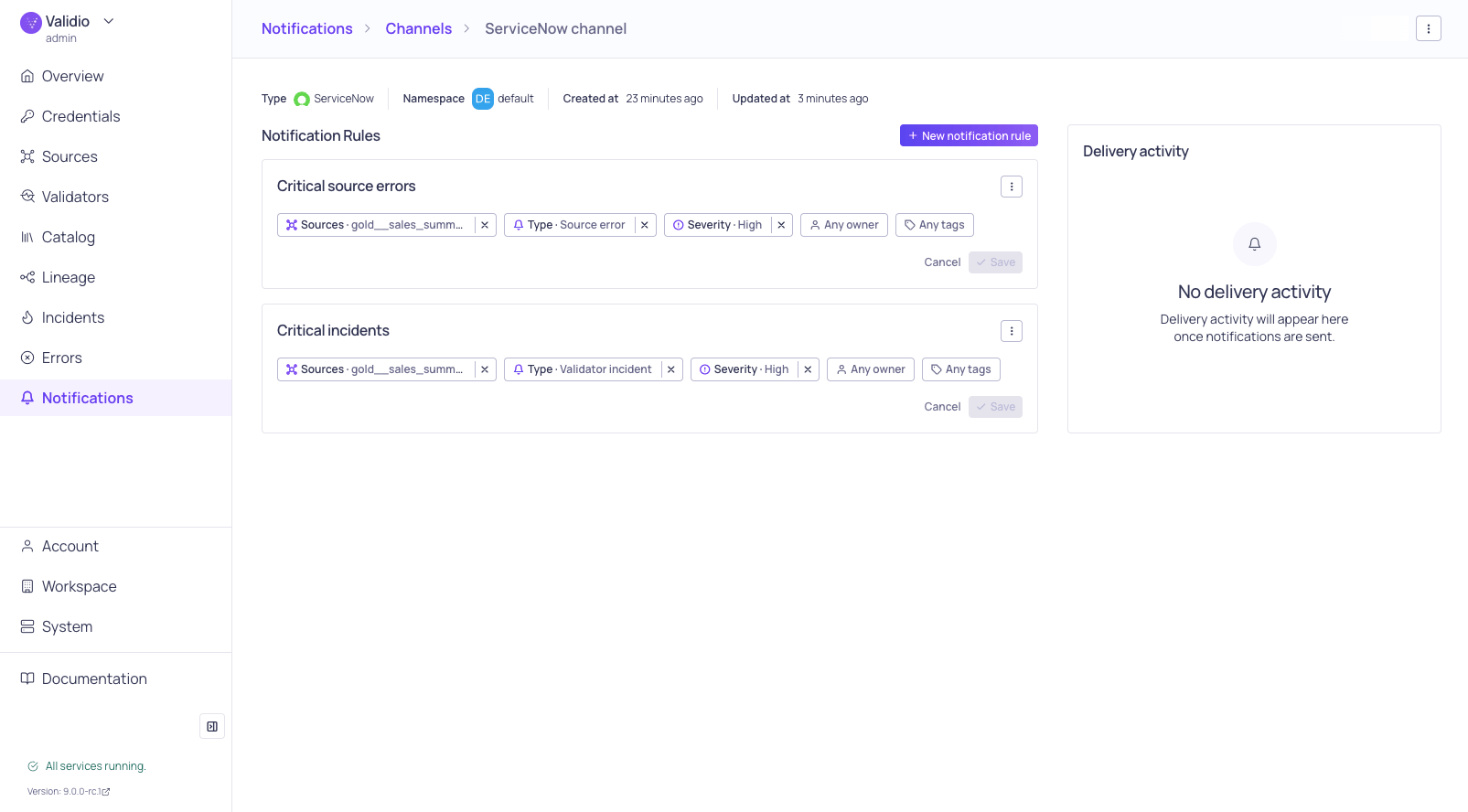
Notification rules on a channel details page
Add a new rule
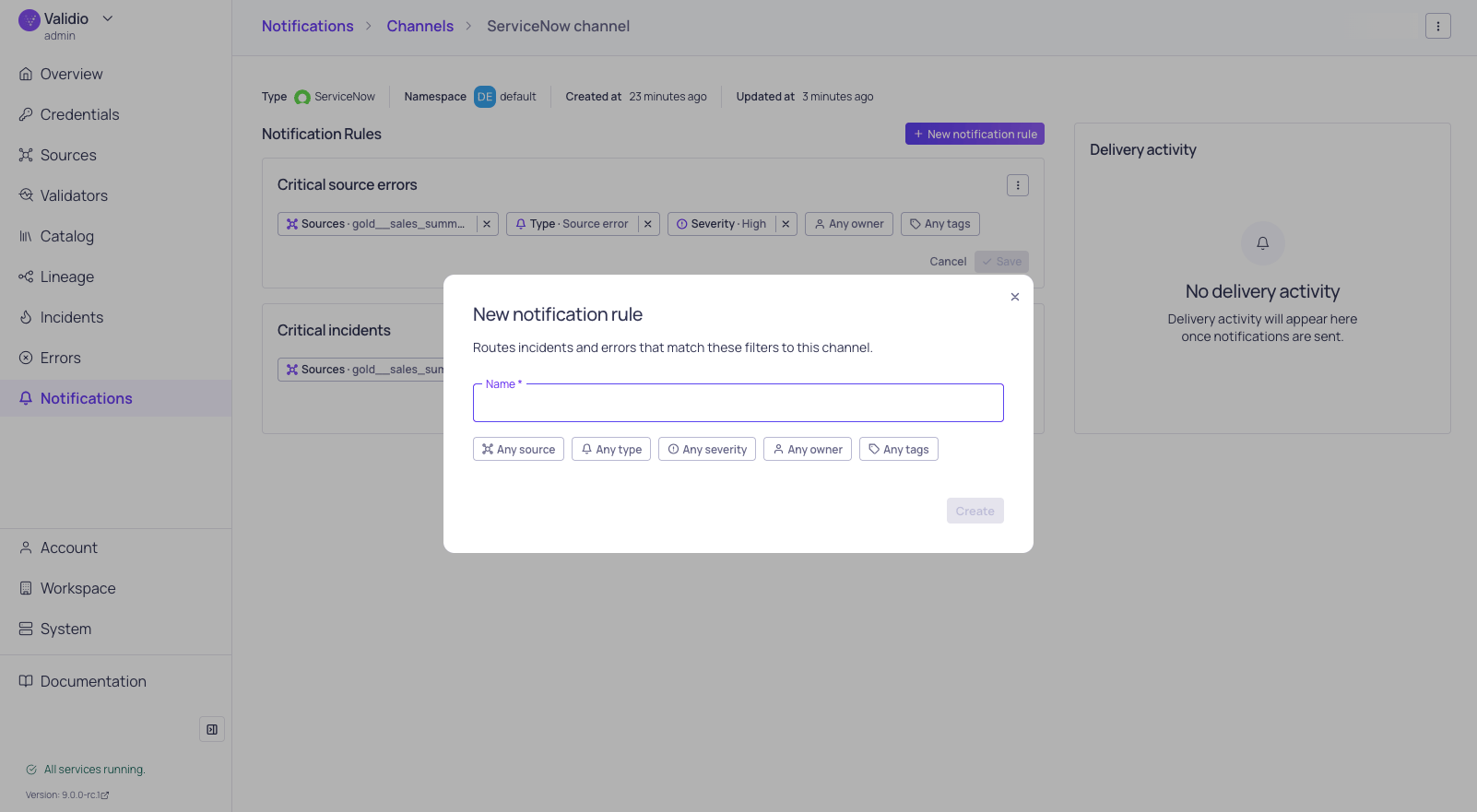
New notification rule configuration
- In Validio, navigate to Notifications > Channels and click the channel that should receive the alerts.
- In the Notification rules section, click + New notification rule.
- Enter a descriptive Name for the rule, such as “High severity production incidents”.
- In the same dialog, set at least one condition chip (Source, Type, Severity, Priority, Segment, Owner, or Tags). Click + Add tag condition or + Add segment condition to add another tag or segment chip after the first one has a value. See Configuration Options for Conditions for the supported condition types.
- (Optional, Slack and Microsoft Teams channels only) Turn on Mention owners in notifications to tag the incident owner in the messages this rule sends. This toggle is not a condition, so it does not count toward the one required condition. See Mention Owners in Notifications.
- Click Create. The button stays disabled until the rule has a name and at least one condition.
A notification rule requires at least one condition. Use the chips to narrow the rule to the incidents you care about — for example, set the Severity chip to
High and Critical to alert only on serious incidents.Configuration options for conditions
Conditions let you filter which incidents trigger a notification on the rule’s channel. Validio supports the following condition types:Mention owners in notifications
Mention owners in notifications is a per-rule option that @-mentions the incident owner in the messages the rule sends, so the person responsible is pulled into the conversation instead of having to spot a channel post. The option is available on Slack and Microsoft Teams channels only, and it is turned off by default, so existing rules keep sending untagged messages until you enable it.This option is not the same as the Owner condition. The Owner condition filters which incidents trigger the rule, based on who owns the source. Mention owners in notifications controls who is tagged in the message the rule sends. You can use either one on its own, or both together.
Enable owner mentions on a rule
- In Validio, navigate to Notifications > Channels and click the Slack or Microsoft Teams channel that owns the rule.
- In the Notification rules section, locate the rule and turn on the Mention owners in notifications toggle below its condition chips.
- Click Save.
How tagged messages appear
When the rule triggers and the option is enabled, Validio adds an Owner entry containing an @-mention of the owner:- In Slack, the mention appears in the incident message posted to the thread, alongside fields such as Data time, Value, and Deviation.
- In Microsoft Teams, the mention appears as an Owner line in the incident card.
Requirements and limitations
- Matching is by email address. Validio tags the owner by matching the email address on their Validio user account to a user in your Slack workspace or Microsoft Teams tenant. If the two addresses differ, no match is found.
- No owner, no mention. If the source or validator that generated the incident has no owner assigned, the notification is sent without a mention.
- No match, no mention. If the owner has no matching Slack or Teams user, the notification is still sent — it simply arrives without a tag, and no error is reported.
Combining condition types
The logic applied to a notification rule depends on the condition type and on whether values are combined within a single chip or across multiple chips.Across different condition types (AND logic)
When a rule sets values on more than one condition type — for example, both a Source chip and a Severity chip — AND logic is applied across them. All chips must match the incident before the notification triggers.Multiple values within source, type, severity, priority, or owner (OR logic)
The Source, Type, Severity, Priority, and Owner chips each accept multiple selections. Within one of these chips, OR logic is applied: the chip matches if the incident matches any of the selected values. For example, selecting bothHigh and Critical on the Priority chip notifies on incidents at either priority.
Tag and segment conditions (AND within, OR across)
Tag and segment conditions follow a two-level logic so you can express complex routing rules:- Within a single tag or segment chip — AND logic. All tags selected in one tag chip must be present on the source or validator that generated the incident. Similarly, every
Segment field/Regex patternrow in one segment chip must match the incident’s segment. - Across multiple tag or segment chips — OR logic. A rule with several tag chips matches the incident if any one of those chips matches. The same applies to segment chips.
env:prod and team:data only fires when the source or validator has both tags. Click + Add tag condition to add a second tag chip with, say, region:us-east; the rule then matches an incident tagged either (env:prod and team:data) or region:us-east. Segment chips work the same way: a chip with rows country = ^US$ and tier = ^gold$ matches only incidents on the US gold segment, and adding a second segment chip introduces an alternative match using OR.
Edit or delete a rule
To change the conditions on an existing rule:- Open the channel at Notifications > Channels > channel name.
- In the Notification rules section, locate the rule and click a condition chip to change its value. To add another tag chip, click + Add tag condition. To remove an added tag chip, click its X.
- Click Save to apply your changes, or Cancel to discard them and revert the chips to their previously saved state. On Slack and Microsoft Teams channels, the Mention owners in notifications toggle is saved and discarded by the same buttons.