

Prerequisites for email notifications
The Email integration requires the connection details for your SMTP server or service:- SMTP server address and port.
- Encryption type (None, StartTLS, or SSL/TLS).
- (Optional) Username and password for authenticated sending.
- A valid sender email address.
- One or more recipient email addresses.
Create an Email integration
- In Validio, navigate to Workspace > Integrations and click + New integration.
- From the Integration type list, select Email.
- Enter a Name for the integration, for example “Corporate SMTP”.
- Under SMTP server, enter the SMTP address and Port.
- Under Encryption, choose the connection security type. The dropdown defaults to None.
- None — messages are sent in plain text.
- StartTLS or SSL/TLS — the form reveals a TLS CA certificate upload field. Provide a certificate if your SMTP server requires a custom certificate chain.
- (Optional) Enter a Username and Password for the email account.
- (Optional) Enable Interactive messages to include interactive elements in sent emails.
- (Optional) Click Test integration to verify that Validio can connect to the SMTP server.
- Click Create integration.
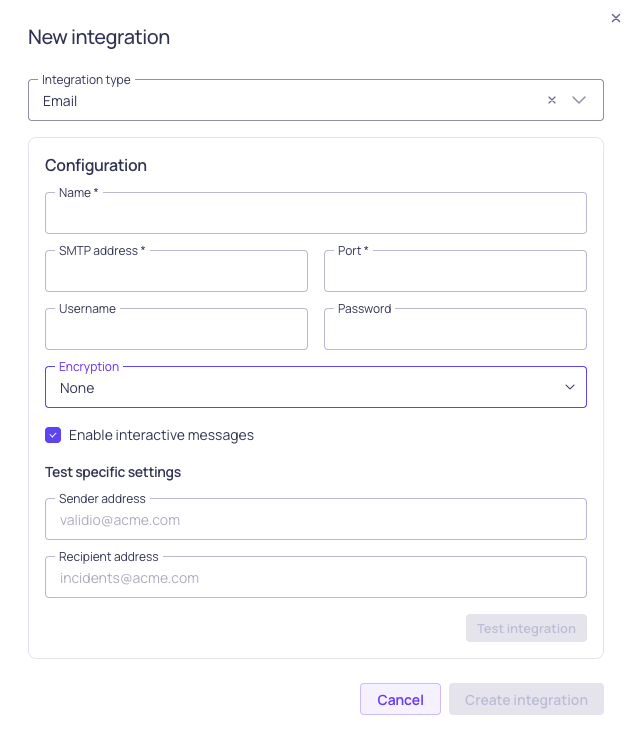
Email integration form
Create a notification channel for Email
- In Validio, navigate to Notifications > Channels and click + New channel.
- Under Integration, select the Email integration you created.
- Enter a Name for the channel.
- Enter the Sender address that will appear in the
Fromfield of outgoing emails. - Enter one or more Recipient addresses that will receive notifications from this channel. Type each address and press Enter or comma to add it as a tag. Entries that do not match the email pattern are rejected.
- Select the Namespace where the channel will be created.
- Click Create.
Email configuration parameters
After creating the channel, add notification rules on the channel’s details page to control which incidents generate emails.