

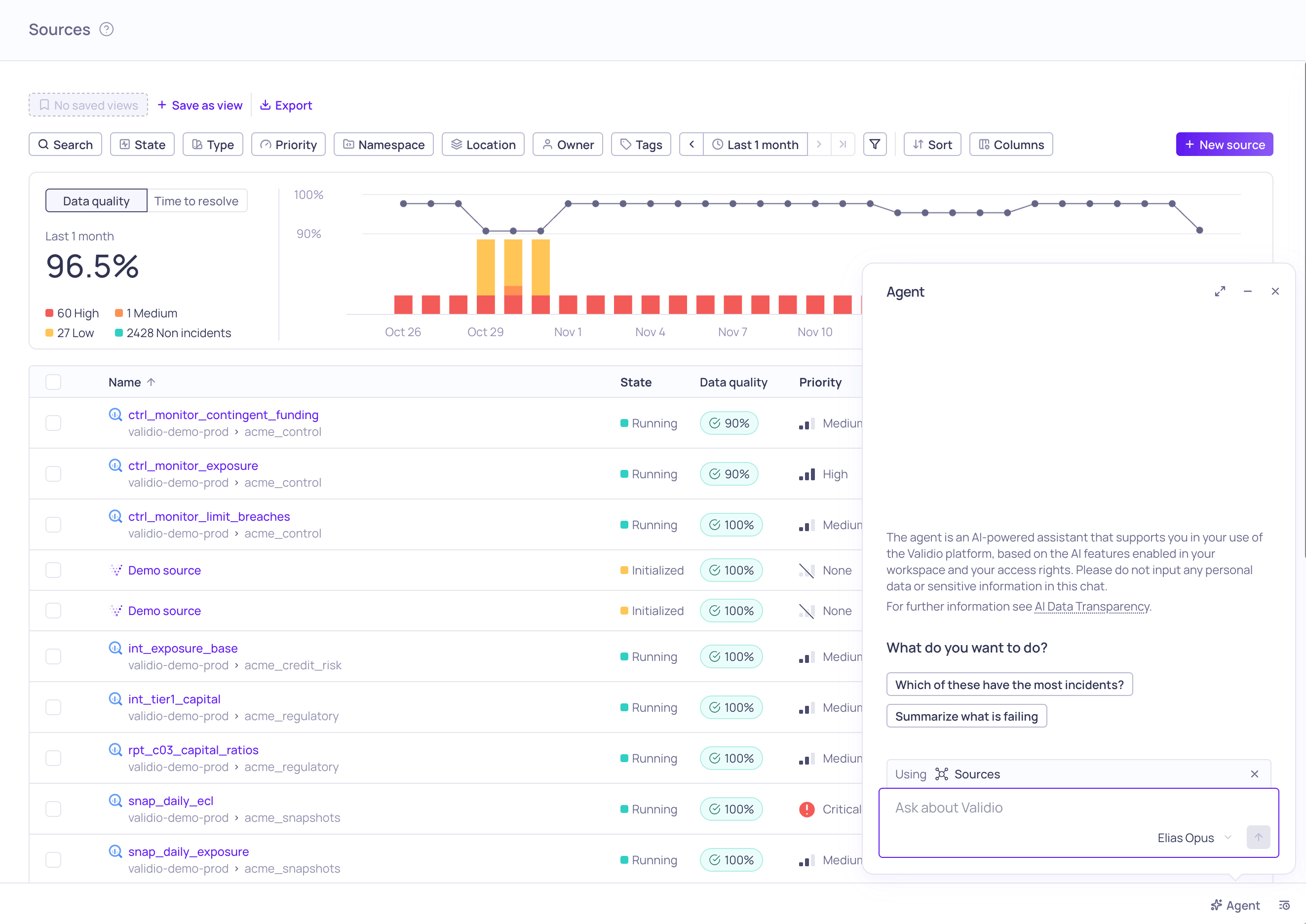
The agent panel, opened from the Agent button in the footer
Prerequisites
To use the agent, you need:- Enable AI features and Enable in-app agent turned on under Workspace > Settings > AI features. Both are on by default. See Managing Workspace Settings.
- At least one LLM credential.
Open the agent panel
Click Agent in the footer at the bottom of any page. Each click starts a new conversation. The panel opens over the bottom right of the page and stays open while you move between pages. Each open conversation gets a chip in the footer that shows its state. Click a chip to return to the conversation. Use the buttons at the top of the panel to expand, minimize, or close it. Closing a conversation keeps it in your history. Deleting it removes it for good.Ask a question
- Open a page that your question is about, such as a source, a validator, or an incident.
- Click Agent in the footer.
- Type your question, or click one of the suggested questions.
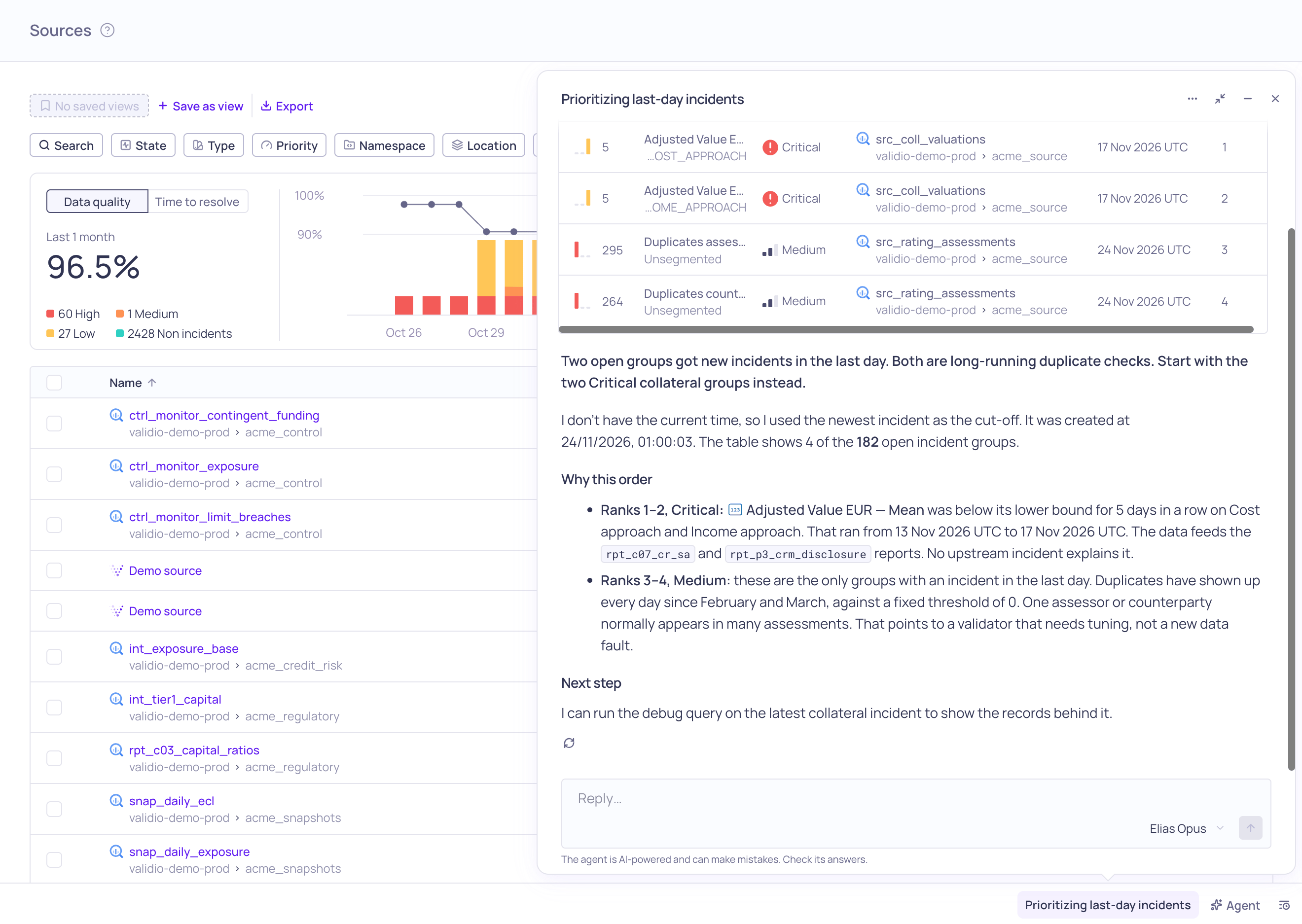
An expanded conversation, with its chip in the footer
Page context and suggested questions
The agent knows which page you’re on. A strip above the text box shows the page it will send with your message. To leave the page out, click × on the strip before you send. After you send, the page stays part of the conversation. If you ask from another page later, the agent gets that page too. When a conversation is empty, the panel also suggests questions for the page you’re on. For example, “Why did this validator alert?” on a validator or “Explain this incident” on an incident.Choose the LLM credential
When your workspace has more than one LLM credential, pick the one to use from the selector next to Send. You can switch credentials during a conversation.When a reply fails
If a reply fails, the panel shows the reason. Click Try again, or Another integration when a different LLM credential might help. A task that needs too many steps or takes too long fails with that reason. Ask a narrower question, or split the task into smaller ones.Review proposed changes
The agent never changes a resource by itself. When you ask it to change something, it proposes the changes and waits for you in the Waiting on you section of the panel. The agent can propose to create, update, and delete sources, windows, segmentations, filters, and validators, to archive validators, to update catalog assets and schema fields, and to comment on incident groups. To review a proposal:- Exclude any change you don’t want.
- Click Accept to apply the included changes, or Decline to reject the proposal.
Answer the agent’s questions
When the agent needs more information, it asks you in a question card. Pick an option, type your own answer, or skip the question.Approve sending data values
Before the agent sends values from your data to the LLM provider, it asks for your approval. The prompt names the data, the resource, and the provider. Click Allow to send the values, or Disallow to keep them back. The agent can ask only while Send data values to the AI is on in the workspace settings. When the setting is off, the agent gets column names and counts, not values. See Warehouse values.Debug queries and background work
When you investigate an incident, the agent can write a debug query and show it in a Debug query card. Click Run to run it on your source. Validio doesn’t store the rows. The AI sees the rows, and summaries Validio computes from them, only while Send data values to the AI is on. Otherwise it sees only the row count and the column names. Some work takes longer than one reply, such as profiling a catalog asset or waiting for a backfill. The agent runs it in the background and reports the result in the conversation when it finishes.Conversation history
Click the history button next to Agent in the footer to see your past conversations, grouped by date. Search them by title, open one to continue it, or click New conversation to start over. Conversations are private. Only you can open your conversations, whatever your role. They stay until you delete them. Deleting a user also deletes their conversations.For what the agent sends to your LLM provider, what Validio stores, and the settings that control both, see The in-app AI agent in AI Data Transparency. Don’t enter personal data or sensitive information in a conversation.