

The Validio MCP server provides tools for managing resources, such as sources, validators, and incidents. Read more about key benefits in Validio MCP Server. For detailed examples and use cases, see MCP Server User Guide.
Prerequisites for setting up the Validio MCP Server
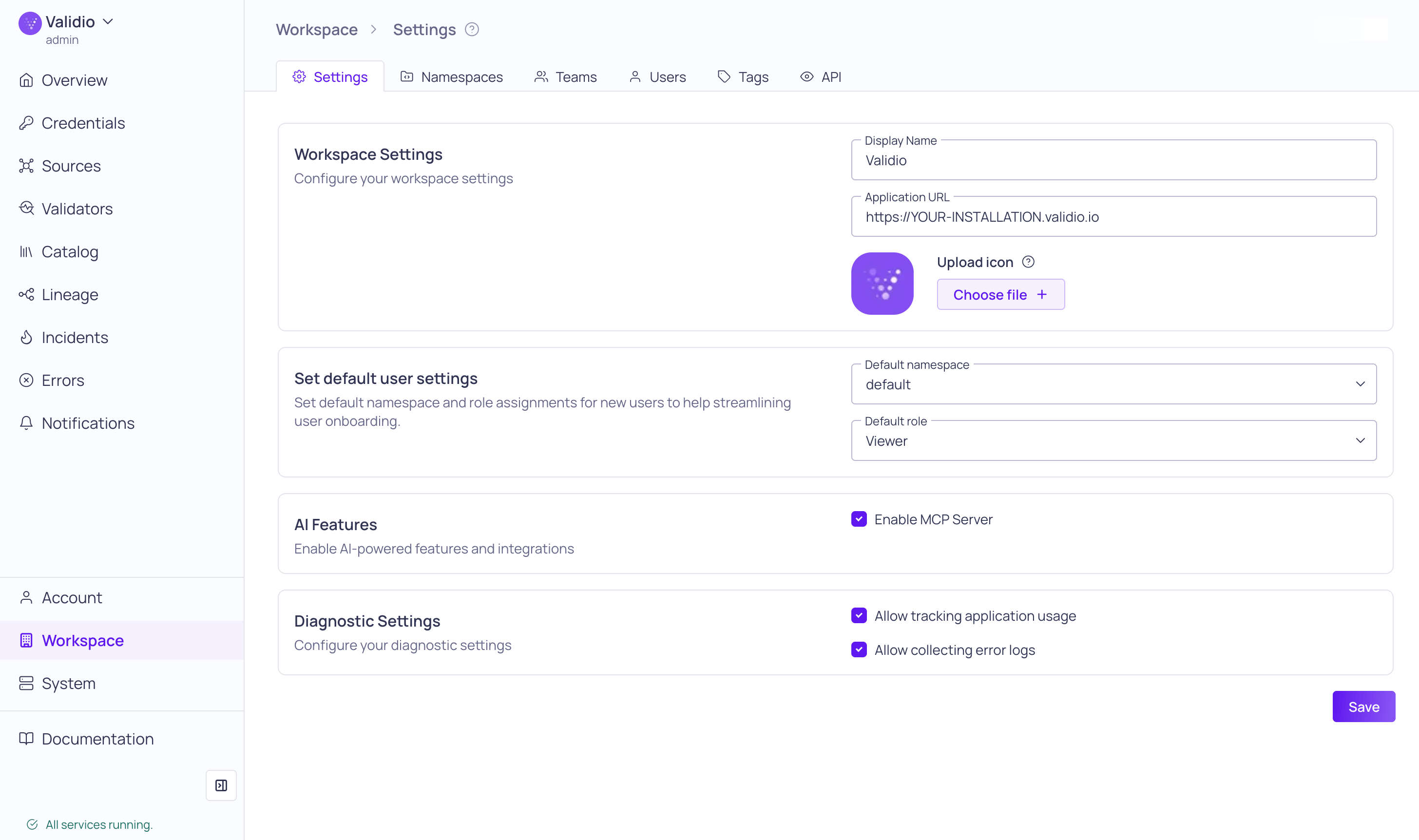
AI Features settings with Enable MCP Server checked
- In your Validio Workspace Settings, configure the Application URL. The Application URL is the URL to your Validio installation:
https://your-validio-instance. - In the same settings, under AI Features, check Enable MCP Server.
- Note your MCP server URL, which every client below connects to. It’s your Application URL followed by
/mcp, for example:https://your-validio-instance/mcp.
Antigravity CLI
Add Validio as an HTTP MCP server from the command line and authenticate in your browser.
Claude
Add Validio as a custom connector in Claude.ai and Claude Desktop, or as an MCP server in Claude Code.
Microsoft Copilot
Use Validio in Microsoft 365 Copilot through a Copilot Studio agent, or in GitHub Copilot in VS Code and the Copilot CLI.
Snowflake
Connect Validio to Snowflake CoCo, Cortex Agents, and Snowflake CoWork.
Connecting any MCP client
The sections below cover the most common clients. You can also connect any other MCP client that meets these requirements:- Remote MCP servers over Streamable HTTP. Add Validio as a remote (HTTP) server using your MCP server URL. Validio is a remote server only, with no local (stdio) version, and doesn’t support the older SSE transport.
- OAuth with dynamic client registration. When the client asks how to authenticate, choose OAuth with automatic or dynamic client registration. The client registers itself with Validio, so you don’t need a client ID or client secret. Validio doesn’t issue client IDs and secrets to enter manually.
- Browser sign-in. The first time the client connects, it opens a browser window where you log in to Validio with your user account. The connection inherits that user’s permissions.
- Sign in right away. Validio removes a client registration if no one signs in with it shortly after it’s created. Finish the browser sign-in as soon as the client prompts you.
Antigravity CLI
Antigravity CLI replaces Gemini CLI, which Google retired in June 2026. If you previously connected Validio through Gemini CLI, set up the connection again in Antigravity CLI.
- Run
agy mcp add validio --type http https://your-validio-instance/mcp - Start Antigravity by running
agy,- Run
/mcpto list all MCP servers. The Validio MCP server shows asUnauthorized [Auth Needed]. - Select
validio, pressEnterto open Actions, and choose the authenticate option. - In your browser, log in to Validio with your user account.
- Run
- Run
/mcpagain to confirm that the Validio MCP server is connected and its tools are listed.
Claude
Claude.ai and Claude Desktop
On web or desktop,- Navigate to Admin Settings > Connectors.
- Click Add custom connector and in the dialog:
- Name: Give the connector a name.
- Remote MCP server URL: Enter your Validio MCP server URL, which will have the format
https://your-validio-instance/mcp. - Click Add.
- In Settings > Connectors,
- Connect to the Validio MCP server.
- When prompted, log in to Validio with your user account and password.
- In a new Claude chat, open the Search and tools menu and enable the new connector.
Claude Code
In the CLI,- Run
claude mcp add validio -t http https://your-validio-instance/mcp - Open a Claude Code session,
- Run
/mcpto list all MCP servers. - Select the Validio MCP server and go through the authentication flow.
- Run
Microsoft Copilot
You can use Validio in Microsoft 365 Copilot through a Copilot Studio agent, and in GitHub Copilot in Visual Studio Code and the Copilot CLI.Microsoft 365 Copilot
Add the Validio MCP server as a tool to an agent in Microsoft Copilot Studio, then publish the agent to Microsoft 365 Copilot. You need access to a Copilot Studio environment where you can create agents.- Add the Validio MCP server to your agent in Copilot Studio:
- Open your agent and go to the Tools page.
- Select Add a tool > New tool > Model Context Protocol.
- Server name: Give the server a name, for example
Validio. - Server description: Describe what the server does, for example
Validio data quality: sources, validators, incidents, and lineage. The agent uses this description to decide when to call Validio. - Server URL: Enter your Validio MCP server URL,
https://your-validio-instance/mcp. - For authentication, select OAuth 2.0, and set Type to Dynamic discovery.
- Select Create, then Next.
- In the Add tool dialog, select Create a new connection, and log in to Validio with your user account when prompted.
- Select Add to agent.
- Publish the agent, then make it available in Microsoft 365 Copilot:
- Go to Channels > Teams and Microsoft Copilot.
- Keep Make agent available in Microsoft Copilot selected, and select Add channel.
- To share the agent with your organization, use Availability options. Making the agent available to everyone in your organization requires approval from your Microsoft 365 admin.
- In Microsoft 365 Copilot, type @ and select your agent to start using Validio.
GitHub Copilot
For Copilot Business and Copilot Enterprise, an organization or enterprise owner must enable the MCP servers in Copilot policy before members can use MCP servers. If the policy restricts access to Registry only, the Validio MCP server must also be added to your organization’s MCP registry. For information, refer to GitHub Docs: Configuring MCP server access.
Visual Studio Code
- Open the Command Palette and run MCP: Add Server.
- Choose the HTTP server type, enter your Validio MCP server URL,
https://your-validio-instance/mcp, and name the servervalidio. - Choose where to save the configuration, for example your user configuration or the current workspace.
- When VS Code starts the server, it opens a browser window. Log in to Validio with your user account.
- In the Chat view, select Agent mode, then select Configure Tools to confirm that the Validio tools are enabled.
mcp.json file:
JSON
GitHub Copilot CLI
In the CLI,- Run
copilot mcp add --transport http validio https://your-validio-instance/mcp - Start a session by running
copilot,- Run
/mcp auth validioto sign in. - In your browser, log in to Validio with your user account.
- Run
- Run
/mcpto confirm that the Validio MCP server is connected and its tools are listed.
/mcp add, set Server Type to HTTP, enter your Validio MCP server URL, and press Ctrl+S to save.
For information, refer to GitHub Docs: Adding MCP servers for GitHub Copilot CLI.
Snowflake
You can connect Validio to Snowflake’s AI products: Snowflake CoCo (formerly Cortex Code), Snowflake’s coding agent, and Cortex Agents and Snowflake CoWork (formerly Snowflake Intelligence). Validio connects in two ways:- Account connector (recommended): An admin sets up Validio once for your Snowflake account. The connector reaches CoCo in Snowsight, Cortex Agents, and Snowflake CoWork for every role that’s granted access.
- Local setup: CoCo Desktop and the CoCo CLI don’t use the account connector. Each developer adds Validio on their own machine.
CoCo in Snowsight, Cortex Agents, and Snowflake CoWork
To create the connector, you need theACCOUNTADMIN role, or privileges to create an API integration and an external MCP server in your Snowflake account.
-
Add Validio as a custom MCP connector in Snowsight:
- As
ACCOUNTADMIN, select your user icon in the bottom-left corner of Snowsight, then select Settings. Under Account, select MCP Connectors, then select Add custom. - Choose a database and schema, and give the connector a name, for example
VALIDIO. - Select the Dynamic Client Registration (DCR) tab, and enter only your Validio MCP server URL in Server URL.
- Select Add, then connect and log in to Validio with your user account right away.
- As
-
Grant
USAGEon the MCP server and its API integration to the roles that should use Validio:To find the name of the API integration, runSQLDESCRIBE EXTERNAL MCP SERVER my_db.my_schema.validio;. -
To use Validio in a Cortex Agent, add the connector to the agent:
- In Snowsight, go to AI & ML > Agents, and select the agent.
- Open MCP Connectors, find Validio under Available Connectors, and select Add to agent.
-
Each user connects once with their own Validio account. After that, the Validio tools stay available in later conversations.
- CoCo in Snowsight: In the CoCo composer, select + to open MCP Connectors, select Validio, and log in to Validio with your user account.
- Snowflake CoWork: Open the sources panel, select Connectors, and select Connect next to Validio. Log in to Validio with your user account. The connector shows as Connected.
SQL
CREATE EXTERNAL MCP SERVER privilege on the schema.
Users only see the Validio connector when their active role has USAGE on it. USAGE makes the connector visible, but Snowflake grants tool permissions separately, so check them if tool calls fail. Snowflake supports tools from external MCP servers, but not resources or prompts.
Snowflake traces each Validio tool call in the agent’s Observability tab. To cut off access to Validio, disable the API integration.
For information, refer to Snowflake Documentation: MCP connectors and Snowflake Documentation: CoCo in Snowsight MCP connectors.
CoCo Desktop
In CoCo Desktop,- Go to Settings > MCP, select + New, and choose Remote (HTTP).
- Give the server a name, for example
validio, and enter your Validio MCP server URL. - Select Connect, then select Open on the browser prompt and log in to Validio with your user account.
- Confirm that a green dot shows next to the server and its tools are listed. Send a new message so the agent picks up the Validio tools.
CoCo CLI
In the CLI,- Run
cortex mcp add validio https://your-validio-instance/mcp --transport http - Run
cortex mcp start. CoCo opens your browser. Log in to Validio with your user account. - Confirm that the output lists the Validio MCP server under Connected Servers with its tools available.
cortex mcp list or cortex mcp remove validio.
For information, refer to Snowflake Documentation: CoCo CLI MCP support.
Troubleshooting
The MCP server URL returns a “not found” error
Check that Enable MCP Server is checked under AI Features and that the Application URL is configured in your Validio Workspace Settings. The MCP server is unavailable until both are set.The client asks for a client ID and client secret
Validio doesn’t issue client IDs and secrets. Choose the client’s automatic or dynamic client registration option instead, such as Dynamic discovery in Microsoft Copilot Studio orOAUTH_DYNAMIC_CLIENT in Snowflake.
The client asks me to sign in again
Sign-ins expire after a period of time. Re-authenticate through your client when prompted, and log in to Validio with your user account.The browser shows an invalid_client error when I sign in
The client is using a registration that Validio has already removed, which happens when a sign-in isn’t finished shortly after the client registers. Remove the Validio MCP server from your client, add it again, and finish the browser sign-in right away. In CoCo Desktop, quit the app fully before you add the server again.
The Validio tools don’t appear in GitHub Copilot
Check that the MCP servers in Copilot policy is enabled for your organization or enterprise, and that tools are enabled under Configure Tools in the Chat view.The Validio connector doesn’t appear in Snowflake
Check that your active role hasUSAGE on both the Validio external MCP server and its API integration. If the connector appears but tool calls fail, check the role’s tool permissions in Snowflake.