

- Create a service account in Db2 with the appropriate permissions for Validio. See Prerequisites.
- Create a Validio credential to connect to the service account. See Add an IBM Db2 Credential.
- Create a Validio source to monitor the tables in the Db2 database. See Add an IBM Db2 Source.
Prerequisites
Create a service account in Db2 with the appropriate permissions for Validio to read and validate your data. For more information about credentials in Validio, see Credentials. The following SQL script provides steps for setting up a user with the necessary permissions for the source in Validio. Copy the script into a SQL worksheet and follow the steps:SQL
Add an IBM Db2 credential
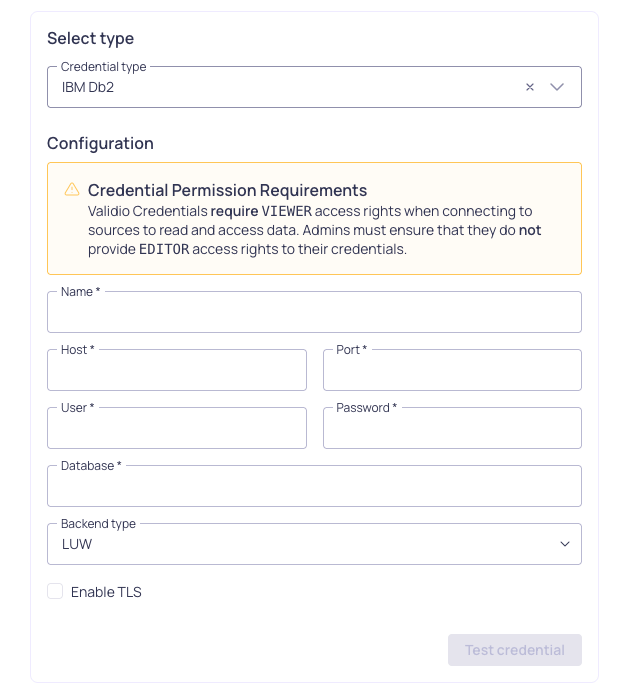
Configuration for a Db2 credential
- Navigate to Credentials and click + New credential.
- Under Namespace, select a namespace where the resources will be created.
- For Credential Type, select IBM Db2 Credential.
- Fill in the credential parameter fields. Refer to the IBM Db2 Credential Parameters table.
- Check Use for catalog and schema checks to automatically discover credentials and add them to the catalog page.
- Click Create.
IBM Db2 credential parameters
Add an IBM Db2 source
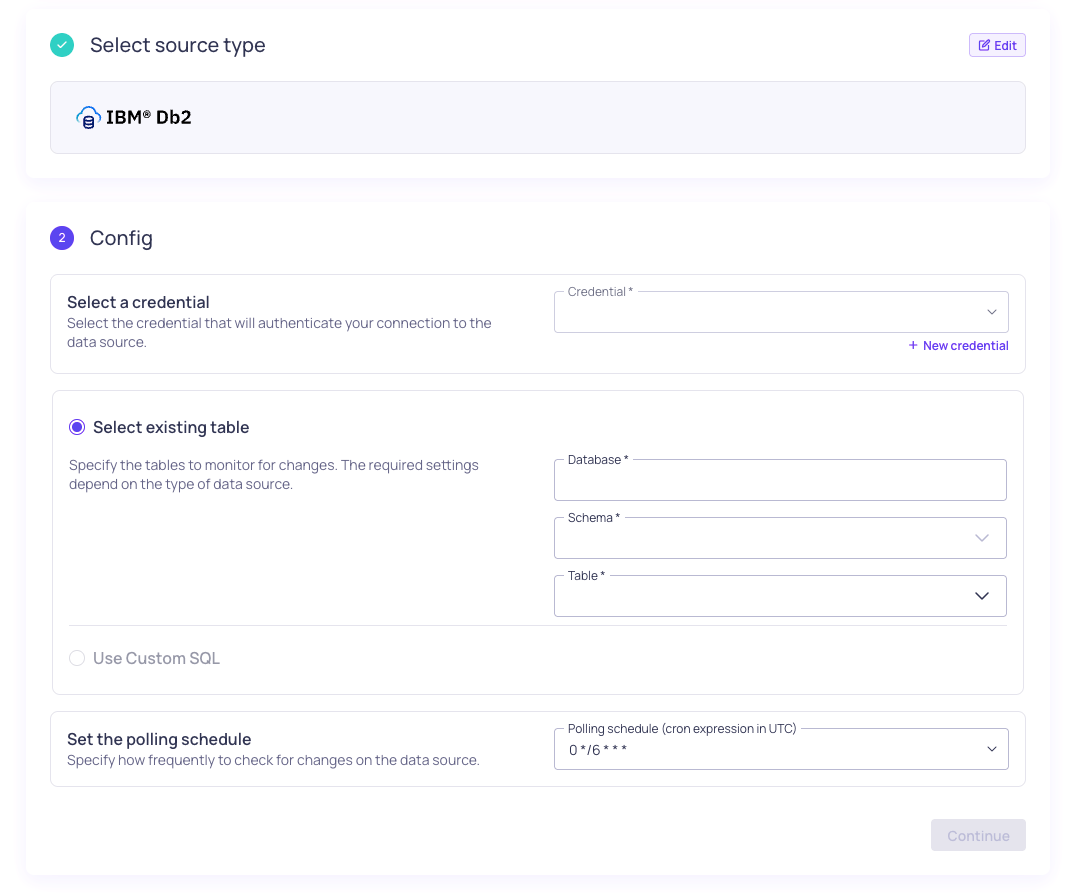
Configuration for a Db2 source
- Navigate to Sources and click + New source.
- Under Source type, select IBM Db2.
- Under Config,
- Select the valid Credential or create a new credential to authenticate your connection to the data warehouse.
- You have two options for specifying the dataset and tables to monitor:
- Select an existing table — Enter the Database, Schema, and Table to specify where the data comes from. Selecting more than one table will create a new source for each table. Refer to the Source Configuration Parameters table.
- Use Custom SQL — Write a valid SQL query to specify the tables to monitor.
- Set the Polling schedule, which is how frequently the validators on the source will check for changes.
- Under Schema, click Continue to automatically infer the schema fields from the tables you selected. If you select many tables, this operation can take a few minutes to complete.
- Under Source details,
- Add Tags to help group related sources or to use for routing notifications.
- Add an Owner who will be the contact for incident notifications.
- Assign a Priority, which indicates the importance of incidents detected on this source.
- Click Continue to create the source. Source names are generated automatically and will be displayed when the source creation completes. If there are more than 5 sources, you will see the names for the first five and a count of the remaining sources.