

Prerequisites for adding a Microsoft Teams integration
To send Validio notifications to designated channels in Microsoft Teams, you must first:- Create an app in Microsoft Teams for Validio.
- Configure a bot in your Microsoft Teams app with the necessary permission scopes to communicate with your Validio installation.
- Publish the app to the relevant channels where you want to route incident notifications from Validio.
- A Bot ID (Client ID) for the Validio bot.
- A Client secret for the bot.
- (Single-tenant apps only) A Tenant ID.
- The Teams channel ID of each channel you plan to notify.
Network requirements
If your Validio installation runs behind a firewall or HTTP proxy, allowlist the Microsoft endpoints below so Validio can send notifications to Microsoft Teams and, when enabled, power interactive messages. For HTTP proxy configuration, see VPC Communication. Validio authenticates with Microsoft Entra ID and sends messages through the Microsoft Bot Framework over HTTPS. When interactive messages are enabled, Microsoft Teams also sends user actions to the bot endpoint on your Validio installation (https://your-validio-instance/ms-teams-webhook), so that endpoint must be reachable from Microsoft Teams.
These endpoints apply to the public Microsoft cloud only. Government and sovereign clouds, such as GCC High, DoD, and Microsoft Azure operated by 21Vianet, use different endpoints. For Microsoft’s full list, see Bot Framework URLs to allowlist.
Create a Microsoft Teams integration
- In Validio, navigate to Workspace > Integrations and click + New integration.
- From the Integration type list, select Microsoft Teams.
- Enter a Name for the integration, for example “Validio Teams Bot”.
- Enter the Client ID and Client secret from your Teams app.
- (Single-tenant apps only) Enter the Tenant ID.
- (Optional) Enable Interactive messages so users can manage incidents directly from Teams.
- (Optional) Click Test integration to verify the connection.
- Click Create integration.
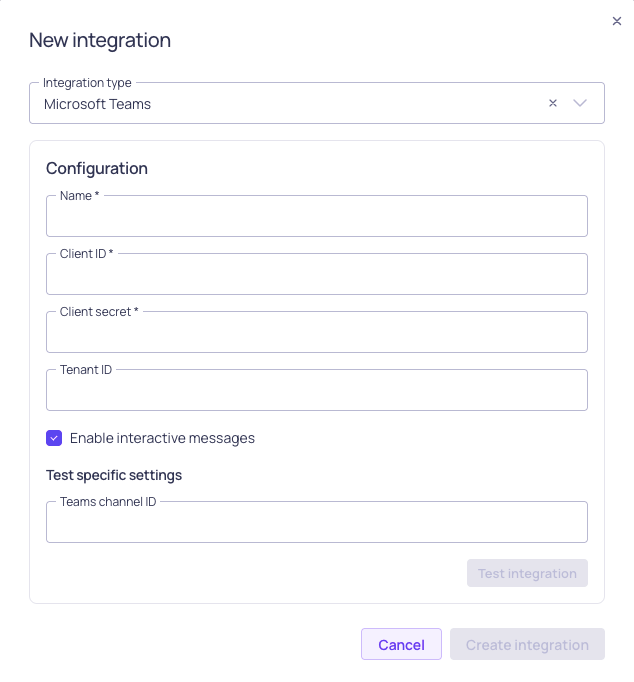
Microsoft Teams integration configuration
Create a notification channel for Microsoft Teams
- In Validio, navigate to Notifications > Channels and click + New channel.
- Under Integration, select the Microsoft Teams integration you created.
- Enter a Name for the channel.
- Enter the Teams channel ID of the destination channel in your Microsoft Teams tenant.
- Select the Namespace where the channel will be created. Only users assigned to the same namespace can access this channel.
- Click Create.
Microsoft Teams channel configuration parameters
Configure the notifications content
After adding the Microsoft Teams channel, add notification rules on the channel’s details page to specify which incidents should be sent.Notifications on Backfilled ValidatorsValidio does not send notifications for incidents when backfilling validators.
Microsoft Teams notification
When a notification rule on the Microsoft Teams channel triggers, a message is posted to the configured Teams channel. Incident notifications show the incident priority in the message body, so on-call engineers can route the alert without opening Validio.Troubleshooting
The following are troubleshooting tips for some common errors when configuring notifications to Microsoft Teams. Error: “The bot is not part of the conversation roster.”- Cause: The app has not been added to the channel in Microsoft Teams.
- Solution: Add the app to the channel in Microsoft Teams before attempting to use it.
- Cause: Tenant ID configuration mismatch.
- Solution:
- If you entered a tenant ID, remove it. (The bot is likely configured as a multi-tenant bot.)
- If you did not enter a tenant ID, add your tenant ID to the integration configuration.
<client-id> is missing service principal in the tenant.”
- Cause: The service principal has not been created for your bot in Azure AD.
- Solution: Create a service principal,
- Navigate to the App registrations page in the Azure portal.
- Locate your bot app.
- Click “Create Service Principal”.