

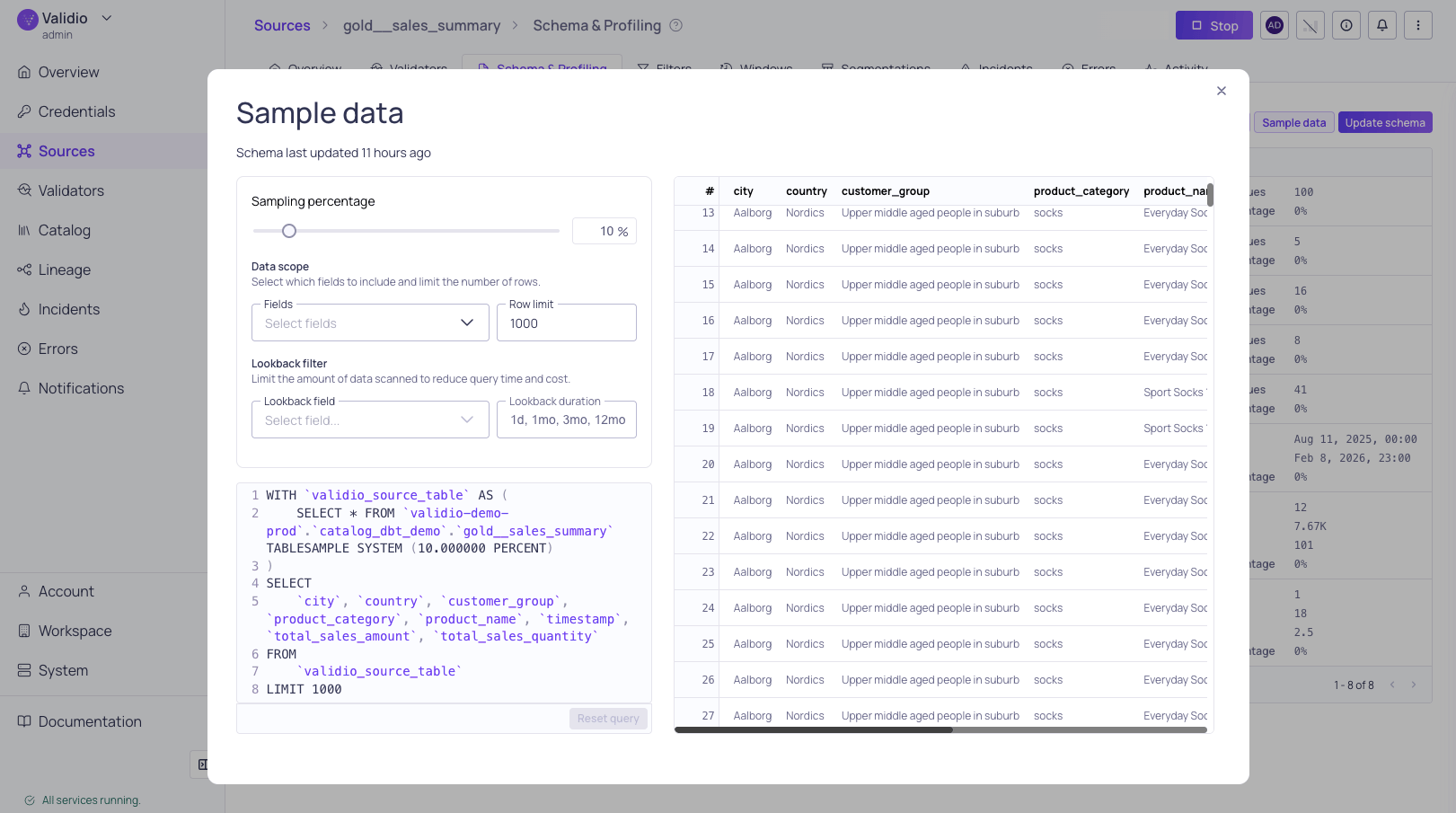
Data sampling configuration and preview
Running a sample
To sample data from your source or catalog asset:- Navigate to the Schema & Profiling tab.
-
Click Sample data and configure the sample size and fields in the dialog:
- Sampling Percentage: (Only available for tables and materialized views.) Use the slider or enter a number to adjust the percentage of data to include in the sample. Lower values speed up sampling on large tables. Defaults to 10%.
-
Data Scope: (Recommended) Cap the execution time on large datasets by limiting the fields and number of rows sampled:
-
Lookback Filter: (Recommended) Limit the data volume scanned by targeting only a specific window of recent data:
- Credential (Only for catalog assets): Select a credential to use for displaying sample data.
-
Click Load samples to display the results.
- To cancel a sampling run (for example, if sampling takes too long to complete), click Cancel and adjust the settings.
Use cases
Data Sampling is useful for:- Spot-checking that actual values match the detected schema and data types.
- Verifying data patterns before configuring validators.
- Investigating unexpected values or formats flagged during profiling or validation.