

Prerequisites
glossary:WRITEpermission (granted to Editor and Admin roles by default). For more information, see Managing Roles.- (Optional) An LLM credential to refine matches with an LLM. Without one, suggestions come from text matching and lineage analysis only.
Start a suggestion workflow
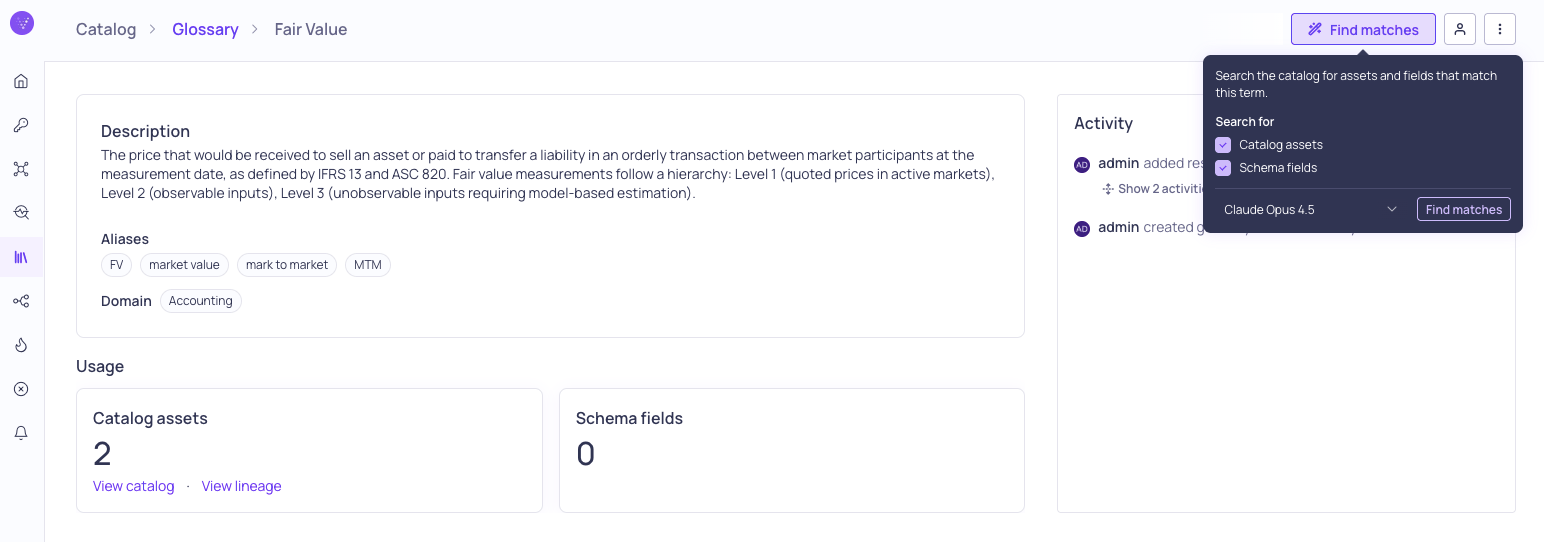
Open Find matches settings
- Navigate to the details page for a glossary term (Catalog > Glossary > (term name)).
- Click Find matches to start the suggestion workflow.
- Check boxes to include Catalog assets and/or Schema fields in the search.
- Choose how to match: select an LLM credential to refine the matches with an LLM, or Text matching (heuristic) to match without one. If you have a credential, the first one is selected by default.
- Click Find matches.
- Fetching term metadata
- Matching text patterns against asset and field names
- Analyzing lineage connections for related assets
- LLM refinement to improve match quality, when you selected an LLM credential
- Preparing results
Review suggestions
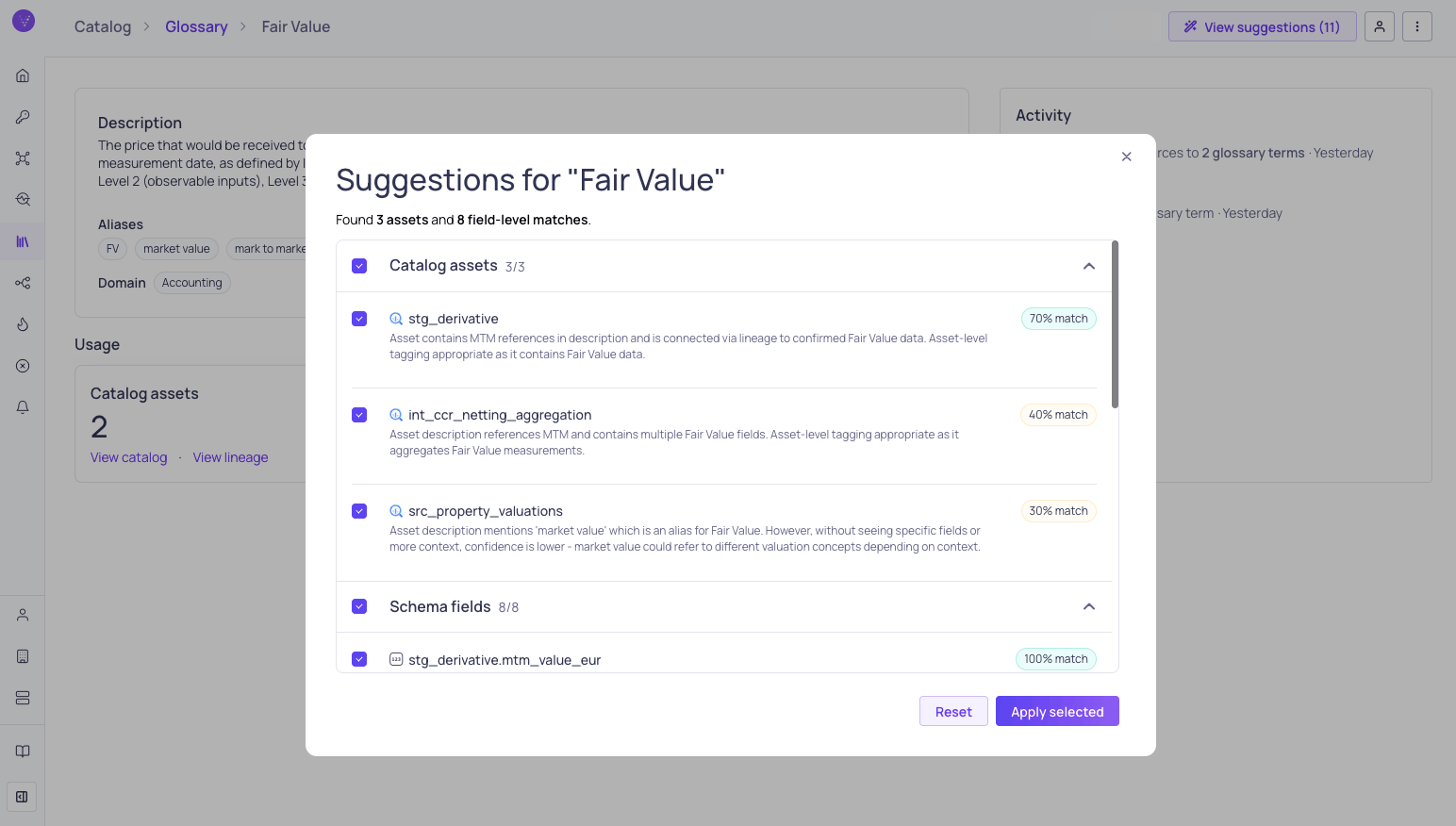
Review and select suggested glossary term assignments
- Catalog asset suggestions — Assets whose names or metadata match the term.
- Schema field suggestions — Individual fields within assets that match the term.
Apply suggestions
- Review the suggestions in the preview dialog.
- Select the suggestions you want to apply using the checkboxes.
- Click Apply selected to create the term assignments.