

Anomaly detection with Dynamic Thresholds
Dynamic threshold algorithm
The dynamic thresholds algorithm delivers precise and reliable anomaly detection that adapts to your data’s unique patterns in real-time, providing immediate value and long-term accuracy. The algorithm provides the following key features: Instant Detection and Resilient Learning The algorithm is designed to provide immediate insights, even on new or backfilled data sources.- Zero Training Period: When applied to a backfilled source, the algorithms can quickly detect upcoming anomalies without a manual training phase. This allows you to detect incidents and receive insights immediately, even without domain knowledge of the data.
- Continuous Improvement: The detection engine is not static; you can provide direct input to refine the model’s accuracy. For more information, see Model feedback and retraining.
- Trend Adaptation: The algorithm continuously tracks and automatically updates when it detects shifts in seasonality and trends. This makes it ideal for monitoring sources where data is expected to evolve over time. For more information, see Seasonality detection.
- Automatic Recalibration: When a permanent change occurs—such as a feature rollout or configuration updates—the algorithm recognizes the new “normal” and instantly adjusts its baseline, maintaining accuracy without manual intervention.
- Metric Support Estimation: The algorithm includes functionality to estimate the “support” (the range of possible values) of a metric. It uses this to automatically adjust the lower decision bound, ensuring the thresholds make sense for the specific type of data being monitored. For more information, see Metric support.
- Threshold Stability: The algorithm keeps thresholds stable and tight enough to catch genuine incidents even after periods of high variance. It also prevents the bounds from collapsing onto each other for effectively constant or very large metrics so that negligible changes are not flagged. For more information, see Minimum bound width for stable metrics.
- Reliable Alerting: By analyzing the exact timing and frequency of data arrivals—including seasonal shifts—the system ensures alerts are consistently tied to genuinely stale data.
- Per-segment Thresholds: The algorithm can monitor data at the segment level, identifying when specific subsets (like a single region) fall behind schedule even if the overall volume appears normal.
Dynamic threshold parameters
The following table lists the parameters for configuring a dynamic threshold. All validator types will have the same configuration options.Sensitivity
Sensitivity defines the accepted range of values for the dynamic threshold.- Higher sensitivity (lower threshold): Means that the accepted range of values is more narrow, and the model will identify more data quality incidents or anomalies, leading to more alerts. Higher sensitivity is best suited for your most important tables.
- Lower sensitivity (higher threshold): Implies a wider range of accepted values, resulting in fewer incidents and alerts. Lower sensitivity is ideal for less important tables that have historically produced noisy incidents.
Freshness validators use different sensitivity behavior. For freshness validators, Default and Narrow alert as soon as data is late with no extra offset. Wide allows one extra window late before alerting. For details, see Sensitivity for freshness.
Decision bounds
The decision bounds type on the dynamic threshold specifies whether the boundaries for anomaly detection are double or single-sided:- Lower: Treats only downward deviations as anomalies.
- Upper: Treats only upward deviations as anomalies. For example, this is the default for freshness validators. You do not want to be alerted about too fresh data but rather when your data is late.
- Upper and lower: Detects both upper and lower anomalies.
Adaption rate
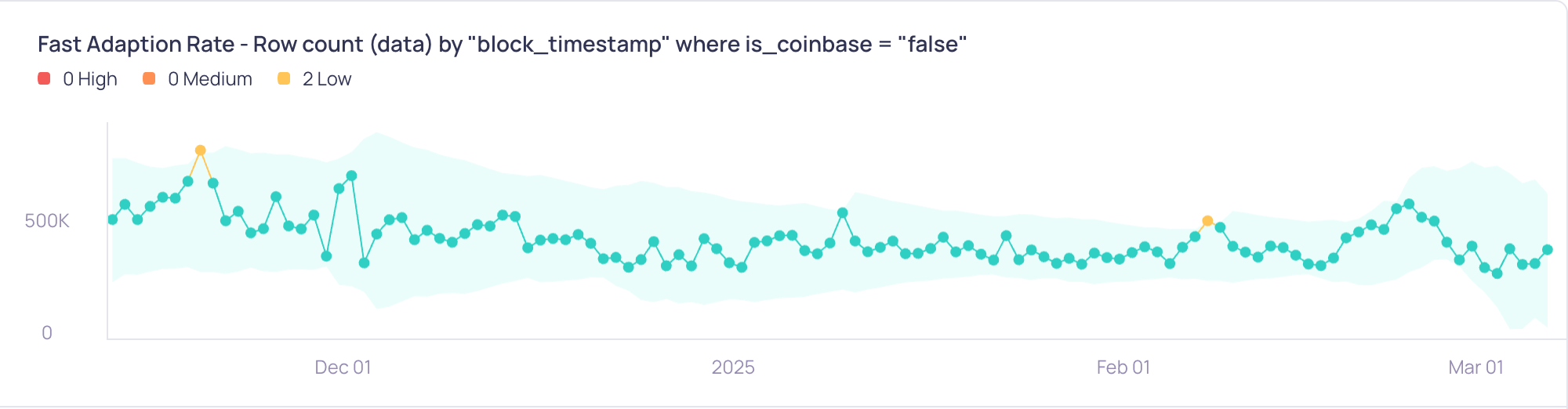
You can configure how quickly the dynamic threshold adapts to changes in your data. This is controlled by the adaption rate parameter, which offers two settings:- Fast: The dynamic threshold model responds rapidly to shifts in your data’s behavior. This means that if a new trend or pattern emerges, the bounds within which data is considered “normal” will adjust quickly. This is useful if your data patterns change often.
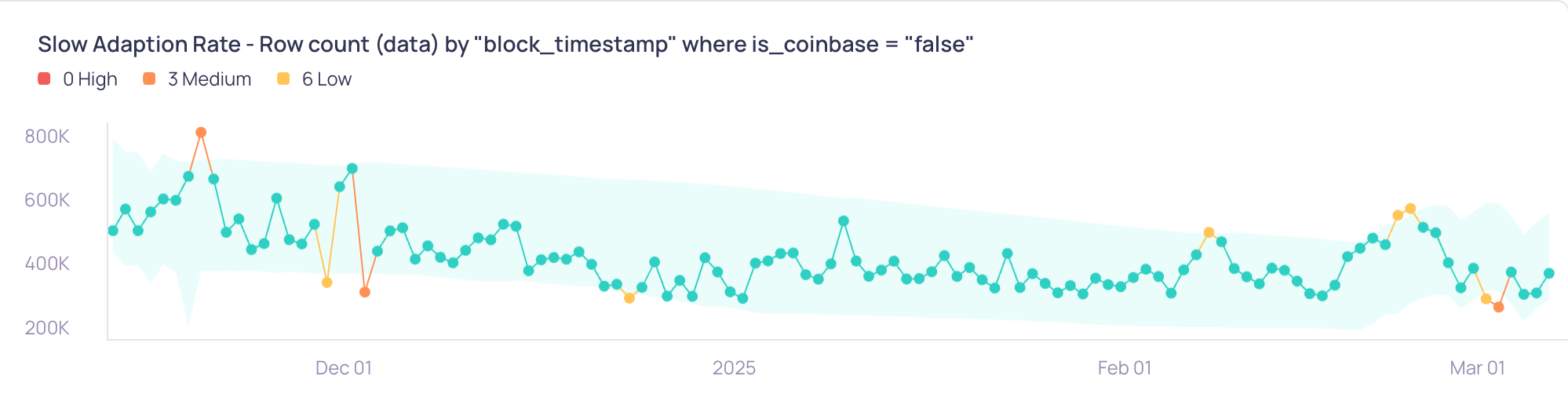
- Slow: The dynamic threshold model adjusts its bounds more gradually. The model will still adapt to changes, but it will do so over a longer period, giving more weight to historical data. This setting is ideal for more stable data and where the user may not want rapid changes of the bounds but still alert on large outliers.
Adaption rate examples
The following example illustrates bounds of dynamic threshold with different adaption rates. Bounds forFast widen and narrow more rapidly with changes in data, while the bounds for Slow are more persistent in following the downward trend and triggering alarms when the trend changes.
Use cases and recommendations
The choice between Fast and Slow adaption depends on the characteristics of your data and your monitoring goals.Default adaption behaviorThe
Fast setting represents the previous default behavior of Validio’s dynamic thresholds. If you have existing validators using dynamic thresholds and do not explicitly set the adaption rate, they will continue to behave as before (with Fast adaption) until you manually change the adaption rate.Model feedback and retraining
Model retraining with false negative feedback (and seasonality)
False positive feedback: Widening the bounds
When the model incorrectly flags a data point as an anomaly, you can mark it as a False Positive. This feedback tells the model that it was too sensitive in that specific context. To provide this feedback, simply change the triage state of the detected incident to “False Positive”. The model learns from this input and becomes less likely to flag future data points that have a similar value in a similar context. This action effectively widens the decision bounds for that pattern, reducing noise and alert fatigue.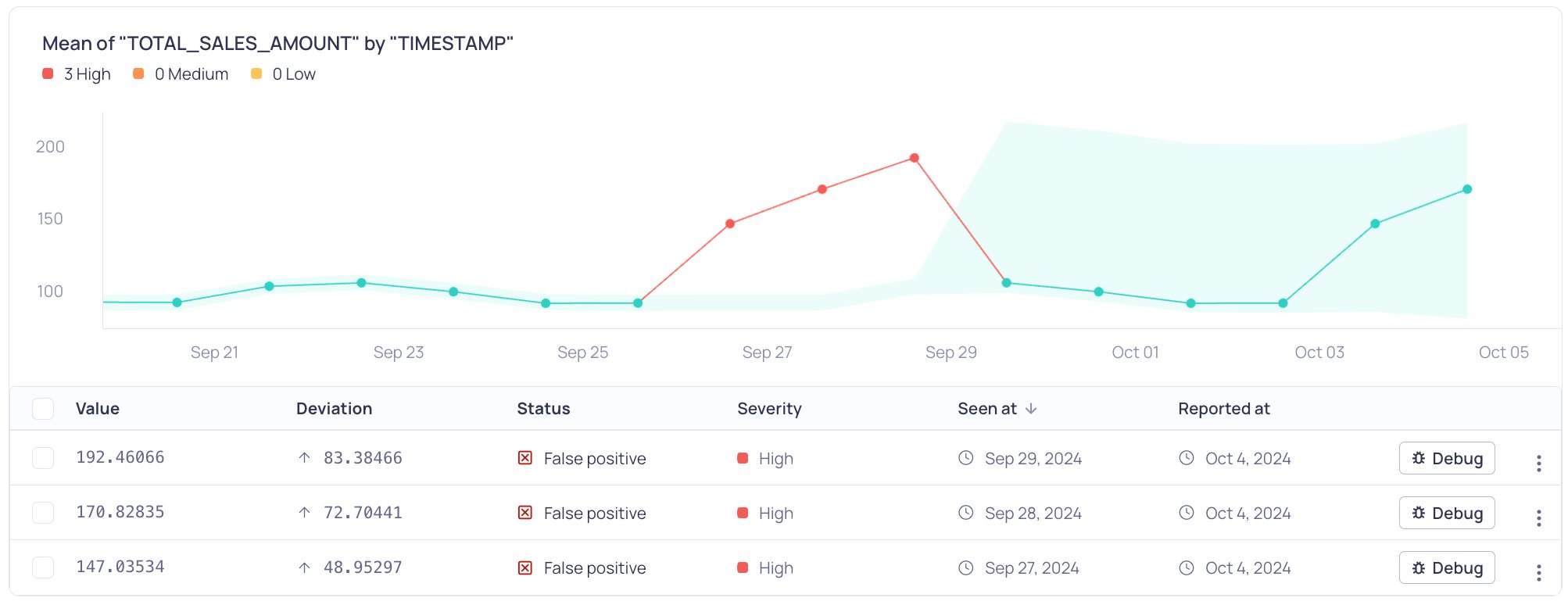
Mean of TOTAL_SALES_AMOUNT by TIMESTAMP
False Positive and RetrainingChanging the incident status to
False Positive will always retrain the model. If you want to mark the incident as false positive but not give feedback, change the status to Resolved and write an incident Comment explaining that it is a false positive. For more information, see Comments and activity log.False negative feedback: Tightening the bounds
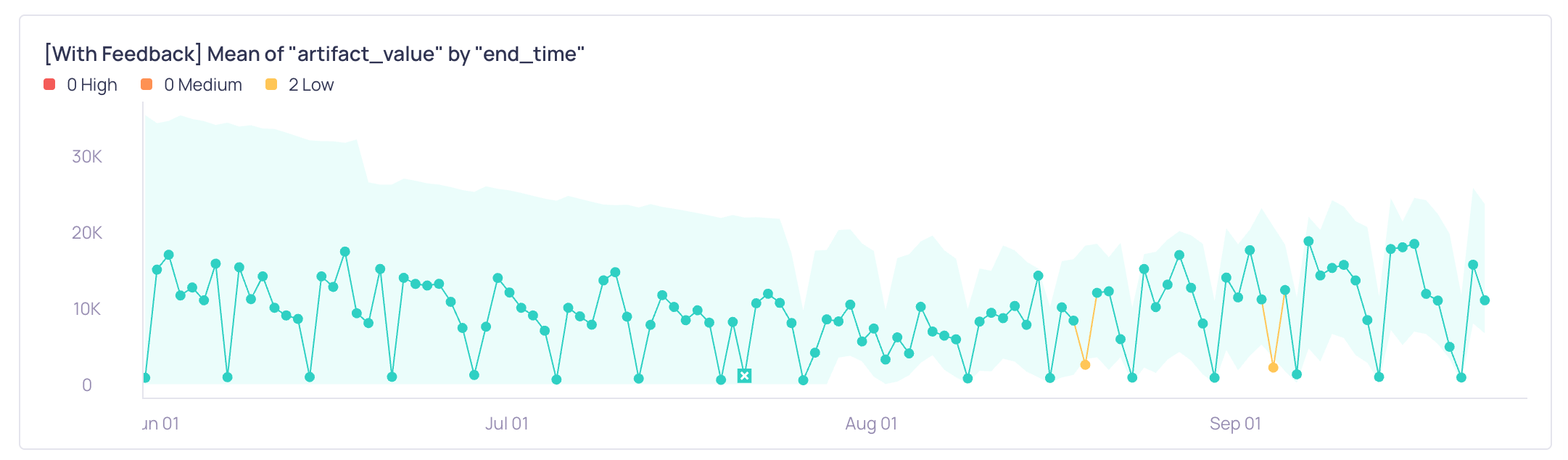
A false negative occurs when a data point is a genuine anomaly, but the system did not create an incident for it. This can happen if the dynamic threshold bounds have become too wide, perhaps after a period of high variance. To provide this feedback, you can manually select a non incident data point in the graph and mark it as False negative with the toggle. This action tells the model that it was not sensitive enough. The model uses this feedback to tighten its decision bounds more quickly for that specific data pattern, improving its ability to catch similar anomalies in the future. This is especially effective for recalibrating bounds that have “blown up” or become excessively wide. Make sure you only mark data points as False Negative that are true missed anomalies.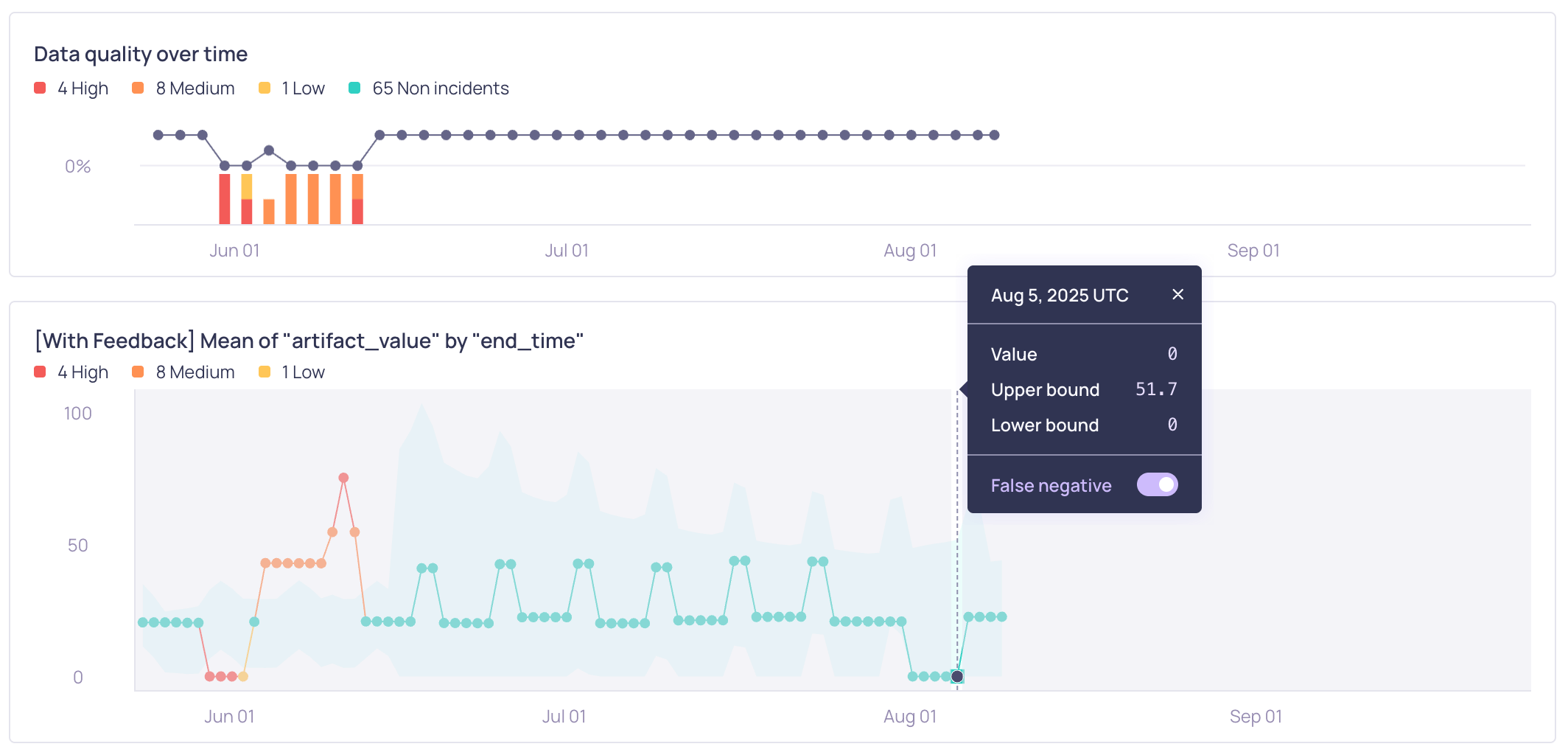
Marking a non-incident data point as False negative
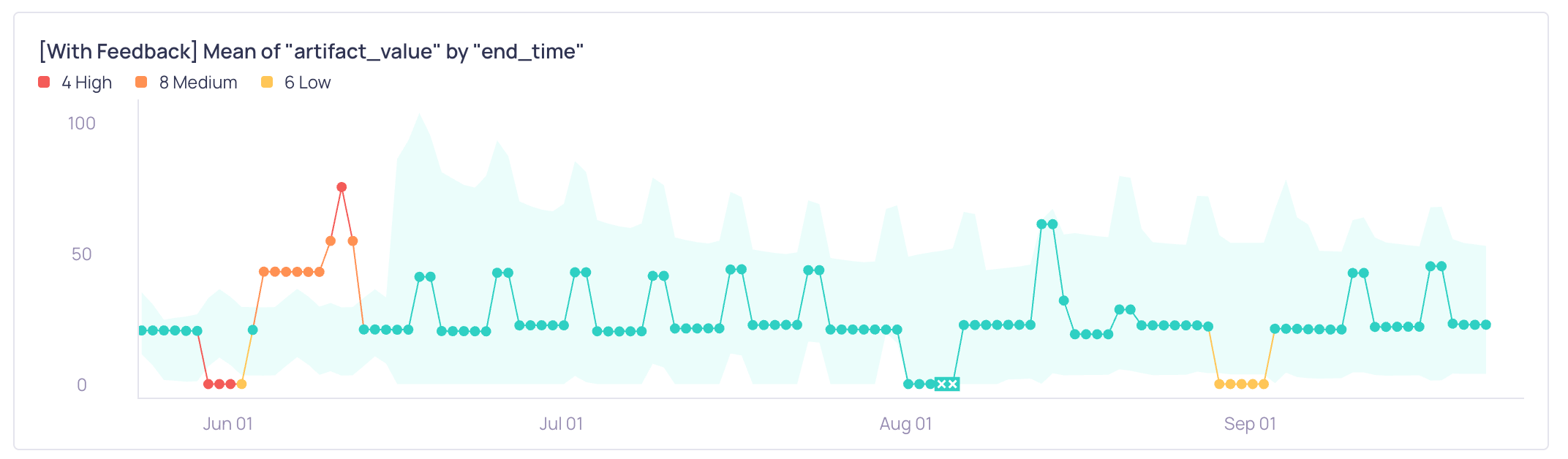
Similar data patterns are now detected as anomalies
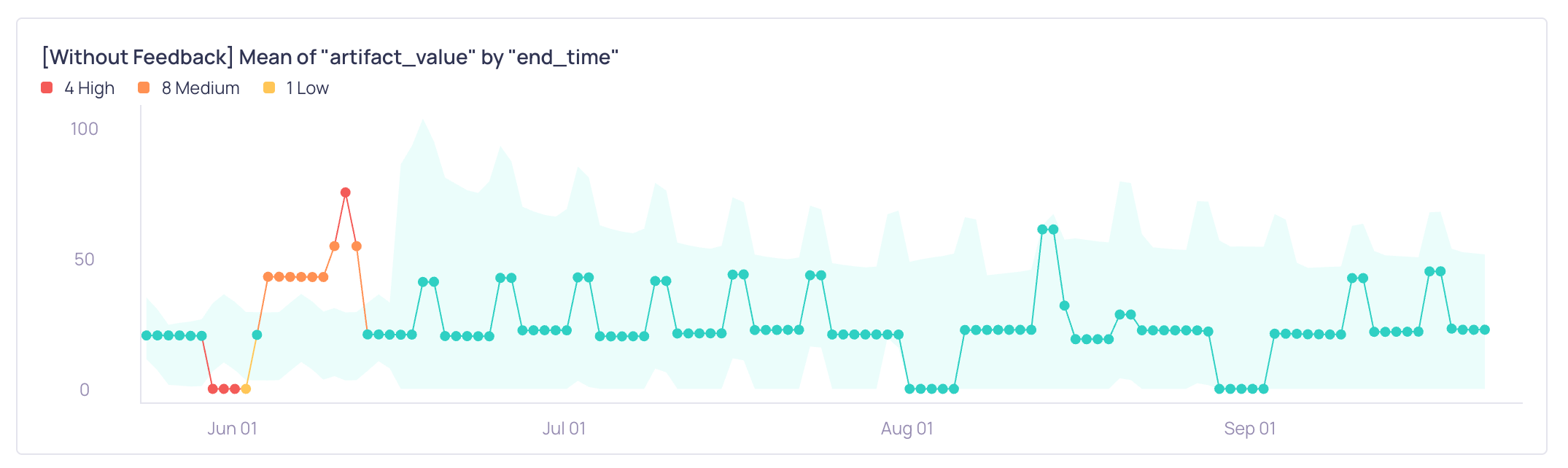
Without feedback, the data points are not detected as incidents
Reverting feedback
You can revert (undo) both False Positive and False Negative feedback. In the Validator graph, x marks data points for which feedback was given.- To undo False Negative feedback click on the data point in the graph and use the toggle to switch it back.
- To undo the False Positive feedback change the incident status from
False Positiveto any other status (includingTriage).
Model feedback versus sensitivity
While both model feedback and sensitivity settings adjust the model’s alerting behavior, they serve different purposes and operate at different scopes. Use sensitivity for broad, initial calibration and model feedback for targeted, ongoing adjustments.Progressive Changes and ImprovementsChanges appear progressively as more feedback is provided. Each piece of feedback makes the threshold more attuned to the specific patterns in your data.Model feedback will also be used to improve the underlying algorithms that power the Dynamic Threshold in future releases of Validio.
Seasonality detection
Dynamic thresholds can automatically adapt to seasonality patterns that appear in your data. You do not have to enable or configure this feature. When there is enough evidence in your data to support the pattern detection, the dynamic threshold will adapt and not trigger an incident if it is caused by the seasonality.Calendric seasonality
Calendric seasonality can relate to business processes and patterns where work may be planned and reviewed in regular cycles (such as weekly, bi-weekly, or monthly) and this behavior is reflected in your data. One example of calendric seasonality is recognizing that a Volume validator returns 0 on all days except the days when the pipeline runs and ingests data.Multiple seasonality patterns
Dynamic thresholds can track more than one seasonal pattern at the same time. For metrics monitored on sub-daily windows (for example, an hourly window), the threshold can learn both the within-day pattern (how values change across the hours of a day) and a day-of-week pattern (how values change across the days of a week). This is useful for metrics that follow a daily rhythm but also vary over the week, such as lower volumes on weekends. Once enough history has accumulated—typically around two weeks of data with sufficient variation—the dynamic threshold recognizes the weekly pattern and adapts to capture these longer seasonalities. The result is tighter, more accurate bounds and fewer false positives on sub-daily metrics that have weekly variation.When weekly patterns are detectedBecause the dynamic threshold needs enough evidence before it adapts to a day-of-week pattern, you may notice this improvement appear only after the validator has been collecting data (or has been backfilled) for a couple of weeks. The threshold also requires sufficient variation in the data, so metrics that only alternate between a few fixed values are unaffected.
Metric support
Dynamic thresholds include functionality to estimate the support of the metric by partitioning the sample space (where data can appear) into negative values, zeros, and positive values. Depending on the frequency of the support, the metric gets an estimated positive, non-negative, or unbounded support. The estimated support is not static — it can change over time. Depending on the estimated support, the lower decision bound is adapted:- If the estimated support is positive, values which are zero or negative are considered incidents.
- If the estimated support is non-negative, negative values are considered incidents.
Minimum bound width for stable metrics
Dynamic threshold enforces a minimum bound width so that negligible changes in large or perfectly stable metrics are not flagged as incidents. When a metric is effectively constant, even a small deviation from that value can be flagged as an incident. To avoid unnecessary alerts, dynamic threshold maintains a small band around the metric value. The size of this band scales with the magnitude of the metric. For example, a metric that holds steady around 30 million keeps a band of roughly ±30, so tiny fluctuations pass without triggering incidents while meaningful changes are still caught. This behavior is:- Automatic: No configuration is required.
- Sensitivity-agnostic: It applies regardless of the sensitivity setting.
- Scale-aware: The minimum band grows and shrinks with the size of the metric’s values.
Not applied to metadata Row Count validatorsThe minimum bound width does not apply to the metadata Row Count validator, which builds its bounds differently. For more information, see Metadata.
Level-shift detection
Dynamic threshold incorporates advanced level-shift detection to identify and adapt to abrupt and persistent changes in your data’s values. A “level shift” often indicates a systemic event, like a configuration change or feature rollout, that causes the data’s baseline to permanently move. This capability ensures you get alerted when such sudden changes occur, and that the anomaly detection remains accurate after the change. This system works by analyzing patterns of consecutive incidents. If a sustained deviation suggests a new stable baseline, statistical tests confirm the shift. Once confirmed, the dynamic threshold intelligently recalibrates by adjusting its training data to this new normal, preventing future false positives based on the old baseline and ensuring continued reliability for evolving data patterns. This adaptive process applies iteratively, ensuring accurate tracking even through multiple sequential level shifts and maintaining reliability as your data evolves. Dynamic threshold also has the ability to make the transition between two levels, or baselines, if it deems that the new level is a reversion to an old one. That is, if dynamic threshold has recently seen one or more level shifts and there is a new incident group, it will try to connect the new incidents with the levels that was previously seen. Common scenarios where Level-shift Detection is useful:- Step changes in metrics: Handles temporary shifts and reversions without over-alerting
- New baselines after changes: Recognizes stable new levels after feature rollouts or configuration updates
- Recurring calendar-based shifts: Detects predictable changes tied to the calendar, including weekly recurrence (for example, a regular weekend dip) and date-based shifts (for example, the 1st of the month). Recognizing weekly-recurring patterns lets the dynamic threshold adapt faster to anomalies that repeat on a weekly cycle.
- Variance changes: Identifies when data flatlines, becomes unusually noisy, or shows other significant changes in behavior
Model change indicators on the metric graph
The metric graph marks the moments when the dynamic threshold model re-bases itself. When the model retrains or recalibrates—for example after a level shift or when it detects a new pattern—a vertical dashed line appears on the graph spanning its full height at the timestamp of that window. This helps you see exactly when, and why, the bounds shifted. To see why a model change occurred, hover or click the datapoint at the dashed line. The tooltip shows a Model changed section at the top, which includes:- A Detected at timestamp for the model change.
- A short explanation of why the model changed.
- The threshold bounds from before the change, so you can compare them with the new bounds. The regular Upper and Lower bound rows below reflect the updated bounds after the change.