

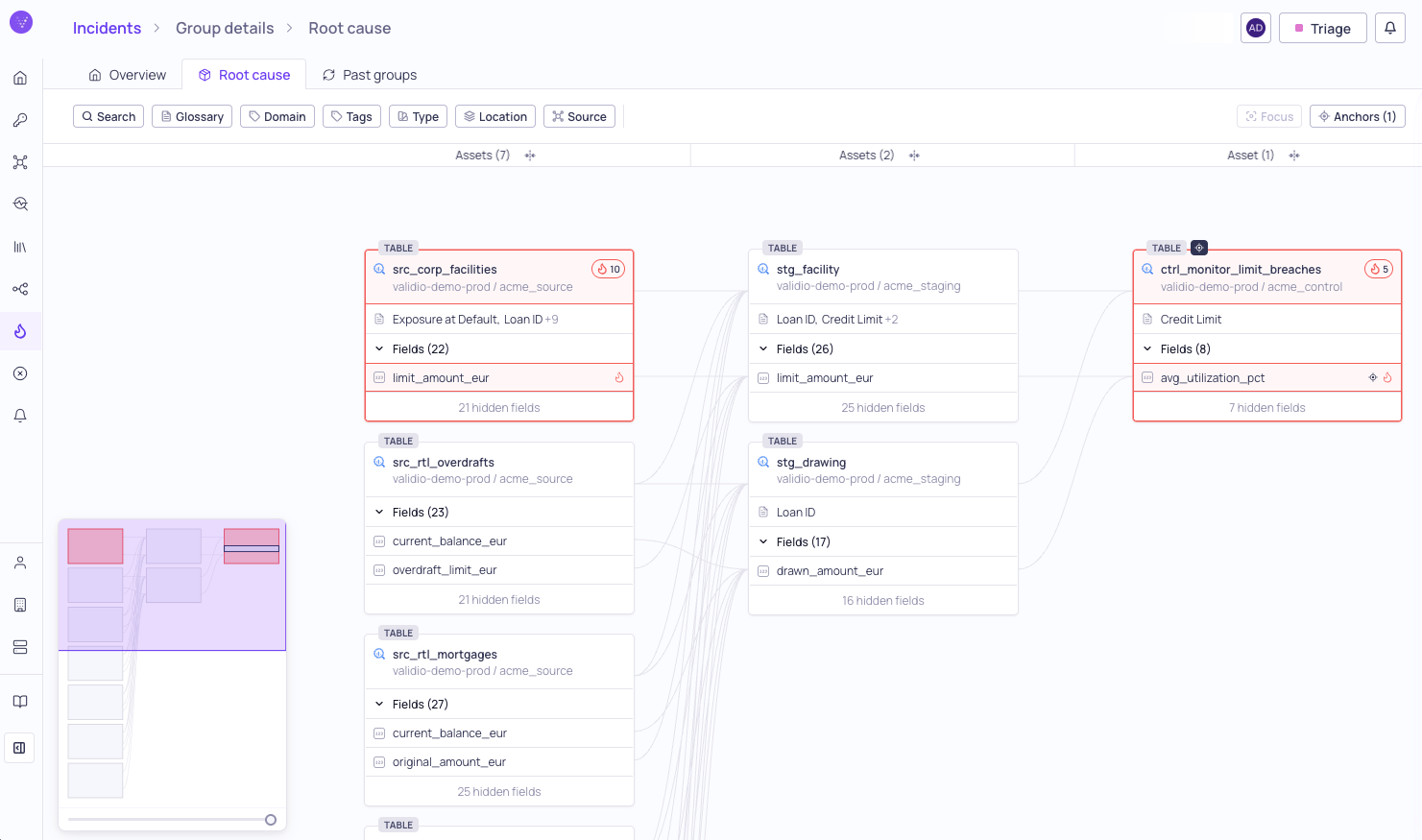
Incident Root cause tab
Accessing RCA
- Navigate to any incident group — for example, from the Incidents listing or a source’s incident tab.
- On the Incident Group Details page, click the Root cause tab (alongside Overview and Past groups).
- The RCA lineage graph loads automatically.
Prerequisites
RCA requires no manual configuration, but the following must be in place for it to produce meaningful results:- Lineage data — Field-level and/or asset-level lineage must exist for the assets involved. Without lineage edges, the RCA graph will only show the origin asset with no connections. For more information, see About Data Lineage.
- Validators — The source must have validators configured. Without validators, Validio cannot create incidents or track incident groups. The validator’s window configuration (such as a 1-day tumbling window) determines the time range used for the analysis.
- Catalog assets — Sources referenced by incident groups must be linked to catalog assets. For more information, see Catalog Assets.
How RCA works
When you open the Root cause tab for an incident group, Validio performs the following analysis.Time range
RCA computes a scoped time range based on the incident group’s validator window configuration:- Start — The incident group’s first-seen timestamp minus one window period. For example, if the validator uses a 1-day tumbling window, the start is one day before the first incident in the group.
- End — The incident group’s last-seen timestamp.
Incident grouping
When an incident occurs on a validator, Validio assigns it to an incident group — a collection of consecutive incidents for that specific validator:- If the previous datapoint processed by the validator was also an incident, the current incident joins the same group.
- If the previous datapoint was not an incident, a new group is created.
Related incidents
Validio analyzes the lineage graph and active incidents within the computed time range to identify related incident groups. Related groups are categorized by their relationship to the origin incident — for example, incidents on the same source, incidents on upstream fields connected through lineage, or freshness incidents on downstream assets. See RCA Relationship Types for the full list.Lineage graph
RCA builds an interactive lineage graph centered on the origin asset. The graph traces field-level and asset-level lineage both upstream and downstream from the origin, includes all reachable assets that have related incidents, and overlays incident severity data on each node and field.RCA lineage view
The RCA view displays the same interactive lineage graph used on the main Lineage page, focused on the incident-related assets. The graph flows left to right, with upstream assets on the left and downstream assets on the right. Origin nodes are automatically set as anchors and highlighted in the graph.Incident indicators
Incident severity data is overlaid on the graph to help you quickly identify affected assets:- Node-level badges — Colored badges on each node showing total incident count, tinted by the highest severity (red for high, orange for medium, yellow for low).
- Field-level indicators — When a node is expanded, individual fields show severity dots for field-level incidents.
- Node background — Nodes with incidents display a colored background matching the highest severity.
Interactions
Anchors
Click the Anchors button in the toolbar to view a popover listing all origin nodes (the assets or fields where the incident originated). Clicking an anchor in the list centers the graph on that node.Filters
The filter toolbar supports the same filters as the main Lineage page:- Search — Free-text search on node names.
- Glossary term — Filter by assigned glossary terms.
- Domain — Filter by domain.
- Tag — Filter by tags.
- Type — Filter by asset type (e.g., Table, View).
- Location — Filter by database or schema path.
- Source — Filter by whether the asset is a Validio monitored source.