

https://my-resource.openai.azure.com) in place of a Foundry one, and works the same way. Foundry’s OpenAI-compatible API serves the same GPT models, so one credential type covers both kinds of resource.
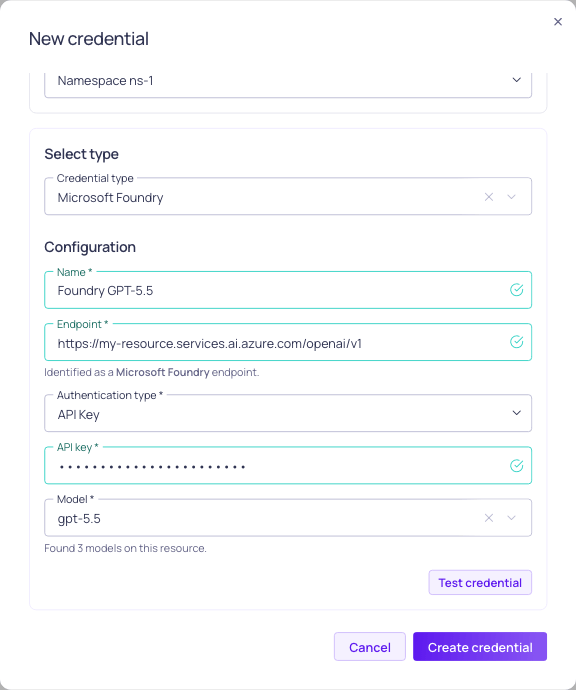
Configuration for Microsoft Foundry credential
Prerequisites
Before setting up your Microsoft Foundry credential, ensure you have:- Enabled the Allow LLM credentials setting in your Validio Workspace. See Managing Workspace Settings.
- Appropriate permissions to create credentials (requires
credentials:WRITEpermissions for the Namespace). See Managing Roles. - A Microsoft Foundry or Azure OpenAI resource with at least one model deployment.
- The endpoint of that resource, which you can copy from Keys and Endpoint in the Azure portal. For example,
https://my-resource.services.ai.azure.comfor a Foundry resource, orhttps://my-resource.openai.azure.comfor an Azure OpenAI resource. - One of the following authentication options:
- An API key for the resource, found under Keys and Endpoint in the Azure portal.
- A Microsoft Entra ID app registration (service principal) with a client secret, granted the role below on the resource. You need its tenant ID, client ID, and client secret. Refer to Register an application with Microsoft Entra ID in Microsoft documentation.
Entra ID role assignment
Validio authenticates as a service principal and calls the resource’s inference API, so the app registration needs a role that grants data-plane inference access at the scope of the resource. Which role that is depends on the resource:
Both roles also grant read access to the resource’s model deployments, which is what lets Validio list them in the credential form. Assign the role at the scope of the resource itself, not the subscription or resource group, and allow up to five minutes for the assignment to propagate.
Refer to Configure keyless authentication with Microsoft Entra ID for the Foundry role, including the Azure CLI commands to create the service principal and assign the role, and Role-based access control for Azure OpenAI for the Azure OpenAI role.
If your resource serves the model through a managed compute deployment rather than a standard pay-per-token or provisioned deployment, Microsoft requires the Foundry User role (previously named Azure AI User) at the Foundry account scope for inference instead. Refer to Role-based access control for Microsoft Foundry.
Add a Microsoft Foundry credential
Because each Microsoft Foundry credential is tied to one model deployment, you should add a Microsoft Foundry credential for each deployment you want to use in Validio.
- Navigate to Credentials and click + New credential.
- Namespace: Select the namespace where the resources will be created.
- Credential Type: Select Microsoft Foundry from the dropdown.
-
Configuration: Complete the required parameters.
Choosing an authentication type
- API Key authenticates with a key issued for the resource, and is the quickest option to set up.
- Entra ID authenticates as a service principal, using the tenant ID, client ID, and client secret of an app registration. Use this option when your organization disables key-based access or requires resource access to be granted through Azure role assignments.
About model deploymentsA deployment name is chosen when the deployment is created in Azure and does not have to match the model behind it, which is why Validio shows both. The model determines which of the resource’s two APIs serves the deployment:gpt-*deployments are served by the OpenAI-compatible API, andclaude-*deployments by the Anthropic Messages API. Selecting a deployment from the list records the endpoint of the matching API, so no further configuration is needed.If the deployments cannot be listed, because the resource returns an error or the deployment was created moments ago, type the deployment name instead. The message below the field explains what went wrong.Custom endpoints and proxiesThe endpoint is used exactly as entered, so a proxy, an API Management gateway, or a sovereign cloud host works as well. Because Validio cannot recognize such a host, include the API path in the endpoint:/openai/v1for GPT-family deployments and/anthropic/v1for Claude deployments. Without a path, Validio infers the API from the deployment name, which only holds if that name mentions the model family. - (Optional) Click Test credential to validate that Validio can successfully connect to Microsoft Foundry using your configuration. If the test fails, verify your endpoint, authentication details, and that the deployment name matches a deployment on the resource.
- Click Create credential to save your configuration.
Next steps
With your Microsoft Foundry credential configured, you can leverage the deployed model across various Validio features:- Custom SQL validators: Generate complex validation queries or fix errors in your SQL queries.
- SQL filters: Create sophisticated filtering conditions and data selection criteria.
- Validator recommendations: Profile your data and generate recommendations to quickly set up monitoring.