

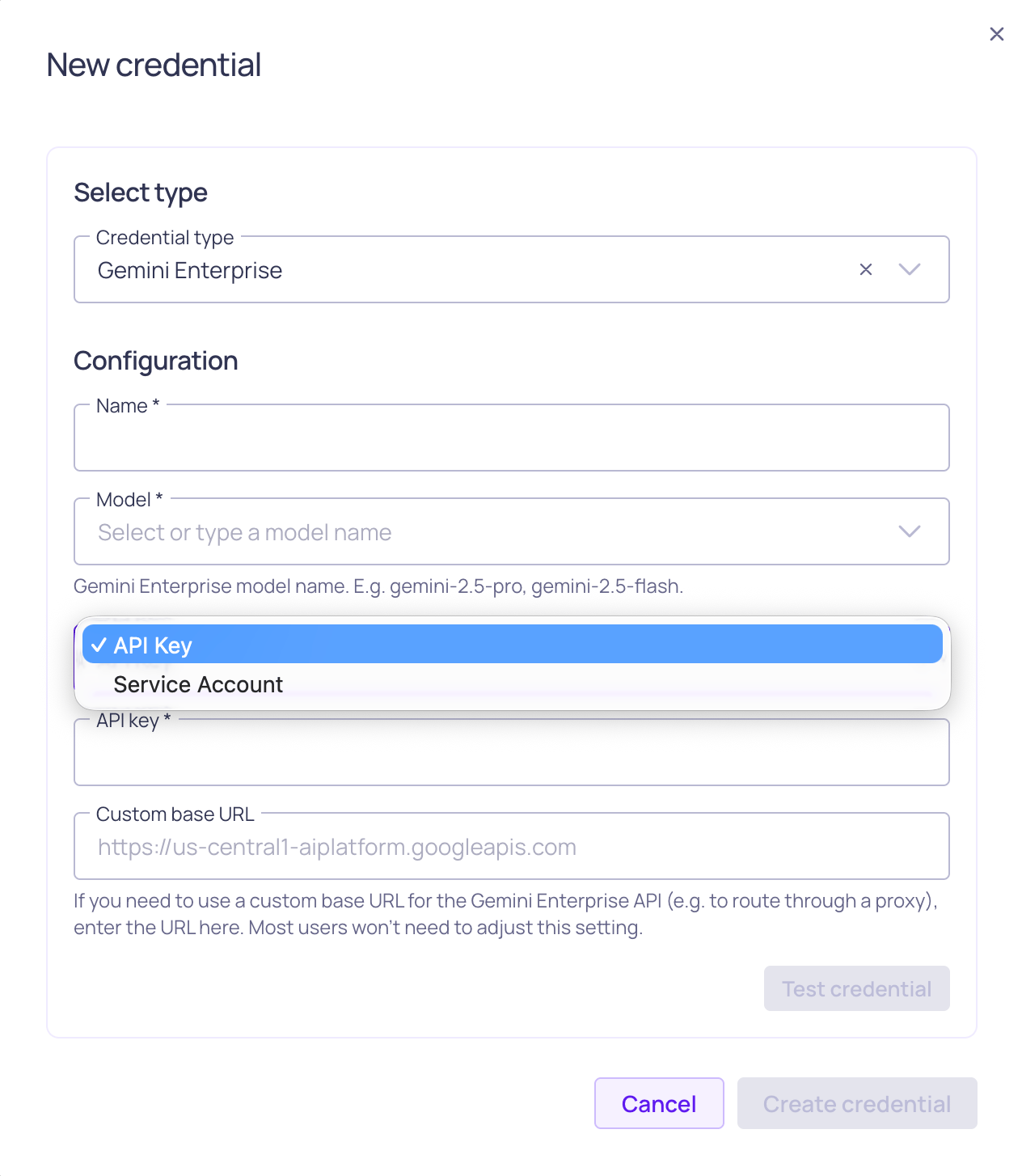
Gemini credential configuration with authentication options shown
Prerequisites
Before setting up your Gemini Enterprise credential, ensure you have:- Enabled the Allow LLM credentials setting in your Validio Workspace. See Managing Workspace Settings.
- Appropriate permissions to create credentials (requires
credentials:WRITEpermissions for the Namespace). See Managing Roles. - A Google Cloud project with the Vertex AI API enabled.
- One of the following authentication options:
- A Google Cloud API key for your Vertex AI–enabled project. Refer to Use API keys in Google Cloud documentation.
- A service account JSON key file for a service account with the Vertex AI User (
roles/aiplatform.user) role. Refer to Create and manage service account keys in Google Cloud documentation.
Add a Gemini Enterprise credential
Because each Gemini Enterprise credential is tied to one language model, you should add a Gemini Enterprise credential for each model you want to use in Validio.
- Navigate to Credentials and click + New credential.
- Namespace: Select the namespace where the resources will be created.
- Credential Type: Select Gemini Enterprise from the dropdown.
-
Configuration: Complete the required parameters.
Choosing an authentication type
- API Key uses Google’s global Gemini Enterprise endpoint and only requires an API key.
- Service Account uses a regional Vertex AI endpoint and requires a service account JSON key, the GCP project ID, and a GCP region. Use this option when you need request routing to stay within a specific region or when your organization restricts API key usage.
- (Optional) Click Test credential to validate that Validio can successfully connect to Gemini Enterprise using your configuration. If the test fails, verify your authentication details, project ID, and region.
- Click Create credential to save your configuration.
Next steps
With your Gemini Enterprise credential configured, you can leverage Gemini models across various Validio features:- Custom SQL validators: Generate complex validation queries or fix errors in your SQL queries.
- SQL filters: Create sophisticated filtering conditions and data selection criteria.
- Validator recommendations: Profile your data and generate recommendations to quickly set up monitoring.