

Managing Sources
Add, configure, and manage your data sources in Validio, including actions like start, stop, rerun, reset, backfill, and more.
This page covers how to add new sources, configure them, and perform management actions such as start, stop, rerun, reset, and backfill. For an overview of what sources are, see About Sources. For navigating the Sources list and source detail tabs, see Reviewing Sources.
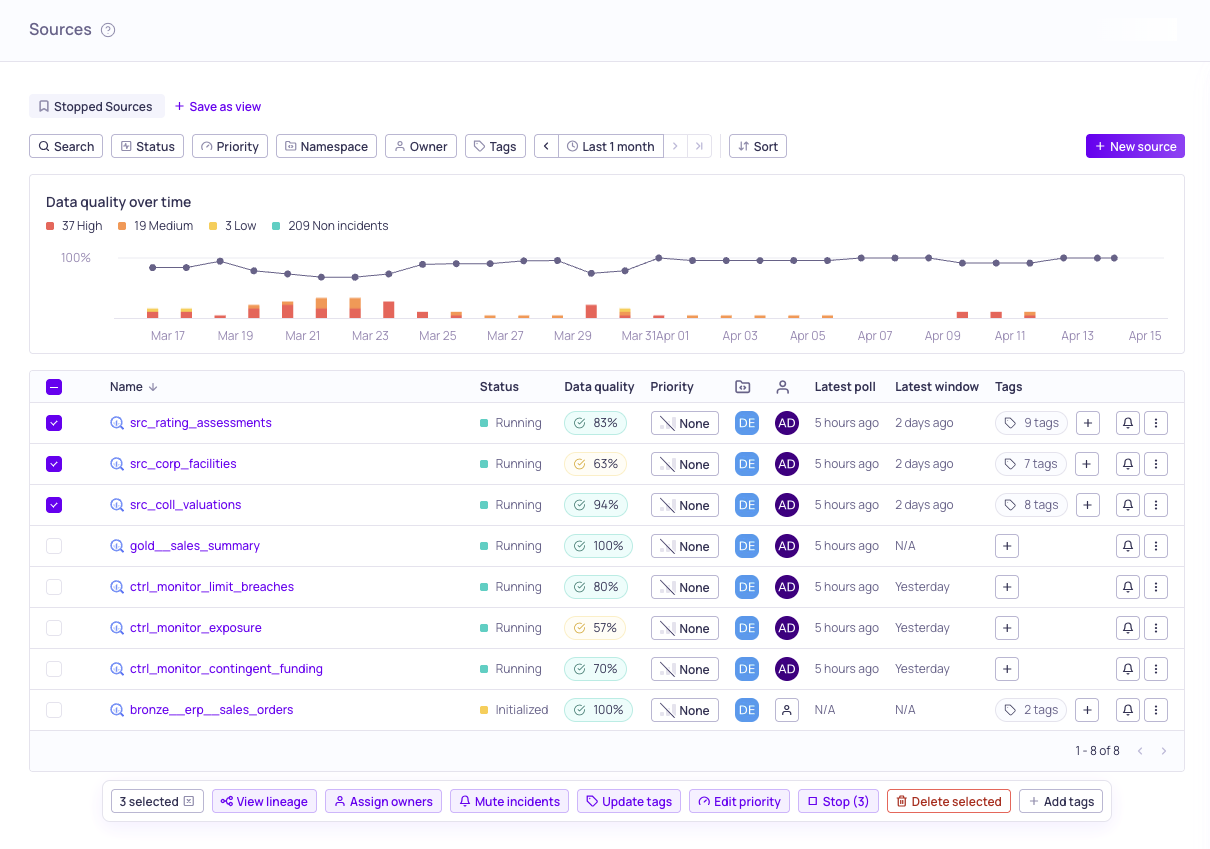
The bulk actions menu bar appears when you select multiple sources
Add a New Source
On the Sources page, click + New Source to start the source configuration wizard. You need to:
- Add a credential to connect Validio to your data system. For more information, see About Credentials.
- Specify the dataset (table, topic, or custom SQL query) you want to monitor. You can select from available datasets or write a custom SQL query for data warehouse and query engine sources.
- Define a polling schedule to set how often Validio reads data from the source. You can configure polling using cron expressions in the UI, or using the Validio CLI (but not both on the same source). For data streams, data is read as soon as it is available. For help with cron expressions, see https://crontab.guru/.
- Assign a priority (None, Low, Medium, High, or Critical) to indicate the importance of issues detected on the source. Validator priorities override the source priority. Incidents inherit the validator's priority if set, otherwise the source priority.
Creating and updating sources requires sources:WRITE permissions. For more information, see About Validio RBAC. You can find instructions to connect Validio to each source type on their dedicated pages under Supported Data Sources.
Actions Available by Page
The following table summarizes which management actions are available on each page.
- On the Sources page, actions are accessed from the management icons and ⋮ menu inline for each individual source row. For example, you can click the user avatar under the Owner column to assign the source to another user.
- On the Source details page, actions are accessed from the controls and ⋮ menu at the top of the page, above the resource tabs.
- On the source information panel, actions like owner, priority, tags, and description are available inline. See Source Information Panel.
| Action | Sources Page | Source Details | Source Panel |
|---|---|---|---|
| Start | ✓ | ✓ | |
| Stop | ✓ | ✓ | |
| Update owner | ✓ | ✓ | ✓ |
| Update priority | ✓ | ✓ | ✓ |
| Add tags | ✓ | ✓ | ✓ |
| Update description | ✓ | ✓ | |
| Mute | ✓ | ✓ | |
| Update configuration | ✓ | ✓ | |
| Move | ✓ | ✓ | |
| Rerun validators | ✓ | ✓ | |
| Reset | ✓ | ✓ | |
| Delete | ✓ | ✓ |
Source Management Actions
Starting a Source
Start data validation on the source. When started, Validio begins polling the source on the configured schedule and running validators against new data.
Stopping a Source
Pause data validation on the source. While stopped, Validio will not poll the source or run validators. You can restart the source at any time.
Updating the Owner
Assign or update the owner of the source. The owner defaults to the user who created the source. Validators on the source inherit the source owner unless individually overridden.
Updating the Priority
Change the priority (None, Low, Medium, High, or Critical) of the source. Validator priorities override the source priority. Incidents inherit the validator's priority if set, otherwise the source priority.
Adding Tags
On the Sources page, click the edit icon to add new tags on the source. Tags help group related sources and can be used for routing notifications.
Updating Descriptions
You can add or edit a description on the Source details page or in the source information panel. Descriptions support markdown formatting and can be used to document the purpose, contents, or ownership of a source.
You can also generate descriptions using AI. Click the AI generate button (sparkle icon) in the description area to produce a description based on the source's schema, glossary terms, tags, and other metadata. For more information, see AI Description Generation.
Muting a Source
Mute notifications from the source for a selected duration. For more information, see Muting Incident Notifications.
Updating a Source
Update the source's configuration, such as Name and Polling schedule. Other settings available for update depend on the source type.
Moving a Source
Moving a source transfers it and all its linked resources (validators, windows, filters, segmentations) from one credential to another. The target credential does not need to be in the same namespace as the current credential.
Before moving a source, verify that the target credential has access to the relevant dataset or table. Polling will fail after the move if the new credential cannot reach the source data.
Requirements and limitations:
- Credential types must match: You can only move a source between credentials of the same type. For example, you cannot move a source from a BigQuery credential to a Snowflake credential.
- Access is not automatically verified: After the move, if polling fails due to missing permissions, you will need to update the credential settings on the target credential.
Rerunning Validators on a Source
Rerunning validators on a source re-executes all applicable validators from the most recent window while preserving existing metric data, incidents, and audit history. This is a non-destructive action designed for verifying data fixes after remediation.
Rerunning a source skips validators that are not eligible for rerun: Freshness validators, Reconciliation validators, validators with a Global Window, and validators with metadata enabled. For more information about rerunning individual validators, see Rerunning a Validator.
Rerunning validators on a source requires
sources:WRITE,validators:WRITE, andincidents:WRITEpermissions.
If you need to fully recalculate metrics and retrain thresholds from scratch, see Resetting a Source instead.
Resetting a Source
Resetting a source deletes all existing metric data and incidents, recreates the source with the same configuration, and backfills all its validators from scratch. This is a destructive action — all previously calculated metrics and resolved incidents will be lost.
Resetting cannot be undone. Make sure you no longer need the existing metric history before proceeding.
If you want to re-evaluate data without losing existing metrics and incident history, see Rerunning Validators on a Source instead.
Common scenarios when resetting is useful:
- Historical data has changed — The underlying data was corrected or backfilled, and you want to re-validate against the updated records.
- Schema or configuration drift — The source configuration was updated (for example, a new datetime field or filter), and prior metrics are no longer comparable.
Deleting a Source
Delete a source to permanently remove it and all its associated resources (validators, windows, filters, segmentations) from Validio.
Updated 6 months ago