

AI Description Generation
Use AI to generate contextual descriptions for catalog assets, schema fields, glossary terms, domains, validators, and lineage edges.
Validio can use AI to generate rich, contextual descriptions for entities across the platform. The AI analyzes available metadata — schema information, glossary terms, tags, lineage context, and existing descriptions — to produce descriptions tailored to each entity type.
Generated descriptions use markdown formatting, so you can review and refine them in the built-in markdown editor before saving.
Prerequisites
- AI features must be enabled in your workspace. See Enabling AI Features.
- An LLM credential must be configured.
- Write permission for the entity type you want to generate a description for (e.g.,
catalogAssets:WRITEfor catalog assets,glossary:WRITEfor glossary terms). For more information, see Managing Roles.
Generate a Description
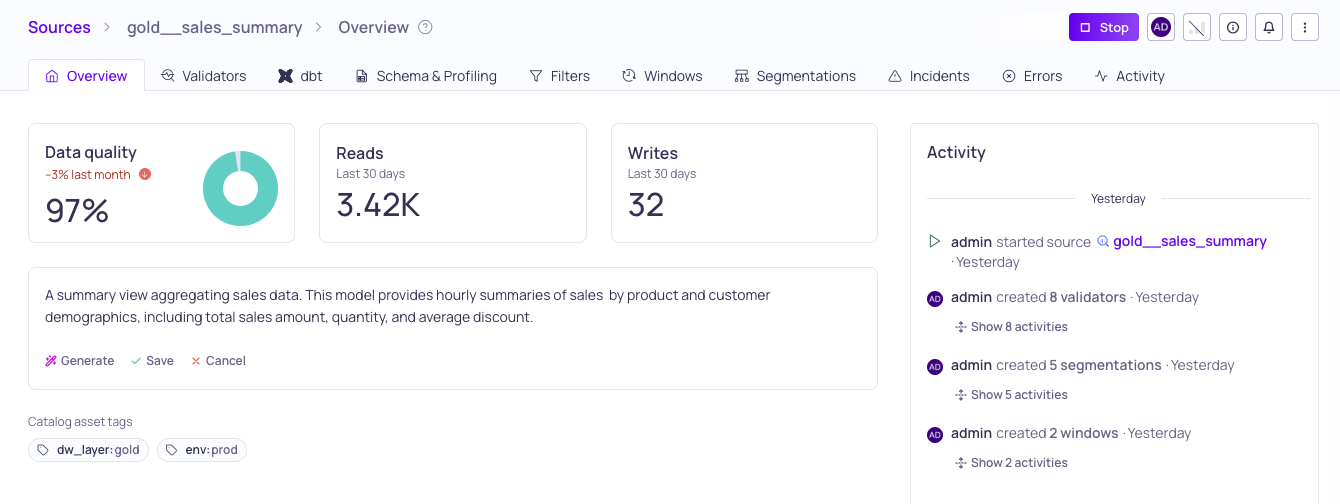
Generate description in a source overview
AI description generation is available wherever you can edit a description — in sidebars and on detail pages.
- Navigate to the entity you want to describe (catalog asset, source, glossary term, domain, validator, or lineage edge).
- Click the AI generate button (sparkle icon) in the description area.
- Select an LLM credential from the dropdown. The dropdown shows each credential's name and model.
- The AI generates a description and populates the editor with the result.
- Review and edit the generated text as needed. The description uses markdown formatting.
- Click Save to keep the description, or Cancel to discard it.
The generation uses the entity's available context to produce relevant descriptions. For example, a catalog asset description draws on its schema fields, glossary terms, tags, and any existing external descriptions.
Where Generation Is Available
| Entity Type | Context Used by AI |
|---|---|
| Catalog Asset | Schema fields, data types, glossary terms, tags, external descriptions |
| Schema Field | Field name, data type, parent asset context, neighboring fields, descriptions |
| Glossary Term | Term name, aliases, domain, assigned assets and fields |
| Domain | Domain name, associated glossary terms, linked assets |
| Validator | Validator type, configuration, source context, monitored fields |
| Lineage Edge | Upstream and downstream assets, field mappings, schema context |
Bulk Schema Field Descriptions
You can generate descriptions for multiple schema fields at once, which is useful for documenting a large table quickly.
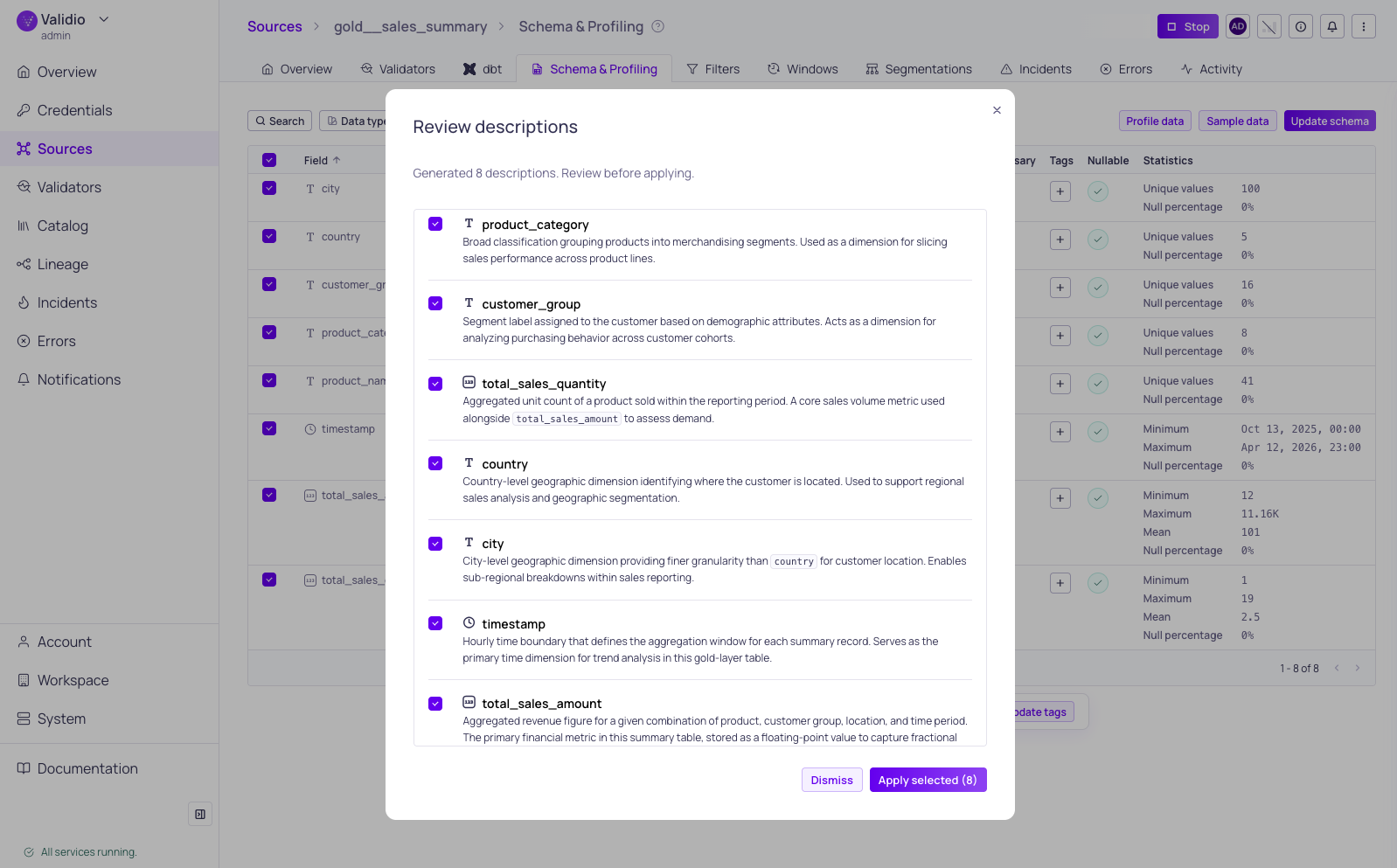
Generated descriptions for schema fields
- Navigate to a catalog asset or source details page and open the Schema tab.
- Select the schema fields you want to describe using the checkboxes.
- Click Generate descriptions in the selection actions bar.
- Select an LLM credential from the dropdown.
- The AI generates a description for each selected field. A review dialog opens showing all generated descriptions.
- Use the checkboxes to select which descriptions to keep. Each item shows the field name, data type, and a preview of the generated description.
- Click Apply to save the selected descriptions.
The bulk generation ensures each field gets a distinct description that differentiates it from related fields in the same table. For example, created_at and updated_at get descriptions that clarify their different roles.
Supported Markdown Formatting
AI-generated descriptions may include the following markdown formatting:
- Headings (
#,##,###) - Bold and italic text
Strikethrough- Bullet and numbered lists
Inline codeand fenced code blocks with syntax highlighting- Blockquotes
Tables are not included in generated descriptions.
You can further edit the generated markdown using the built-in editor, which provides a formatting toolbar for common operations.
Related Resources
Updated 6 months ago