

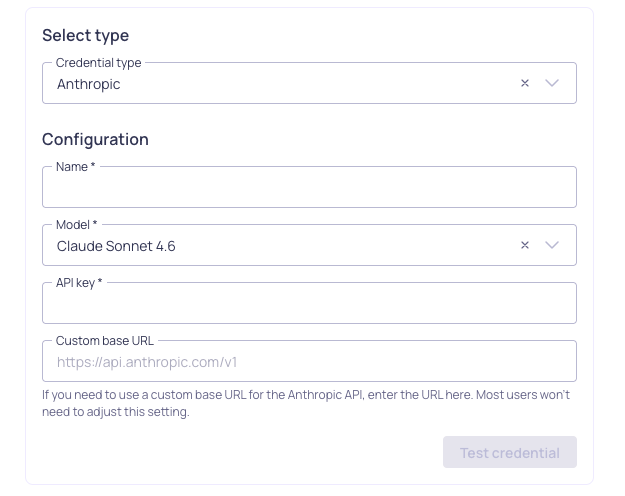
Configuration for Anthropic credential
Prerequisites
Before setting up your Anthropic credential, ensure you have:- Enabled the Allow LLM credentials setting in your Validio Workspace. See Managing Workspace Settings.
- Appropriate permissions to create credentials (requires
credentials:WRITEpermissions for the Namespace). See Managing Roles. - An active Anthropic account
- An Anthropic API key (you can generate one from the Anthropic Console)
Add an Anthropic credential
Because each Anthropic credential is tied to one language model, you should add an Anthropic credential for each model you want to use in Validio.
- Navigate to Credentials and click + New credential.
- Namespace: Select the namespace where the resources will be created.
- Credential Type: Select Anthropic from the dropdown
-
Configuration: Complete the required parameters.
-
(Optional) Click Test credential to validate that Validio can successfully connect to Anthropic using your configuration.
If the test fails, verify your API key is correct.
- Click Create credential to save your configuration.
Next steps
With your Anthropic credential configured, you can leverage Claude AI models across various Validio features:- Custom SQL validators: Generate complex validation queries or fix errors in your SQL queries.
- SQL filters: Create sophisticated filtering conditions and data selection criteria.
- Validator recommendations: Profile your data and generate recommendations to quickly set up monitoring