

Prerequisites
- AI features must be enabled in your workspace. See Enabling AI features.
- An LLM credential must be configured.
- Write permission for the entity type you want to generate a description for (e.g.,
catalogAssets:WRITEfor catalog assets,glossary:WRITEfor glossary terms). For more information, see Managing Roles.
Generate a description
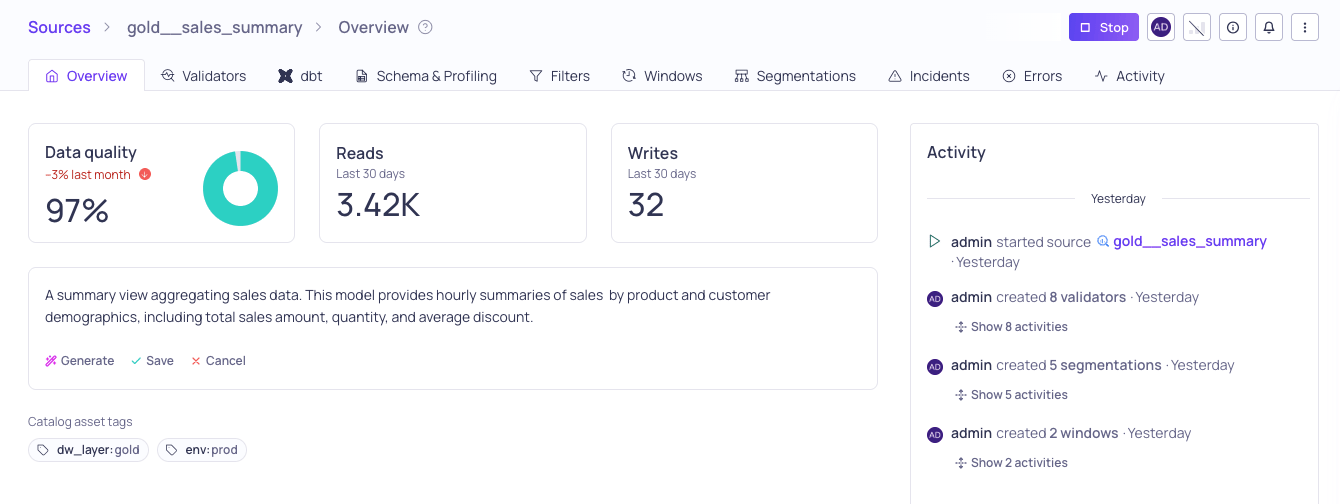
Generate description in a source overview
- Navigate to the entity you want to describe (catalog asset, source, glossary term, domain, validator, or lineage edge).
- Click the AI generate button (sparkle icon) in the description area.
- Select an LLM credential from the dropdown. The dropdown shows each credential’s name and model.
- The AI generates a description and populates the editor with the result.
- Review and edit the generated text as needed. The description uses markdown formatting.
- Click Save to keep the description, or Cancel to discard it.
Where generation is available
Bulk schema field descriptions
You can generate descriptions for multiple schema fields at once, which is useful for documenting a large table quickly.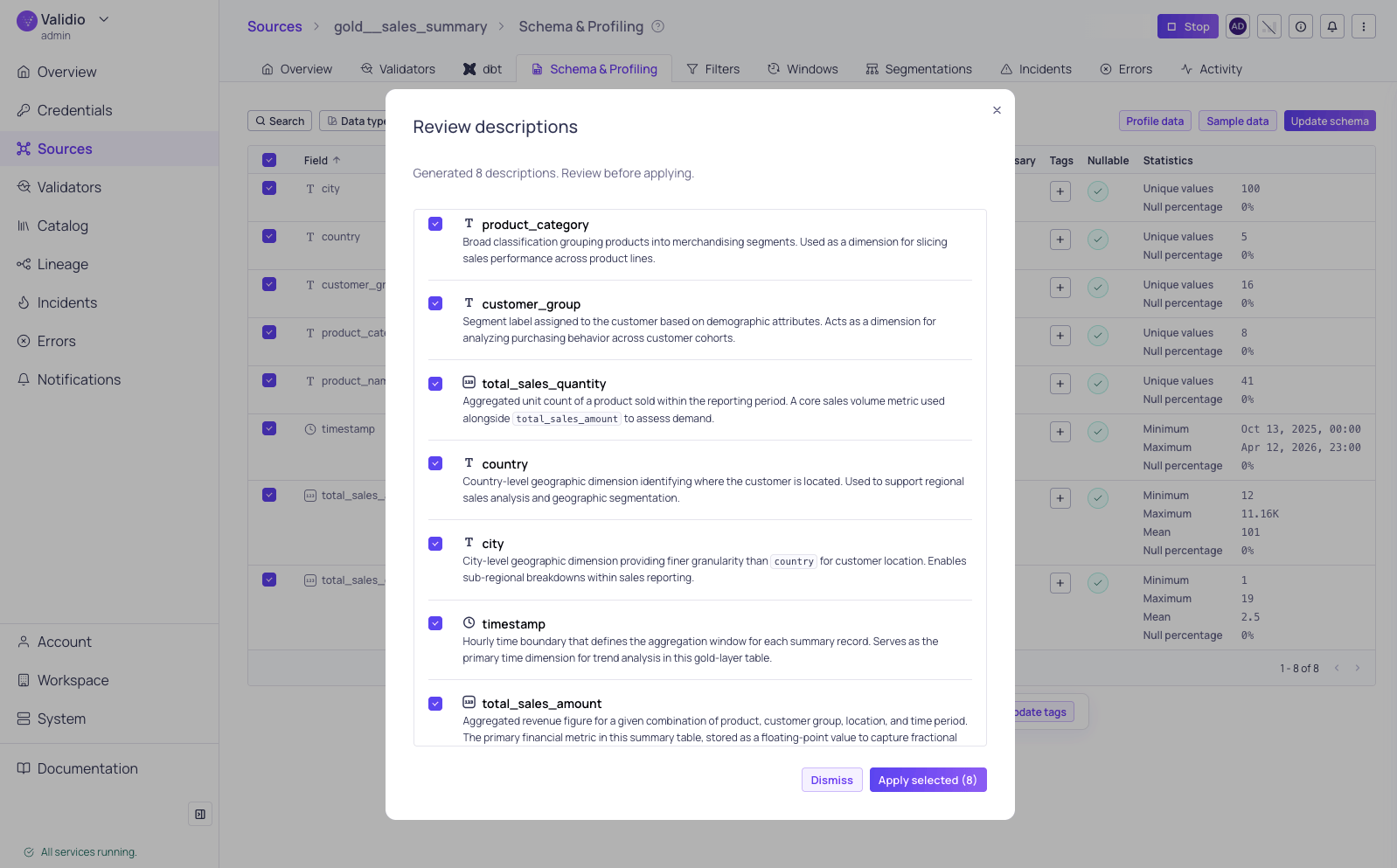
Generated descriptions for schema fields
- Navigate to a catalog asset or source details page and open the Schema tab.
- Select the schema fields you want to describe using the checkboxes.
- Click Generate descriptions in the selection actions bar.
- Select an LLM credential from the dropdown.
- The AI generates a description for each selected field. A review dialog opens showing all generated descriptions.
- Use the checkboxes to select which descriptions to keep. Each item shows the field name, data type, and a preview of the generated description.
- Click Apply to save the selected descriptions.
created_at and updated_at get descriptions that clarify their different roles.
Supported markdown formatting
AI-generated descriptions may include the following markdown formatting:- Headings (
#,##,###) - Bold and italic text
Strikethrough- Bullet and numbered lists
Inline codeand fenced code blocks with syntax highlighting- Blockquotes