

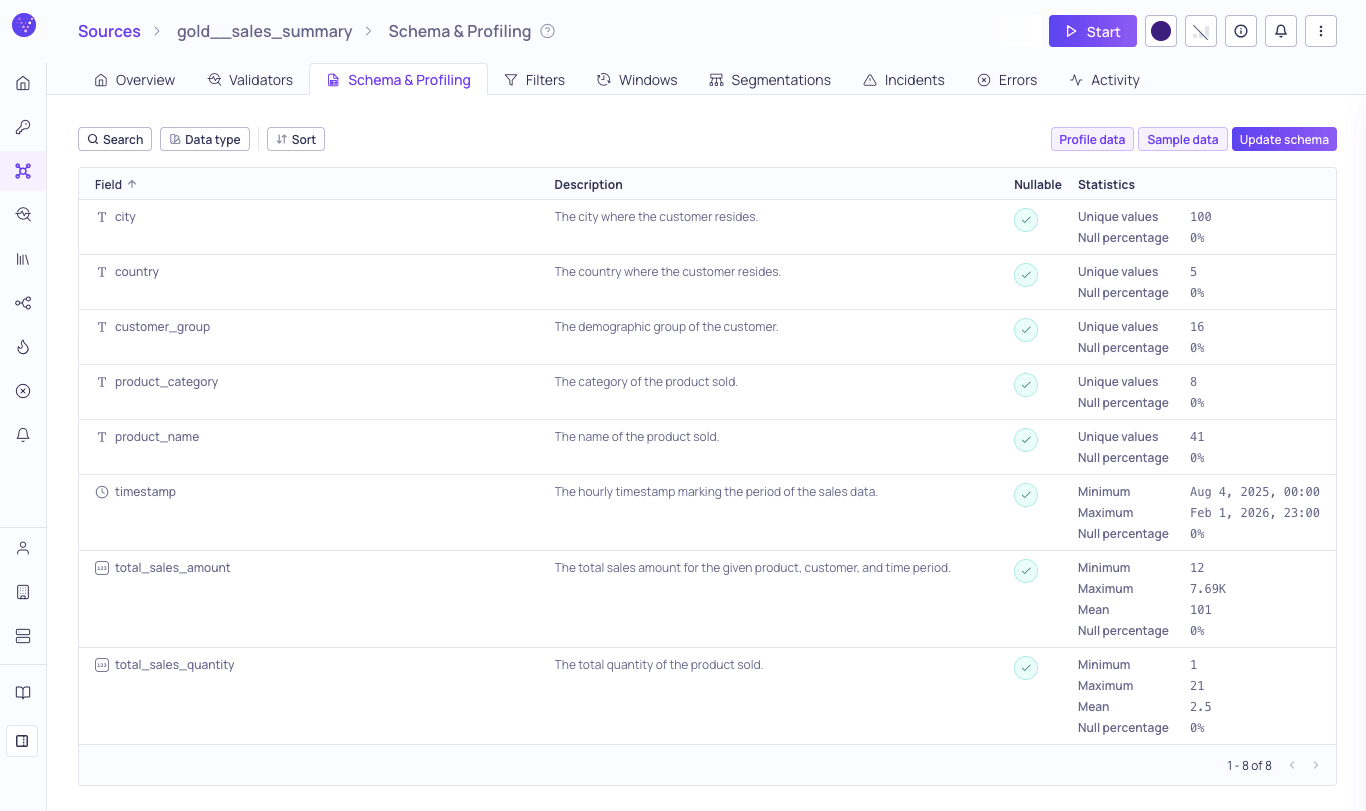
Schema & Profiling tab for a source
Schema list
The table displays the detected schema for your source and catalog asset, including field names, data types, nullability settings, and profiled statistics. From this section you can:- View the full list of fields, their data types, descriptions, and statistics.
- Open the Schema field sidebar to inspect an individual field’s metadata, profiling, glossary terms, and tags.
- Search for a specific field; filter by Data type, Glossary term, Classification, and data quality Dimension; and Sort the list order.
- Update nullability settings and data types to better reflect your data structure. (The Update schema button is available for sources, but not for catalog assets.)
Schema field sidebar
The Schema field sidebar is a contextual panel that shows the metadata, profiling statistics, glossary terms, and tags of a single schema field. Open it from the Schema & Profiling tab or from the Lineage graph to inspect or edit a field without leaving your current view.Open the sidebar
- In the Fields table on the Schema & Profiling tab, click a row.
- On the Lineage page, expand a schema node and click a field row.
fieldId query parameter to the URL so the view is shareable. Close the sidebar to clear the selection from the URL.
Sidebar contents and actions
Each section of the sidebar shows specific field information and exposes the related actions:- Header — Field path, data-type icon, and an editable multi-origin description with markdown support. Edit the description inline (requires the
catalogAssets:WRITEpermission — see Managing Roles), generate one with AI using a configured LLM credential, or click View Asset Lineage to open the asset’s lineage with this field preselected. - General — Nullability indicator.
- Statistics — Profiling metrics and data-type-specific stats. Displays “No profiling” when none has been collected. For more information, see Data Profiling.
- Glossary terms — Assigned terms, with propagation indicators showing when a term was inherited from an upstream field. Assign or unassign terms inline. For more information, see Glossary Term Assignments and Glossary Term Propagation.
- Tags — Applied tags with creation and update metadata and origin source. Add or manage tags inline. For more information, see Managing Tags.
Profile and sample your data
Two actions on this tab read from your data directly:Profile data
Run statistical analysis across your fields — null percentages, unique values, and per-type metrics — to inform which validators to configure.
Sample data
Preview real rows from your source to check that values match the detected schema before setting up filters and segmentation.