

Global validators page
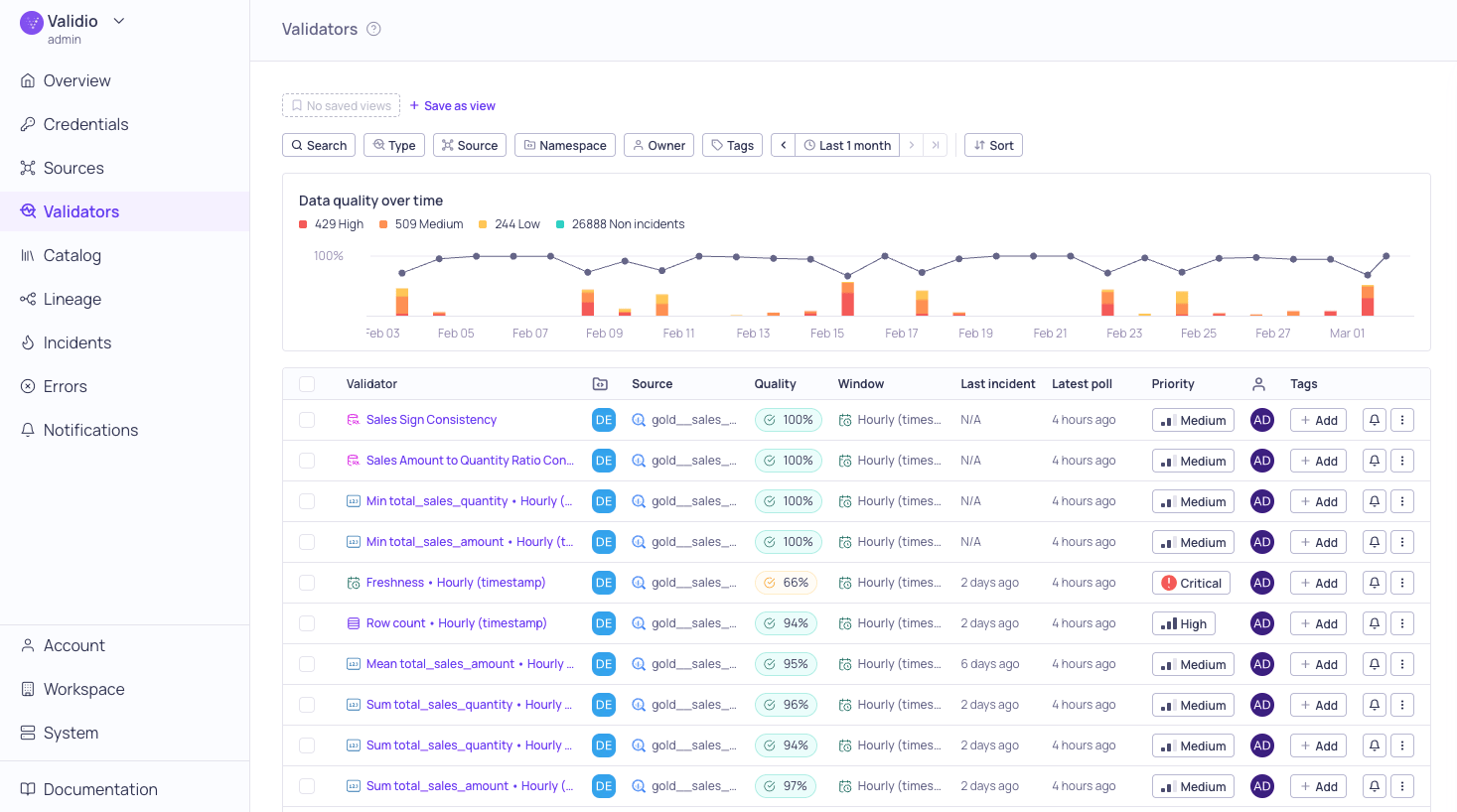
Global Validators page
- If you want to see all the validators associated with a single source, click on the source name in the table to open its Validators tab. See Source Validators Tab.
- Click on a validator name to open its individual details page, where you can view more granular details. See Validator Details Page.
- Update an individual validator’s configuration or mute notifications. For more information, see Managing Validators.
Source validators tab
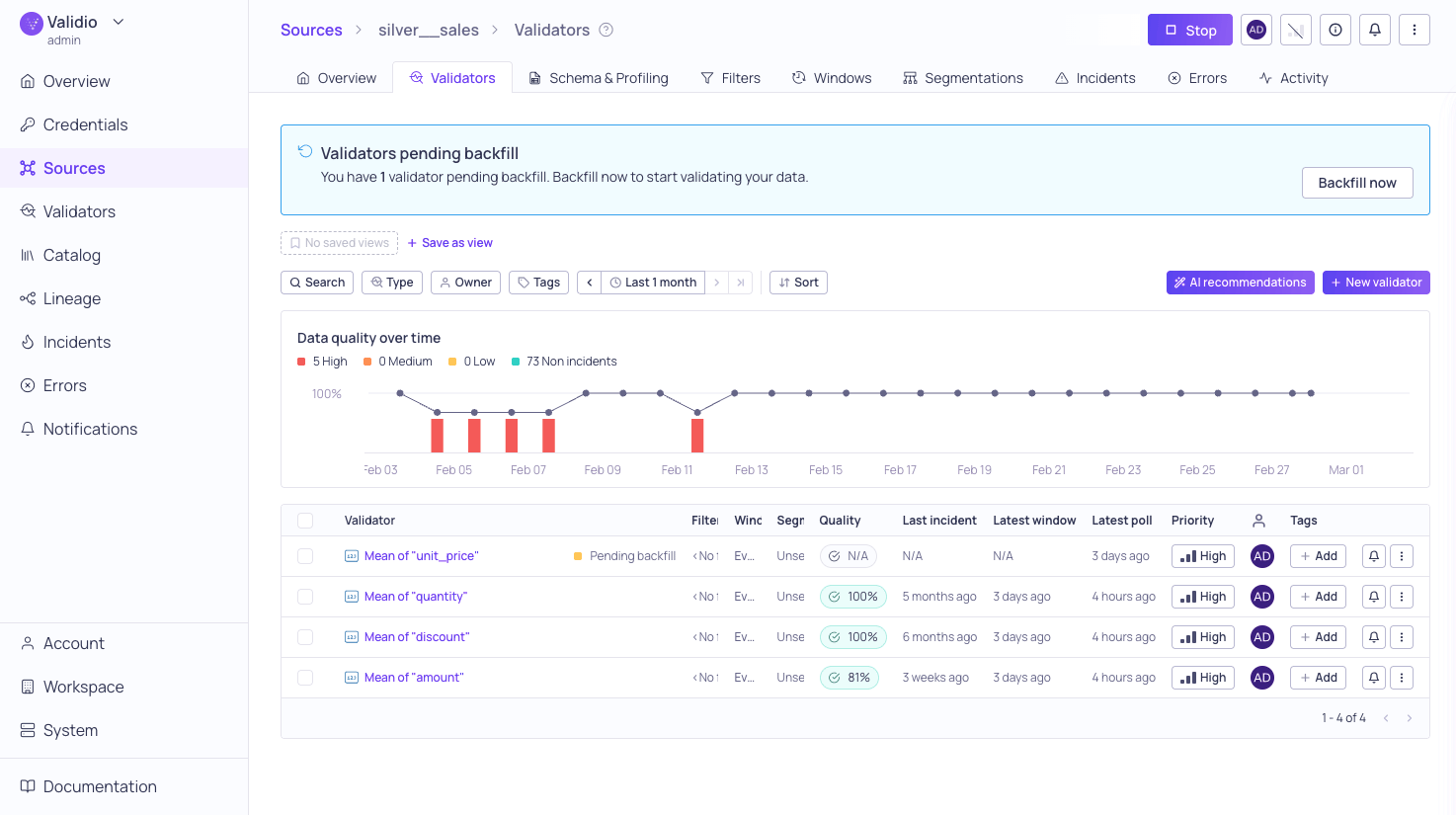
List of Validators for the silver__sales source with pending backfill
From this page you can:
- Use the histogram to view a summary of incidents from all validators configured on the source.
- Search by name, and filter and sort the list of validators. Filters include Type, Source, Namespace, Owner, Tags, Dimension, and Critical fields — see Searching, Filtering, and Saving Views and Data Quality Dimensions.
- Click + New validator to start the validator configuration wizard. For more information, see Configuring a Validator.
- For more granular details, click on a specific validator name to open its details page.
- Duplicate, update, rerun, reset, or delete validators from the ⋮ menu. For more information, see Managing Validators.
Validator details page
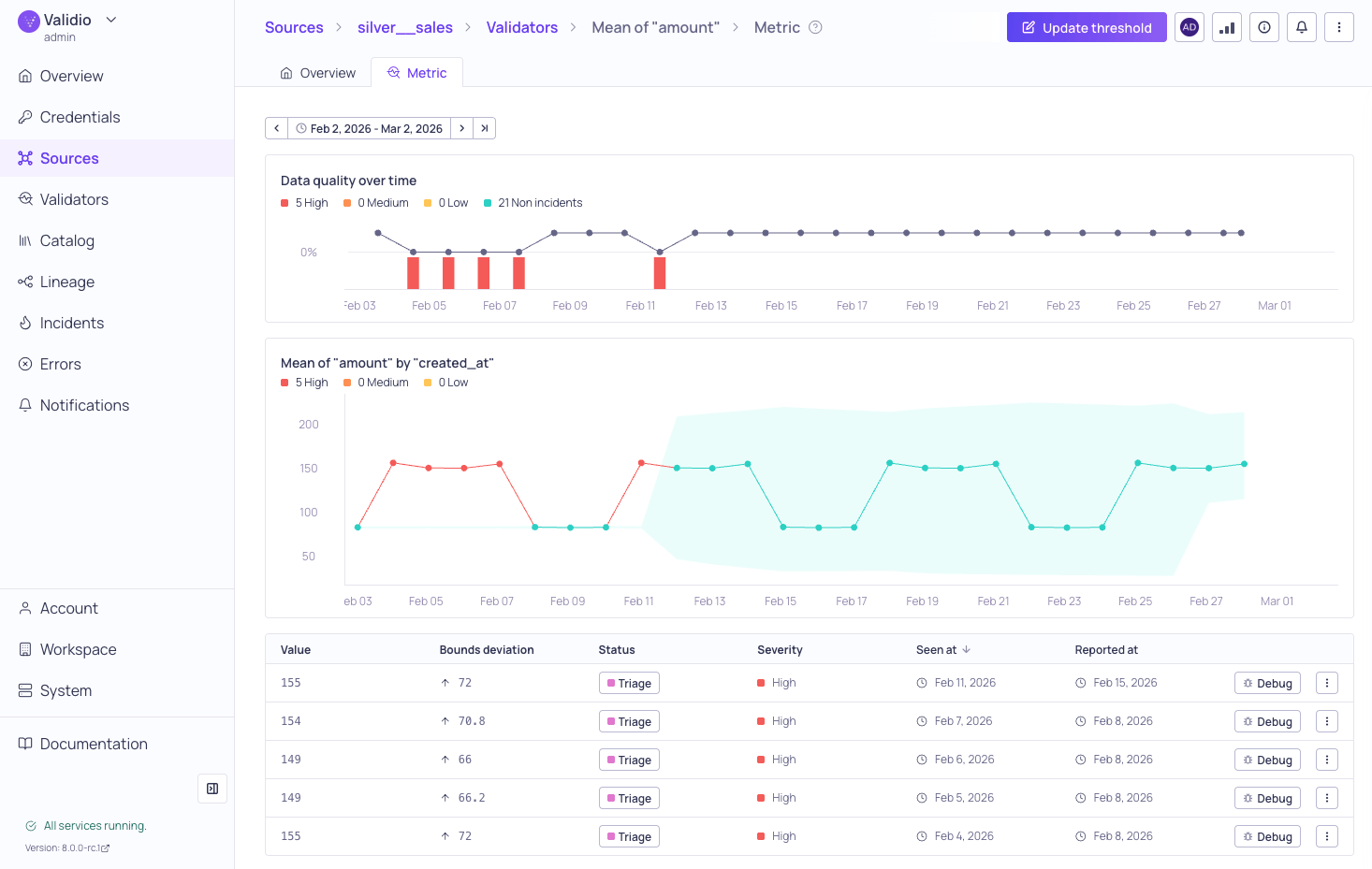
Validator details Metrics tab with incidents
Validator information panel
The validator information panel displays a summary of the validator configuration and status. From this panel, you can update the owner and priority, add or update tags, and update the description. The panel There are two ways to open the panel:- On the global Validators page and Source Validators tab, click the row for an individual validator.
- On the Validator details page, click the i icon.
Overview tab
The Overview tab displays a description of the validator, Tags, and an Activity panel for all recent activities related to the validator and its metric calculations. The activity panel can be exported to CSV — see Activity Logs.Metrics tab
The Metrics tab displays information about the data quality and incidents that were detected by this validator. This page includes the Data Quality over time graph, the incident metrics graph, a list of detected incidents, and segment filters if you have segmentation configured on the validator.Incident metrics graph
The metrics graph provides details about the values and bounds of the detected incidents, their severity, and when each was detected. In the metric graph:- The granularity of the x-axis is determined by the window size.
- The graph updates in real-time, if new data comes in and a new window is completed. You do not need to refresh your browser window.
- Hover on a datapoint to display its detected time range, value, bounds, and severity.
- Click on a datapoint to pin the tooltip. The pinned tooltip includes processing context timestamps (Start, End, Created) and, for rerunnable validators, a Rerun from [date] button to trigger a rerun from that specific time window.
- If a datapoint has been rerun, the tooltip displays a Previous runs section showing each rerun’s metric value with a severity indicator and timestamp. Rerun results also appear as secondary points on the graph connected to the original datapoint.
- For validators using dynamic thresholds, a vertical dashed line marks points where the Dynamic Threshold model changed. Hover the datapoint to see why—see Model Change Indicators.
Incidents list
The incidents list provides details about the values and bounds of the detected incidents, their severity, and when each was detected. The list includes the following columns:
For information about managing incidents from this list, see Managing Validators.