

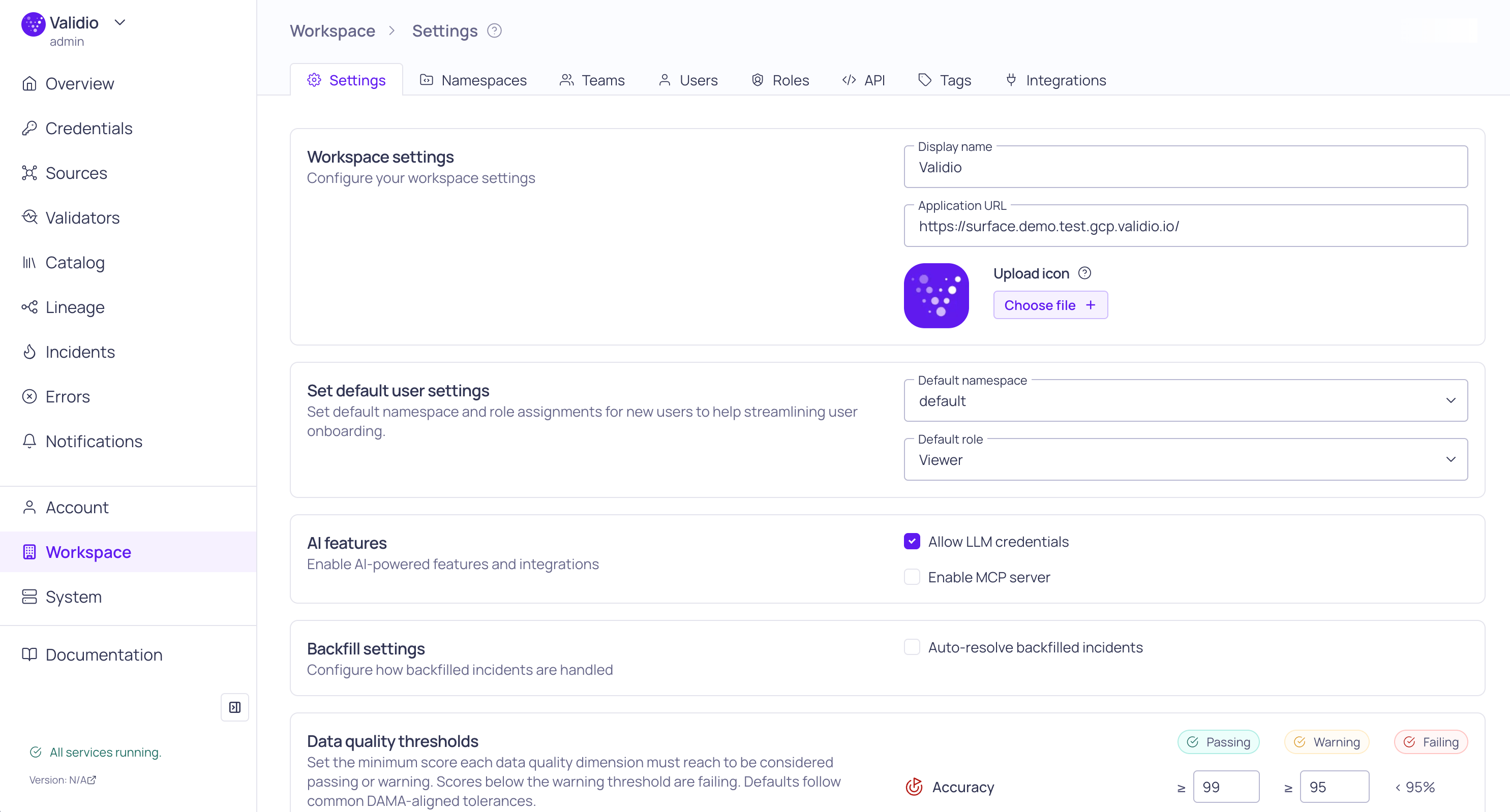
Workspace > Settings
Workspace settings
Customize the Workspace settings in your Validio environment.Default user settings
The default user settings allow you to streamline the initial setup process for users. You can set a default namespace and assign a default role, ensuring that newly created users have access to the correct workspace when they first log in.AI features
The AI Features setting lets you enable AI-powered features and integrations on your Validio installation.- Allow LLM Credentials - Configure credentials for external Large Language Model (LLM) providers to compose and correct custom SQL queries in validators and filters. See LLM Credentials.
- Enable MCP Server - Integrate with the Validio MCP server. You will not be able to enable the MCP server if you do not set an Application URL for your Validio installation. Connected AI assistants inherit the permissions of the connecting user, and destructive operations are always refused. See Validio MCP Server.
Backfill settings
Configure how backfilled incidents are handled in your Validio environment.- Auto-resolve backfilled incidents — When enabled, incidents generated during a backfill (such as a validator reset, rerun, or initial start with backfill) are automatically resolved. Since resolved incidents are excluded from the data quality score, this prevents historical reprocessing from negatively impacting your data quality metrics.
Data quality thresholds
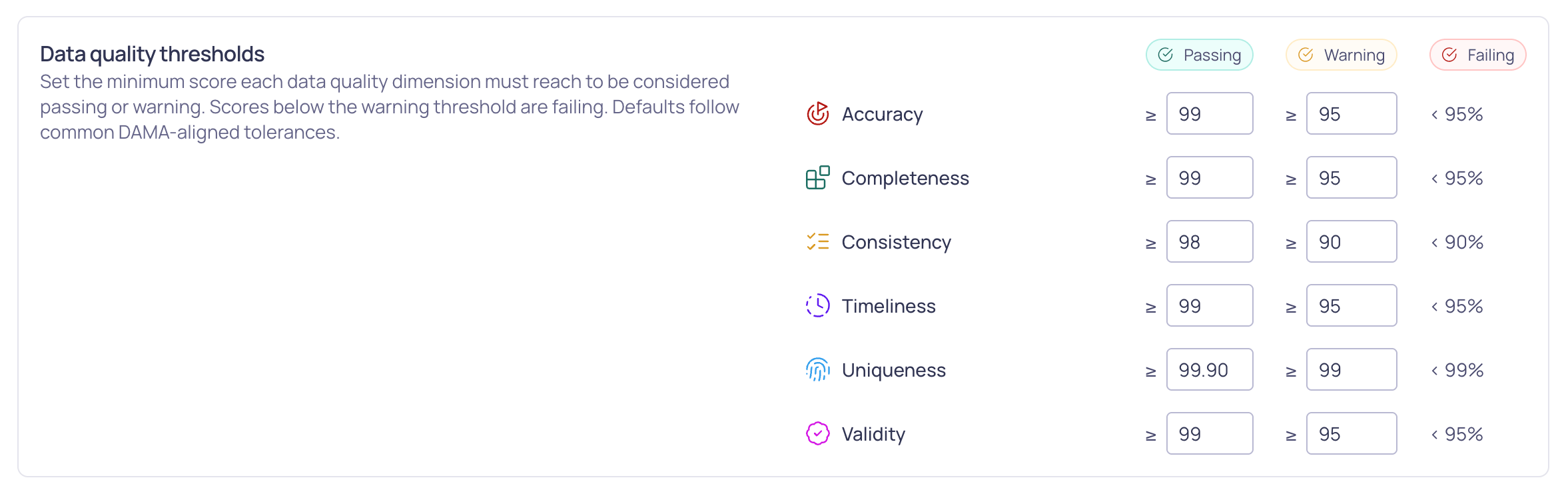
- Passing — The minimum score the dimension must reach to be considered passing. Scores at or above this value are reported as green.
- Warning — The minimum score the dimension must reach to be considered warning. Scores at or above this value but below the passing threshold are reported as yellow. Scores below the warning threshold are failing (red).
Diagnostic settings
Under the diagnostic settings, you can opt-out of tracking by third-party integrations.- Allow tracking of application usage - Application usage allows Validio to track information about how you use our product and where you may have issues.
- Allow collecting error logs - Error logs allow us to track when our product has issues in your environment.