

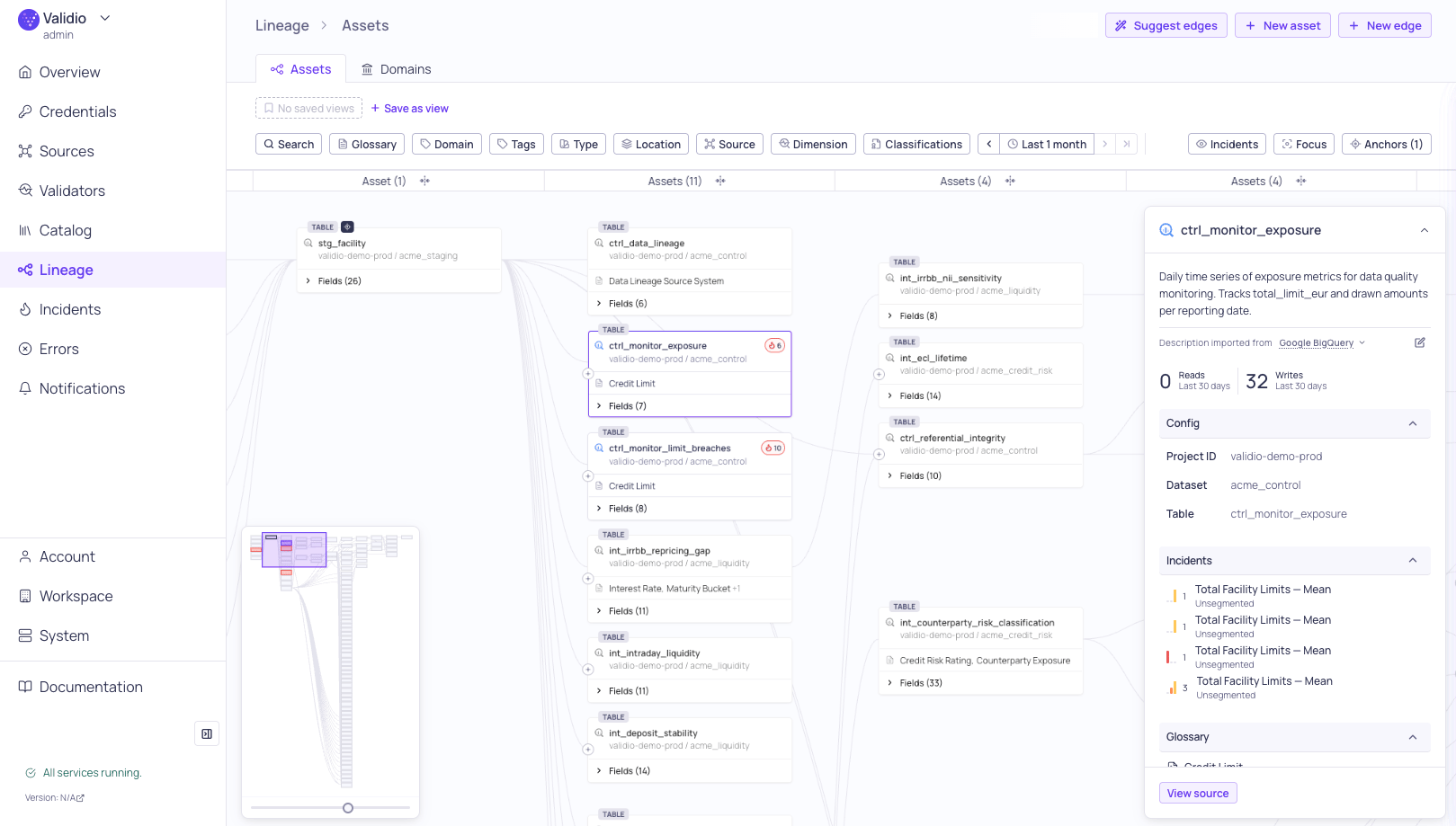
Lineage graph with Incidents overlay
Nodes
Each node in the lineage graph represents a catalog asset (dataset) such as a table, view, stream, or BI asset. Nodes display:- Header — The asset type (view, table, worksheet, and so on), asset name, source type icon, and field count. The node uses the asset’s own name — for a Custom SQL source, this is the source name you gave it, so each node is individually identifiable.
- Fields — Expand a node to see individual fields that have lineage relationships. Fields show their name and data type.
- Glossary terms — Assigned glossary terms appear below the header as term chips. When more than two terms are assigned, overflow is shown as “+N” with a tooltip listing all terms.
- Source indicator — Nodes that are configured as Validio monitored sources have a distinct border style.
Layers
The graph organizes nodes into layers based on their position in the data pipeline:- Layer headers — Each layer has a header at the top showing its position.
- Collapse and expand — Click a layer header to collapse it into a compact dot node, reducing visual clutter. Edges route through collapsed layers. Use “Collapse all layers” or “Expand all layers” for bulk operations.
Edges
Edges are the lines connecting nodes and fields. Validio supports both field-level and dataset-level lineage:
Edges can have descriptions that document the relationship between the connected assets. Click an edge to open the sidebar and view or edit its description. For more information, see Using Lineage.
Edge origin
Validio records how each edge was created. Select an edge to see its Origin in the sidebar:
Use the origin to verify your lineage, for example to tell an inferred edge from one someone added by hand. The sidebar leaves the origin out when Validio has none recorded for the edge.
Overlays
The lineage graph supports overlays that add contextual information to nodes:- Data quality overlay — Shows the data quality score on nodes, helping you quickly identify quality issues in your pipelines.
- Incidents overlay — Shows color-coded indicators on nodes based on incident severity (high, medium, low) with a count of the incidents.
Minimap
A minimap in the bottom-left corner provides a bird’s-eye view of the entire graph. The minimap includes:- An interactive viewport rectangle that you can drag to navigate.
- A zoom slider for adjusting the zoom level.