

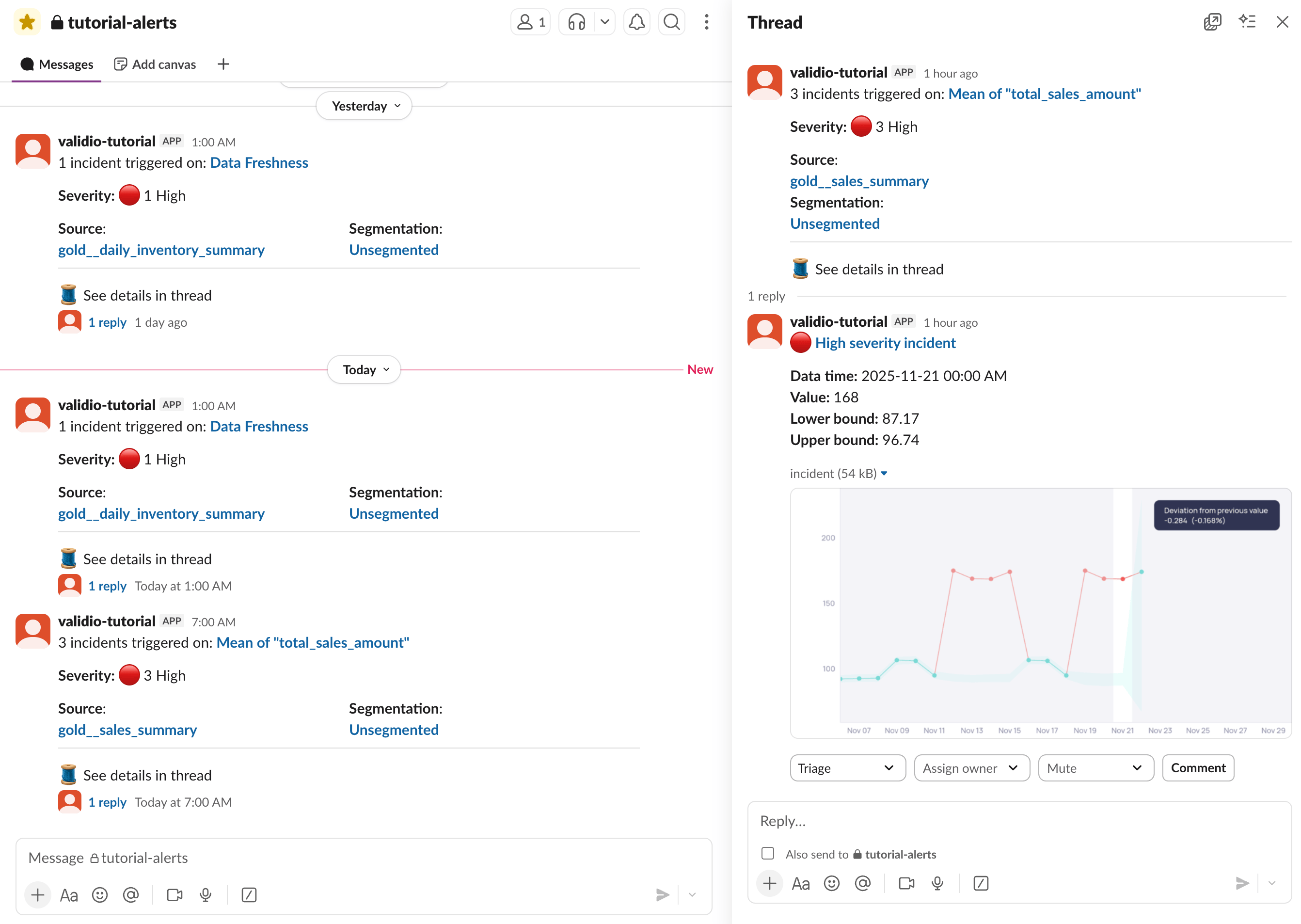
Slack notifications with metric graph and management options in threads
Prerequisites for adding a Slack integration
Before creating the Slack integration in Validio, you must create and configure an app in Slack with the necessary permission scopes to communicate with your Validio installation. Follow the step-by-step instructions in Setting up a Slack App for Validio. After completing the Slack app setup you should have:- A Bot User OAuth Token with the
xoxb-prefix. You can find and generate this token under Features > OAuth & Permissions > OAuth Tokens. (You will need to install the app to your workspace to generate the token.) Validio uses the bot token to authenticate your app for sending messages. - (Required only if you enable interactive messages.) An App-Level Token with the
xapp-prefix. You can find and generate this token under Settings > Basic Information > App-Level Token. Validio uses the app token to retrieve user events from Slack. - (Required only if you enable interactive messages.) Socket Mode enabled on the Slack app. Navigate to Settings > Socket Mode > Connect using Socket Mode to enable the feature.
- The Channel ID of each Slack channel you plan to notify. You can find the channel ID in the Slack channel’s details.
Network requirements
If your Validio installation runs behind a firewall or HTTP proxy, allowlist the Slack endpoints below so Validio can send notifications and, when enabled, power interactive messages. For HTTP proxy configuration, see VPC Communication. Validio communicates with Slack over the Slack Web API onslack.com (HTTPS). When interactive messages are enabled, Validio also opens a Socket Mode WebSocket connection.
Validio opens the WebSocket connection to a URL that Slack returns dynamically from
slack.com/api/apps.connections.open. In practice this resolves to one of the wss-*.slack.com hosts above, but Slack assigns it at connection time, so allowlist all three.
Path-based allowlisting
If your proxy or firewall filters by path rather than host, allowlist these Slack Web API paths onslack.com:
/api/apps.connections.open(interactive messages only)/api/auth.test/api/users.list/api/views.open/api/chat.postMessage/api/chat.update/api/files.getUploadURLExternal/api/files.completeUploadExternal
wss://wss-*.slack.com/link/…) and cannot be pinned to a fixed path.
Create a Slack integration
- In Validio, navigate to Workspace > Integrations and click + New integration.
- From the Integration type list, select Slack.
- Enter a Name for the integration, for example “Production Slack”.
- Enter the Bot token from your Slack app.
- (Optional) Enable Interactive messages so users can manage incidents directly from Slack. When this option is enabled, the App-level token field is required — enter the App-Level Token you generated for your Slack app.
- (Optional) Click Test integration to verify the connection.
- Click Create integration.
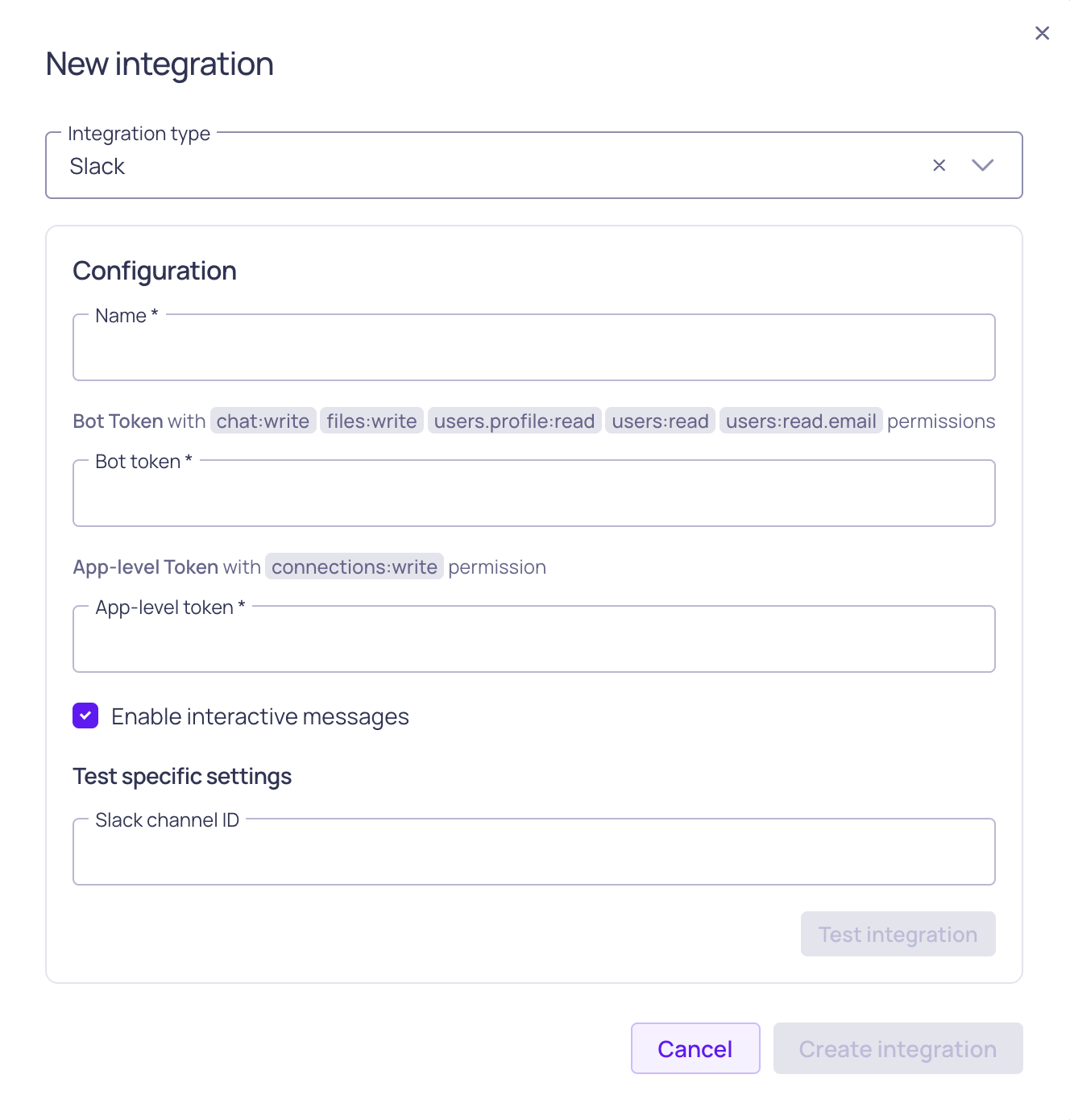
Slack integration configuration
Create a notification channel for Slack
After the integration is created, add a channel that points to a specific Slack channel.- In Validio, navigate to Notifications > Channels and click + New channel.
- Under Integration, select the Slack integration you created.
- Enter a Name for the channel. This name is used when you reference the channel from notification rules.
- Enter the Slack channel ID of the destination channel in your Slack workspace. You can find the channel ID in the Slack channel details.
- Select the Namespace where the channel will be created. Only users who are assigned to the same namespace will have access to this channel.
- Click Create.
Slack channel configuration parameters
Notifying multiple Slack channels with one integration
You can reuse a single Slack integration for many Slack channels. Create a new Validio channel for each Slack channel and select the same integration; only the Slack channel ID differs between them.Slack notification
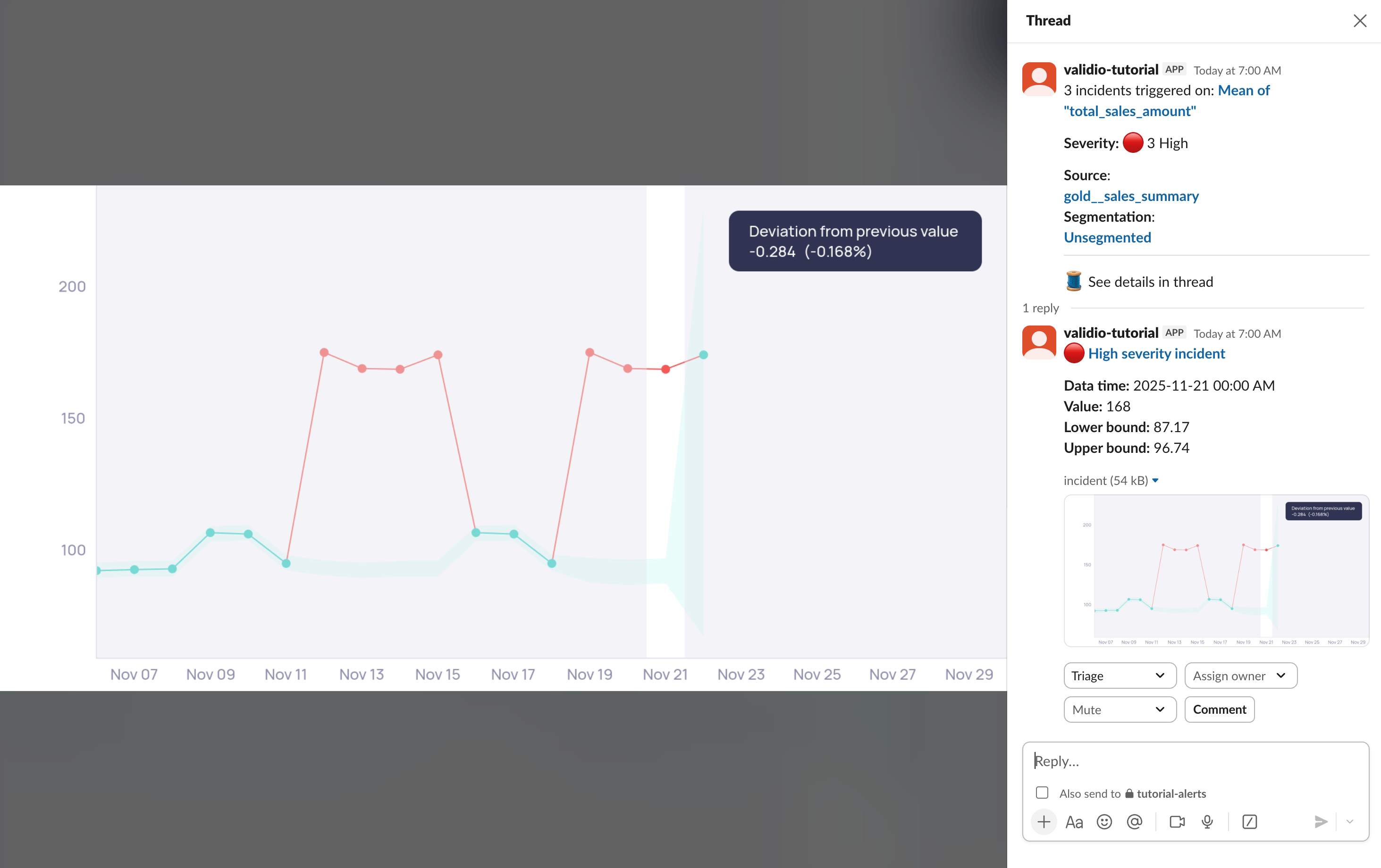
Example of a Slack notification, zoomed in on the metric graph and with management options in threads
Tagging owners in Slack messages
A notification rule on a Slack channel can @-mention the incident owner in the messages it sends, so the person responsible is pulled into the thread. Turn on Mention owners in notifications on the rule to enable it — the option is off by default, and you do not need Interactive messages to use it. When it is enabled, Validio adds an Owner field with the mention to the incident message. Validio matches the owner to a Slack user by email address, so the email on the Validio user account must match the one on their Slack account. If the source or validator has no owner, or the owner has no matching Slack user, the notification is still sent — it simply arrives without a mention. For more information, see Mention Owners in Notifications.Notifications on Backfilled ValidatorsValidio does not send notifications for incidents when backfilling validators.