

- Create a user in SAP IQ with the appropriate permissions for Validio. See Prerequisites.
- Create a Validio credential to connect to the SAP IQ account. See Add a SAP IQ Credential.
- Create a Validio source to monitor the tables in the SAP IQ database. See Add a SAP IQ Source.
Prerequisites
Create a user in SAP IQ with read-only access so that Validio can read and validate your data. For more information about credentials in Validio, see Credentials. The following SQL script provides steps for setting up a user with the necessary permissions for the source in Validio. Run it as a user with administrative privileges:SQL
Catalog grants and row filteringThe system catalog views (
SYS.*) are readable by PUBLIC by default in SAP IQ, so the catalog grants above may already be in effect — they are included to make the requirement explicit. The grants that always matter are CREATE USER and EXECUTE on dbo.sa_db_list.Catalog row filtering still applies: even with SELECT on the catalog views, the user only sees catalog rows for objects it has a privilege on. Grant SELECT on each table you want Validio to monitor so it can infer and validate their schemas.Lineage requirements
SAP IQ writes its query logs to local disk, not to object storage. To build lineage, Validio reads the query log files from an S3-compatible object store, so you need a process that copies the logs from the SAP IQ server to that store. Once the logs are there, enable Configure query log storage on the credential and fill in the Query Log Storage Parameters. Query log storage is optional. Without it, Validio still infers schemas and validates your data, but it does not build lineage.Add a SAP IQ credential
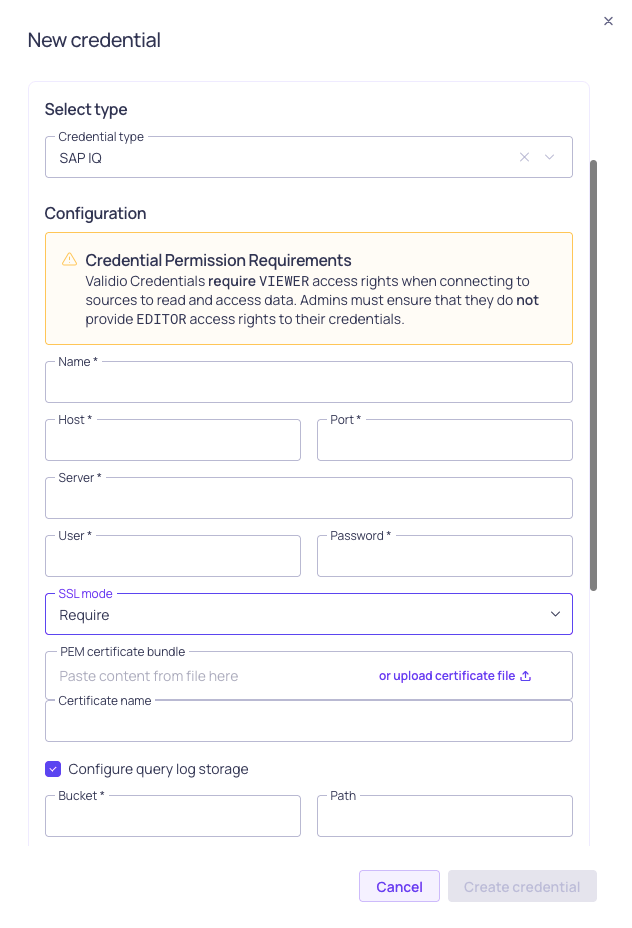
SAP IQ credential configuration
- Navigate to Credentials and click + New credential.
- Under Namespace, select a namespace where the resources will be created.
- For Credential Type, select SAP IQ.
- Fill in the credential parameter fields. Refer to the SAP IQ Credential Parameters table.
- (Optional) To enable lineage, toggle Configure query log storage and fill in the connection details for the object storage that holds your SAP IQ query log files. Refer to the Query Log Storage Parameters table.
- (Optional) Click Test credential to validate the connection to the SAP IQ account. If validation fails, check that you provided the correct parameter values and try again.
- (Optional) Check Use for catalog and schema checks to automatically discover assets and add them to the catalog page.
- Click Create.
SAP IQ credential parameters
Query log storage parameters
Add a SAP IQ source
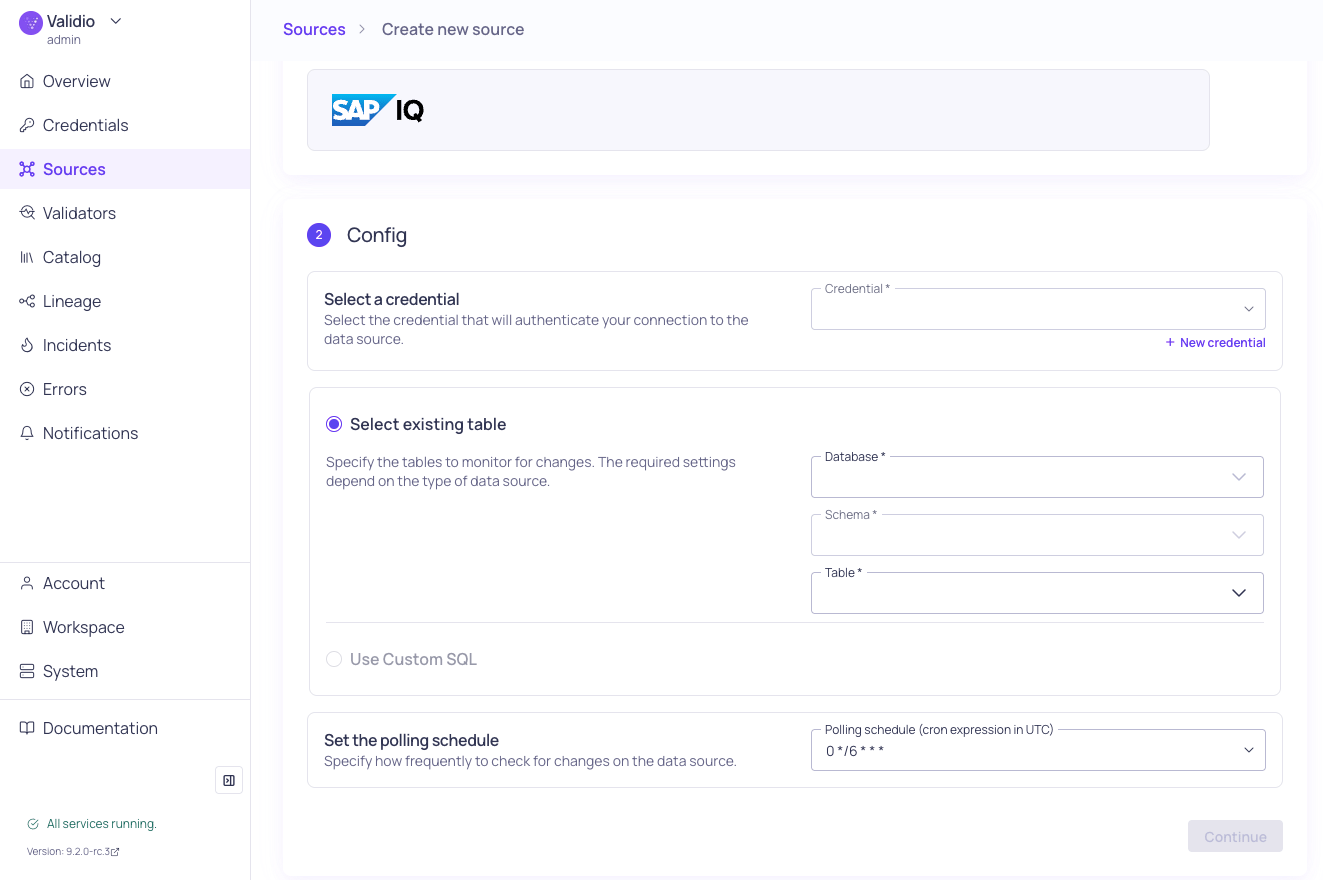
SAP IQ source configuration
- Navigate to Sources and click + New source.
- Under Source type, select SAP IQ.
- Under Config,
- Select the valid Credential or create a new credential to authenticate your connection to the database.
- You have two options for specifying the dataset and tables to monitor:
- Select an existing table — Enter the Database, Schema, and Table to specify where the data comes from. Selecting more than one table will create a new source for each table. Refer to the Source Configuration Parameters table.
- Use Custom SQL — Write a valid SQL query to specify the data to monitor. See Custom SQL Sources.
- Set the Polling schedule, which is how frequently the validators on the source will check for changes.
- Under Schema, click Continue to automatically infer the schema fields from the tables you selected. If you select many tables, this operation can take a few minutes to complete.
- Under Source details,
- Add Tags to help group related sources or to use for routing notifications.
- Add an Owner who will be the contact for incident notifications.
- Assign a Priority, which indicates the importance of incidents detected on this source.
- Click Continue to create the source. Source names are generated automatically and will be displayed when the source creation completes. If there are more than 5 sources, you will see the names for the first five and a count of the remaining sources.