

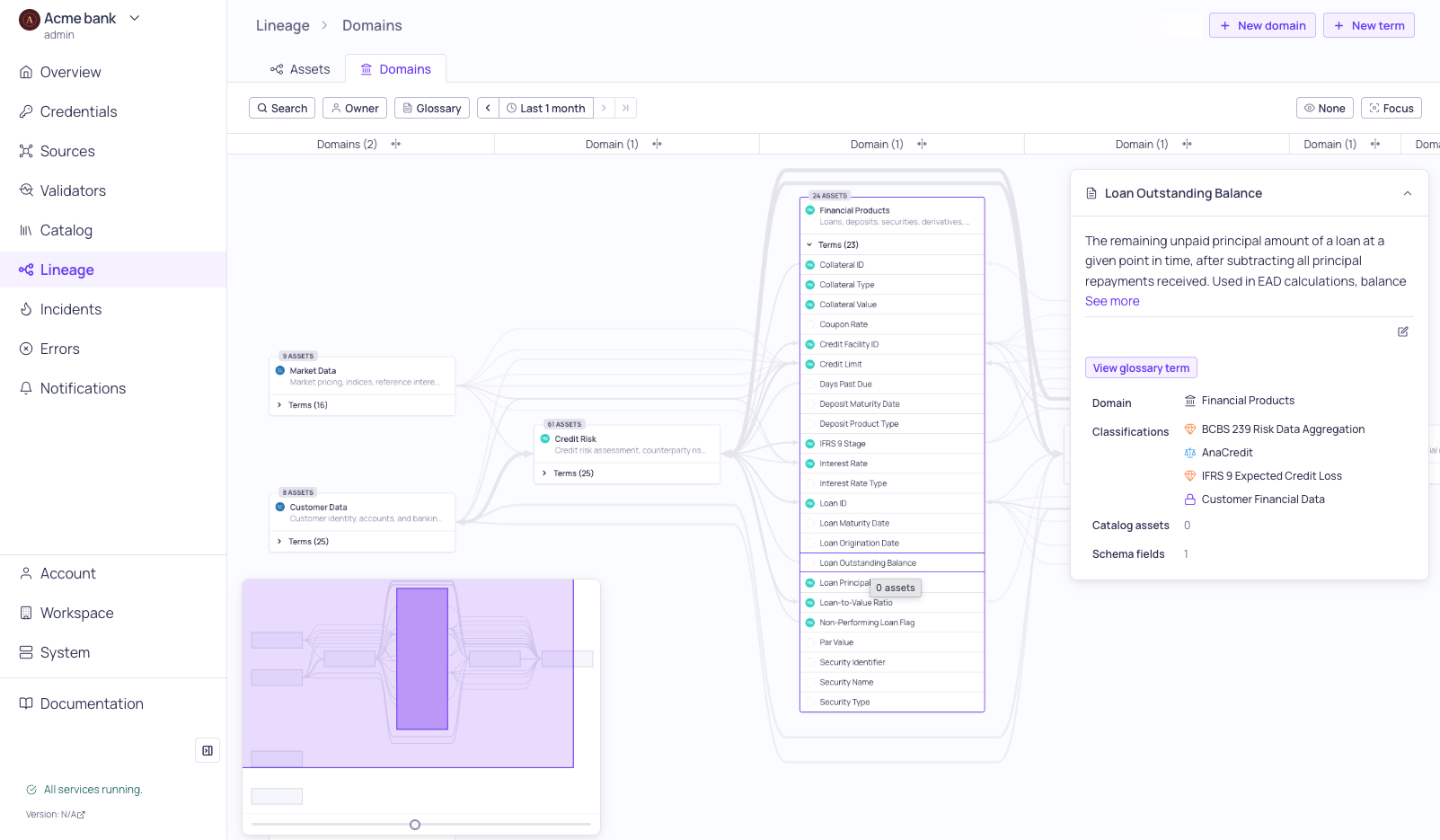
Domain lineage with glossary term sidebar
Open Domain Lineage
- Navigate to Lineage in the main navigation.
- Click the Domains tab above the toolbar. The Assets tab continues to host the existing Asset Lineage view.
- Glossary term details page — Click View domain lineage in the header to open the domain graph focused on that term. The viewport centers on the term within its domain.
- Glossary term sidebar (in Catalog or Lineage) — Click View domain lineage in the sidebar actions.
Navigate the graph
Layer headers in Domain Lineage are labeled Domain (instead of the Asset label used in the Asset Lineage tab).
Select and inspect
Click items in the graph to select and inspect them. The selection info panel on the right shows contextual details.- Domain nodes — Click a domain to see its name, description, owner, asset count, source count, and glossary term count. Open the domain sidebar for full details via the More info action.
- Glossary terms — Click a term row within a domain to see the term’s name, description, aliases, domain, and owner. Open the term sidebar for full details.
- Edges — Click a line between two domains to see the domain pair and the term-to-term links that make up the connection.
View assets behind a domain
From the selected domain’s panel you can navigate out to the rest of the platform:- View assets in catalog — Opens Catalog > Assets filtered by this domain.
- View in asset lineage — Opens the Asset Lineage tab to explore the technical lineage of assets in the domain.
Focus mode
Focus mode isolates the parts of the graph connected to a selected domain or term, dimming unrelated nodes and edges. It is the domain-level equivalent of field focus in Asset Lineage, but works differently: Asset Lineage focus mode traces the full transitive chain of upstream and downstream dependencies, whereas Domain Lineage focus mode is scoped to a single hop. Domain Lineage also has no per-node option to reveal unconnected terms. The single-hop scope is intentional — the domain graph is small and densely connected, so expanding transitively would typically select the whole graph. To activate focus mode:- Select a domain or a glossary term.
- Click Show connected only in the toolbar.
- The graph narrows to show only the direct neighbors of the selection:
- Domain focus — Shows the selected domain and the domains it is directly connected to in one hop.
- Term focus — Shows only the edges incident on the focused term. Domain-to-domain edges and domain-to-term edges that don’t involve the focused term are hidden.
- Click the button again or clear the selection to exit focus mode.
Search and filter
Use the filter toolbar above the graph to narrow the view. Non-matching nodes and edges are dimmed.
Click Clear in the toolbar to remove all filters.
Overlays
Overlays add contextual information to domain nodes based on the selected time range:- Data quality — Shows the aggregated data quality health of sources within each domain.
- Incidents — Shows the count and severity of incidents on sources within each domain.
Create new domains and terms
The Domain Lineage tab exposes shortcuts for expanding your glossary coverage without leaving the graph:- + New domain — Opens the new domain dialog. On save, the domain appears in the graph once it has terms with asset or field assignments.
- + New term — Opens the new glossary term dialog. Assign the term a domain and link it to assets or fields so it contributes to the domain graph.