

- Create a Slack app for Validio
- Generate tokens and scopes
- Invite the app to your channels
Create a Slack app for Validio
In your App Management dashboard,- Click Create New App and Create an app from scratch.
- Give your app a name and assign it to your Slack workspace.
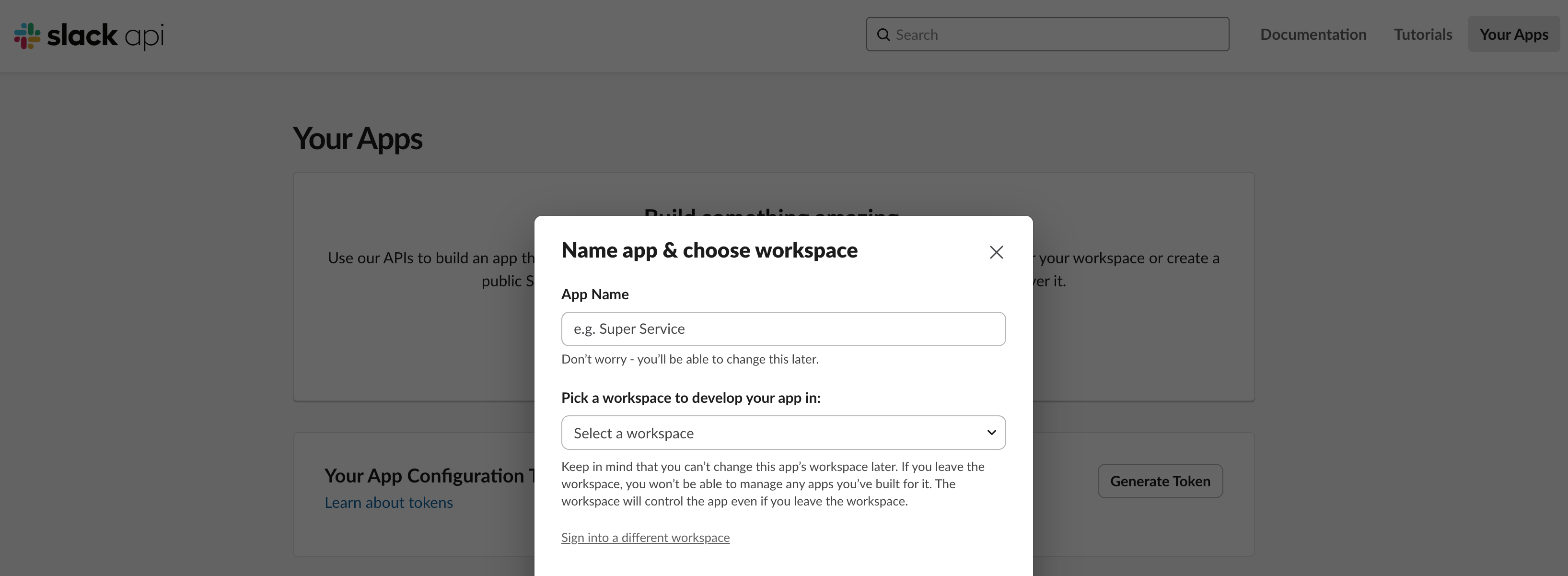
Create a new Slack app for your Validio notifications
Generate tokens and scopes
Slack uses scopes to give your app permissions to perform actions, such as posting messages to your workspace. When you create tokens, you need to make sure that tokens have the appropriate scopes assigned to them. You will need to create two tokes: an app-level token and a bot token.App-level token
App-level tokens require “Socket Mode” to be enabled for the app. For new Slack notification channels, use the following steps to create enable Socket Mode and create new app-level tokens. To migrate existing Slack notification channels to use Socket Mode, see Migrating Slack App to Socket Mode.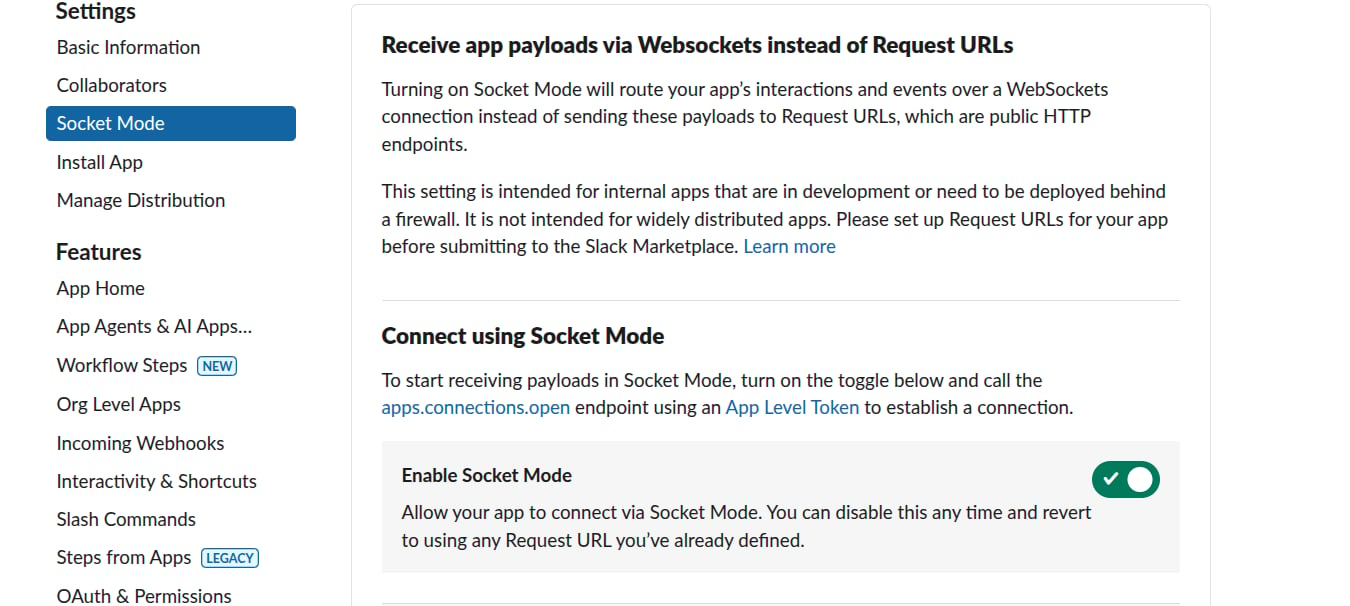
Enable "Socket Mode" in your Slack app.
- If socket mode is not enabled in your app, navigate to Settings > Socket Mode > Connect using Socket Mode to enable the feature. After you enable socket mode, Slack will prompt you to create a new app-level token. Continue to Step 3.
- If socket mode is already enabled, and you need to create a new app-level token, navigate to Settings > Basic Information > App-Level Tokens and click Generate Token and Scopes.
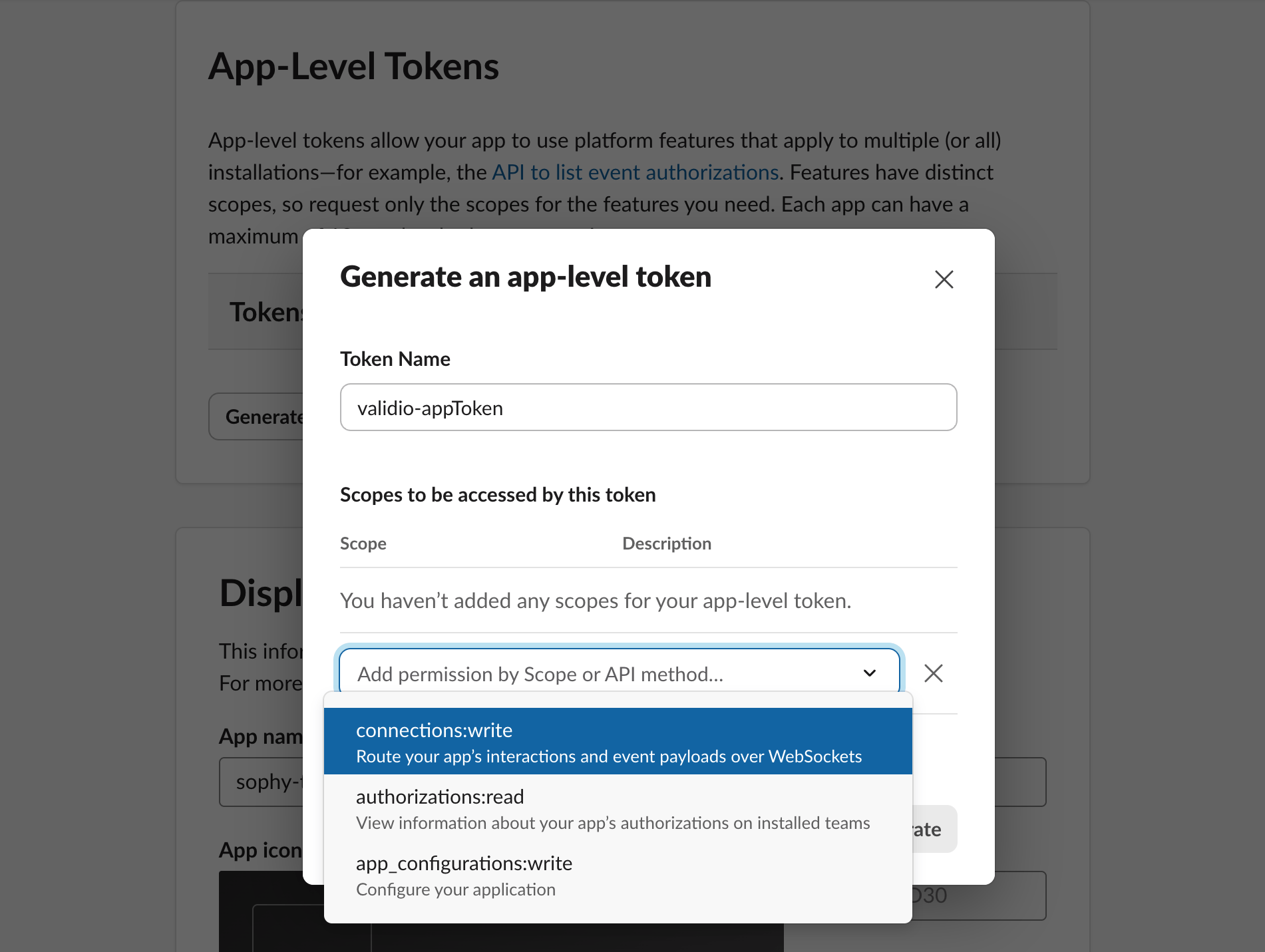
Generate an app-level token
- Enter a Token Name.
- If there are no scopes assigned to the token, click Add Scope and add
connections:write. - Click Generate. App-level tokens contain the following prefix in their string:
xapp- - Copy and save this token to configure the Slack notification channel in Validio.
Bot User OAuth token and scopes
The bot token is a user OAuth token that will be automatically generated when you install your app to your workspace. Before you create the bot token, you need to first assign it the appropriate scopes. For more information, see Slack documentation on assigning scopes to an app and installing an app to a workspace. You can find the bot token and scopes settings in your App Management dashboard under Features > OAuth & Permissions. To create a new bot token,- Under Scopes > Bot Token Scopes, add the following OAuth scopes for your bot token:
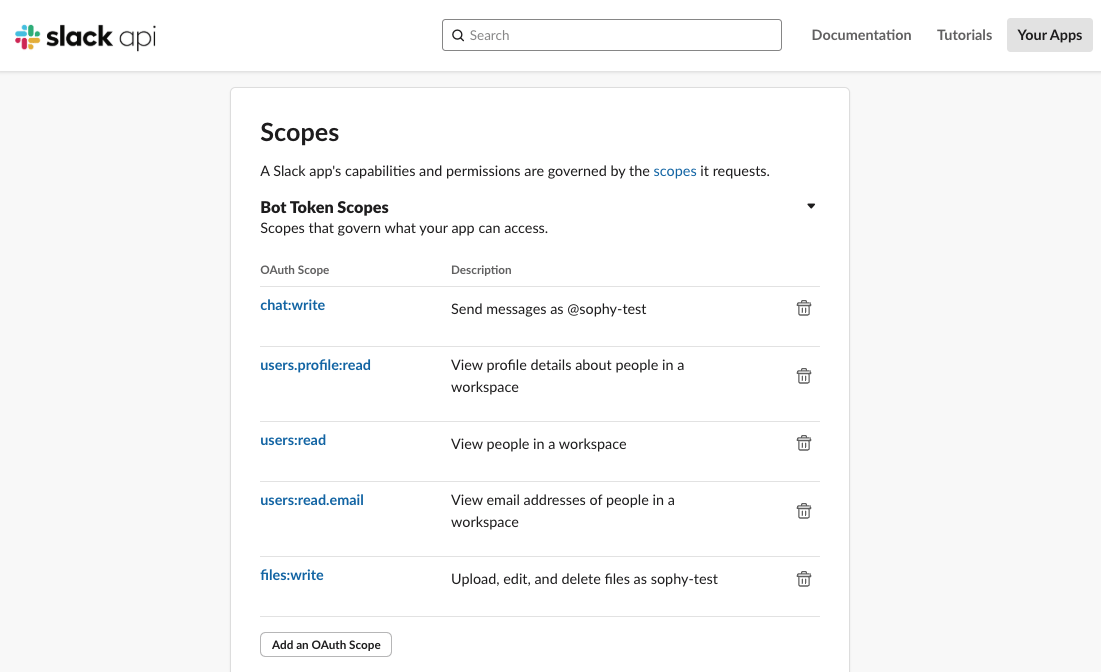
Add bot token scope to your app
- Under OAuth Tokens, click the button to install the app to your workspace and automatically generate the bot token.
-
Review the access request to your workspace and click Allow.
When the bot token is generated, you will see it under Bot User OAuth Token. Bot tokens contain the following prefix in their string:
xoxb- - Copy and save this token to configure the Slack notification channel in Validio.
Invite the app to channels
To allow the app to post messages, invite the installed app to any relevant Slack channels where you want to route incident notifications from Validio.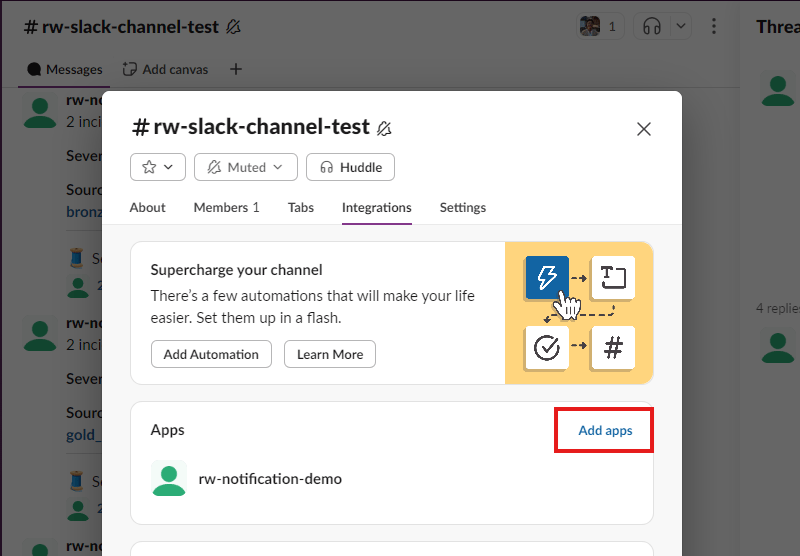
Add your app to the Slack channel