

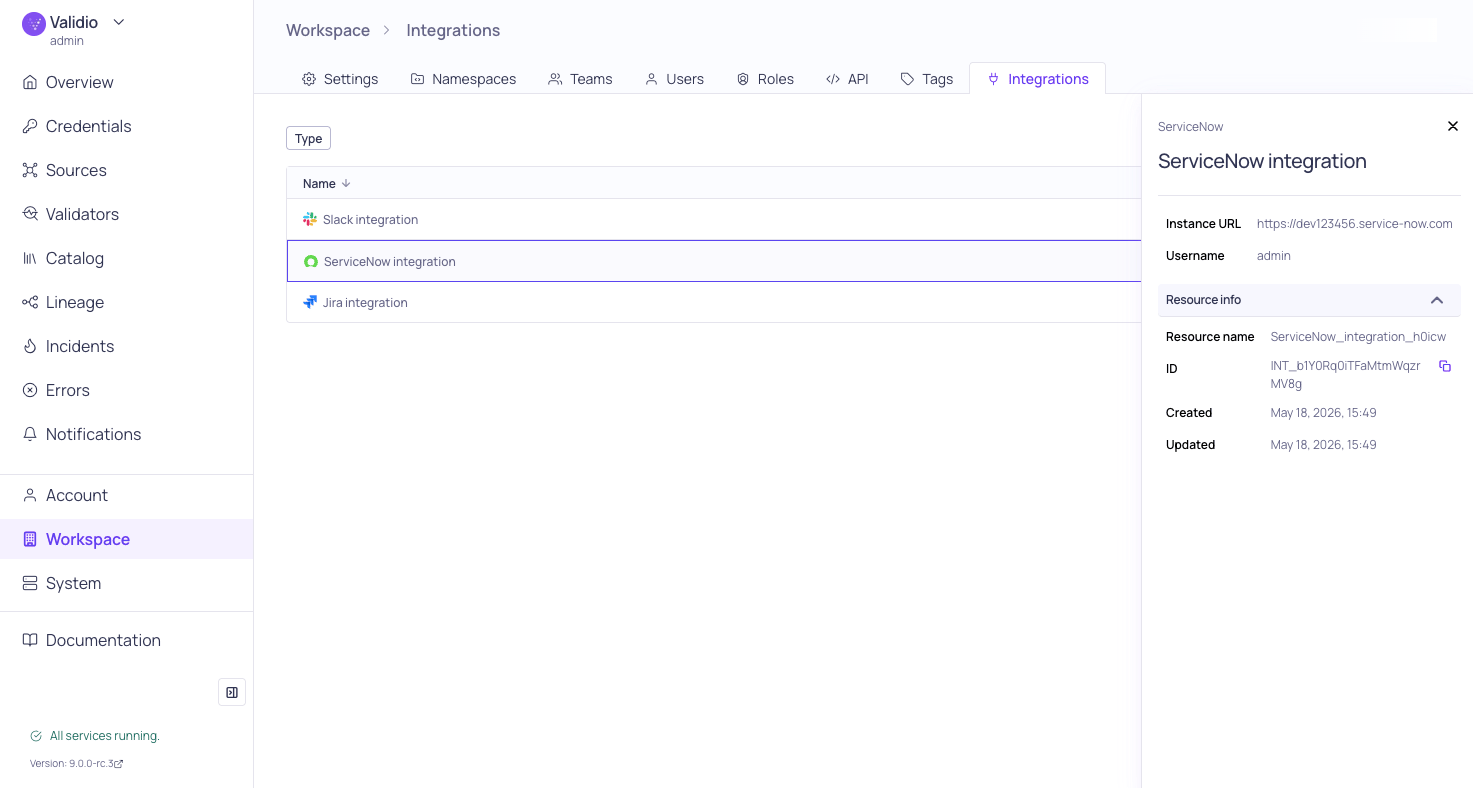
Integrations page with sidebar
Integrations and notification channels
An integration represents the connection to an external service account (for example, a Slack workspace, a Jira instance, or an SMTP server). A notification channel references an integration and adds the destination details for that service, such as a specific Slack channel ID, a Jira project key, or recipient email addresses. This separation lets you:- Manage credentials and authentication in one place per external service.
- Create many channels from a single integration, for example, routing different incident types to different Slack channels that all share one Slack app.
- Rotate a credential once and have every dependent channel continue to work.
Supported integration types
Create an integration
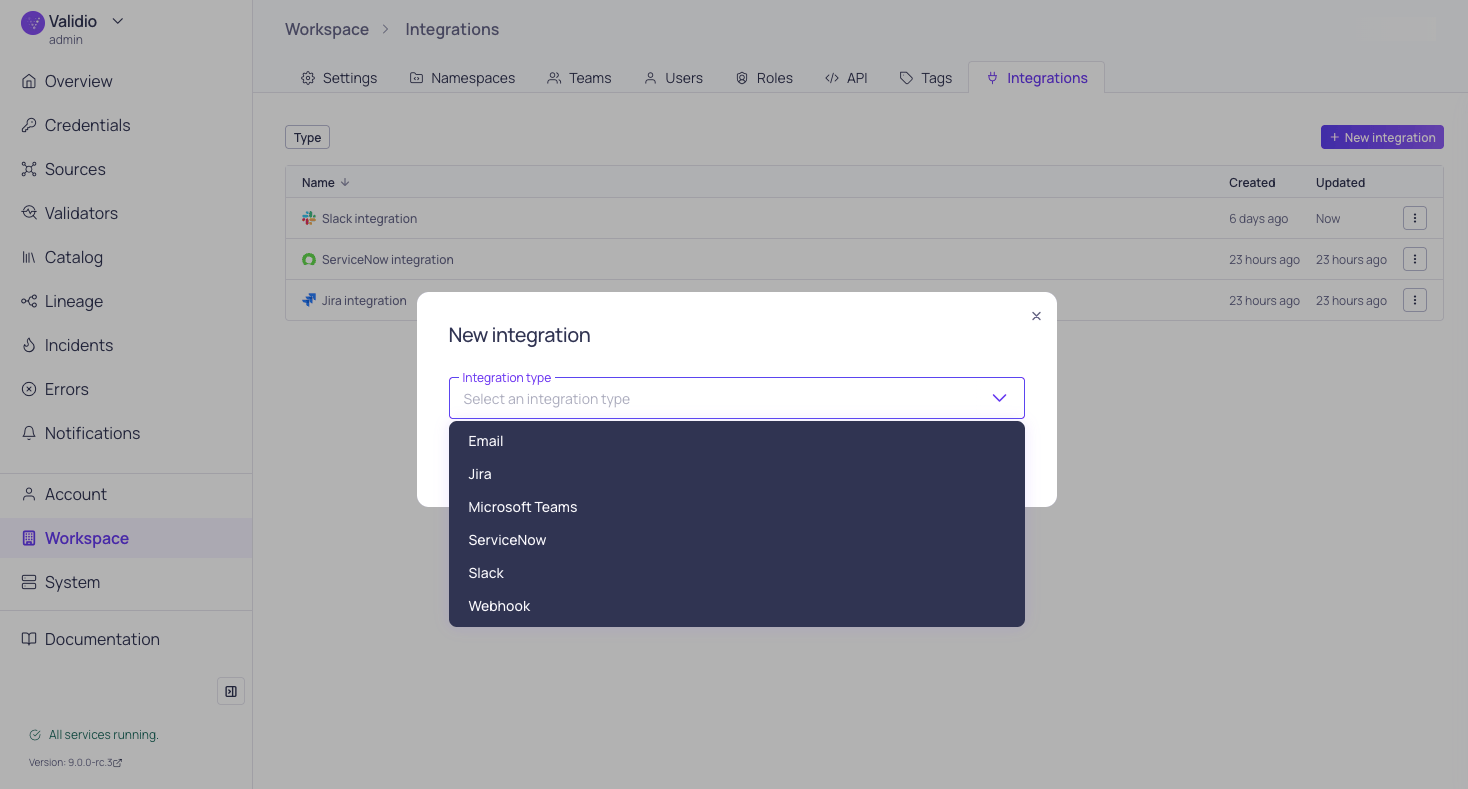
Integration type selection
- Navigate to Workspace > Integrations and click + New integration.
- From the Integration type list, select the external service you want to connect (for example, Slack).
- Enter a Name that describes the integration. You will see this name when creating channels, so choose something recognizable (for example, “Production Slack” or “Security Jira”).
- Complete the type-specific configuration fields. Refer to the individual integration page for field descriptions and prerequisites.
- (Optional) Click Test integration to verify the connection. Validio uses the integration’s credentials to attempt a round trip to the external service.
- Click Create integration.
Most integration types require prior setup in the external service, such as creating an app in Slack or Microsoft Teams, or provisioning a service account in Jira or ServiceNow. Each channel page lists the prerequisites for its integration type.
Update an integration
To change an integration’s configuration or rotate credentials:- Navigate to Workspace > Integrations.
- Click the ⋮ menu for the relevant integration and select Edit, or open the integration’s sidebar and click Edit.
- Update the fields you want to change. You can retype a secret value to rotate it, or leave secret fields unchanged to keep the current value.
- (Optional) Click Test integration to verify the updated configuration.
- Click Update integration.
Delete an integration
Deleting an integration removes it from the workspace and the channels that depend on it stop delivering notifications until they are reassigned to another integration. To delete an integration:- Navigate to Workspace > Integrations.
- Click the ⋮ menu for the relevant integration and select Delete.
- In the confirmation dialog, review any channels that reference this integration, then click Confirm.