

Prerequisites for adding a Jira integration
Before creating the integration in Validio, you will need the following in Jira:- A Jira account with permission to create issues in the target project and to browse projects and issue types (the channel form discovers available projects and issue types from your Jira instance).
- The Base URL of your Jira instance, for example
https://your-account.atlassian.netfor Jira Cloud. - Authentication credentials. The supported types depend on your platform. Generate the credential for the authentication type you plan to use:
- Jira Cloud – Basic Auth: the account’s email address and an API token created from your Atlassian account settings.
- Jira Cloud – Service Account: a scoped API token generated for a service account in the Atlassian admin console.
- Jira Data Center – Personal Access Token: a PAT created from your Jira profile.
- Jira Data Center – OAuth 2.0: a client ID and client secret from an OAuth 2.0 incoming link configured in Jira.
- A Webhook secret — a strong secret value that you choose. You use the same value in two places: on the Validio integration and on a webhook in Jira, so Jira can send issue updates back to Validio. See Configure Jira to Send Updates to Validio.
- A Project key and Issue type (for example,
DATAandBug) for each channel you plan to create.
Create a Jira integration
To add a new Jira integration in Validio:- Navigate to Workspace > Integrations and click + New integration.
- From the Integration type list, select Jira.
- Enter a Name that describes the integration, for example “Atlassian Cloud”.
- Under Configuration, enter the Base URL and select the Platform (Cloud or Data Center).
- Enter a Webhook secret. Choose any strong secret value — you set this same value on a webhook in Jira so that Jira can authenticate the issue updates it sends back to Validio. See Configure Jira to Send Updates to Validio.
- (Optional) If your Jira instance presents a certificate that is not signed by a public certificate authority, provide the CA certificate under TLS CA certificate. Paste it into the field, or click or upload certificate file.
- Under Authentication, select the Authentication type and complete the matching fields. The dropdown only shows the auth types valid for the selected platform: Basic Auth and Service Account for Cloud, Personal Access Token and OAuth 2.0 for Data Center. Switching the Platform after selecting an auth type resets the auth type to a valid option for the new platform. Refer to Jira Configuration Parameters.
- (Optional) Click Test integration to verify the connection to Jira.
- Click Create integration.
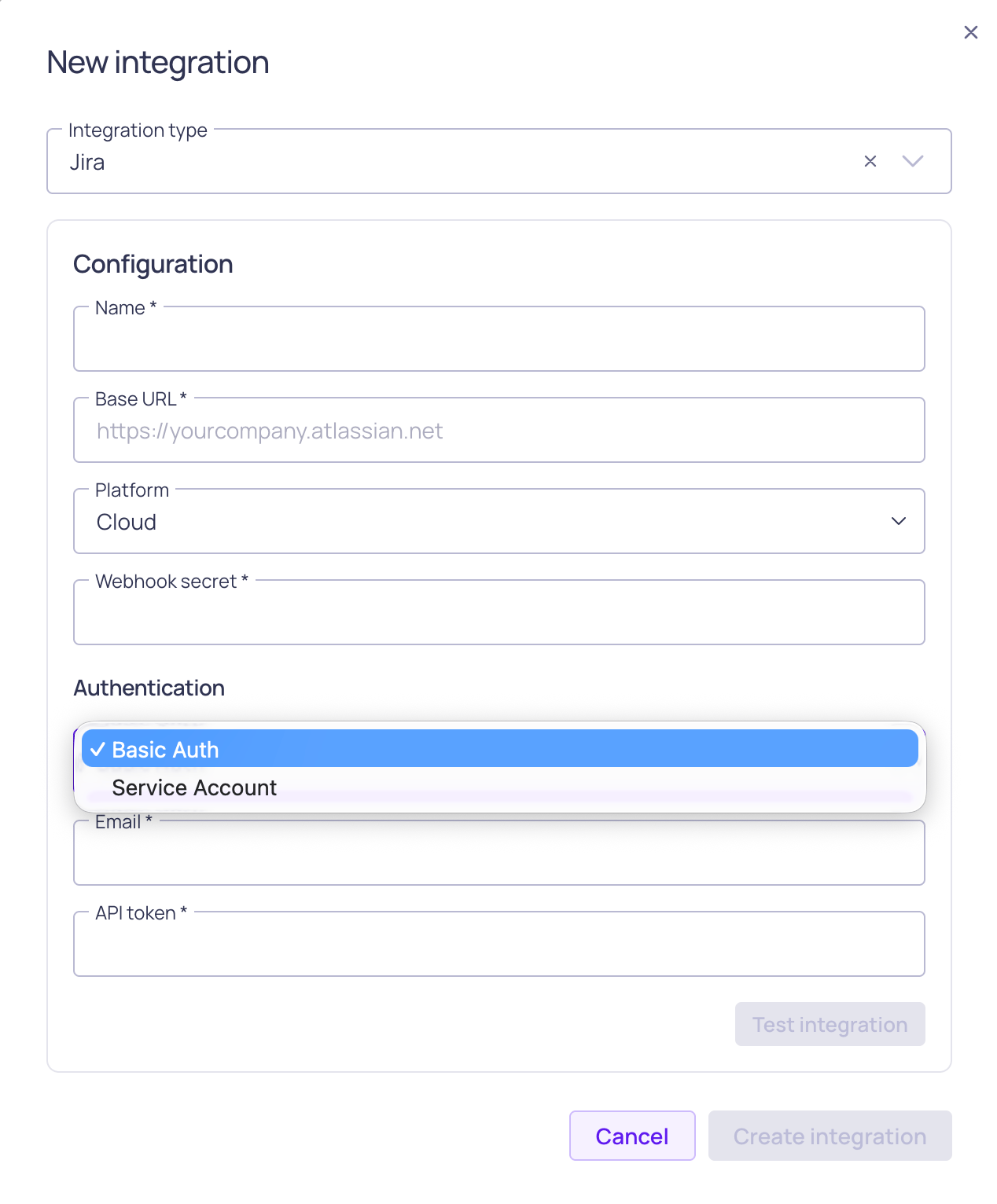
Jira integration configuration with authentication options
Jira configuration parameters
Create a Validio channel for Jira
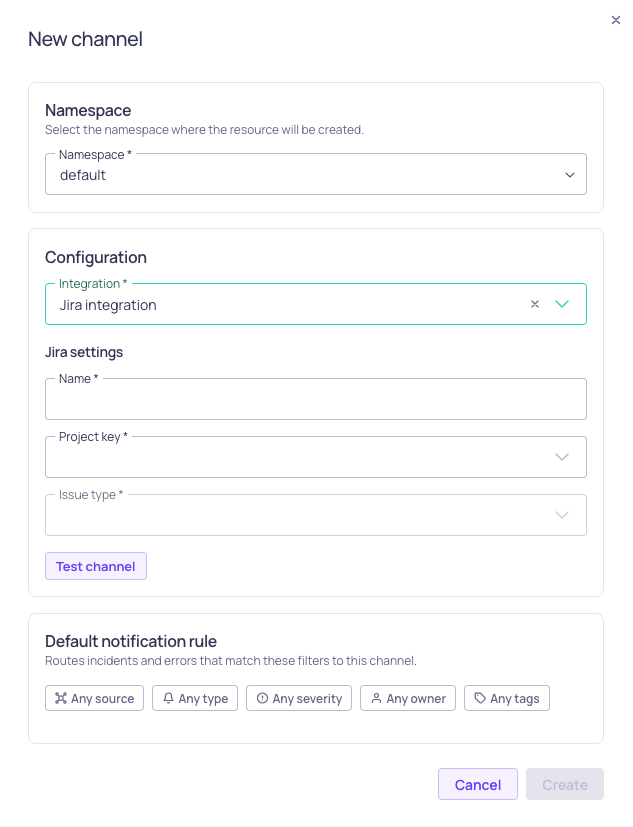
Jira channel and default rule configuration
- In Validio, navigate to Notifications > Channels and click + New channel.
- Select the Namespace where the channel will live. Only users with access to this namespace can see or use the channel.
- Under Integration, select the Jira integration you just created.
- Enter a Name for the channel that describes its purpose, for example “Data Quality Bugs”.
- Under the Jira-specific settings, choose the Project and Issue type. Both fields are dropdowns that load options directly from your Jira instance. If discovery fails (for example, due to invalid integration credentials), the form shows a banner explaining the failure and falls back to plain text inputs so you can still enter the values manually, for example
DATAandBug. If you see the failure banner, verify the integration’s credentials on Workspace > Integrations and reopen the channel dialog. - (Optional) Add a Default notification rule. You can add more rules and conditions later.
- Click Create.
Configure Jira to send updates to Validio
Validio syncs changes bidirectionally: after you configure a webhook in Jira, updates to a Jira issue flow back to the matching Validio incident. Validio updates the incident when the issue’s status changes, reassigns the incident owner when the issue’s assignee changes, and adds the issue’s comments to the incident. This works the same way for Jira Cloud and Jira Data Center, using Jira’s built-in webhooks.- In Jira, go to Settings (⚙) > System and, under Advanced, select WebHooks.
- Click Create a WebHook and enter a Name, for example “Validio incident sync”.
- In URL, enter your Validio application URL with
/jira-webhookappended, for examplehttps://your-validio-instance/jira-webhook. Use the same host you sign in to Validio with. - In Secret, paste the same Webhook secret you entered on the Validio integration. Jira uses this secret to sign each request, and Validio verifies the signature before accepting the update.
- Under Events, select Issue: updated and Comment: created.
- (Optional) Add a JQL filter to limit the webhook to specific projects or issues.
- Click Create.
The Secret on the Jira webhook must exactly match the Webhook secret on the Validio integration. If the secret is missing or does not match, Validio rejects the updates and issue changes will not sync to incidents.
Jira issue content
When a notification rule on the Jira channel triggers, Validio creates a Jira issue in the channel’s project and issue type. Validio creates one issue per incident group for validator incidents. For source-level notifications (source errors, schema changes, and segment limits), it creates one issue per source and notification type. While that issue is open, Validio keeps it up to date instead of creating duplicates. See Updates to Existing Issues.Issue details
Each issue’s summary names the affected resources, and its description gives the details of the notification with links back to Validio, where you can see the full context:- Validator incidents: The incident group’s priority, a link to the incident group, and details of its most recent incidents. Validio also attaches an image of the incident graph.
- Source errors: The error messages.
- Schema changes: The fields that changed and a link to the source’s schema.
- Segment limits: The segmentations that exceeded their segment limit.
validio, plus one label for each tag on the source and, for validator incidents, the validator. Validio doesn’t set the Jira Priority field, so Jira applies the project’s default priority. The Reporter is the Jira account that the integration authenticates as.
Assignee
Validio sets the Jira Assignee on validator incident issues to the incident owner. When an incident group is created, it inherits the owner of the validator that detected it. Validio does not use the source owner. For more information, see Validator Ownership and Update the Incident Owner. Validio matches the owner to a Jira user by email address. The owner’s Validio email must therefore match the email on their Jira account, and that email must be visible to the account the integration authenticates as. If the incident has no owner, or no matching Jira user is found, Validio still creates the issue without an assignee. Jira then applies the project’s default assignee, if one is configured. Issues for source errors, schema changes, and segment limits are not assigned.Updates to existing issues
Validio creates one issue per incident group or source notification and updates it while the issue is open:
If the existing issue is in a Done status category, Validio creates a new issue instead of reopening it.
Changes you make to an incident group in Validio are also synced to its Jira issue:
- Status: Validio moves the issue to a status in the matching Jira status category. Triage maps to To Do, Investigating to In Progress, and Resolved and False positive to Done. If the issue’s workflow has no transition to that category, the issue keeps its current status.
- Owner: Validio reassigns the issue to the new owner, or unassigns it if the new owner has no matching Jira user.
- Comments: Validio adds comments made in Validio to the issue and attributes them to the user who wrote them.
- Muting: Validio adds a comment when the incident group is muted or unmuted.
Next steps
- Add notification rules on the channel’s details page to filter which incidents create Jira issues. See Adding Notification Rules.
- Review existing integrations and channels under Workspace > Integrations and Notifications > Channels.
- If you use Jira Data Center with an on-premises deployment, you can add multiple Jira integrations to route to separate instances.