

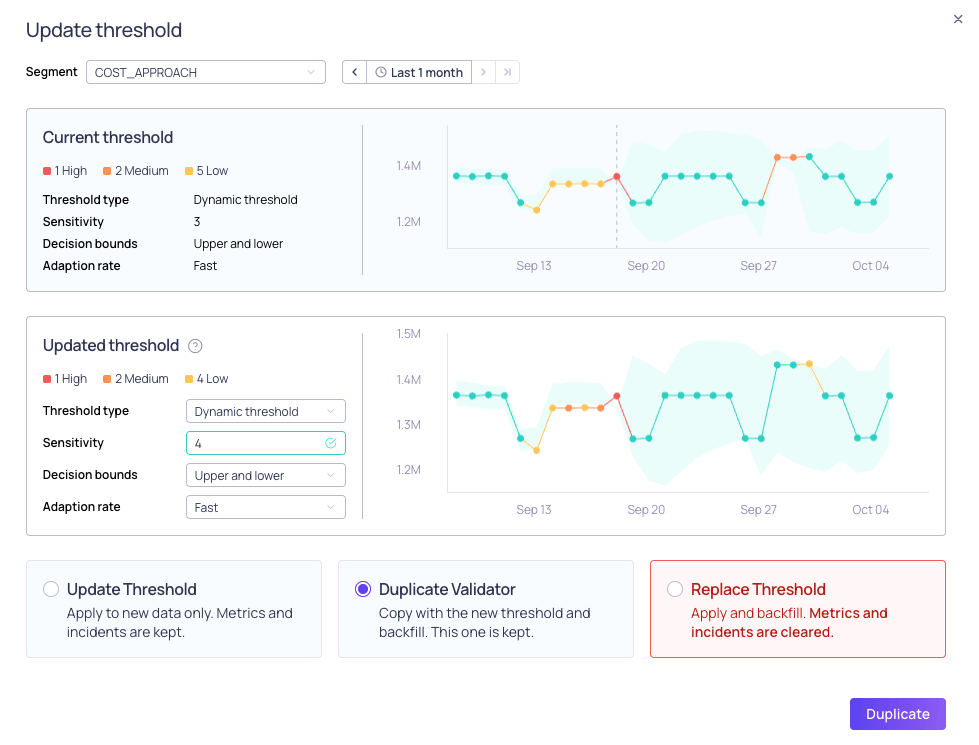
Update threshold dialog comparing the current threshold and the updated threshold
- Choose the threshold type and adjust its settings. For what each setting does, see Configuring Dynamic Thresholds, Configuring Fixed Thresholds, and Configuring Difference Thresholds. To decide which type fits your metric, see About Thresholds.
- Change the time range and segment shown in the preview. Threshold updates apply to all segments.
- Compare the Current threshold and Updated threshold graphs side by side. For example, this makes it easier to compare two different sensitivity values for dynamic thresholds.
- Review a summary of the incidents generated over time, to help you understand how often you would be alerted with the updated threshold.
Update threshold options
The options available when you apply your changes depend on whether you keep the same threshold type.Keeping the same threshold type
- Update Threshold: Applies the new settings to new data only. Existing metrics and incidents are kept.
- Duplicate Validator: Creates a copy of the validator with the new settings and backfills it, so that the new threshold is applied to historical data. The original validator remains unchanged.
- Replace Threshold: Applies the new settings to the validator and backfills it. All existing metrics and incidents are cleared. For more information, see Resetting a Validator.
Changing the threshold type
A different threshold type needs a new validator, so Update Threshold is not offered.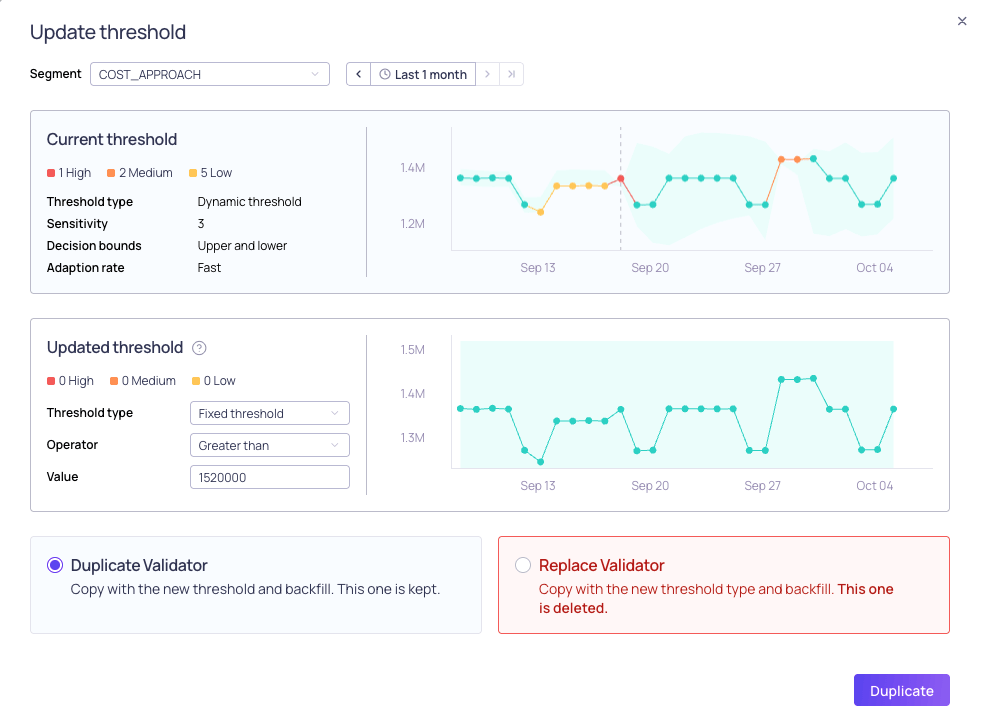
Changing the threshold type
- Duplicate Validator: Creates a copy of the validator with the new threshold type and backfills it. The original validator remains unchanged.
- Replace Validator: Creates a backfilled copy of the validator with the new threshold type and the same name, and then deletes the original validator.
Limitations
- In a namespace with approval workflows enabled, Replace Threshold and Replace Validator are not offered.
- Replace Validator is not offered when a reconciliation validator references the validator.