

Validator overview
Freshness validators evaluate the time elapsed since the data was last updated on the source. You can backfill data and use segmentation on Freshness validators. For an overview of all validator types, see Validator Types.Recommended setup for monitoring Freshness
The following setup applies to the majority of use cases for monitoring Freshness:- Set a daily tumbling window with “Disable Window timeout” checked.
- Set the polling schedule to daily, 1-2 hours after the expected pipeline job completion.
- (Optional) Configure a segmentation field.
Metric configuration parameters
Choosing the window type
You can only configure Freshness validators to use tumbling or global windows. In general, tumbling windows are recommended whenever possible to enable instant dynamic threshold training and backfill of historic data. Global windows can be used when you:- Want to set up freshness validation on a large number of tables and don’t need backfill or segmentation on these tables.
- Prefer having the X-axis display the difference for polling time instead of data-time (window end time).
Polling and windows
There is a slight nuance to how window end times and polling (how often Validio queries for data) relate to each other, depending on whether you use a tumbling or global window.- Tumbling window—The window size is set separately from the polling schedule and can be different from each other. The polling schedule can be more frequent, for example every six hours while the window size is daily.
- Global window—The window end time will follow the polling time. For example, if you set the polling schedule to poll every six hours, the window size (x-axis) and window closing time will also be six hours.
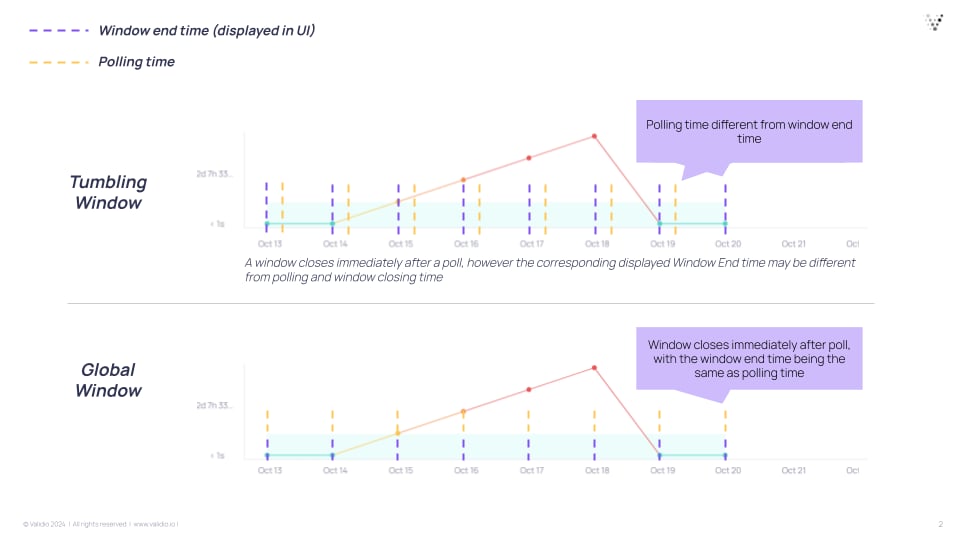
How the displayed window end time relates to polling time for tumbling and global windows
Setting window timeout
For Tumbling windows, you have a “Disable window timeout” option: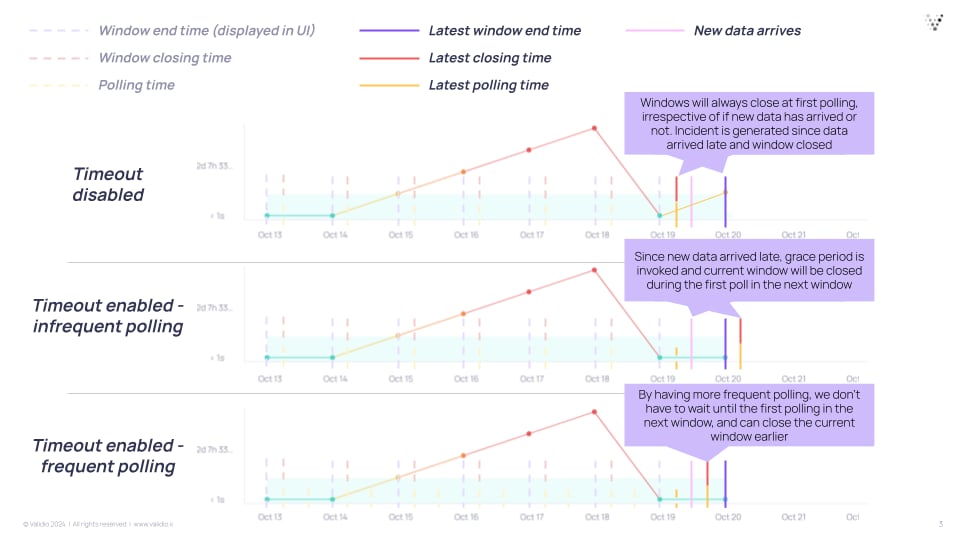
Window closing behavior with window timeout disabled, enabled with infrequent polling, and enabled with frequent polling
Dynamic threshold for Freshness
Dynamic Threshold uses a dedicated model for freshness validators. The model monitors how long it takes for new data to arrive based on historical arrival patterns and the polling schedule. Each time data is polled, the model observes the window time and creates an expectation of when to expect data next. If the freshness value exceeds the threshold, it is flagged as an incident. Like other dynamic thresholds, the freshness model starts with a burn-in period during which no incidents are created. The length of the burn-in period can vary depending on the validator type and configuration. For more information, see Configuring Dynamic Thresholds. For general information about dynamic thresholds, see Configuring Dynamic Thresholds.How the Freshness model constructs bounds
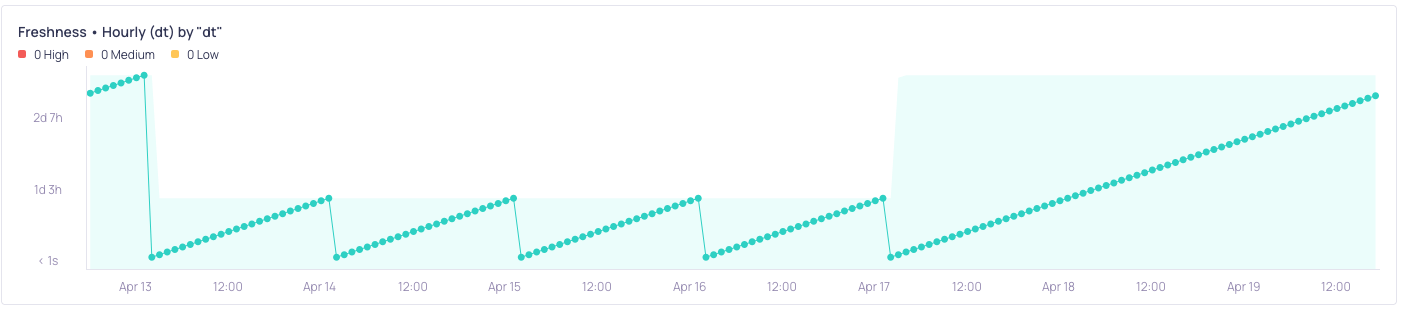
Day-of-week seasonality on an hourly window
Seasonality detection for Freshness
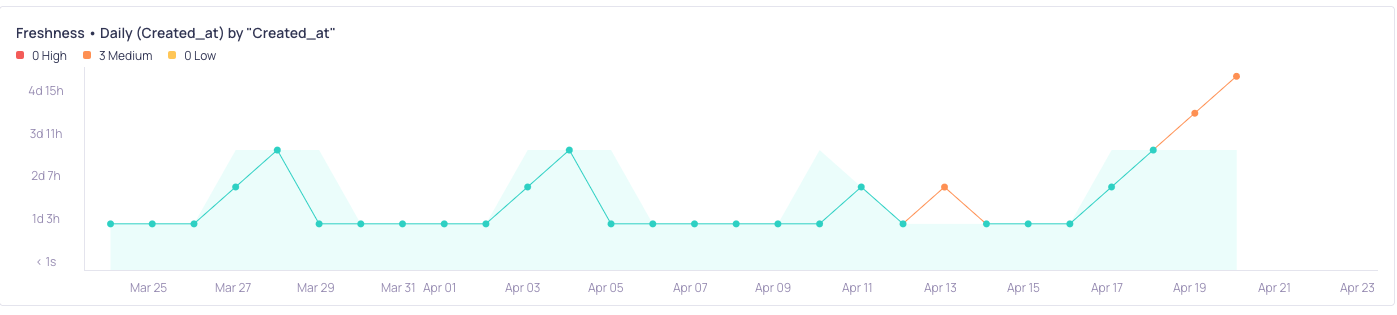
Day-of-week seasonality with an additional fresh datapoint on a Saturday
Early arrivals

Inserts happen at 00:00, 12:00, and 15:00. On the April 20th, an early arrival at 18:00 breaks the cycle. As a result, the model calculates the time left onto the previous stale period.
Decision bounds for Freshness
Freshness validators default to Upper decision bounds, meaning the model only alerts when data is later than expected. Using Upper bounds also enables the early arrival adaptation functionality described in Seasonality Detection for Freshness. For general information about decision bounds, see Decision Bounds.Sensitivity for Freshness
Sensitivity for freshness validators controls how quickly the model alerts when data is late. The freshness model interprets sensitivity presets differently from other validator types:Model feedback for Freshness
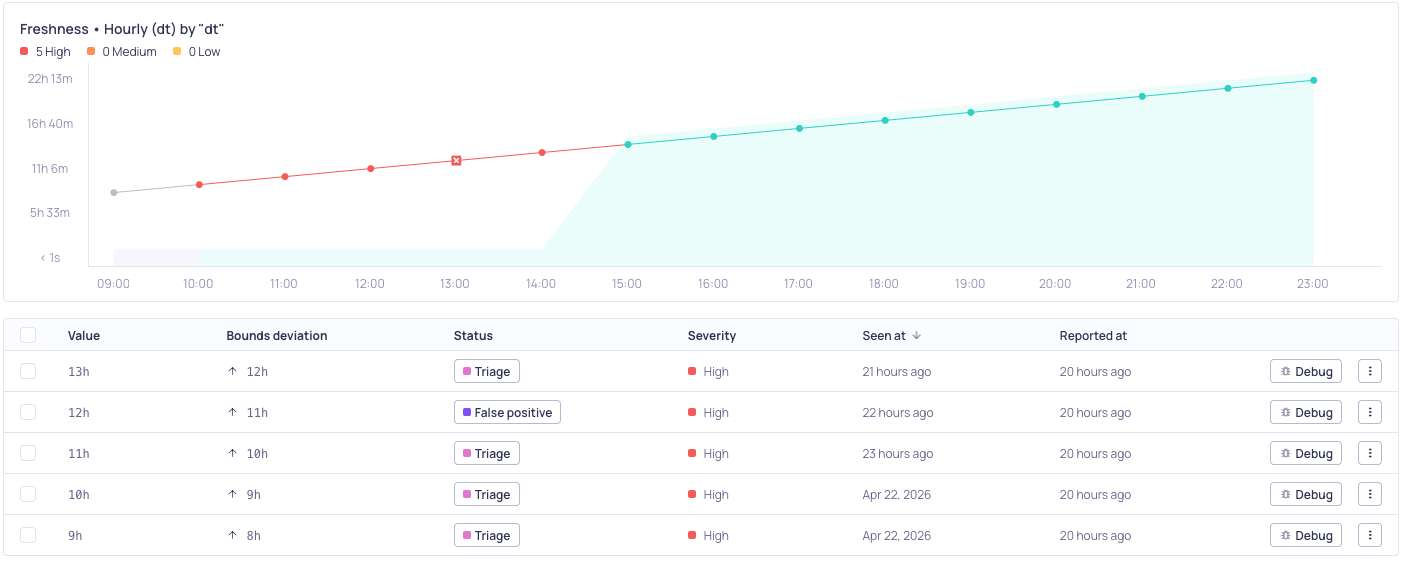
False positive feedback was given at 14:00. The model adapts accordingly and suppresses future alerts for this streak. Once a fresh datapoint arrives, it returns to ordinary operations.
- The current stale data point is immediately accepted. If your data continues to be delayed, the model will stop alerting on this particular delay until fresh data arrives again.
- Future predictions are adjusted. The model remembers that this level of delay is normal for that specific time.
Interpreting the Freshness graph
The time represented in the Freshness graph depends on the window type: data-time for a Tumbling window, and polling time for a Global window.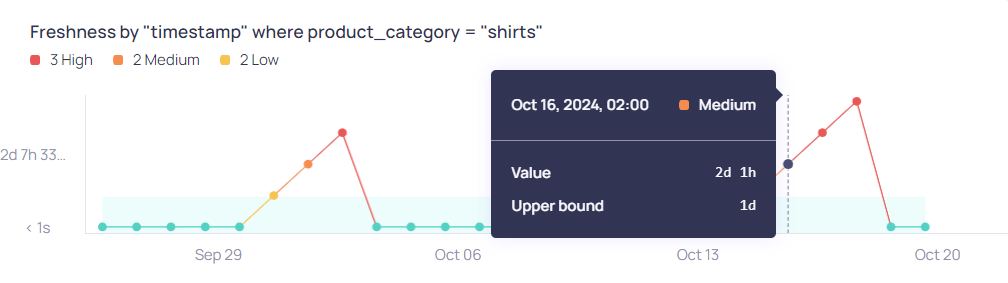
Freshness metric graph with a datapoint tooltip showing the measured value against its upper bound
Freshness with a tumbling window
Tumbling windows are configured with a date-time field to represent the data time.- X-axis—The timestamps on the X-axis represent the end time for each window, using the date-time field. The window end time is based on UTC, but the graph displays the local system time. For example, daily window end times are always 00:00 UTC to 00:00 UTC, and hourly window end times are 01:00 UTC, 02:00 UTC, 03:00 UTC. The window end time is converted to the local system time before it is displayed on the graph.
- Y-axis—The Y-axis displays the difference between window end time and the latest timestamp within the window. Any data containing dates later than the window end time, such as timestamps in the future, will be used in the freshness calculation for the next window.
- The window closed on Oct 16th 00:00 UTC. The X-axis shows Oct 16th 02:00 because the local system time was UTC+2 on the machine where the graph was captured.
- For the window that closed on Oct 16th 02:00 UTC+2, the Y-axis value is 2 days 1 hour. The latest timestamp in the data when the window closed was Oct 14th 01:00 UTC+2 (Oct 13th 23:00 UTC).
Freshness with a global window
Global windows are configured based on the polling time, when the validator checks for new data.- X-axis—The timestamps on the X-axis represent the local clock-time corresponding to when source polls occur.
- Y-axis—The Y-axis displays the difference between polling time and the latest timestamp in the chosen datetime field.